Automate Expense Tracking with n8n & Gemini
Tracking receipts and invoices by hand is slow, repetitive work, and it often leads to mistakes. In this tutorial-style guide, you will learn how to use an n8n workflow template to automate expense tracking from end to end.
The workflow uses:
- n8n for orchestration and automation
- Google Drive to store uploaded receipts and invoices
- Google’s Generative Language API (Gemini) to extract structured data from files
- Google Sheets to log expenses as rows
- Slack for status notifications and error alerts
What you will learn
By the end of this guide you will be able to:
- Explain why automating expense tracking with n8n and Gemini is useful
- Understand the key nodes and services used in the “Expenses Tracker” n8n template
- Configure each step: from file upload, to AI analysis, to Google Sheets logging
- Implement routing rules, error handling, and Slack notifications
- Apply best practices for data quality, security, and compliance
Why automate expense tracking with n8n?
Manual expense tracking usually involves collecting receipts, typing data into a spreadsheet, and trying to keep everything consistent. This is time consuming and error prone.
With n8n and cloud tools you can:
- Reduce manual data entry by letting an AI model read receipts and invoices
- Speed up bookkeeping because files are processed as they arrive
- Improve accuracy through structured extraction and validation rules
- Centralize documents in Google Drive with direct links stored in Google Sheets
- Keep costs low using widely available services and n8n’s flexible automation
The workflow uses Gemini to extract key information such as vendor, date, amount, account number, property address, and description. n8n then routes each expense to the correct sheet tab and notifies your team in Slack.
How the n8n expense tracking workflow works
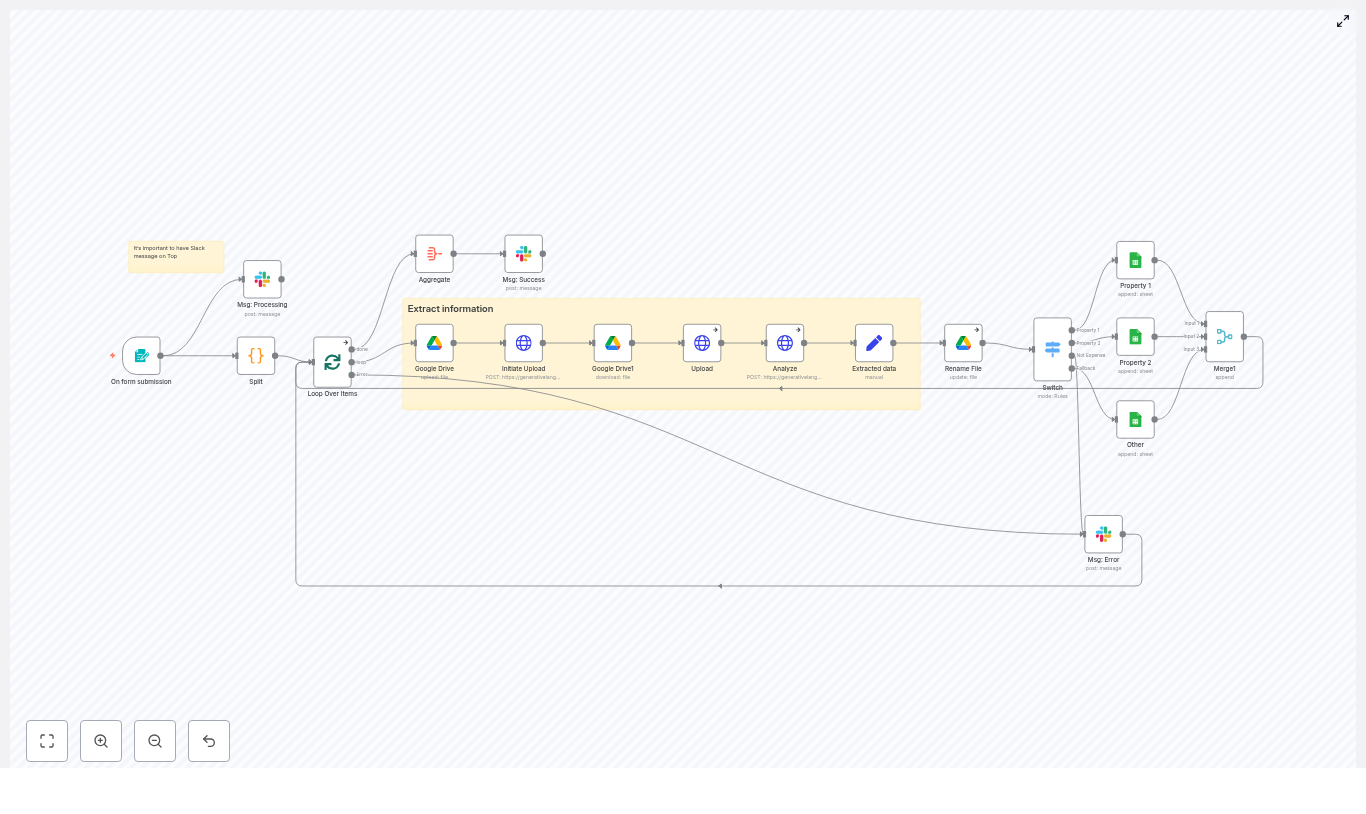
The “Expenses Tracker” template follows a clear sequence from file upload to final logging.
High-level process
- Users upload receipts or invoices through a Google Form or another file upload trigger.
- n8n splits multi-file submissions so each file is processed individually.
- Each file is stored in a Google Drive folder for safekeeping.
- The file is uploaded to Gemini using the Generative Language files endpoint.
- n8n calls Gemini’s
generateContentendpoint with a strict response schema to get structured JSON. - The JSON is parsed into workflow fields like
vendor,issuedDate,amount,accountNumber, andpropertyAddress. - A Switch node routes the expense to the right Google Sheets tab based on address or other rules.
- The file is renamed in Drive (for example
vendor-date) and the expense is appended as a new row in Sheets. - Slack messages keep the team informed about processing status and any errors.
Next, we will walk through each part of the template so you can understand and configure it step by step.
Step-by-step: Building the expense workflow in n8n
Step 1: Capture files with a form or webhook trigger
Goal: Start the workflow whenever someone uploads a receipt or invoice.
In the template, this is handled by a trigger node such as:
- Form Trigger in n8n
- Or a Webhook that receives uploads from a Google Form
The Google Form collects receipts or invoices as file attachments. When the form is submitted, the trigger node in n8n receives items that may include binary file data. Each item can contain one or multiple files.
Step 2: Split submissions so each file is processed separately
Goal: Turn one submission with multiple files into one item per file.
The template uses either:
- a Split In Batches node, or
- a Code node
to extract each binary attachment into its own workflow item.
This has two main benefits:
- Independent processing: Each file is handled on its own, so one bad file does not block the rest.
- Simpler retries and error handling: Failed items can be retried or flagged individually.
Step 3: Store the original file in Google Drive
Goal: Keep a permanent copy of every document in a central folder.
Next, a Google Drive node uploads each file to a chosen folder, for example an Expenses folder. This ensures you always have the original document available for review or auditing.
Typical actions in this step:
- Upload the binary file from the trigger into the
Expensesfolder - Optionally download it again or prepare its contents for the Gemini upload flow
The stored file will later be renamed with a meaningful pattern such as vendor-date, and a link to this file will be written into Google Sheets.
Step 4: Upload the file to Gemini and request analysis
Goal: Send the document to Gemini and ask for structured expense data.
This part of the workflow uses the Generative Language API in two stages:
- Create a resumable upload to the files endpoint and upload the file.
- Call the
generateContentendpoint using the uploaded file reference.
The request to generateContent includes:
- fileData that points to the uploaded file (with its
mimeTypeandfileUri) - text instructions telling Gemini what to extract, for example:
- Is this a bill or receipt?
- What is the vendor?
- What is the date?
- What is the amount?
- What is the address or account?
- Provide a short summary.
- A generationConfig with a
responseMimeTypeofapplication/json - A strict responseSchema that defines the JSON structure you expect
Example JSON body used in the Analyze node:
{  "contents": [{  "role": "user",  "parts": [  {  "fileData": {  "mimeType": "...",  "fileUri": "..."  }  },  {  "text": "Extract: bill/receipt? vendor? date? amount? address/account? summary"  }  ]  }],  "generationConfig": {  "responseMimeType": "application/json",  "responseSchema": {  ...  }  }
}
The responseSchema tells Gemini to return fields like:
vendorissuedDateamountaccountNumberpropertyAddressdescription
Step 5: Parse Gemini’s JSON result into workflow fields
Goal: Convert the model output into clean variables that other nodes can use.
The response from Gemini is nested inside:
candidates[].content.parts[].text
A Set node (or a small Code node) parses this JSON text and maps each field to a workflow variable. For example:
amountissuedDatevendoraccountNumberpropertyAddressdescription
Once these values are stored in the item data, they can be used for routing, renaming the file, and appending to Google Sheets.
Step 6: Route expenses to the correct Google Sheets tab
Goal: Decide where each expense should be logged.
A Switch node is used to implement your routing logic. Common patterns include:
- Route by propertyAddress, for example each property gets its own sheet tab.
- Route by business rules, such as a specific vendor or account number.
- Send unmatched or ambiguous items to a generic
Othersheet.
If the address does not match any known property, or if the document is not clearly an expense, the item can be flagged for manual review instead of being mixed into normal expense data.
Step 7: Append a row in Google Sheets
Goal: Log the extracted data as a structured row.
Once the item is routed, a Google Sheets node appends a new row to the chosen sheet or tab. Typical columns include:
- Date (normalized date format)
- Company / Vendor
- Amount
- Comments / Description
- Link (direct link to the file in Google Drive)
At this point, the expense is fully recorded: the original document is stored in Drive, and the key data is available in Sheets for reporting or export to accounting software.
Step 8: Send Slack notifications for status and errors
Goal: Keep your team informed in real time.
A Slack node sends messages during different stages of the workflow, for example:
Processing...when a batch of expenses startsN expense(s) processed successfullywhen everything completes- Detailed error messages if a file cannot be uploaded, parsed, or appended
These notifications make it easy to monitor the automation and quickly react to problems such as API limits or malformed documents.
Configuration tips and best practices
Use a strict response schema with Gemini
A well designed responseSchema is critical for reliable automation. It should:
- Define all expected fields and their types
- Mark key fields like
amountandvendoras required - Make it possible to detect when a file is Not an expense or missing key data
By forcing Gemini to return predictable JSON, you reduce parsing errors and make it easier to validate results before writing to Sheets.
Store credentials securely in n8n
Never hard-code API keys or OAuth credentials inside workflow JSON. Instead:
- Use n8n’s credential vaults for Google Drive, Google Sheets, Slack, and Gemini
- Leverage environment variables or a cloud Key Management Service when possible
- Limit service account scopes so they only access necessary Drive folders and Sheets
Normalize dates and currency formats
Model outputs can vary. You might see dates like DD/MM/YY, MM/DD/YYYY, or YYYY-MM-DD. Amounts might include currency symbols and thousands separators.
To keep your data consistent:
- Use a Function, Set, or Code node to convert dates into a single standard format before appending to Sheets.
- Strip currency symbols and separators from
amountand store a clean numeric value. - Optionally keep the original string in a separate column for auditing.
Design fallbacks and manual review paths
Even with a strict schema, some documents will be unclear or incomplete. For those cases:
- Allow the model to indicate Not an expense in the output.
- Route such records to a dedicated sheet for manual review instead of mixing them with confirmed expenses.
- Use Slack alerts to notify someone when manual review is required.
Implement retry and error handling
Network issues, API timeouts, or quota problems can cause transient errors. To make your workflow robust:
- Use onError branches in n8n to catch failures and send Slack alerts.
- For temporary issues, implement an exponential backoff retry pattern.
- Consider re-queuing failed items into a dedicated processing queue for later attempts.
Security and compliance considerations
Expense documents often contain sensitive information such as account numbers and addresses. When you automate processing, keep these points in mind:
- Restrict access to the Google Drive folder so only the right people can view receipts.
- Mask or encrypt sensitive fields like account numbers, for example store only the last 4 digits.
- Log processing results and maintain an audit trail so you can investigate issues later.
- Monitor API usage and set alerts for unusual traffic or unexpected spikes.
Troubleshooting common issues
Issue 1: Model returns text instead of JSON
If Gemini outputs plain text instead of JSON:
- Check that
responseMimeTypeingenerationConfigis set toapplication/json. - Ensure you provide a valid
responseSchema. - Some model versions are more strict and require both schema and generationConfig to guarantee JSON output.
Issue 2: Dates or amounts are missing or malformed
If important fields are empty or not in the right format:
- Update your prompt to clearly request specific formats, for example:
date in DD/MM/YY. - Include example outputs in the prompt to guide the model.
- Add post-processing logic in n8n to normalize or validate values before writing to Sheets.
Issue 3: Upload errors to the Generative Language API
When the file upload to Gemini fails, check:
- That the resumable upload headers are correct:
X-Goog-Upload-ProtocolX-Goog-Upload-Header-Content-LengthX-Goog-Upload-Header-Content-Type
- That your API key or credentials are valid and have the right permissions.
- That the
fileUriyou pass is accessible to the API based on your chosen upload method.
Ideas to extend the workflow
Once the basic expense tracker is