Automate Fleet Fuel Efficiency Reports with n8n
On a rainy Tuesday morning, Alex, a fleet operations manager, stared at a cluttered spreadsheet that refused to cooperate. Fuel logs from different depots, telematics exports, and driver notes were scattered across CSV files and emails. Leadership wanted weekly fuel efficiency insights, but Alex knew the truth: just preparing the data took days, and by the time a report was ready, it was already out of date.
That was the moment Alex realized something had to change. Manual fuel reporting was not just slow, it was holding the entire fleet back. This is the story of how Alex discovered an n8n workflow template, wired it up with a vector database and AI, and turned messy telemetry into automated, actionable fuel efficiency reports.
The problem: fuel reports that never arrive on time
Alex’s company ran a growing fleet of vehicles across several regions. Every week, the same painful routine played out:
- Downloading CSV exports from telematics systems
- Copying fuel consumption logs into spreadsheets
- Trying to reconcile vehicle IDs, dates, and trip notes
- Manually scanning for anomalies like excessive idling or suspiciously high fuel usage
Small mistakes crept in everywhere. A typo in a vehicle ID. A missing date. A note that said “fuel spike, check later” that never actually got checked. The team was constantly reacting instead of proactively optimizing routes, driver behavior, or maintenance schedules.
Alex knew that the data contained insights about fuel efficiency, but there was no scalable way to extract them. What they needed was:
- Near real-time reporting instead of weekly spreadsheet marathons
- Consistent processing and normalization of fuel and telemetry data
- Contextual insights from unstructured notes and logs, not just simple averages
- A reliable way to store and query all this data at scale
After a late-night search for “automate fleet fuel reporting,” Alex stumbled on an n8n template that promised exactly that: an end-to-end workflow for fuel efficiency reporting using embeddings, a vector database, and an AI agent.
Discovering the n8n fuel efficiency template
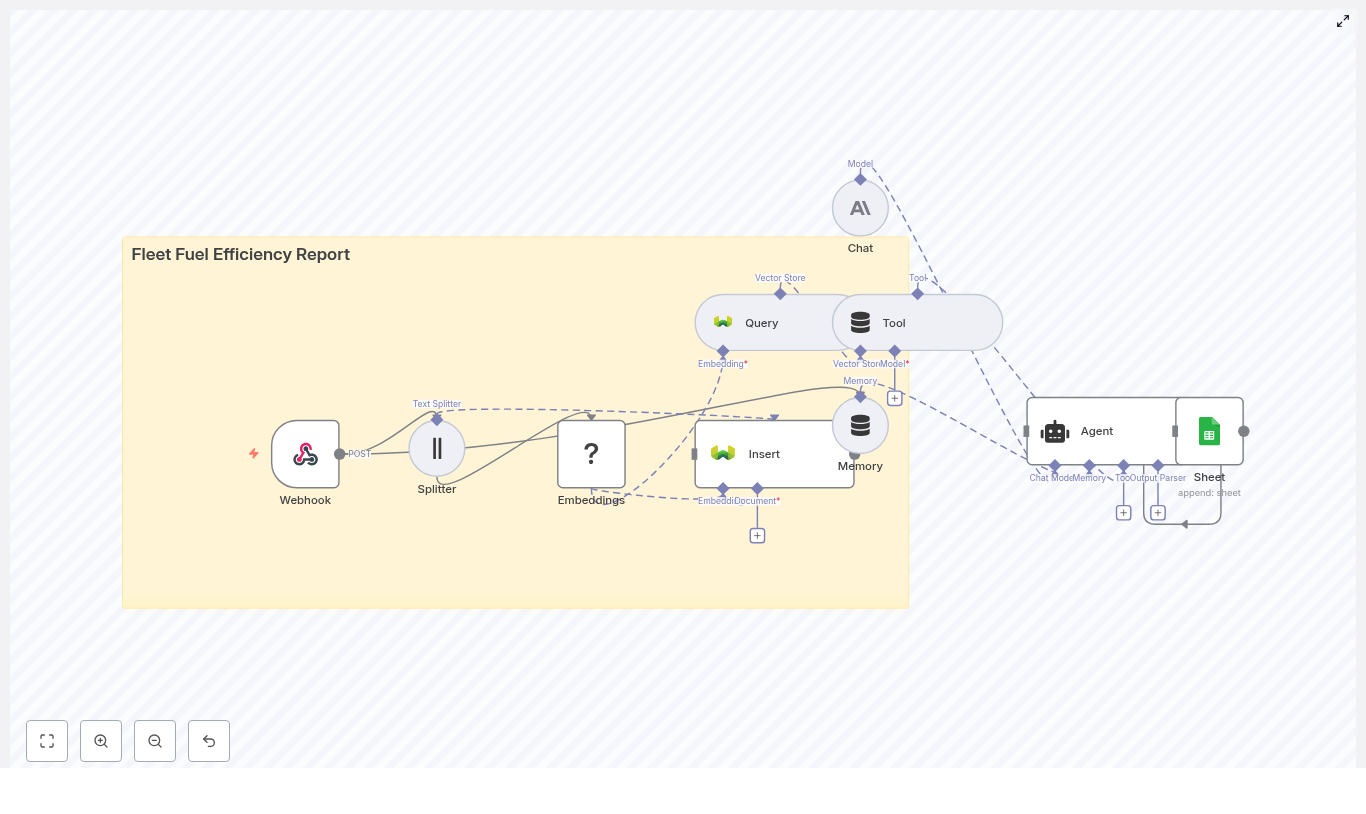
The template Alex found was not a simple script. It was a full automation pipeline built inside n8n, designed to:
- Capture raw fleet data via a Webhook
- Split long logs into manageable chunks
- Generate semantic embeddings for every chunk with a Hugging Face model
- Store everything in a Weaviate vector database
- Run semantic queries against that vector store
- Feed the context into an AI agent that generates a fuel efficiency report
- Append the final report to Google Sheets for easy access and distribution
On paper, it looked like the missing link between raw telemetry and decision-ready insights. The only question was whether it would work in Alex’s world of noisy data and tight deadlines.
Setting the stage: Alex prepares the automation stack
Before turning the template on, Alex walked through an implementation checklist to make sure the foundations were solid:
- Provisioned an n8n instance and secured it behind authentication
- Deployed a Weaviate vector database (you can also sign up for a managed instance)
- Chose an embeddings provider via Hugging Face, aligned with the company’s privacy and cost requirements
- Configured an LLM provider compatible with internal data policies, such as Anthropic or OpenAI
- Set up Google Sheets OAuth credentials so n8n could append reports safely
- Collected a small sample of telemetry data and notes for testing before touching production feeds
With the basics in place, Alex opened the n8n editor, loaded the template, and started exploring each node. That is where the story of the actual workflow begins.
Rising action: wiring raw telemetry into an intelligent pipeline
Webhook (POST) – the gateway for fleet data
The first piece of the puzzle was the Webhook node. This would be the entry point for all fleet data: telematics exports, GPS logs, OBD-II data, or even CSV uploads from legacy systems.
Alex configured the Webhook to accept POST requests and worked with the telematics provider to send data directly into n8n. To keep the endpoint secure, they added authentication, API keys, and IP allow lists so only trusted systems could submit data.
For the first test, Alex sent a batch of logs that included vehicle IDs, timestamps, fuel usage, and driver notes. The Webhook received it successfully. The pipeline had its starting point.
Splitter – making long logs usable
The next challenge was the nature of the data itself. Some vehicles produced long, dense logs or descriptive notes, especially after maintenance or incident reports. Feeding these giant blocks directly into an embedding model would reduce accuracy and make semantic search less useful.
The template solved this with a Splitter node. It broke the incoming text into smaller chunks, each around 400 characters with a 40-character overlap. This overlap kept context intact across chunk boundaries while still allowing fine-grained semantic search.
Alex experimented with chunk sizes but found that the default 400/40 configuration worked well for their telemetry density.
Embeddings (Hugging Face) – turning text into vectors
Once the data was split, each chunk passed into an Embeddings node backed by a Hugging Face model. This is where the automation started to feel almost magical. Unstructured notes like “Vehicle 102 idled for 40 minutes at depot, fuel spike compared to last week” were transformed into high-dimensional vectors.
Alongside the embeddings, Alex made sure the workflow stored important metadata:
- Raw text of the chunk
- Vehicle ID
- Timestamps and trip IDs
- Any relevant tags or locations
The choice of model was important. Alex selected one that balanced accuracy, latency, and cost, and that could be deployed in a way that respected internal privacy rules. For teams with stricter requirements, a self-hosted or enterprise model would also work.
Insert (Weaviate) – building the vector index
With embeddings and metadata ready, the next step was to store them in a vector database. The template used Weaviate, so Alex created an index with a descriptive name like fleet_fuel_efficiency_report.
Weaviate’s capabilities were exactly what this workflow needed:
- Semantic similarity search across embeddings
- Filtering by metadata, such as vehicle ID or date range
- Support for hybrid search if structured filters and semantic search needed to be combined
Every time new telemetry arrived, the workflow inserted fresh embeddings into this index, gradually building a rich, searchable memory of the fleet’s behavior.
The turning point: from raw data to AI-generated reports
At this stage, Alex had a robust ingestion pipeline. Data flowed from telematics systems to the Webhook, got split into chunks, converted into embeddings, and stored in Weaviate. The real test, however, was whether the system could produce meaningful fuel efficiency reports that managers could actually use.
Query & Tool – retrieving relevant context
When Alex wanted a report, for example “Vehicle 102, last 7 days,” the workflow triggered a semantic query against Weaviate.
The Query node searched the vector index for relevant chunks, filtered by metadata like vehicle ID and date range. The Tool node wrapped this logic so that downstream AI components could easily access the results. Instead of scanning thousands of rows manually, the system returned the most relevant snippets of context: idling events, fuel spikes, unusual routes, and driver notes.
Memory – keeping the AI grounded
To help the AI reason across multiple interactions, the template included a buffer memory node. This short-term memory allowed the agent to keep track of recent queries and results.
If Alex asked a follow-up question like “Compare last week’s fuel efficiency for Vehicle 102 to the previous week,” the memory ensured the AI did not lose context and could build on the previous analysis instead of starting from scratch.
Chat (Anthropic / LLM) – synthesizing the report
The heart of the reporting step was the Chat node, powered by an LLM such as Anthropic or another compatible provider. This model took the retrieved context and transformed it into a concise, human-readable fuel efficiency report.
Alex adjusted the prompts to focus on key fuel efficiency metrics and insights, including:
- Average fuel consumption in MPG or L/100km for the reporting period
- Idling time and its impact on consumption
- Route inefficiencies, detours, or patterns that increased fuel usage
- Maintenance-related issues that might affect fuel efficiency
- Clear, actionable recommendations, such as route changes, tire pressure checks, or driver coaching
Agent – orchestrating tools, memory, and logic
The Agent node acted as a conductor for the entire AI-driven part of the workflow. It coordinated the vector store Tool, memory, and the LLM.
When Alex entered a structured request like “vehicle 102, last 7 days,” the agent interpreted it, triggered the right vector queries, pulled in the relevant context, and then instructed the LLM to generate a formatted report. If more information was needed, the agent could orchestrate additional queries automatically.
Sheet (Google Sheets) – creating a living archive
Once the AI produced the final report, the workflow appended it to a Google Sheet using the Google Sheets node. This turned Sheets into a simple but powerful archive and distribution hub.
Alex configured the integration with OAuth2 and made sure only sanitized, high-level report data was stored. Sensitive raw telemetry stayed out of the Sheet. From there, reports could be shared, used as a data source for dashboards, or exported for presentations.
The results: what the reports actually looked like
After a few test runs, Alex opened the Google Sheet and read the first complete, automated report. It included all the information they used to spend hours assembling by hand:
- Vehicle ID and the exact reporting period
- Average fuel consumption in MPG or L/100km
- A list of anomalous trips with unusually high consumption or extended idling
- Specific recommendations, such as:
- “Inspect tire pressure for Vehicle 102, potential underinflation detected compared to baseline.”
- “Optimize route between Depot A and Client X to avoid repeated congestion zones.”
- “Provide driver coaching on idling reduction for night shifts.”
For the first time, Alex had consistent, contextual fuel efficiency reports without spending half the week building them.
Fine-tuning the workflow: how Alex optimized the template
Chunk size and overlap
Alex experimented with different chunk sizes. Larger chunks captured more context but blurred semantic granularity. Smaller chunks improved precision but risked losing context.
The template’s default of 400 characters with a 40-character overlap turned out to be a strong starting point. Alex kept it and only adjusted slightly for specific types of dense logs.
Choosing the right embeddings model
To keep latency and costs under control, Alex evaluated several Hugging Face models. The final choice balanced:
- Accuracy for fuel-related language and technical notes
- Response time under typical load
- Privacy and deployment constraints
Teams with stricter compliance requirements could swap in a self-hosted or enterprise-grade model without changing the overall workflow design.
Index design and metadata
Alex learned quickly that clean metadata was crucial. They standardized vehicle IDs, timestamps, and trip IDs so filters in Weaviate queries worked reliably.
Typical filters looked like:
vehicle: "102" AND date >= "2025-08-01"This made it easy to scope semantic search to a specific vehicle and period, which improved both accuracy and performance.
Security and governance
Because the workflow touched operational data, Alex worked closely with the security team. Together they:
- Protected the Webhook endpoint with API keys, mutual TLS, and IP allow lists
- Redacted personally identifiable information from logs where it was not required
- Audited access to Weaviate and Google Sheets
- Implemented credential rotation for all connected services
Cost management
To keep costs predictable, Alex monitored embedding calls and LLM usage. They added caching so identical text would not be embedded twice and batched requests where possible. This optimization kept the system efficient even as the fleet grew.
Looking ahead: how Alex extended the automation
Once the core workflow was stable, ideas for extensions came quickly. Alex started adding new branches to the n8n template:
- Push notifications – Slack or email alerts when high-consumption anomalies appeared, so the team could react immediately
- Dashboards – connecting Google Sheets or an analytics database to tools like Power BI, Looker Studio, or Grafana to visualize trends over time
- Predictive analytics – layering time-series forecasting on top of the vector database to estimate future fuel usage
- Driver performance scoring – combining telemetry with maintenance records to generate per-driver efficiency KPIs
The n8n workflow went from a simple reporting tool to the backbone of a broader fleet automation strategy.
Limitations Alex kept in mind
Even as the system evolved, Alex stayed realistic about its boundaries. Semantic search and AI-generated reports are extremely powerful for unstructured notes and anomaly descriptions, but they do not replace precise numerical analytics.
The vector-based pipeline was used to augment, not replace, deterministic calculations for fuel usage. For critical operational decisions, Alex made sure that LLM outputs were validated and cross-checked with traditional metrics before any major changes were implemented.
Resolution: from chaos to clarity with n8n
Weeks later, the weekly fuel report meeting looked very different. Instead of apologizing for late or incomplete data, Alex opened the latest automatically generated reports and dashboards. Managers could see:
- Fuel efficiency trends by vehicle and route
- Patterns in idling and driver behavior
- Concrete recommendations already queued for operations and maintenance teams
What used to be a reactive, spreadsheet-heavy process had become a proactive, data-driven workflow. The combination of n8n, embeddings, Weaviate, and an AI agent turned raw telemetry into a continuous stream of insights.
By adopting this n8n template, Alex did not just automate a report. They built a scalable system that helps the fleet make faster, smarter decisions about fuel efficiency with minimal manual effort.
Take the next step
If Alex’s story sounds familiar, you might be facing the same reporting bottlenecks. Instead of wrestling with spreadsheets, you can plug into a vector-enabled architecture in n8n that handles ingestion, semantic storage, and AI-assisted report generation for you.
Try the fleet fuel efficiency reporting template in n8n, adapt it to your own data sources, and start turning messy telemetry into clear, actionable insights. For teams with more complex needs, a tailored implementation can extend this workflow even further.
Stay ahead of fuel costs, driver performance, and route optimization by automating what used to be the most painful part of the job. With the right n8n template, your next fuel efficiency report can practically write itself.
Automate Fitness API Weekly Reports with n8n
Automate Your Fitness API Weekly Report with n8n
Pulling data from a fitness API every week, trying to summarize it, then turning it into something useful for your team or users can feel like a chore, right? If you’re doing it by hand, it’s easy to miss trends, forget a step, or just run out of time.
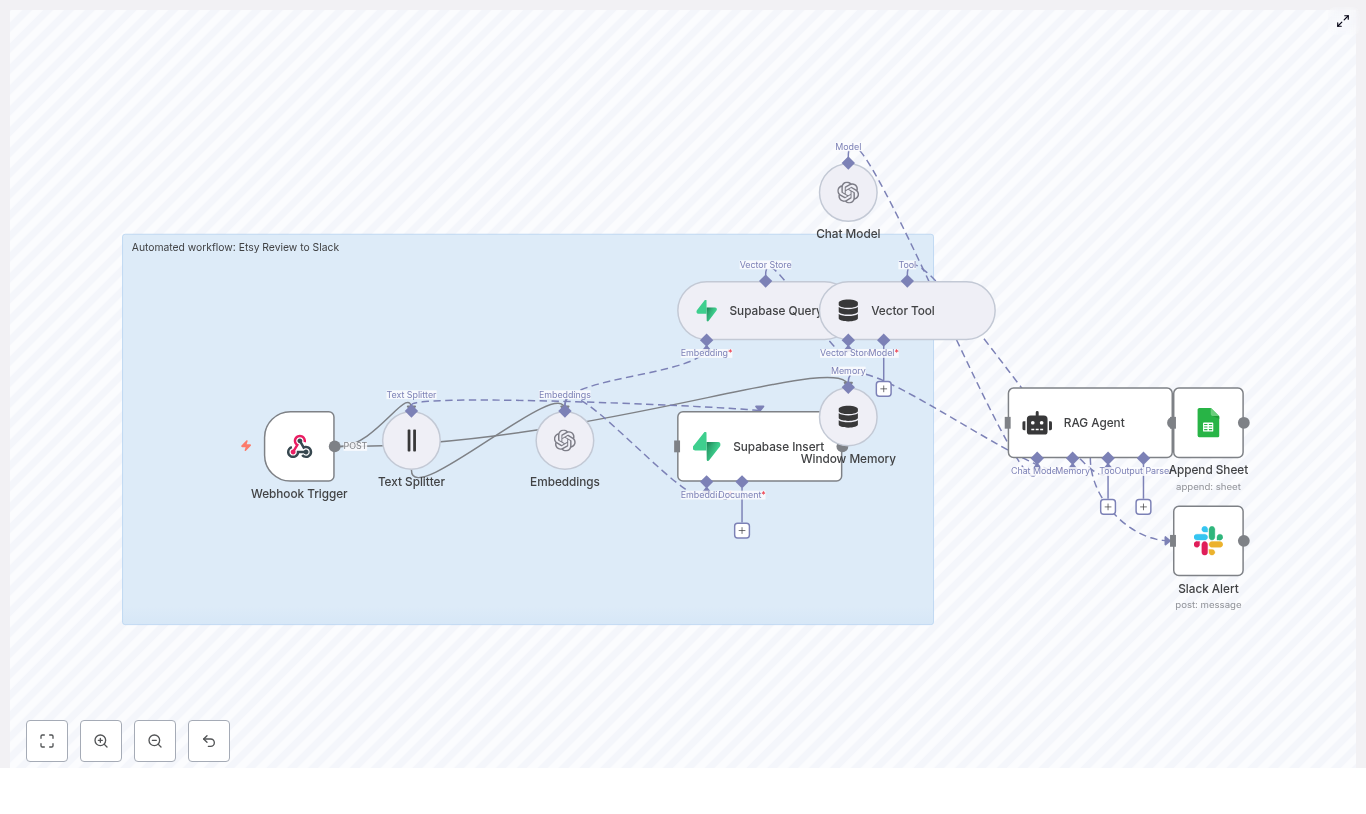
This is where the Fitness API Weekly Report workflow template in n8n steps in. It handles the whole pipeline for you: it ingests your weekly data, turns it into embeddings, stores those vectors in Supabase, runs a RAG (retrieval-augmented generation) agent to create a smart summary, then logs everything in Google Sheets and pings Slack if something breaks.
In this guide, we’ll walk through what this template does, when it’s worth using, and how to get it running in your own n8n setup, without going into dry, textbook mode. Think of it as a practical walkthrough with all the technical details preserved.
What this n8n template actually does
Let’s start with the big picture. The workflow takes a weekly payload from your fitness API, processes it with AI, and stores the results in a way that’s easy to track over time.
Here’s the core flow, simplified:
- Webhook Trigger – receives the JSON payload from your fitness data source.
- Text Splitter – breaks long text or logs into manageable chunks.
- Embeddings (Cohere) – converts those chunks into numeric vectors.
- Supabase Insert – stores vectors in a dedicated vector table.
- Supabase Query + Vector Tool – retrieves relevant chunks when the AI needs context.
- Window Memory – keeps short-term context during the conversation or report generation.
- RAG Agent – uses the vector store and a chat model to generate a weekly report.
- Append Sheet – adds the final report as a new row in Google Sheets.
- Slack Alert – sends a message to Slack if something goes wrong.
The result: every week, you get a consistent, AI-generated summary of fitness activity, stored in a sheet you can search, chart, or share.
Why automate weekly fitness reports in the first place?
You might be wondering: is it really worth automating this? In most cases, yes.
- Save time – no more manual copying, pasting, or writing summaries.
- Reduce human error – the workflow runs the same way every time.
- Stay consistent – weekly reports actually happen every week, not “when someone gets to it.”
- Highlight trends – fitness data is all about patterns, outliers, and progress over time.
This is especially helpful for product teams working with fitness apps, coaches who want regular insights, or power users tracking their own performance. Instead of spending energy on data wrangling, you can focus on decisions and improvements.
When to use this template
This n8n workflow template is a great fit if:
- You receive weekly or periodic fitness data from an API or aggregator.
- You want summaries, insights, or recommendations instead of raw logs.
- You need a central log of reports, like a Google Sheet, for auditing or tracking.
- You care about alerts when something fails instead of silently missing a week.
If your data is irregular, very large, or needs heavy preprocessing, you can still use this template as a base and customize it, but the default setup is optimized for weekly reporting.
How the workflow is structured
Let’s walk through the main pieces of the pipeline and how they fit together. We’ll start from the incoming data and end with the final report and alerts.
1. Webhook Trigger: the entry point
The workflow starts with a Webhook Trigger node. This node listens for incoming POST requests from your fitness API or from a scheduler that aggregates weekly data.
Key settings:
- Method: POST
- Path: something like
/fitness-api-weekly-report - Security: use a secret token, IP allow-listing, or both.
The webhook expects a JSON payload that includes user details, dates, activities, and optionally notes or comments.
Sample webhook payload
Here’s an example of what your fitness data aggregator might send to the webhook:
{  "user_id": "user_123",  "week_start": "2025-08-18",  "week_end": "2025-08-24",  "activities": [  {"date":"2025-08-18","type":"run","distance_km":5.2,"duration_min":28},  {"date":"2025-08-20","type":"cycle","distance_km":20.1,"duration_min":62},  {"date":"2025-08-23","type":"strength","exercises":12}  ],  "notes":"High HR during runs; hydration may be low."
}
You can adapt this structure to match your own API, as long as the workflow knows where to find the relevant fields.
2. Text Splitter: prepping content for embeddings
Once the raw JSON is in n8n, the workflow converts the relevant data into text and passes it through a Text Splitter node. This is important if you have long logs or multi-day summaries that would be too big to embed in one go.
Typical configuration:
- Chunk size: 400 characters
- Chunk overlap: 40 characters
These values keep each chunk semantically meaningful while allowing a bit of overlap so context is not lost between chunks.
3. Embeddings with Cohere: turning text into vectors
Next, the workflow uses the Embeddings (Cohere) node. Each chunk of text is sent to Cohere’s embed-english-v3.0 model (or another embeddings model you prefer) and transformed into a numeric vector.
Setup steps:
- Store your Cohere API key in n8n credentials, not in the workflow itself.
- Select the
embed-english-v3.0model or an equivalent embedding model. - Map the text field from the Text Splitter to the embeddings input.
These vectors are what make similarity search possible later, which is crucial for the RAG agent to find relevant context.
4. Supabase as your vector store
Once embeddings are created, they’re stored in Supabase, which acts as the vector database for this workflow.
Supabase Insert
The Supabase Insert node writes each vector into a table or index, typically named:
fitness_api_weekly_report
Along with the vector itself, you can store metadata such as user_id, dates, and raw text. This makes it easier to filter or debug later.
Supabase Query
When the RAG agent needs context, the workflow uses a Supabase Query node to retrieve the most relevant vectors. The query runs a similarity search against the vector index and returns the top matches.
This is what lets the agent “remember” previous activities or notes when generating a weekly summary.
5. Vector Tool: connecting Supabase to the RAG agent
To make Supabase usable by the AI agent, the workflow exposes it as a Vector Tool. This tool is what the agent calls when it needs extra context.
Typical configuration:
- Name: something friendly, like
Supabase - Description: clearly explain that this tool retrieves relevant fitness context from a vector store.
A clear name and description help the agent understand when and how to use this tool during report generation.
6. Window Memory: short-term context
The Window Memory node keeps a limited history of recent messages and summaries so the agent can maintain a sense of continuity during the workflow run.
This is especially useful if the workflow involves multiple internal steps or if you extend it later to handle follow-up questions or multi-part reports.
7. RAG Agent: generating the weekly report
Now comes the fun part: the RAG Agent. This agent combines:
- A system prompt that defines its role.
- Access to the vector tool backed by Supabase.
- Window memory for short-term context.
For example, your system prompt might look like:
You are an assistant for Fitness API Weekly Report.
The agent uses this prompt, plus the retrieved vector context, to generate a concise weekly summary that typically includes:
- A short recap of the week’s activities.
- Status or notable changes, such as performance shifts or unusual metrics.
Example output from the RAG agent
Here’s a sample of the kind of report you might see:
Week: 2025-08-18 to 2025-08-24
User: user_123
Summary: The user completed 2 cardio sessions (run, cycle) and 1 strength session. Running pace was slower than usual with elevated heart rate; hydration flagged.
Recommendations: Reduce intensity on next run, increase hydration, schedule mobility work.
You can customize the prompt to change tone, structure, or level of detail depending on your use case.
8. Append Sheet: logging reports in Google Sheets
Once the RAG agent generates the weekly report, the Append Sheet node writes it into a Google Sheet so you have a persistent record.
Typical setup:
- Sheet name:
Log - Columns: include fields like
Week,User,Status,Summary, or whatever fits your schema. - Mapping: map the RAG agent output to a column such as
StatusorReport.
This makes it easy to filter by user, date, or status, and to share reports with stakeholders who live in spreadsheets.
9. Slack Alert: catching errors quickly
If something fails along the way, you probably don’t want to discover it three weeks later. The workflow routes errors to a Slack Alert node that posts a message in a channel, for example:
#alerts
The message typically includes the error details so you can troubleshoot quickly. You can also add retry logic or backoff strategies if you want to handle transient issues more gracefully.
Best practices for this workflow
To keep this automation reliable and cost-effective, a few habits go a long way.
- Secure your webhook: use HMAC signatures or a token header so only your systems can call it.
- Tune chunk size: if your data is very short or extremely long, try different chunk sizes and overlaps to see what works best.
- Watch embedding costs: embedding APIs usually bill per token, so consider batching and pruning if volume grows.
- Manage vector retention: you probably don’t need to store every vector forever. Archive or prune old ones periodically.
- Respect rate limits: keep an eye on limits for Cohere, Supabase, Google Sheets, and Slack to avoid unexpected failures.
Troubleshooting common issues
If things don’t look quite right at first, here are some quick checks.
- RAG agent is off-topic: tighten the system prompt, give clearer instructions, or add examples of desired output.
- Embeddings seem poor: confirm you’re using the correct model, and pre-clean the text (strip HTML, normalize whitespace).
- Google Sheets append fails: verify the document ID, sheet name, and that the connected Google account has write access.
- Slack alerts are flaky: add retries or exponential backoff, and double-check Slack app permissions and channel IDs.
Scaling and operational tips
As your usage grows, you might want to harden this setup a bit.
- Dedicated Supabase project: use a separate project or database for vectors to keep query performance snappy.
- Observability: log runtimes and errors in a monitoring tool or central log sink so you can spot issues early.
- Offload heavy preprocessing: if you hit n8n execution-time limits, move heavy data prep to a background worker or separate service.
- Per-user quotas: control API and embedding costs by limiting how many reports each user can generate in a given period.
Security and privacy considerations
Fitness data is personal, so treating it carefully is non-negotiable.
- Store secrets in n8n credentials: never hardcode API keys in workflow JSON.
- Use HTTPS everywhere: for the webhook, Supabase, Cohere, Google Sheets, and Slack.
- Minimize PII: mask or omit personally identifiable information before storing vectors, especially if you need to comply with privacy regulations.
- Limit access: restrict who can view the Supabase project and the Google Sheets document.
How to get started quickly
Ready to try this out in your own n8n instance? Here’s a simple setup checklist.
- Import the workflow JSON into your n8n instance using the built-in import feature.
- Configure credentials for:
- Cohere (or your chosen embeddings provider)
- Supabase
- OpenAI (or your preferred chat model)
- Google Sheets
- Slack
- Create a Supabase table/index named
fitness_api_weekly_reportto store vectors and metadata. - Secure the webhook and point your fitness API aggregator or scheduler to the webhook URL.
- Send a test payload and confirm:
- A new row appears in your Google Sheet.
- The generated summary looks reasonable.
- Slack receives an alert if you simulate or trigger an error.
Wrapping up: why this template makes life easier
With this n8n template, your weekly fitness reporting goes from “manual, repetitive task” to “reliable background automation.” Embeddings and a vector store give the RAG agent enough context to generate meaningful summaries, not just generic text, and Google Sheets plus Slack keep everything visible and auditable.
If you’ve been wanting to add smarter reporting to your fitness product, coaching workflow, or personal tracking, this is a practical way to get there without building everything from scratch.
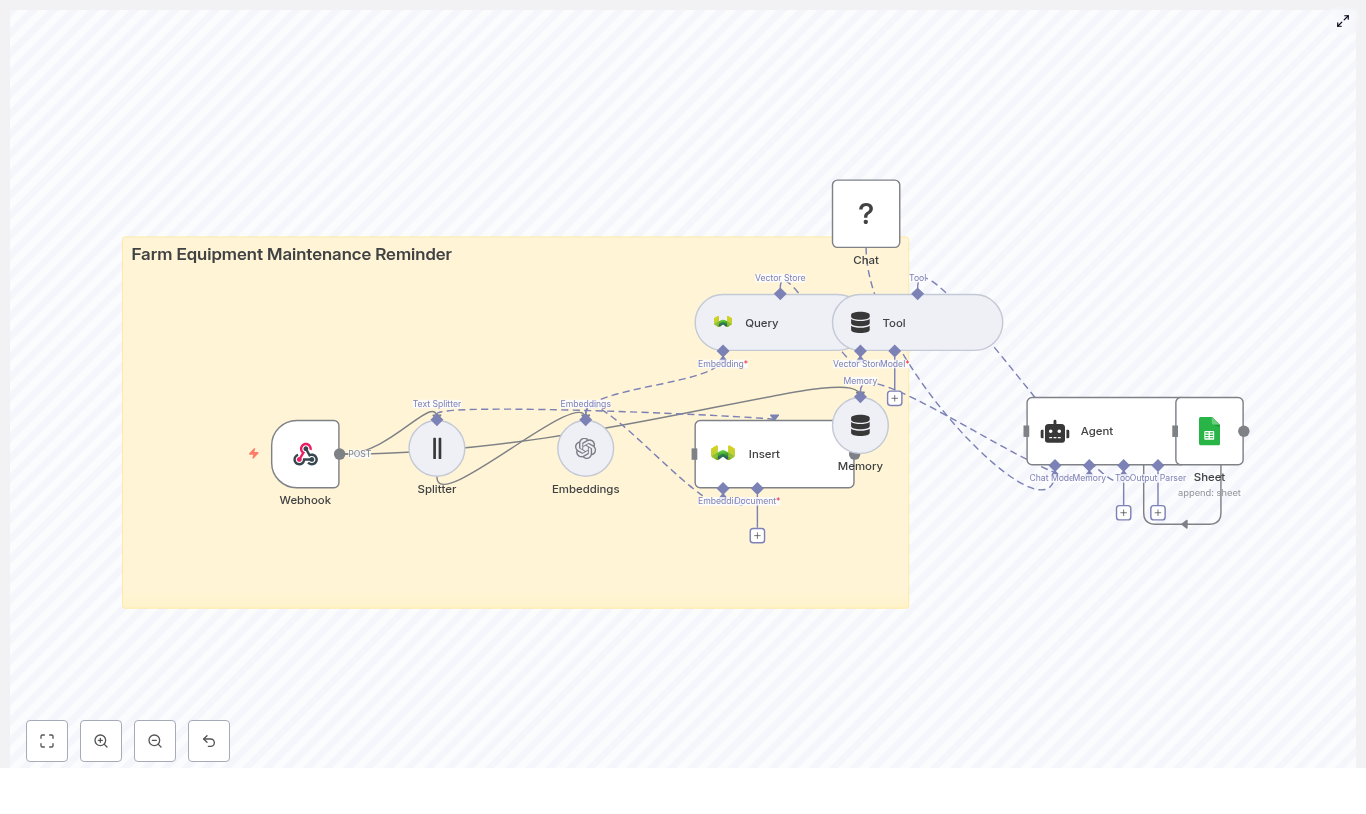
Imagine never having to flip through notebooks, texts, or random spreadsheets to remember when a tractor needs its next oil change. Pretty nice, right? With this n8n workflow template, you can turn all those scattered maintenance notes into a smart, automated reminder system that actually keeps up with your fleet for you. In this guide, we will walk through how the farm equipment maintenance reminder template works, what problems it solves, and how to set it up step by step. We will also look at how it uses n8n, Weaviate, vector embeddings, and Google Sheets together so you get a complete, searchable maintenance history that can trigger reminders automatically. At a high level, this workflow turns your maintenance notes and telemetry into: Every time you send a maintenance record, the workflow: The result is a simple but powerful automation that keeps track of service intervals and maintenance history across your entire fleet. If you have more than a couple of machines, manual tracking gets messy fast. Automating your maintenance reminders with n8n helps you: Instead of relying on memory or scattered notes, you get a system that quietly tracks everything in the background and taps you on the shoulder only when something needs attention. The template uses a clean, modular pipeline that is easy to extend later. Here is the core flow: Let us walk through what happens with a typical maintenance event. Say your telemetry or farm management system sends this kind of note to the workflow: Here is what n8n does with it: You do not have to guess the settings, the template comes with sensible defaults: Once the data is flowing in, the Agent becomes your maintenance assistant. It is configured with a language model plus tools that let it search the vector store and write to Google Sheets. You can use it in a few different ways: Ready to get this running? Here is the short version of what you need to do. Once the basics are working, you can tune the workflow to match your fleet and data volume. This makes it easier to filter queries, for example “oil changes in the last 200 hours” or “only tractors in field A.” You are dealing with operational data, so it is worth locking things down properly. If something feels off, here are a few common issues and how to approach them. As your operation grows, the same workflow can scale with you, with a few tweaks. Not sure how this fits into your day to day? Here are some practical examples. If you are ready to reduce downtime and keep your farm running smoothly, this template gives you a solid starting point. Import it into n8n, connect your OpenAI or Hugging Face account, hook up Weaviate and Google Sheets, then send a sample JSON payload to the webhook to see your first automated maintenance log in action. If you would like some help tailoring it, you can: Share what systems you use now (telemetry provider, preferred messaging channels, and approximate fleet size), and you can map out concrete next steps to make this workflow fit your operation perfectly. A semantic, vector backed maintenance reminder system can dramatically cut reactive repairs and help you focus on running your farm instead of chasing service dates. Designing a high quality EV charging station locator requires more than a simple keyword search. With n8n, vector embeddings, and a vector database such as Supabase, you can deliver fast, contextual, and highly relevant search results for drivers in real time. This guide explains the architecture, key n8n nodes, and recommended practices for building a production ready EV charging station locator workflow. Users rarely search with exact keywords. Instead, they ask questions like: Traditional text or SQL filters struggle with these conversational queries. Vector embeddings solve this by converting station descriptions, metadata, and features into numerical vectors. A similarity search in a vector store can then retrieve the most relevant stations even when the query does not match stored text exactly. Using embeddings with a vector database enables: The n8n workflow integrates several components to support both data ingestion and real time user queries: This architecture supports two primary flows: The workflow starts with an n8n Webhook node, for example at Typical fields include: For user queries, the same webhook can receive a query string, user coordinates, and optional filters such as connector type or minimum power. Long text fields, such as detailed descriptions or multi station CSV content, are routed through a Text Splitter node. The splitter divides content into smaller chunks that are compatible with embedding models, for example: This chunking strategy keeps embeddings both accurate and efficient and avoids truncation issues on large documents. Each text chunk is sent to a Hugging Face Embeddings node. The node converts the text into a vector representation suitable for semantic search. Key considerations: The resulting vectors and associated metadata are written to a Supabase Vector Store. Typical metadata includes: Create an index, for example For user searches, the workflow uses a Query node to execute similarity queries against Supabase. The node retrieves the top k candidate vectors that are most similar to the user query embedding. The results are then passed through a Tool node into an AI Agent, typically implemented with Anthropic Chat and Memory. The agent can: To support multi turn interactions, combine Anthropic Chat with an n8n Memory node. This allows the system to remember: In parallel, a Google Sheets node can log incoming queries, agent responses, and key metrics for auditing and analytics. This is useful for monitoring performance, debugging, and improving ranking rules over time. Vector similarity identifies stations that are conceptually relevant, but EV drivers also care about distance. For queries such as “nearest CCS charger”, combine: Store latitude and longitude as metadata in Supabase. Then: To ensure that recommendations are usable for the driver, maintain structured metadata for: The agent or a dedicated filter node can then enforce rules such as: Most production deployments need both scheduled and real time data updates: If users receive irrelevant or empty results: When queries are slow under load: To avoid duplicates in search results: Consider the user query: “Find DC fast chargers with CCS within 5 km”. A typical n8n flow is: You can deploy the n8n workflow in several ways: Use Supabase or another managed vector database with autoscaling to handle traffic spikes. For static or slowly changing datasets, precompute embeddings and cache frequent queries to reduce latency and cost. As with any location based service, security and privacy are critical: To accelerate implementation, you can start from a ready made n8n template and adapt it to your data sources and business rules. Get started: If you want a starter package with a downloadable n8n template, deployment checklist, and sample dataset, subscribe to our newsletter. For implementation support or architecture reviews, reach out to our engineering team. Keywords: EV charging station locator, n8n workflow, vector embeddings, Supabase vector store, Hugging Face embeddings, Anthropic chat, geolocation search Ever forgotten a birthday you really meant to remember? It happens. The good news is, you can completely offload that mental load to an automation that quietly does the work for you. In this guide, we will walk through a ready-to-use n8n workflow template that: Think of it as your always-on birthday assistant that never forgets, never gets tired, and even remembers that your friend “loves coffee and vintage books.” Let us start with the big picture. This workflow takes structured birthday info from your app or form, enriches it with context, and turns it into a friendly, human-sounding Telegram message. Along the way it: Once you plug it into your system, new birthday entries are handled automatically. No more manual reminders, no more last-minute scrambling. This workflow is a great fit if you: In short, if you are tired of spreadsheets, sticky notes, or trying to remember dates in your head, this workflow will make your life much easier. Here is what is happening behind the scenes, step by step, in n8n: If you want, you can add a Telegram node at the end so the message is sent directly to the person’s Telegram account using their Before importing the template, make sure you have: To make this concrete, here is how the workflow behaves when your app sends a new birthday payload. Once configured, the whole process runs quietly in the background while you focus on everything else. Start by importing the JSON workflow into your n8n instance. The template includes all the nodes and their connections, so you do not have to build it from scratch. After importing: Next, connect the template to your actual services: The Webhook Trigger exposes a POST endpoint at the path You can map these fields in a few ways: Feel free to adapt the payload format to match your app, as long as you update the node mappings accordingly. The Text Splitter and Embeddings are where you control how much context is stored and how it is processed. If your notes are usually short, you might reduce chunk size. If you have richer notes or more detailed histories, you can keep or increase the chunk size. Need higher semantic accuracy? Switch to a larger embeddings model, keeping in mind that costs will increase. The RAG Agent is where the “personality” of your birthday messages lives. By default, the system message is: You can edit this to match your use case. For example: You can also adjust tone, length, or formatting. Want short messages only? Add that. Want the message to reference specific interests from the notes? Mention that in the prompt. Two things help you trust an automation: logs and alerts. This workflow includes both. You can extend this by adding more channels, email notifications, or even an incident-handling workflow if you want a more robust setup. To keep your automation reliable, cost-effective, and privacy-conscious, keep these tips in mind: If something is not working as expected, here are some quick checks you can run: Once you have the basic reminder working, you can take it further. Here are some practical extensions: Since this workflow touches user data and external services, it is worth hardening it a bit. If you are ready to stop worrying about forgotten birthdays, here is a simple way to get started: From there, you can tweak the tone of the messages, refine the prompts, and gradually add features like scheduling or multi-language support. Get started now: import the workflow, plug in your API credentials and Sheet ID, and send a test birthday payload to your webhook. You will have your first automated Telegram birthday reminder in minutes. Need help tailoring this to your team or product? Reach out any time. You can extend this template with scheduled triggers, direct Telegram delivery, or multi-language messaging, and we are happy to guide you through it. Every time you manually download images, zip them, and upload them to cloud storage, you spend a little more energy on work that a workflow could handle for you. Over a week or a month, those minutes add up and quietly slow you down. Automation is your chance to reclaim that time and refocus on work that really moves the needle. In this guide, you will walk through a simple but powerful n8n workflow that downloads images, compresses them into a ZIP file, and uploads that archive directly to Dropbox. It is a small automation with a big message: you can offload more than you think, and this template is a practical first step. By the end, you will not only have a working n8n template, you will also have a clear pattern you can reuse for backups, asset packaging, and future automations that support your growth. Think about how often you: Doing this manually is tedious, easy to forget, and prone to mistakes. Automating it turns a fragile habit into a reliable system. Once this workflow is in place, you can: This is not just about saving time on one task. It is about shifting your mindset from “I have to remember to do this” to “my system already takes care of it.” This template is intentionally simple, yet it showcases some of the most important automation building blocks in n8n: Once you understand this pattern, you can extend it to: Think of this as a foundational automation. You can use it as-is, or you can build on top of it as your needs grow. The workflow consists of five nodes connected in sequence: Simple on the surface, yet powerful in practice. Let us walk through each step so you can confidently configure and customize it. Start by dragging a Manual Trigger node onto the n8n canvas. This lets you run the workflow whenever you click “Execute”. It is perfect for: Later, when you are ready to scale this into a hands-off system, you can replace the Manual Trigger with a Cron or Schedule Trigger node to run it hourly, daily, or weekly. Next, you will add two HTTP Request nodes. Each node will fetch one image and store it as binary data that flows through the rest of the workflow. For both HTTP Request nodes, use these key settings: In this template, the two nodes are configured as: You can replace these URLs with any publicly accessible image URLs or with private endpoints that support GET and return file binaries. The important part is that each HTTP Request node outputs a binary file under a specific property name. This is where your automation mindset starts to grow. Instead of manually downloading files, you let n8n fetch exactly what you need, on demand or on a schedule. Once both images are available as binary data, it is time to bundle them into a single archive. Add a Compression node and connect it after the HTTP Request nodes. Configure the Compression node with: When configured correctly, the Compression node gathers the input binaries and produces a new binary file, This step is a great example of how n8n handles binary data across nodes. Once you are comfortable with this pattern, you will be ready to automate more complex file workflows. Finally, you will send the compressed archive to Dropbox so it is stored safely in the cloud. Add a Dropbox node after the Compression node and configure it as follows: Make sure you have configured your Dropbox credentials in n8n with sufficient permissions to upload files. You can use an access token or OAuth credentials, managed securely through n8n’s credential system. With this final step, your workflow closes the loop: from remote image URLs to a ready-to-use ZIP archive in your Dropbox, all without manual effort. Clear naming makes your workflows easier to understand and extend. When passing binary data between nodes, use descriptive names like Network requests can fail, and resilient automations plan for that. To make your workflow more reliable: These small improvements help your automation run smoothly over time, not just once during testing. Once you trust the workflow, replace the Manual Trigger with a Cron or Schedule Trigger node. This is ideal for: Scheduling turns your workflow into a quiet background system that consistently supports your work. To avoid overwriting the same ZIP file and to keep a clear history of backups, use expressions to generate dynamic filenames. For example: This pattern makes it easy to see when each archive was created and to roll back if needed. If your images live behind authentication, you can still use this workflow. Configure the HTTP Request nodes with the correct authentication method, such as: Add any required headers, then test each HTTP Request node individually to confirm that it returns binary content. Once it works, the rest of the workflow can stay exactly the same. This template is a solid foundation, but you do not have to stop here. As you get more comfortable with n8n, you can extend this workflow to support more of your process. For example, you could: Each enhancement nudges you further into a more automated, less manual way of working, where n8n handles the busywork and you focus on strategy and creativity. If something does not work as expected, use this quick checklist: Most issues come down to a small configuration mismatch. Once fixed, the workflow will continue to run reliably. As you build more automations, security becomes more important. Keep your workflows safe by: This lets you grow your automation library without compromising sensitive data. This n8n template gives you a clear pattern for downloading multiple binary files, packaging them into a ZIP, and uploading that archive to Dropbox. It is a simple workflow, yet it unlocks real benefits: Most importantly, it shows what is possible when you start to automate the small tasks that quietly drain your focus. From here, you can continue to refine, expand, and combine workflows into a system that supports your business or personal projects every day. Try it now: Import the provided workflow into your n8n instance, connect your Dropbox credentials, replace the sample image URLs with your own, and click Execute. Watch your ZIP file appear in Dropbox and notice how much faster and smoother the process feels. Then, take it further: Every workflow you build is a step toward a more focused, automated way of working. Start with this one, learn from it, and keep iterating. Call to action: Import this workflow, test it, and share how you extended it. Your improvements might inspire the next person to automate a little more and reclaim a little more time. Electric vehicle (EV) fleet operators and battery engineers require consistent, repeatable insights into battery health. This reference guide describes a production-ready EV battery degradation report workflow template in n8n. The automation ingests telemetry and diagnostic text through a webhook, splits and embeds content for semantic search, persists vectors in Redis, and generates human-readable reports with an AI agent. The design emphasizes reproducibility, auditability, and integration with Google Sheets for logging and downstream analysis. This n8n workflow automates the full lifecycle of EV battery degradation reporting, from raw input to logged report output: The template is suitable for both small pilot deployments and large-scale fleet scenarios where many vehicles stream telemetry and diagnostic information. The Webhook node is the entry point of the workflow. It is configured to accept HTTP Integration points include direct device uploads, existing ingestion services, or internal APIs that forward telemetry to the webhook. For production, you can secure this endpoint with tokens, IP allowlists, or gateway-level authentication. The Text Splitter node prepares unstructured text for embedding by dividing it into smaller segments. This configuration strikes a practical balance between semantic completeness and embedding cost. Overlap ensures that information that spans boundaries is not lost. For longer technical reports, you can adjust The Cohere Embeddings node converts each text chunk into a numerical vector suitable for semantic search. These embeddings allow the workflow to perform similarity search over technical content, so the AI Agent can retrieve relevant historical notes, similar failure modes, or comparable degradation profiles when generating new reports. The node requires a valid Cohere API key configured as n8n credentials. Rate limits and model selection are managed through the Cohere account, so ensure that the chosen model is suitable for technical language and the expected volume. The Redis node (Insert mode) persists embeddings in a vector index that supports approximate nearest neighbor queries. Redis acts as a fast, scalable vector database. The index configuration (for example, vector type, dimension, and distance metric) is handled in Redis itself and must match the embedding model used by Cohere. If the index is not correctly configured, inserts may fail or queries may return no results. When the workflow needs to generate a report, it uses a Redis Query node to retrieve the most relevant chunks. These results are then exposed to the Agent as a Tool. The Tool wrapper makes Redis retrieval accessible during the LLM reasoning process, so the Agent can explicitly call the vector store to fetch context rather than relying solely on the prompt. The Memory node provides short-term conversational context, usually implemented as a buffer window. This memory is especially useful for incremental reporting workflows, where an engineer may run several iterations on the same vehicle or dataset. The Chat node and Agent node work together to generate the final natural-language degradation report. The Agent orchestrates calls to tools (Redis), merges retrieved context with current telemetry, and applies the prompt logic to ensure a consistent report structure. The Chat node handles the actual LLM interaction, including passing messages and receiving the generated text. The Google Sheets node provides persistent logging for each generated report. This log acts as a simple audit trail for engineering teams. It can also trigger downstream workflows, such as alerts, dashboards, or further analysis pipelines. You can test the workflow by sending the following JSON payload to the configured webhook path: Given this input, the Agent typically returns a structured degradation report that includes: The full report text is then logged to Google Sheets alongside the raw metrics, enabling quick review and cross-vehicle comparison. Imagine opening Slack each morning and already knowing which Etsy reviews need your attention, which customers are delighted, and which issues are quietly hurting your business. No more manual checking, no more missed feedback, just clear, organized insight flowing straight into your workspace. This is exactly what the Etsy Review to Slack n8n workflow template makes possible. It captures incoming Etsy reviews, converts them into embeddings, stores and queries context in Supabase, enriches everything with a RAG agent, logs outcomes to Google Sheets, and raises Slack alerts on errors or urgent feedback. In other words, it turns scattered customer reviews into a reliable, automated signal for growth. Most teams treat customer reviews as something to “check when we have time.” That often means: Yet customer reviews are a goldmine for product improvement, customer success, and marketing. When they are buried in dashboards or scattered across tools, you lose opportunities to respond quickly, learn faster, and build stronger relationships. Automation changes that. By connecting Etsy reviews directly into Slack, enriched with context and logged for analysis, you move from reactive firefighting to proactive, data-driven decision making. And you do it without adding more manual work to your day. This template is more than a technical setup. It is a mindset shift. Instead of thinking, “I have to remember to check reviews,” you design a system where reviews come to you, already summarized, scored, and ready for action. With n8n, you are not just automating a single task, you are building a reusable automation habit: Think of this Etsy Review to Slack workflow as a stepping stone. Once you see how much time and mental energy it saves, it becomes natural to ask, “What else can I automate?” Under the hood, this n8n template connects a powerful set of tools, all working together to deliver intelligent review insights to Slack: Each node plays a specific role. Together, they form a workflow that quietly runs in the background, turning raw reviews into actionable insight. Your journey starts with a simple but powerful step: receiving Etsy reviews in real time. In n8n, configure a public webhook route with the path Whenever a review is created or updated, Etsy sends the review JSON payload to this endpoint. That payload becomes the starting input for your workflow, no manual check-ins required. To make your reviews searchable and context-aware, the workflow converts them into embeddings. Before that happens, the text is prepared for optimal performance and cost. Long reviews or combined metadata can exceed safe input sizes for embeddings. The Text Splitter node breaks the content into manageable chunks so your AI tools can process it safely and effectively. Recommended settings from the template: This balance keeps semantic coherence while minimizing truncation and unnecessary cost. Next, each chunk is converted into a dense vector using an embeddings provider. The template uses OpenAI with the model Each vector represents the meaning of that chunk. Those vectors are what make it possible for the workflow to later retrieve similar reviews, detect patterns, and provide context to the RAG agent. Instead of letting reviews disappear into the past, this workflow turns them into a growing knowledge base that your agent can draw from over time. Every embedding chunk is inserted into a Supabase vector table with a consistent index name. In this template, the index/table is named Alongside the vectors, you can store metadata like: This metadata lets you filter, de-duplicate, and manage retention over time. When a new review comes in, the Supabase Query node retrieves the most relevant vectors. That context is then passed to the RAG agent so it can interpret the new review in light of similar past feedback. To move beyond simple keyword alerts, your workflow needs context. That is where the Vector Tool and Window Memory come in. The Vector Tool acts like a LangChain-style tool that lets the agent query the vector store. It can pull in related prior reviews, notes, or any other stored context so the agent is not working in isolation. Window Memory preserves short-term conversational context. If multiple related events are processed close together, the agent can produce more coherent outputs. This is especially helpful if you are processing a burst of reviews related to a specific product or incident. This is where the workflow starts to feel truly intelligent. The RAG agent receives the review content, the retrieved vector context, and the memory, then generates an enriched response. The agent is configured with a system message such as: “You are an assistant for Etsy Review to Slack” Based on your prompt, it can: The output is plain text that can be logged, analyzed, and used to decide how to route the review in Slack or other tools. Automation should not feel like a black box. To keep everything transparent and auditable, the workflow logs each processed review in a Google Sheet. Using the Append Sheet node, every processed review is added to a sheet named This gives you: Finally, the workflow brings everything to the place where your team already lives: Slack. The Slack node posts messages to an alerts channel, for example The template includes a failure path that posts messages like: “Etsy Review to Slack error: {$json.error.message}” This keeps you informed if something breaks so you can fix it fast and keep your automation reliable. To turn this into a production-ready system, walk through this checklist: Once these are in place, you are ready to run test reviews and watch the automation come to life. Adjust For short Etsy reviews, compact models often give you the best cost-to-quality ratio. The template uses To keep your vector store efficient over time: This keeps your queries fast and costs predictable while still preserving the context that matters. Use a combination of Slack alerts and Google Sheets logs to monitor workflow health. Consider adding retry logic for transient issues such as network hiccups or rate limits. The more visible your automation is, the more confidently you can rely on it. You can fully customize the agent prompt to match your brand voice and escalation rules. Here is a sample prompt you can start with, then refine as you learn: Run a few reviews through this prompt, see how it behaves, then fine-tune the wording to better match your internal workflows. If something does not work on the first try, you are not failing, you are iterating. Here are common issues and what to check: Each fix makes your automation more robust and sets you up for future workflows. Once the core Etsy Review to Slack pipeline is running smoothly, you can build on it to support more advanced use cases: Each extension is another step toward a fully automated, insight-driven customer feedback loop. Customer reviews often contain personal information. As you automate, keep security and privacy front of mind: Thoughtful design here ensures you gain the benefits of automation without compromising your customers’ trust. This n8n Etsy Review to Slack workflow gives you a scalable way to capture customer feedback, enrich it with historical context, and route actionable insights to your team in real time. It is a practical, production-ready example of how automation and AI can free you from repetitive checks and help you focus on what matters most: improving your products and serving your customers. You do not have to build everything at once. Start with the template, deploy it in your n8n instance, and: Each small improvement compounds. Over time, you will not just have an automated review pipeline, you will have a smarter, calmer way of running your business. Call to action: Deploy the workflow, experiment with it, and treat it as your starting point for a more automated, focused operation. If you need help refining prompts, designing retention policies, or expanding Slack routing, connect with your automation engineer or a consultant who knows n8n and vector stores. You are only a few iterations away from a powerful, always-on feedback engine. High frequency esports events generate a continuous flow of structured and unstructured data. Automating how this information is captured, enriched, and distributed is essential for operations teams, broadcast talent, and analytics stakeholders. This guide explains how to implement a production-ready Esports Match Alert pipeline in n8n that combines LangChain, Hugging Face embeddings, Weaviate as a vector store, and Google Sheets for logging and auditing. The workflow template processes webhook events, transforms raw payloads into embeddings, persists them in a vector database, runs semantic queries, uses an LLM-driven agent for enrichment, and finally records each event in a Google Sheet. The result is a scalable, context-aware alert system that minimizes custom code while remaining highly configurable. Modern esports operations generate a wide range of events such as lobby creation, roster updates, score changes, and match conclusions. Manually tracking and broadcasting these updates is error prone and does not scale. An automated alert pipeline built with n8n and a vector database can: For automation engineers and operations architects, this approach provides a reusable pattern for combining event ingestion, semantic search, and LLM-based reasoning in a single workflow. The n8n template implements an end-to-end pipeline with the following high-level stages: Although the example focuses on esports matches, the architecture is generic and can be repurposed for any event-driven notification system that benefits from semantic context. Before deploying the template, ensure you have access to the following components: API keys and credentials should be stored using n8n credentials and environment variables to maintain security and operational hygiene. The entry point for the pipeline is an n8n Webhook node configured with method Typical event types include To prepare data for embedding, the workflow uses a Text Splitter (or equivalent text processing logic) to break long descriptions, commentary, or metadata into smaller segments. A common configuration is: This strategy helps preserve context across chunks while keeping each segment within the optimal length for embedding models. Adjusting these parameters is a key tuning lever for both quality and cost. Each text chunk is passed to a Hugging Face embeddings node (or another embedding provider). The node produces vector representations that capture semantic meaning. Alongside the vector, you should attach structured metadata such as: Persisting this metadata enables powerful hybrid queries that combine vector similarity with filters on match attributes. Embeddings and metadata are then written to Weaviate using an Insert node. A typical class or index name might be Configuring the schema with appropriate properties for teams, tournaments, event types, and timestamps is recommended to facilitate advanced filtering and analytics. When a new event arrives, the workflow can query historical context from Weaviate. An n8n Query node is used to perform vector search against the The agent can invoke this Tool on demand, for example to retrieve prior meetings between the same teams or similar match scenarios. This pattern keeps the agent stateless with respect to storage while still giving it on-demand access to rich, semantically indexed history. The enrichment layer is handled by a LangChain Agent configured with a chat-based LLM such as OpenAI’s models. A buffer window or short-term memory component is attached to retain recent conversation context and reduce repetitive prompts. The agent receives: Based on this context, the agent can generate: An example agent output that could be posted to a messaging platform: As a final step, the workflow appends a row to a designated Google Sheet using the Google Sheets node. Typical columns include: This provides a lightweight, accessible log for debugging, reporting, and downstream analytics. It also allows non-technical stakeholders to review the system behavior without accessing infrastructure dashboards. Effective use of Weaviate depends on high quality metadata. At minimum, consider storing: This enables hybrid queries that combine semantic similarity with strict filters, for example “similar matches but only in the same tournament and region, within the last 30 days.” Chunk size and overlap directly affect both embedding quality and API costs. Larger chunks capture more context but increase token usage. Use the template defaults (400 / 40) as a baseline, then: To keep the system resilient under load: As event volume and stakeholder requirements grow, you can extend the pipeline in several ways: The template provides a strong foundation that can be adapted to different game titles, tournament formats, and organizational requirements without rewriting core logic. Before pushing the Esports Match Alert system into production, verify: This n8n-based Esports Match Alert pipeline demonstrates how to orchestrate LLMs, vector search, and traditional automation tools into a cohesive system. By combining n8n for workflow automation, Hugging Face for embeddings, Weaviate for semantic storage, and LangChain or OpenAI for reasoning, you can deliver context-rich, real-time alerts with minimal custom code. The same architecture can be reused for other domains that require timely, context-aware notifications, such as sports analytics, incident management, or customer support. For esports operations, it provides a practical path from raw match events to intelligent, audit-ready communications. If you would like a starter export of the n8n workflow or a detailed video walkthrough, use the link below. Imagine this: your sensors are sending environmental data every few seconds, your inbox is full of CSV exports, and your brain is quietly screaming, “There has to be a better way.” If you have ever copy-pasted readings into spreadsheets, tried to search through old reports, or manually explained the same anomaly to three different stakeholders, this guide is for you. In this walkthrough, you will learn how to use an n8n workflow template to build a scalable Environmental Data Dashboard that actually works for you, not the other way around. With n8n handling orchestration, OpenAI taking care of embeddings and language tasks, and Weaviate acting as your vector database, you get a searchable, conversational, and memory-enabled dashboard without writing a giant backend service. The workflow automatically ingests environmental readings, splits and embeds text, stores semantic vectors, finds similar records, and logs everything neatly to Google Sheets. In other words: fewer repetitive tasks, more time to actually interpret what is going on with your air, water, or whatever else you are monitoring. At a high level, this Environmental Data Dashboard template turns raw telemetry into something you can search, ask questions about, and audit. It combines no-code automation with AI so you can build a smart dashboard without reinventing the wheel. All of this is stitched together with an n8n workflow that acts as the control center for your Environmental Data Dashboard. The template uses a series of n8n nodes that each play a specific role. Instead of one massive block of code, you get a modular pipeline that is easy to understand and tweak. Once set up, the workflow becomes your automated assistant for environmental telemetry: it remembers, searches, explains, and logs, without complaining about repetitive tasks. Let us walk through the setup in a practical way so you can go from “idea” to “working dashboard” without getting lost in the details. Start with a Webhook node in n8n. Configure it like this: This endpoint will receive JSON payloads from your sensors, IoT gateways, or scheduled scripts. Think of it as the front door to your Environmental Data Dashboard. Long reports or verbose telemetry logs are great for humans, less great for embedding models if you throw them in all at once. Use the Splitter node to chunk the text with these recommended settings: This character-based splitter keeps semantic units intact while avoiding truncation. In other words, your model does not get overwhelmed, and you do not lose important context. Connect the Splitter output to an Embeddings node that uses OpenAI. Configure it by: Each chunk is turned into an embedding vector, which is basically a numerical representation of meaning. These vectors are what make semantic search possible. Next, use an Insert node to send those embeddings to Weaviate. Configure it with: Along with each embedding, include useful metadata so your search results are actionable. Common fields include: This combination of embeddings plus metadata is what turns a vector store into a practical environmental data dashboard. When the Agent needs context or you want to detect anomalies, use the Query node to search Weaviate for similar embeddings. Then connect that to a Tool node so the Agent can call it programmatically. This lets the system do things like: To keep your Agent from forgetting everything between questions, add a Memory node using a buffer window. This stores recent conversation context. It is especially useful when users ask follow-up questions such as, “How has PM2.5 trended this week in Zone A?” and expect the system to remember what you were just talking about. The Agent node is where the magic orchestration happens. It connects: Configure the Agent prompt and behavior so it can: Finally, use a Sheet node to append logs or results to a Google Sheet. Configure it roughly like this: Capture fields such as: This gives you an instant audit trail without having to build a custom logging system. No more mystery decisions from your AI Agent. Even though automation is fun, you still want to avoid accidentally exposing data or keys. Keep things safe with a few best practices: Embeddings are powerful but can get pricey if you are embedding every tiny reading individually. To optimize: If search results feel a bit vague, enrich your vectors with structured metadata. Useful fields include: Then, when querying Weaviate, use filtered searches to narrow down results based on these fields instead of scanning everything. For long-running projects, you likely do not want to keep every raw reading in your primary vector store. A good pattern is: Once this n8n workflow is live, you can use it for more than just passive monitoring. Some popular use cases include: Here is a quick reference of the important node parameters used in the template, so you do not have to hunt through each node manually: To test your webhook or integrate a sensor, you can send a JSON payload like this: This kind of payload will flow through the entire pipeline: webhook, splitter, embeddings, Weaviate, Agent, and logging. With this Environmental Data Dashboard template, you get a ready-made foundation to capture, semantically index, and interact with environmental telemetry. No more manually scanning spreadsheets or digging through logs by hand. From here you can: To get started, import the n8n workflow template, plug in your OpenAI and Weaviate credentials, and point your sensors at the webhook path. In just a few minutes, you can have a searchable, conversational Environmental Data Dashboard running. Call to action: Try the template, fork it for your specific use case, and share your feedback. If you need help adapting the pipeline for high-frequency IoT data or complex deployments, reach out to our team for consulting or a custom integration.Automated Farm Equipment Maintenance Reminder
Automated Farm Equipment Maintenance Reminder
What this n8n template actually does
Why automate farm equipment maintenance reminders?
How the workflow is structured
How all the components work together
{  "equipment_id": "tractor-001",  "type": "oil_change",  "hours": 520,  "notes": "Oil changed, filter replaced, inspected belt tension. Next recommended at 620 hours.",  "timestamp": "2025-08-31T09:30:00Z"
}
/farm_equipment_maintenance_reminder.equipment_id, timestamp, type, and hours, are stored in a Weaviate index named farm_equipment_maintenance_reminder.Key configuration values in the template
chunkSize = 400, chunkOverlap = 40 Good balance between context and token limits for most maintenance notes.model = "default" Use the default embeddings model or pick the one available in your OpenAI (or compatible) account.indexName = "farm_equipment_maintenance_reminder" A single, centralized Weaviate vector index for all your maintenance records.append on a “Log” sheet Each reminder or maintenance decision becomes a new row, which makes reporting and integration easy.How to query the system and schedule reminders
Quick setup: implementation steps
/farm_equipment_maintenance_reminder, and apply your preferred security (see tips below).farm_equipment_maintenance_reminder. Make sure the schema can store metadata like equipment_id, type, hours, and timestamp.
Best practices and tuning tips
chunkSize = 400 and chunkOverlap = 40 work well for typical maintenance notes. – Use smaller chunks for short notes. – Use larger chunks if you are ingesting long manuals or detailed inspection reports.
equipment_idtimestamptype (oil change, belt inspection, etc.)hours or odometer readingsSecurity and operational considerations
Monitoring and troubleshooting
Scaling to a larger fleet
Real-world ways to use this template
Next steps
EV Charging Station Locator with n8n & Vector DB
Build an EV Charging Station Locator with n8n and Vector Embeddings
Why Vector Embeddings for EV Charging Station Search
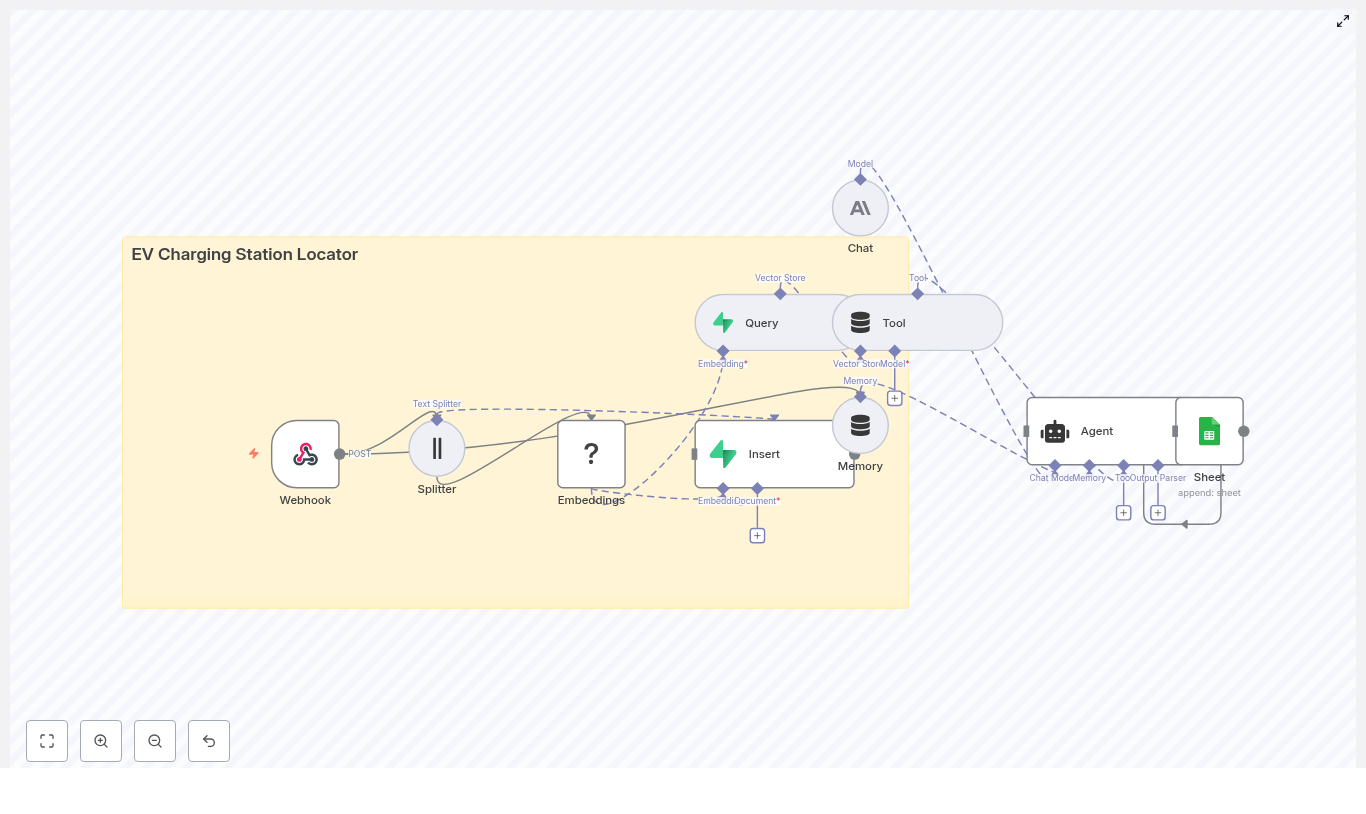
Solution Architecture
Core Workflow Design in n8n
1. Data and Query Ingestion via Webhook
POST /ev_charging_station_locator. This endpoint can accept either station records or user search requests. For station ingestion, a typical JSON payload might look like:{ "station_id": "S-1001", "name": "Downtown Fast Charge", "lat": 37.7749, "lon": -122.4194, "connectors": ["CCS", "CHAdeMO"], "power_kW": 150, "price": "0.40/kWh", "tags": "fast,public,24/7", "description": "150 kW DC fast charger near city center. Free parking for 2 hours."
}
station_id – unique identifiername, addresslat, lon – coordinates for geospatial filteringconnectors – array of connector types, for example CCS, CHAdeMOpower_kW, price, availability_notedescription, tags – free text for semantic search2. Preparing Text with a Text Splitter
chunkSize around 400 tokenschunkOverlap around 40 tokens3. Generating Embeddings with Hugging Face
4. Persisting Vectors in Supabase
station_idlat, lonconnectors, power_kW, priceev_charging_station_locator, and configure it to match the embedding dimension and similarity metric used by your Hugging Face model. This index supports fast approximate nearest neighbor searches.5. Running Similarity Queries and Returning Results
6. Optional Conversation Handling and Logging
Key Implementation Considerations
Geolocation and Distance Filtering
Connector Compatibility and Power Rules
connectors as an array of stringspower_kW as a numeric field
power_kW must be greater than or equal to a user specified minimum.Batch Ingestion vs Real Time Updates
Best Practices for Performance and Reliability
chunkSize around 300-500 tokens with modest overlap. Excessive overlap increases storage and query cost without significant quality gains.Troubleshooting Common Issues
1. Missing or Low Quality Matches
top_k and similarity thresholds.2. Slow Query Performance
3. Duplicate Station Records
station_id as a unique key and perform upserts instead of blind inserts.Example End to End Query Flow
CCSDeployment and Scaling Strategies
Security and Privacy Considerations
Next Steps and Template Access
Birthday Telegram Reminder (n8n + Weaviate + OpenAI)
Automate Birthday Reminders To Telegram With n8n, Weaviate & OpenAI
What This n8n Birthday Reminder Workflow Actually Does
When You Should Use This Template
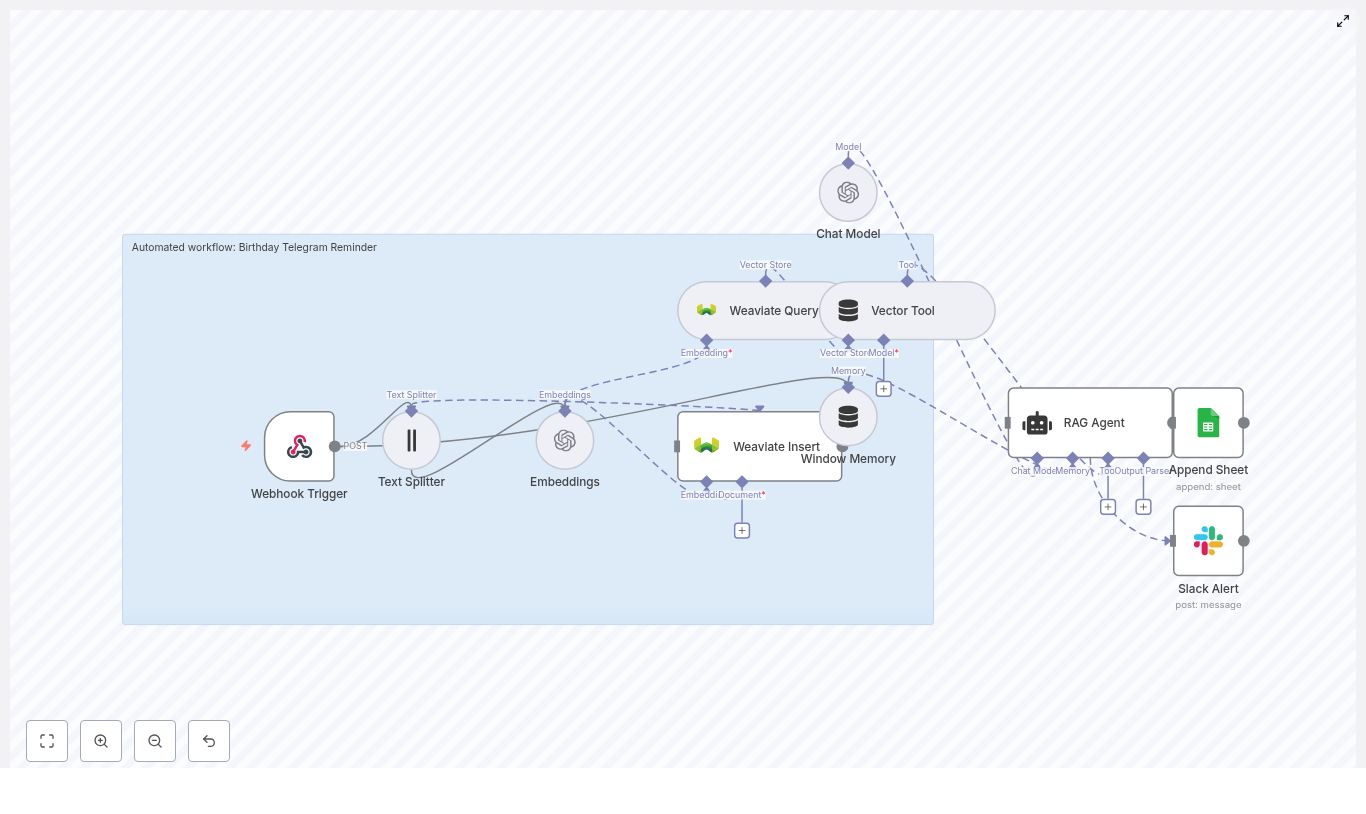
How The Workflow Is Built: High-Level Architecture
birthday-telegram-reminder.birthday_telegram_reminder.telegram_id.What You Need Before You Start
End-To-End Flow: What Happens When A Birthday Is Added
birthday_telegram_reminder index, along with metadata like name or Telegram ID.
“Happy Birthday, Jane! Hope you have an amazing day, maybe treat yourself to a great cup of coffee!” #alerts.telegram_id.Step-By-Step Setup In n8n
1. Import The n8n Template
2. Configure Your Credentials
birthday_telegram_reminder exists or allow the insert node to create it.SHEET_ID.#alerts) in the Slack Alert node.3. Map The Webhook Payload
birthday-telegram-reminder. A typical request body might look like:{ "name": "Jane Doe", "date": "1990-09-05", "notes": "Loves coffee and vintage books", "timezone": "Europe/Berlin", "telegram_id": "123456789"
}
notes through the Text Splitter and Embeddings so they are stored in Weaviate for future context.name, date, timezone, and telegram_id directly into the RAG Agent prompt to generate a personalized message right away.4. Tune Chunking & Embeddings
chunkSize = 400 and chunkOverlap = 40.text-embedding-3-small, which offers a good cost-quality balance.5. Customize The RAG Agent Prompt
You are an assistant for Birthday Telegram Reminder
6. Set Up Logging & Error Handling
#alerts).Best Practices For This Birthday Reminder Workflow
Troubleshooting Common Issues
Confirm your API credentials, endpoint, and that the index name is exactly birthday_telegram_reminder.
Try refining your prompt, increasing the amount of retrieved context, or using a more capable chat model.
Make sure your OAuth token has write access and that the SHEET_ID and sheet name are correct.
Check bot permissions, verify the channel name, and confirm the bot is actually in that channel.Ideas To Extend This Workflow
telegram_id.Security & Privacy Checklist
Ready To Put Birthday Reminders On Autopilot?
SHEET_ID in the Append Sheet node./webhook/birthday-telegram-reminder with a sample payload.
Compress & Upload Images to Dropbox with n8n
Compress & Upload Images to Dropbox with n8n
From repetitive tasks to reliable systems
Why this n8n workflow is a powerful starting point
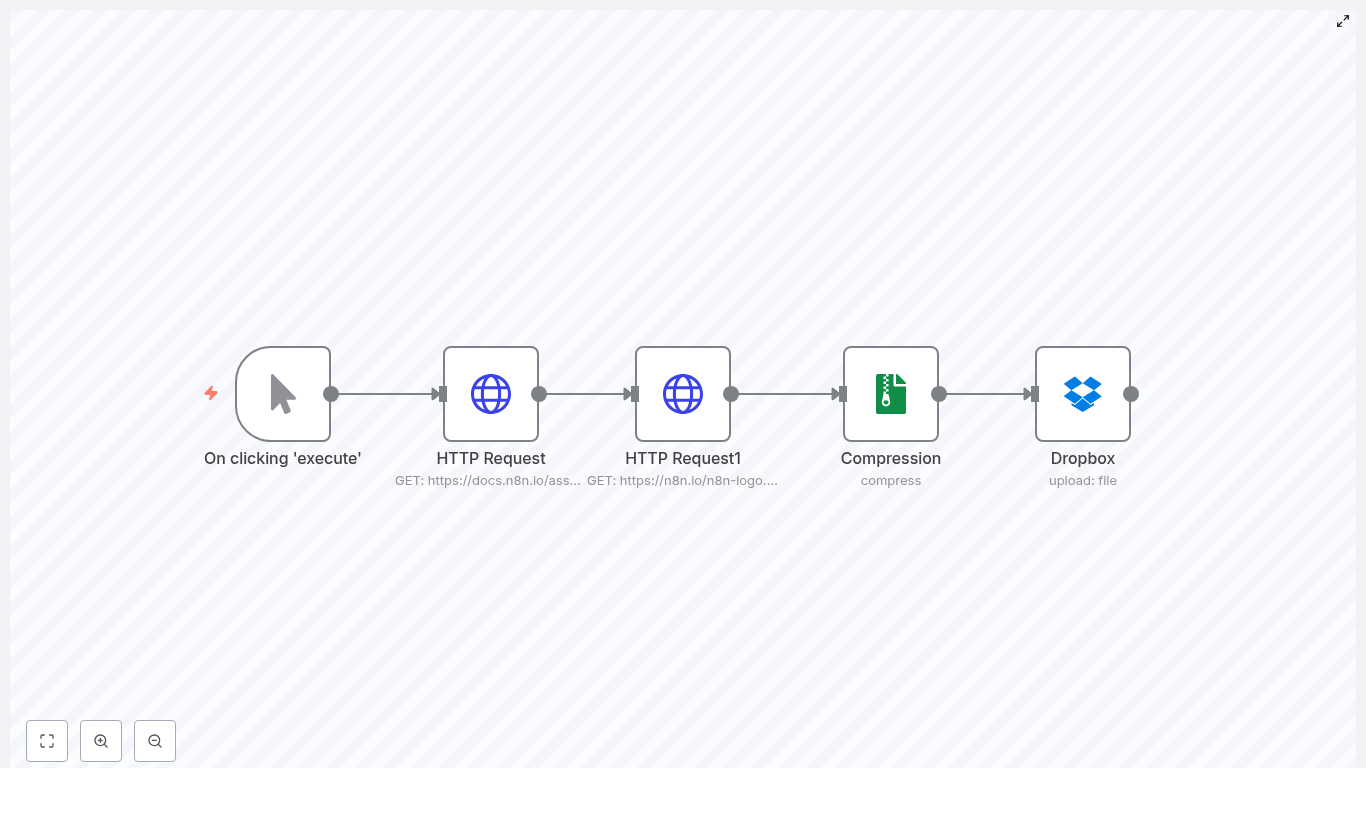
The journey at a glance: how the workflow works
workflow_image)logo)images.zipimages.zip to a Dropbox path such as /images.zipStep 1 – Trigger the workflow on your terms
Manual Trigger node
Step 2 – Download images with HTTP Request nodes
Configure each HTTP Request node
GET
workflow_imagehttps://docs.n8n.io/assets/img/final-workflow.f380b957.png
logohttps://n8n.io/n8n-logo.pngStep 3 – Compress everything into a single ZIP
Compression node
compresszipimages.zip
workflow_imagelogoimages.zip, on its output. This ZIP file is then available to any following node as a single binary property.Step 4 – Upload the ZIP to Dropbox
Dropbox node
upload
/images.zip/backups/images-{{ $now.toISOString() }}Best practices to keep your workflow robust and clear
Use meaningful binary property names
logo, workflow_image, or screenshot_1. The Compression node relies on these names to know which files to include in the archive.Handle errors and add retries
Schedule your workflow instead of running it manually
Use dynamic filenames and versioning
/backups/images-{{$now.toFormat("yyyyMMdd-HHmmss")}}.zipWork confidently with private endpoints
Ideas to extend and elevate this workflow
Troubleshooting: keep your automation on track
dataPropertyName values match exactly what you configured in the Compression node
Security: protect your credentials as you scale
Bringing it all together
Your next step: experiment, adapt, and grow
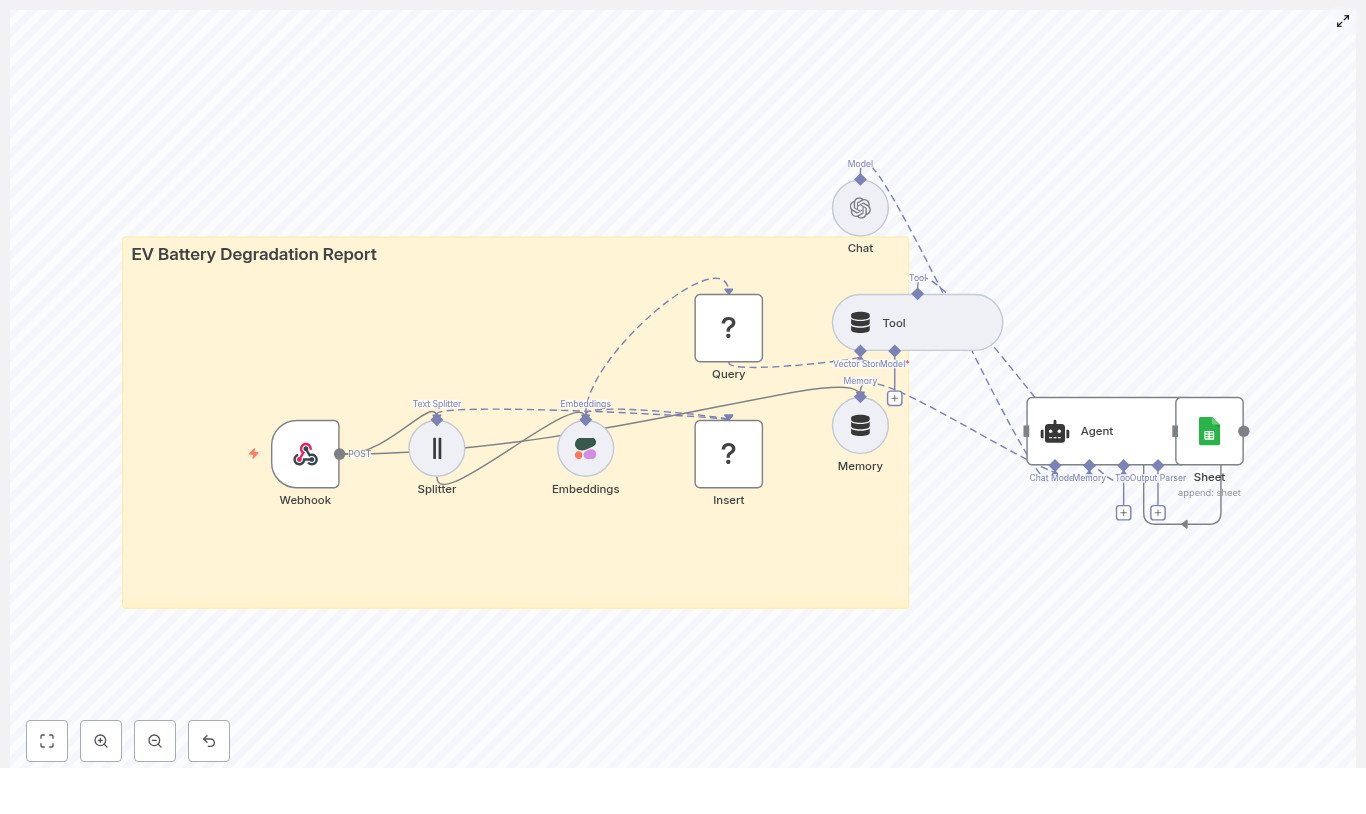
Automating EV Battery Degradation Reports with n8n
Automating EV Battery Degradation Reports with n8n
1. Workflow Overview
ev_battery_degradation_report.2. Architecture & Data Flow
2.1 High-level Architecture
2.2 Data Flow Sequence
technician_notes or free-form diagnostic logs).ev_battery_degradation_report.
3. Node-by-Node Breakdown
3.1 Webhook (Trigger)
POST requests, typically with a JSON body that includes both structured telemetry and unstructured diagnostic text.
/ev_battery_degradation_report.POST.
vehicle_id – Unique identifier of the EV.timestamp – ISO 8601 timestamp indicating when measurements were taken.telemetry – Object containing metrics such as cycle count, state of health (SOH), maximum temperature, average voltage, and other relevant parameters.technician_notes – Free-text notes describing observed issues, degradation patterns, or test results.3.2 Text Splitter (Text Chunking)
technician_notes or full diagnostic logs.chunkSize and chunkOverlap based on average document length and the level of detail required in retrieval.3.3 Embeddings (Cohere)
3.4 Insert (Redis Vector Store)
ev_battery_degradation_report.
vehicle_id, timestamp, and possibly a summary of telemetry values.3.5 Query & Tool (Vector Retrieval)
ev_battery_degradation_report index for nearest neighbors based on the embedding space.3.6 Memory (Buffer Window)
3.7 Chat & Agent (OpenAI / LLM)
3.8 Sheet (Google Sheets Logging)
4. Configuration & Setup
4.1 Prerequisites
4.2 Node Configuration Steps
/ev_battery_degradation_report.POST.
chunkSize to approximately 400 characters.chunkOverlap to approximately 40 characters.
ev_battery_degradation_report or a project-specific variant.vehicle_id and timestamp is included alongside each vector.
5. Sample Webhook Payload & Output
5.1 Example POST Payload
{  "vehicle_id": "EV-1024",  "timestamp": "2025-08-30T12:34:56Z",  "telemetry": {  "cycle_count": 1200,  "soh": 82.5,  "max_temp_c": 45.1,  "avg_voltage": 3.67  },  "technician_notes": "Observed increased internal resistance after repeated fast charging sessions. Capacity delta ~3% last 100 cycles."
}
5.2 Expected Report Contents
6. Best Practices & Tuning
6.1 Chunk Size & Overlap
6.2 Embedding Model Selection
6.3 Indexing Strategy in Redis
vehicle_id for per-vehicle retrieval.timestamp to filter by time range.
Etsy Review to Slack — n8n RAG Workflow
Etsy Review to Slack – n8n RAG Workflow For Focused, Automated Growth
From Reactive To Proactive – The Problem This Workflow Solves
Shifting Your Mindset – Automation As A Growth Lever
The Workflow At A Glance – How The Pieces Fit Together
POST /etsy-review-to-slacktext-embedding-3-smallStep 1 – Capturing Reviews Automatically With The Webhook Trigger
Webhook Trigger
/etsy-review-to-slack. Then point your Etsy webhooks or integration script to that URL.Step 2 – Preparing Text For AI With The Text Splitter & Embeddings
Text Splitter
chunkSize: 400chunkOverlap: 40Embeddings (OpenAI)
text-embedding-3-small, which is a practical balance between cost and quality for short review text.Step 3 – Building Your Knowledge Base In Supabase
Supabase Insert & Supabase Query
etsy_review_to_slack.
Step 4 – Giving The Agent Context With Vector Tool & Memory
Vector Tool
Window Memory
Step 5 – Turning Raw Reviews Into Action With The RAG Agent
RAG Agent Configuration
Step 6 – Logging Everything In Google Sheets For Clarity
Append Sheet
Log. The agent output is mapped to columns, such as a Status column for “OK” or “Escalate,” plus fields for summary, sentiment, or suggested action.
Step 7 – Staying In Control With Slack Alerts
Slack Alert
#alerts. You can configure it to:
Deployment Checklist – Get Your Workflow Live
etsy_review_to_slack.Log sheet.Configuration Tips To Make The Workflow Truly Yours
Chunk Size And Overlap
chunkSize based on your typical review length. Larger chunks mean fewer embeddings and lower cost, but less granularity. As a guideline, 200-500 tokens with 10-20 percent overlap is a safe default for most setups.Choosing The Right Embedding Model
text-embedding-3-small, which is well suited for this use case. You can experiment with other models if you need more nuance or have longer content.Supabase Schema And Retention Strategy
Error Handling And Observability
Sample Prompt For The RAG Agent
System: You are an assistant for Etsy Review to Slack. Summarize the review and mark if it should be escalated.
User: {{review_text}}
Context: {{vector_context}}
Output: Provide a one-line status (OK / Escalate), short summary (1-2 sentences), and suggested action.Troubleshooting Common Issues
Ideas To Extend And Evolve This Workflow
Security And Privacy – Automate Responsibly
Bringing It All Together – Your Next Step
Build an Esports Match Alert Pipeline with n8n
Build an Esports Match Alert Pipeline with n8n, LangChain & Weaviate
Why automate esports match alerts?
Solution architecture overview
Prerequisites and required services
Key workflow components in n8n
Webhook-based event ingestion
POST. For example, you might expose the path /esports_match_alert. Your match producer (game server, tournament API, or scheduling system) sends JSON payloads to this endpoint.// Example match payload
{ "match_id": "12345", "event": "match_start", "team_a": "Blue Raptors", "team_b": "Crimson Wolves", "start_time": "2025-09-01T17:00:00Z", "metadata": { "tournament": "Summer Cup" }
}
match_start, match_end, score_update, roster_change, and match_cancelled. The webhook node ensures each event is reliably captured and passed into the processing pipeline.Text preprocessing and chunking
400 tokens or characters40Embedding generation with Hugging Face
match_idmatch_start, score_update)Vector storage in Weaviate
esports_match_alert. Once stored, Weaviate supports efficient semantic queries such as:
Semantic queries as LangChain tools
esports_match_alert index. In the template, this query capability is exposed to the LangChain Agent as a Tool.LangChain Agent and short-term memory
Blue Raptors vs Crimson Wolves starting now! Scheduled: 2025-09-01T17:00Z
Previous meeting: Blue Raptors won 2-1 (2025-08-15). Predicted outcome based on form: Close match. #SummerCup
Audit logging in Google Sheets
match_idevent typeEnd-to-end setup guide in n8n
1. Configure the Webhook node
POST./esports_match_alert.2. Implement text splitting
400 and overlap 40, then adjust based on payload length and embedding cost.3. Generate embeddings
match_id, teams, tournament, event type, and timestamp.4. Insert vectors into Weaviate
esports_match_alert.5. Configure semantic queries
6. Set up the LangChain Agent and memory
7. Append logs to Google Sheets
match_id, event type, generated message, vector IDs, timestamp, and delivery status.Best practices for a robust alert pipeline
Designing metadata for precision queries
match_id and tournament identifiersOptimizing chunking and embedding cost
Handling rate limits and batching
Security and access control
Troubleshooting and performance tuning
Scaling and extending the workflow
Pre-launch checklist
esports_match_alert or equivalent) is created, populated with test data, and queryable.Conclusion
Build an Environmental Data Dashboard with n8n
Build an Environmental Data Dashboard with n8n, Weaviate, and OpenAI
What this n8n template actually does
Key benefits of this architecture
How the n8n workflow is wired together
environmental_data_dashboard.Quick-start setup guide
1. Capture data with a Webhook
POST/environmental_data_dashboard2. Split incoming text into digestible chunks
chunkSize: 400
chunkOverlap: 403. Generate OpenAI embeddings
default if you rely on n8n’s abstraction.4. Store vectors in Weaviate
environmental_data_dashboard
timestampsensor_idlocationpollutant_type or sensor_typeraw_text or original payload5. Query the vector store for context
6. Add conversational memory
7. Combine Chat model and Agent logic
8. Log everything to Google Sheets
appendLog
timestampquery_textagent_responsevector_matchesraw_payloadSecurity, credentials, and staying out of trouble
Optimization tips for a smoother dashboard
Control embedding costs with batching
chunkSize and chunkOverlap to reduce the number of chunks while preserving meaning.Improve search relevance with better metadata
locationtimestampsensor_typeseverityPlan for long-term storage
Common ways to use this Environmental Data Dashboard
Template configuration reference
path = environmental_data_dashboard, HTTP method = POSTchunkSize = 400, chunkOverlap = 40model = default (OpenAI API credentials configured in n8n)indexName = environmental_data_dashboard in WeaviateOperation = append, sheetName = LogExample webhook payload
{  "sensor_id": "zone-a-01",  "timestamp": "2025-08-01T12:34:56Z",  "location": "Zone A",  "type": "PM2.5",  "value": 78.4,  "notes": "Higher than usual, wind from north"
}Where to go from here