


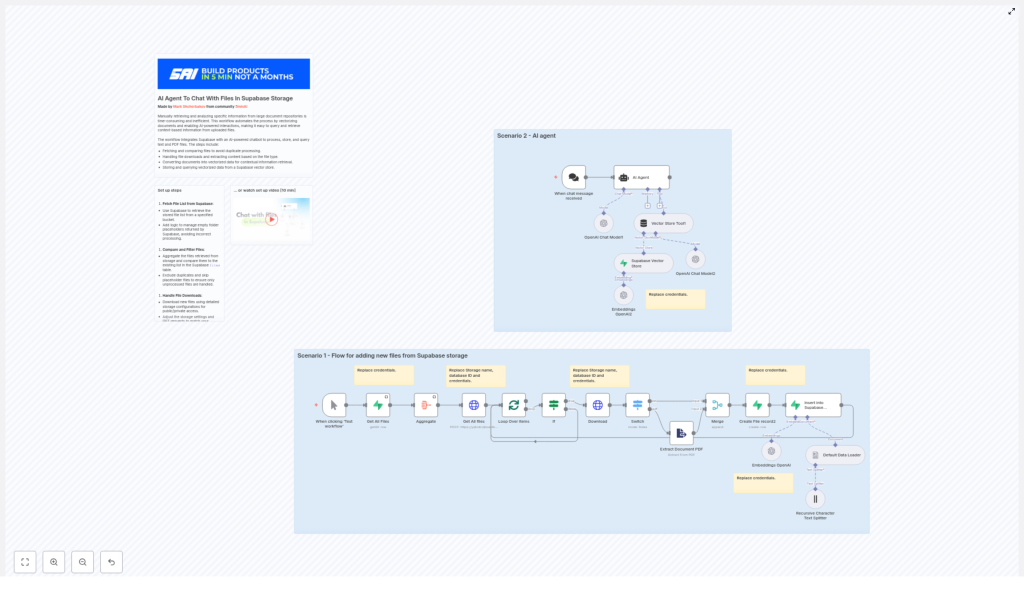
AI Agent to Chat With Files in Supabase Storage (n8n + OpenAI)
In this guide you will learn how to build an n8n workflow that turns files stored in Supabase into a searchable, AI-powered knowledge base. You will see how to ingest files, convert them to embeddings with OpenAI, store them in a Supabase vector table, and finally chat with those documents through an AI agent.
What you will learn
- How the overall architecture works: n8n, Supabase Storage, Supabase vector tables, and OpenAI
- How to build the ingestion workflow step by step: fetch, filter, download, extract, chunk, embed, and store
- How to set up the chat path that retrieves relevant chunks and answers user questions
- Best practices for chunking, metadata, performance, and cost control
- Common issues and how to troubleshoot them in production
Why build this n8n + Supabase + OpenAI workflow
As teams accumulate PDFs, text files, and reports, finding the exact piece of information you need becomes harder and more expensive. Traditional keyword search often misses context and subtle meaning.
By converting document content into vectors (embeddings) and storing them in a Supabase vector table, you can run semantic search. This lets an AI chatbot answer questions using the meaning of your documents, not just the exact words.
The n8n workflow you will build automates the entire pipeline:
- Discover new files in a Supabase Storage bucket
- Extract text from those files (including PDFs)
- Split text into chunks that are suitable for embeddings
- Generate embeddings with OpenAI and store them in Supabase
- Connect a chat trigger that retrieves relevant chunks at query time
The result is a reliable and extensible system that keeps your knowledge base up to date and makes your documents chat-friendly.
Architecture overview
Before we go into the workflow steps, it helps to understand the main components and how they fit together.
Core components
- Supabase Storage bucket – Holds your raw files. These can be public or private buckets.
- n8n workflow – Orchestrates the entire process: fetching files, deduplicating, extracting text, chunking, embedding, and inserting into the vector store.
- OpenAI embeddings – A model such as
text-embedding-3-smallconverts each text chunk into a vector representation. - Supabase vector table – A Postgres table (often backed by pgvector) that stores embeddings along with metadata and the original text.
- AI Agent / Chat model – Uses vector retrieval as a tool to answer user queries based on the most relevant document chunks.
Two main paths in the workflow
- Ingestion path – Runs on a schedule or on demand to process files:
- List files in Supabase Storage
- Filter out already processed files
- Download and extract text
- Split into chunks, embed, and store in Supabase
- Chat / Query path – Triggered by a user message:
- Receives a user query (for example from a webhook)
- Uses the vector store to retrieve top-k relevant chunks
- Feeds those chunks plus the user prompt into a chat model
- Returns a grounded, context-aware answer
Step-by-step: building the ingestion workflow in n8n
In this section we will go through the ingestion flow node by node. The goal is to transform files in Supabase Storage into embeddings stored in a Supabase vector table, with proper bookkeeping to avoid duplicates.
Step 1 – Fetch file list from Supabase Storage
The ingestion starts by asking Supabase which files exist in your target bucket.
- Call Supabase Storage’s list object endpoint:
- HTTP method:
POST - Endpoint:
/storage/v1/object/list/{bucket}
- HTTP method:
- Include parameters such as:
prefix– to limit to a folder or path inside the bucketlimitandoffset– for paginationsortBy– for example by name or last modified
In n8n this can be done using an HTTP Request node or a Supabase Storage node, depending on the template. The key outcome is a list of file objects with their IDs and paths.
Step 2 – Compare with existing records and filter files
Next you need to ensure you do not repeatedly embed the same files. To do that, you compare the storage file list with a files table in Supabase.
- Use the Get All Files Supabase node (or a database query) to read the existing
filestable. - Aggregate or map that data so you can quickly check:
- Which storage IDs or file paths have already been processed
- Filter out:
- Files that already exist in the
filestable - Supabase placeholder files such as
.emptyFolderPlaceholder
- Files that already exist in the
After this step you should have a clean list of new files that need to be embedded.
Step 3 – Loop through files and download content
The next step is to loop over the filtered file list and download each file.
- Use a batching mechanism in n8n:
- Example: set
batchSize = 1to avoid memory spikes for large files.
- Example: set
- For each file:
- Call the Supabase GET object endpoint to download the file content.
- Ensure you include the correct authentication headers, especially for private buckets.
After this step you have binary file data available in the workflow, typically under something like $binary.data.
Step 4 – Handle different file types with a Switch node
Not all files are handled the same way. Text files can be processed directly, while PDFs often need a dedicated extraction step.
- Use a Switch node (or similar branching logic) to inspect:
$binary.data.fileExtension
- Route:
- Plain text files (for example
.txt,.md) directly to the text splitting step. - PDF files to an Extract Document PDF node to pull out embedded text and, if needed, images.
- Plain text files (for example
The Extract Document PDF node converts the binary PDF into raw text that can be split and embedded in later steps.
Step 5 – Split text into chunks
Embedding entire large documents in one go is usually not practical or effective. Instead, you split the text into overlapping chunks.
- Use a Recursive Character Text Splitter or a similar text splitter in n8n.
- Typical configuration:
chunkSize = 500characters (or roughly 400-800 tokens)chunkOverlap = 200characters
The overlap is important. It preserves context across chunk boundaries so that when a single chunk is retrieved, it still carries enough surrounding information to make sense to the model.
Step 6 – Generate embeddings with OpenAI
Now each chunk of text is sent to OpenAI to create a vector representation.
- Use an OpenAI Embeddings node in n8n.
- Select a model such as:
text-embedding-3-small(or a newer, compatible embedding model)
- For each chunk:
- Send the chunk text to the embeddings endpoint.
- Receive a vector (array of numbers) representing the semantic meaning of the chunk.
- Attach useful metadata to each embedding:
file_id– an ID that links to yourfilestablefilenameor path- Chunk index or original offset position
- Page number for PDFs, if available
This metadata will help you trace answers back to specific documents and locations later on.
Step 7 – Insert embeddings into the Supabase vector store
With embeddings and metadata ready, the next step is to store them in a Supabase table that supports vector search.
- Use a LangChain vector store node or a dedicated Supabase vector store node in n8n.
- Insert rows into a
documentstable that includes:- An embedding vector column (for example a
vectortype with pgvector) - Metadata stored as JSON (for file_id, filename, page, etc.)
- The original document text for that chunk
- Timestamps or other audit fields
- An embedding vector column (for example a
Make sure that the table schema matches what the node expects, especially for the vector column type and metadata format.
Step 8 – Create file records and bookkeeping
After successfully inserting all the embeddings for a file, you should record that the file has been processed. This is done in a separate files table.
- Insert a row into the
filestable that includes:- The file’s
storage_idor path - Any other metadata you want to track (name, size, last processed time)
- The file’s
- This record is used in future runs to:
- Detect duplicates and avoid re-embedding unchanged files
How the chat / query path works
Once your documents are embedded and stored, you can connect a chat interface that uses those embeddings to answer questions.
Chat flow overview
- Trigger – A user sends a message, for example through a webhook or a frontend that calls your n8n webhook.
- Vector retrieval – The AI agent node or a dedicated retrieval node:
- Uses the vector store tool to search the
documentstable. - Retrieves the top-k most similar chunks to the user’s question.
- Typical value:
topK = 8.
- Uses the vector store tool to search the
- Chat model – The chat node receives:
- The user’s original prompt
- The retrieved chunks as context
- Answer generation – The model composes a response that:
- Is grounded in the supplied context
- References your documents rather than hallucinating
This pattern is often called retrieval-augmented generation. n8n and Supabase provide the retrieval layer, and OpenAI provides the language understanding and generation.
Setup checklist
Before running the template, make sure you have these pieces in place.
- n8n instance with:
- Community nodes enabled (for LangChain and Supabase integrations)
- Supabase project that includes:
- A Storage bucket where your files will live
- A Postgres table for vectors, such as
documents, with a vector column and metadata fields - A separate
filestable to track processed files
- OpenAI API key for:
- Embedding models
- Chat / completion models
- Supabase credentials:
- Database connection details
service_rolekey with least-privilege access configured
- Configured n8n credentials:
- Supabase credentials for both Storage and database access
- OpenAI credentials for embeddings and chat
Best practices for production use
To make this workflow robust and cost effective, consider the following recommendations.
Chunking and context
- Use chunks in the range of 400-800 tokens (or similar character count) as a starting point.
- Set overlap so that each chunk has enough self-contained context to be understandable on its own.
- Test different sizes for your specific document types, such as dense legal text vs. short FAQs.
Metadata and traceability
- Include detailed metadata in each vector row:
file_idfilenameor storage path- Page number for PDFs
- Chunk index or offset
- This makes it easier to:
- Show sources to end users
- Debug incorrect answers
- Filter retrieval by document or section
Rate limits and reliability
- Respect OpenAI rate limits by:
- Batching embedding requests where possible
- Adding backoff and retry logic in n8n for transient errors
- For large ingestion jobs, consider:
- Running them during off-peak hours
- Throttling batch sizes to avoid spikes
Security and access control
- Store Supabase
service_rolekeys securely in n8n credentials, not in plain text nodes. - Rotate keys on a regular schedule.
- Use Supabase Row Level Security (RLS) to:
- Limit which documents can be retrieved by which users or tenants
Cost management
- Embedding large document sets can be expensive. To manage costs:
- Only embed new or changed files.
- Use a lower-cost embedding model for bulk ingestion.
- Reserve higher-cost, higher-quality models for critical documents if needed.
