


Compress & Upload Images to Dropbox with n8n
Every time you manually download images, zip them, and upload them to cloud storage, you spend a little more energy on work that a workflow could handle for you. Over a week or a month, those minutes add up and quietly slow you down.
Automation is your chance to reclaim that time and refocus on work that really moves the needle. In this guide, you will walk through a simple but powerful n8n workflow that downloads images, compresses them into a ZIP file, and uploads that archive directly to Dropbox. It is a small automation with a big message: you can offload more than you think, and this template is a practical first step.
By the end, you will not only have a working n8n template, you will also have a clear pattern you can reuse for backups, asset packaging, and future automations that support your growth.
From repetitive tasks to reliable systems
Think about how often you:
- Download images from different URLs
- Bundle them into a ZIP archive
- Upload the archive to Dropbox or another storage service
Doing this manually is tedious, easy to forget, and prone to mistakes. Automating it turns a fragile habit into a reliable system. Once this workflow is in place, you can:
- Run consistent backups without thinking about them
- Package assets in a repeatable, predictable way
- Learn how n8n handles binary files so you can build more advanced automations later
This is not just about saving time on one task. It is about shifting your mindset from “I have to remember to do this” to “my system already takes care of it.”
Why this n8n workflow is a powerful starting point
This template is intentionally simple, yet it showcases some of the most important automation building blocks in n8n:
- HTTP Request nodes to download files from remote URLs
- The Compression node to bundle multiple binary files into a single ZIP
- The Dropbox node to upload and store that ZIP in the cloud
Once you understand this pattern, you can extend it to:
- Automate periodic backups of images or design assets
- Prepare files for distribution or deployment in a consistent way
- Handle any binary data in your workflows, not just images
Think of this as a foundational automation. You can use it as-is, or you can build on top of it as your needs grow.
The journey at a glance: how the workflow works
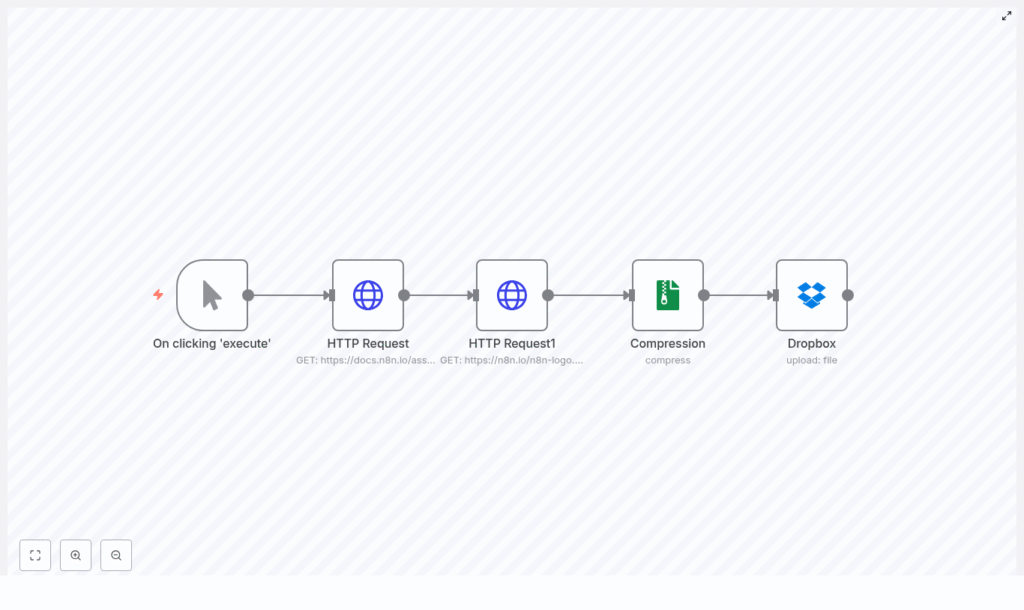
The workflow consists of five nodes connected in sequence:
- Manual Trigger – starts the workflow on demand
- HTTP Request – downloads the first image as binary data (
workflow_image) - HTTP Request1 – downloads the second image as binary data (
logo) - Compression – combines both binaries into
images.zip - Dropbox – uploads
images.zipto a Dropbox path such as/images.zip
Simple on the surface, yet powerful in practice. Let us walk through each step so you can confidently configure and customize it.
Step 1 – Trigger the workflow on your terms
Manual Trigger node
Start by dragging a Manual Trigger node onto the n8n canvas. This lets you run the workflow whenever you click “Execute”. It is perfect for:
- Testing the workflow as you build
- Running one-off backups or exports
Later, when you are ready to scale this into a hands-off system, you can replace the Manual Trigger with a Cron or Schedule Trigger node to run it hourly, daily, or weekly.
Step 2 – Download images with HTTP Request nodes
Next, you will add two HTTP Request nodes. Each node will fetch one image and store it as binary data that flows through the rest of the workflow.
Configure each HTTP Request node
For both HTTP Request nodes, use these key settings:
- Method:
GET - Response Format: File (this ensures the response is treated as binary data)
- Data Property Name: set a clear, descriptive name that will be used later by the Compression node
In this template, the two nodes are configured as:
- First HTTP Request node:
- Data Property Name:
workflow_image - Example URL:
https://docs.n8n.io/assets/img/final-workflow.f380b957.png
- Data Property Name:
- Second HTTP Request node:
- Data Property Name:
logo - Example URL:
https://n8n.io/n8n-logo.png
- Data Property Name:
You can replace these URLs with any publicly accessible image URLs or with private endpoints that support GET and return file binaries. The important part is that each HTTP Request node outputs a binary file under a specific property name.
This is where your automation mindset starts to grow. Instead of manually downloading files, you let n8n fetch exactly what you need, on demand or on a schedule.
Step 3 – Compress everything into a single ZIP
Compression node
Once both images are available as binary data, it is time to bundle them into a single archive. Add a Compression node and connect it after the HTTP Request nodes.
Configure the Compression node with:
- Operation:
compress - Output Format:
zip - File Name:
images.zip - Binary Property Name: specify the binary properties to include, for this template:
workflow_imagelogo
When configured correctly, the Compression node gathers the input binaries and produces a new binary file, images.zip, on its output. This ZIP file is then available to any following node as a single binary property.
This step is a great example of how n8n handles binary data across nodes. Once you are comfortable with this pattern, you will be ready to automate more complex file workflows.
Step 4 – Upload the ZIP to Dropbox
Dropbox node
Finally, you will send the compressed archive to Dropbox so it is stored safely in the cloud.
Add a Dropbox node after the Compression node and configure it as follows:
- Operation:
upload - Binary Property: reference the ZIP output from the Compression node
- Path: choose a destination path in Dropbox, for example:
/images.zip- or a folder path like
/backups/images-{{ $now.toISOString() }}
Make sure you have configured your Dropbox credentials in n8n with sufficient permissions to upload files. You can use an access token or OAuth credentials, managed securely through n8n’s credential system.
With this final step, your workflow closes the loop: from remote image URLs to a ready-to-use ZIP archive in your Dropbox, all without manual effort.
Best practices to keep your workflow robust and clear
Use meaningful binary property names
Clear naming makes your workflows easier to understand and extend. When passing binary data between nodes, use descriptive names like logo, workflow_image, or screenshot_1. The Compression node relies on these names to know which files to include in the archive.
Handle errors and add retries
Network requests can fail, and resilient automations plan for that. To make your workflow more reliable:
- Use the HTTP Request node’s built-in retry options
- Consider adding an error workflow to handle failures gracefully
- Optionally add a Set node before the Compression node to filter out failed or missing binaries
These small improvements help your automation run smoothly over time, not just once during testing.
Schedule your workflow instead of running it manually
Once you trust the workflow, replace the Manual Trigger with a Cron or Schedule Trigger node. This is ideal for:
- Daily or weekly image backups
- Recurring asset packaging for reports or campaigns
Scheduling turns your workflow into a quiet background system that consistently supports your work.
Use dynamic filenames and versioning
To avoid overwriting the same ZIP file and to keep a clear history of backups, use expressions to generate dynamic filenames. For example:
/backups/images-{{$now.toFormat("yyyyMMdd-HHmmss")}}.zipThis pattern makes it easy to see when each archive was created and to roll back if needed.
Work confidently with private endpoints
If your images live behind authentication, you can still use this workflow. Configure the HTTP Request nodes with the correct authentication method, such as:
- Bearer token
- Basic Auth
- OAuth
Add any required headers, then test each HTTP Request node individually to confirm that it returns binary content. Once it works, the rest of the workflow can stay exactly the same.
Ideas to extend and elevate this workflow
This template is a solid foundation, but you do not have to stop here. As you get more comfortable with n8n, you can extend this workflow to support more of your process. For example, you could:
- Add an image optimization step, such as an external API that compresses or converts image formats before creating the ZIP
- Send a Slack or email notification when the upload completes, including a Dropbox shared link
- Branch the workflow after the Compression node to upload the same ZIP to multiple destinations like Dropbox, Google Drive, or Amazon S3
- Store metadata such as source URLs, timestamps, and file sizes in a database or Google Sheet for auditing and reporting
Each enhancement nudges you further into a more automated, less manual way of working, where n8n handles the busywork and you focus on strategy and creativity.
Troubleshooting: keep your automation on track
If something does not work as expected, use this quick checklist:
- No file in the Compression output?
- Confirm each HTTP Request node returns binary data
- Check that the
dataPropertyNamevalues match exactly what you configured in the Compression node
- Dropbox upload fails?
- Verify your Dropbox credentials and permissions
- Make sure the path is valid and the node points to the correct binary property
- Files are corrupt after download?
- Ensure the HTTP Request node’s Response Format is set to File
- Confirm the remote server supports direct binary download
Most issues come down to a small configuration mismatch. Once fixed, the workflow will continue to run reliably.
Security: protect your credentials as you scale
As you build more automations, security becomes more important. Keep your workflows safe by:
- Using n8n’s credential system instead of hard-coding API keys or tokens
- Avoiding secrets inside Set or Function nodes
- Preferring short-lived tokens or regularly rotating credentials for private endpoints
This lets you grow your automation library without compromising sensitive data.
Bringing it all together
This n8n template gives you a clear pattern for downloading multiple binary files, packaging them into a ZIP, and uploading that archive to Dropbox. It is a simple workflow, yet it unlocks real benefits:
- Less time on repetitive file handling
- More consistent backups and asset bundles
- A deeper understanding of how n8n works with binary data
Most importantly, it shows what is possible when you start to automate the small tasks that quietly drain your focus. From here, you can continue to refine, expand, and combine workflows into a system that supports your business or personal projects every day.
Your next step: experiment, adapt, and grow
Try it now: Import the provided workflow into your n8n instance, connect your Dropbox credentials, replace the sample image URLs with your own, and click Execute. Watch your ZIP file appear in Dropbox and notice how much faster and smoother the process feels.
Then, take it further:
- Schedule it for regular backups
- Add notifications or additional storage destinations
- Use this pattern as a blueprint for other file-based workflows
Every workflow you build is a step toward a more focused, automated way of working. Start with this one, learn from it, and keep iterating.
Call to action: Import this workflow, test it, and share how you extended it. Your improvements might inspire the next person to automate a little more and reclaim a little more time.
