


Convert Web Series Episodes into an RSS Feed with n8n: A Story
When Your Favorite Web Series Has No RSS Feed
On a rainy Tuesday evening, Lena, a podcast addict and part-time marketer, sat staring at her phone in frustration. Her favorite satirical radio show had a brilliant online archive, but there was one big problem: no RSS feed.
Every week she had to open the website, scroll through the episodes, guess which ones were new, and manually download the audio. It was annoying, time-consuming, and completely unnecessary in 2025.
“There has to be a better way,” she muttered, copying the URL of the series overview page from https://www.ardaudiothek.de/sendung/kalk-und-welk/10777871/ and pasting it into her notes for the hundredth time.
Lena did not want to wait for the publisher to add RSS support. She wanted every new episode to appear automatically in her podcast app, like every other show she followed. That was the moment she decided to turn this static web page into a living RSS feed using n8n.
Discovering n8n and the Hidden Power of Templates
Lena had heard of n8n before, mostly as a tool for marketers and developers to automate repetitive workflows. But until now, she had never thought about using it to convert a web series into an RSS feed.
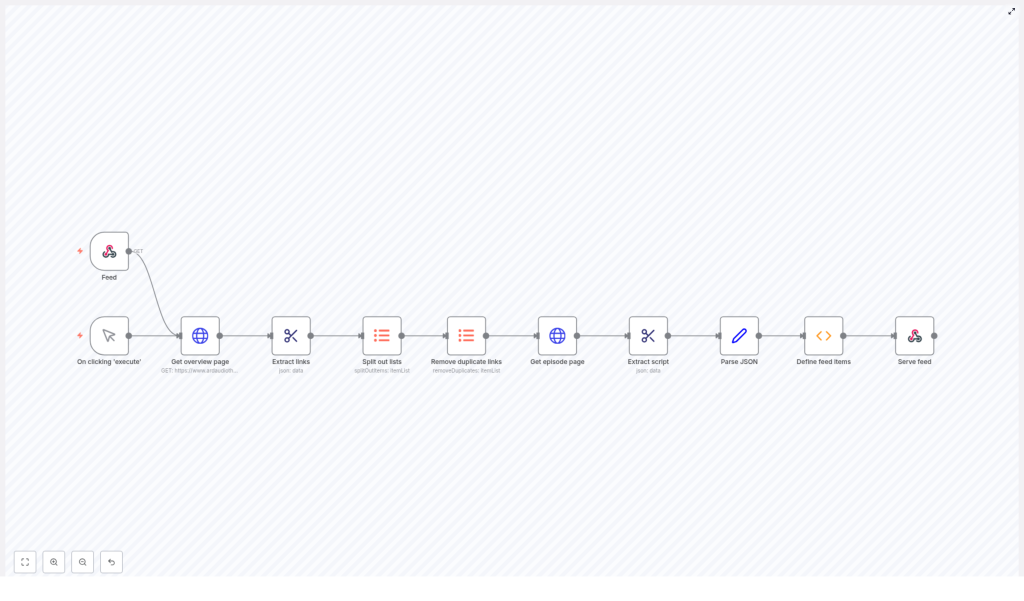
While browsing automation ideas, she stumbled across an n8n workflow template designed specifically to:
- Scrape a series overview page
- Extract all episode links
- Fetch detailed information for each episode
- Compile everything into a valid RSS feed
- Serve that feed through a simple HTTP endpoint
It sounded exactly like what she needed. The only question was whether she could actually understand and adapt it for her own series.
Setting the Stage: How the Workflow Gets Triggered
Lena opened the template in n8n and saw that everything started with two possible triggers. This was where her story with automation really began.
The Feed Webhook: A Custom RSS URL
The first trigger node was a feed webhook. It exposed an HTTP GET endpoint that looked like this:
/3fbd94de-2fb3-4b32-a46e-c237865479b9.rss
Whenever a podcast app or browser requested that URL, n8n would run the workflow and serve the freshly generated RSS feed. To Lena, this meant something magical: she could give her podcast app a stable RSS address, even though the original site did not support RSS at all.
The Manual Trigger: Testing Without Breaking Anything
The second entry point was a manual trigger. This one was for Lena, not for her podcast app. It let her run the entire workflow on demand from inside the n8n editor.
Before pointing any external app at the feed URL, she used the manual trigger to test the full process, step by step, and make sure the output looked like a valid RSS feed.
Rising Action: Teaching n8n to Read the Series Page
With the triggers in place, Lena needed to help n8n understand what the series overview page actually contained. The template already did this, but she wanted to see how it worked so she could adapt it later if needed.
Step 1: Fetching the Overview Page
The first active node after the trigger was an HTTP Request called something like “Get overview page”. It was configured to fetch the main series page from:
https://www.ardaudiothek.de/sendung/kalk-und-welk/10777871/
This single page contained links to all episodes in the series. In her mind, Lena pictured it as a table of contents that n8n needed to read carefully.
Step 2: Extracting Episode Links from HTML
Next came an HTML Extract node. This was where the raw HTML turned into something useful.
The node scanned the overview page and looked for all <a> tags whose href attributes matched the pattern /episode/. Every matching link was treated as a potential episode.
Instead of handing Lena a messy block of HTML, the node extracted just the href values and collected them into an array of episode links.
Step 3: Splitting and Cleaning the Link List
At this point, Lena had a list of episode URLs, but they were all bundled together. The next part of the workflow took that list and:
- Split the array so each link became a separate item in the workflow stream
- Removed duplicate links to avoid processing the same episode more than once
This was subtle but important. If the site reused links or if the HTML structure changed, duplicates could easily sneak in. The template handled that automatically, keeping the workflow clean and efficient.
The Turning Point: From Web Pages to Structured Episode Data
Now that each episode link was isolated, the real magic could happen. Lena needed detailed information for each episode: title, audio file URL, description, publication date, and more. The template had a clever way of extracting all of that from each individual episode page.
Step 4: Fetching Each Episode Page
For every unique episode link, n8n used another HTTP Request node called “Get episode page”. Instead of hardcoding full URLs, it dynamically built them by combining:
- The base domain:
https://www.ardaudiothek.de - The episode path: the
/episode/...part extracted earlier
This way, if the site structure stayed consistent, Lena could reuse the same logic even for other shows on the same platform.
Step 5: Finding the Hidden JSON in a Script Tag
Once each episode page was fetched, the template used another HTML Extract node. This time, it was not looking for links. It was after a specific <script> tag.
On the episode page, the second script tag contained embedded JSON with all the episode details. The HTML Extract node pulled out the content of that script, which looked like a long JSON string.
In the next node, that JSON string was parsed, turning it into structured data that n8n could easily work with. Suddenly, all the important episode information became accessible: audio URL, title, description, publication date, and more.
Shaping the Story into an RSS Feed
At this point in her journey, Lena had everything she needed: a clean list of episodes, each with detailed metadata. Now she needed to turn that into an RSS feed that podcast apps could understand.
Step 6: Defining RSS Feed Items in a Function Node
The template used a Function node to assemble all of the episode data into proper RSS XML.
Inside this node, custom JavaScript code:
- Created RSS
<item>elements for each episode - Escaped any HTML entities so the feed would be valid XML
- Populated key fields such as:
- Title
- Enclosure URL (the audio file link)
- GUID (a unique identifier for each episode)
- Publication date
- Description
- Other optional metadata used by podcast players
- Built the RSS channel metadata based on the series information, including overall title, description, and other shared properties
For Lena, this was the turning point. Her messy collection of web pages was now being transformed into a clean, standards-compliant RSS feed.
Step 7: Serving the Finished RSS Feed
The final node in the workflow made the whole thing usable outside of n8n. Using the feed webhook entry point, n8n returned the compiled RSS XML as an HTTP response.
It also set the correct content-type header:
application/rss+xml
This told browsers and podcast apps that they were receiving a real RSS feed. Lena copied the webhook URL, pasted it into her podcast app as a custom feed, and held her breath.
Within seconds, all the episodes appeared, neatly listed and ready to play.
Customizing the Workflow for Any Web Series
Once Lena saw it working, she realized this template was not limited to one show. With a few adjustments, she could convert almost any web series or podcast archive into an RSS feed using n8n.
Change the Source URL
To adapt the workflow to a different show, she simply edited the “Get overview page” HTTP Request node and replaced the URL with the new series or podcast overview page.
Adjust HTML Selectors
If the target website had a different HTML structure, she could:
- Modify the CSS selector in the “Extract links” HTML Extract node to correctly locate episode links
- Update the selector in the “Extract script” HTML Extract node to grab the right script tag that contained the JSON data
These tweaks made the workflow flexible enough to handle a wide range of sites, as long as the necessary information was available in the page HTML or embedded JSON.
Modify Feed Metadata and Structure
Inside the Function node, Lena could customize how the RSS feed looked and behaved. For example, she could:
- Change the channel title and description
- Adjust how GUIDs were generated
- Include or remove specific fields from each
<item> - Modify how publication dates were formatted
This gave her full control over the feed output without touching the core scraping logic.
Automate Updates with Cron Triggers
At first, Lena used the manual trigger for testing. But she quickly realized she did not want to remember to run the workflow every week.
So she replaced the manual trigger with a time-based cron trigger. Now n8n would automatically:
- Fetch the overview page on a schedule
- Detect new episodes
- Rebuild the RSS feed
Her podcast app would simply refresh the feed URL and show new episodes as they appeared, just like any other subscription.
Resolution: From Frustration to Fully Automated Listening
What started as a small annoyance turned into a complete automation win. By using this n8n workflow template, Lena:
- Converted a web-only series into a proper RSS feed
- Stopped manually checking for new episodes
- Learned how to scrape, parse, and transform web content with n8n
- Built a reusable pattern she could apply to other shows and sites
The same approach works for many podcasts or web series that do not provide RSS feeds. With n8n handling the scraping and transformation, any compatible series overview page can become a reliable feed for podcast apps or RSS readers.
For Lena, this workflow was not just a technical trick. It was a quiet upgrade to her daily routine, removing friction from something she loved.
Start Your Own Automation Story with n8n
If you are facing a similar problem, where a web series or podcast has no RSS feed, you can follow the same path:
- Use n8n to fetch the overview page
- Extract and clean episode links
- Pull structured data from each episode page
- Transform everything into a valid RSS feed
- Serve the feed through a webhook endpoint
With a few adjustments to URLs, selectors, and metadata, this template can become the backbone of your own content automation system.
Want to explore further or need help customizing the workflow? The n8n community and automation experts are full of examples, tips, and support to help you refine your setup and build more advanced automations.
