


Create a URL Shortener with n8n & Airtable
1. Technical Overview
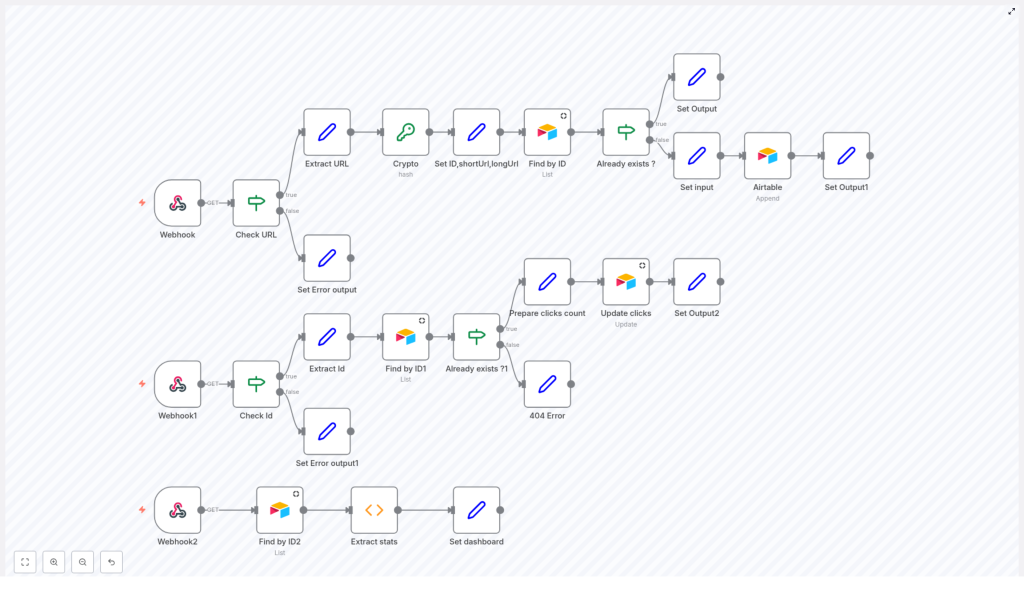
This guide documents an n8n workflow template that implements a simple URL shortener backed by Airtable. The workflow exposes three HTTP endpoints via Webhook nodes:
/sh– Creates or returns a shortened URL for a given long URL./go– Resolves a short URL ID to its original URL and tracks clicks./dashboard– Renders a basic HTML dashboard with aggregate statistics.
The solution uses:
- n8n as the automation engine and HTTP interface.
- Airtable as the persistent data store for URLs and click counts.
- SHA256 hashing to generate deterministic short IDs.
- JavaScript Function nodes for data aggregation and HTML rendering.
The goal is to provide a reproducible, extensible template suitable for users already familiar with n8n concepts such as nodes, triggers, credentials, and execution data.
2. Architecture & Data Flow
2.1 High-Level Request Flow
- Shortening endpoint (
/sh)- Accepts a GET request with a
urlquery parameter. - Validates input, hashes the URL, and creates a short ID.
- Checks Airtable for an existing record by that ID.
- Returns an existing or newly created short URL.
- Accepts a GET request with a
- Redirect endpoint (
/go)- Accepts a GET request with an
idquery parameter. - Looks up the corresponding record in Airtable.
- Increments the click counter for that record.
- Performs an HTTP redirect to the original long URL.
- Accepts a GET request with an
- Dashboard endpoint (
/dashboard)- Fetches all URL records from Airtable.
- Aggregates total links, total clicks, and total unique host domains.
- Returns an HTML page with a simple, responsive dashboard layout.
2.2 Airtable Data Model
The workflow assumes a single Airtable base and table that stores URL metadata. While field names may vary by implementation, the logic relies on the following conceptual fields:
- ID – Short identifier (first 6 characters of SHA256 hash).
- Original URL – The full, long URL provided by the user.
- Short URL – The complete short link (typically base URL +
/go?id=<ID>). - Clicks – Integer counter of how many times the short URL was used.
The dashboard logic additionally derives the host (domain) from the stored original URL to compute unique hosts.
3. Node-by-Node Breakdown
3.1 Webhook: URL Shortening Endpoint (/sh)
Purpose
Accepts a long URL and returns a short URL ID, either by reusing an existing record or by creating a new one in Airtable.
Trigger & Method
- Node type: Webhook
- Path:
/sh - HTTP method: GET
Input Parameters
url(query parameter)- Required for normal operation.
- Represents the full URL to be shortened.
Validation Logic
The workflow first checks if the url parameter is present in the incoming query string:
- If
urlis missing, the workflow returns an error response with the messageurl parameter missing. No Airtable operations are performed. - If
urlis present, the value is extracted and passed to the hashing step.
Typical validation is minimal in this template. In a production environment you may also want to verify that the URL is syntactically valid and uses an allowed scheme (such as http or https).
Hashing & ID Generation
To generate a deterministic short ID, the workflow uses SHA256 hashing:
- Take the input URL string.
- Compute the SHA256 hash of the string.
- Extract the first 6 characters of the resulting hex-encoded hash.
The 6-character substring is used as the short identifier. This approach reduces the chance of collisions while keeping the ID short. The template does not implement explicit collision resolution logic beyond reusing an existing record if the same ID exists for the same URL.
Airtable Lookup: Detect Existing Record
Next, an Airtable node searches the URL table for a record whose ID matches the generated short ID.
- Node type: Airtable (Search / List Records)
- Filter: ID field equals the generated 6-character hash fragment.
Behavior:
- If a record is found:
- The stored short URL is returned to the client.
- No new record is created.
- If no record is found:
- The workflow proceeds to create a new Airtable record.
Airtable Create: Insert New Short URL
If the short ID is not already present in Airtable, a second Airtable node appends a new record:
- Fields populated:
- ID – The generated 6-character ID.
- Original URL – The URL from the
urlquery parameter. - Short URL – Constructed short link, typically combining your public base URL with the
/goendpoint and the ID parameter. - Clicks – Usually initialized to 0.
The workflow then returns the newly created short URL as the response to the /sh request.
3.2 Webhook: Redirect Endpoint (/go)
Purpose
Resolves a short ID to its original URL, increments the click counter, and redirects the client to the target URL.
Trigger & Method
- Node type: Webhook
- Path:
/go - HTTP method: GET
Input Parameters
id(query parameter)- Required for successful redirection.
- Represents the short ID generated by the
/shendpoint.
Validation Logic
- If the
idparameter is missing:- The workflow returns a response with the message
id parameter missing. - No Airtable lookup or redirect is attempted.
- The workflow returns a response with the message
- If
idis present:- The value is extracted and passed to an Airtable lookup node.
Airtable Lookup: Resolve ID
An Airtable node searches for a record whose ID field matches the provided id value:
- If a record is found:
- The workflow extracts the original URL from the record.
- The click count is incremented and written back to Airtable.
- The Webhook node (or a dedicated HTTP Response node) sends an HTTP redirect to the original URL.
- If no record is found:
- The workflow responds with
Short URL not found. - No redirect is executed.
- The workflow responds with
Click Counting & Update
When a record is successfully matched:
- The current Clicks value is read from the Airtable record.
- The value is incremented by 1.
- An Airtable Update node writes the new click count back to the same record.
The increment operation is straightforward and assumes that concurrent updates are rare. For very high-traffic deployments, you would need to consider potential race conditions, but the template targets typical small to medium workloads where basic increments are sufficient.
Redirection Behavior
After updating the click count, the workflow issues an HTTP redirect to the original URL. In n8n, this is typically configured by setting the response headers and status code (for example, 301 or 302) in the Webhook or an HTTP Response node. The template uses the record’s stored original URL as the redirect target.
3.3 Webhook: Dashboard Endpoint (/dashboard)
Purpose
Provides a simple analytics dashboard summarizing usage of all short links stored in Airtable.
Trigger & Method
- Node type: Webhook
- Path:
/dashboard - HTTP method: GET
Data Retrieval
An Airtable node retrieves all URL records from the configured table. The workflow then passes this dataset to a JavaScript Function node for aggregation.
- Node type: Airtable (List Records)
- Scope: All records (pagination or maximum record limits depend on your Airtable node configuration).
Aggregation Logic (Function Node)
The Function node processes the full set of records to compute three key metrics:
- Total Links
- Computed as the count of all fetched records.
- Total Clicks
- Computed as the sum of the Clicks field across all records.
- Total Hosts
- Computed as the number of unique host domains derived from each record’s original URL.
- The Function node parses URLs, extracts the host part, and collects unique values.
Potential edge cases include malformed URLs or missing fields. The template assumes valid data and does not implement extensive error handling inside the aggregation logic, but you can extend the Function node to skip invalid entries or log issues.
Dashboard Rendering
After computing the metrics, the workflow generates an HTML response that includes:
- A clean, responsive layout using basic HTML and CSS.
- Clearly labeled boxes or cards displaying:
- Total Links
- Total Clicks
- Total Hosts
The HTML is returned directly from the Webhook or HTTP Response node, so accessing /dashboard in a browser displays the analytics view without additional front-end components.
4. Configuration & Setup Notes
4.1 n8n Webhook Configuration
- Ensure that all three Webhook nodes (
/sh,/go,/dashboard) are set to the correct HTTP method (GET) and that the paths are unique. - When deploying n8n behind a reverse proxy, make sure the external URLs for these webhooks are correctly exposed and reachable.
- Use the production webhook URLs when generating your short URLs so that they work outside of the n8n editor environment.
4.2 Airtable Credentials
- Create or use an existing Airtable API key / personal access token and configure it in n8n as Airtable credentials.
- Set the correct Base ID and Table name in each Airtable node used for:
- Searching by ID in
/sh. - Creating new records in
/sh. - Searching and updating records in
/go. - Listing all records in
/dashboard.
- Searching by ID in
4.3 Field Mapping in Airtable
Match your Airtable table fields to the workflow logic:
- ID – Short code generated from SHA256 hash (text field).
- Original URL – Full URL string (URL or text field).
- Short URL – Generated short link (URL or text field).
- Clicks – Integer field, initialized to 0.
If your field names differ, adjust the field mappings in each Airtable node accordingly.
4.4 Error Handling Considerations
The template includes basic validation:
/shreturnsurl parameter missingif theurlquery parameter is absent./goreturnsid parameter missing.if theidquery parameter is absent./goreturnsShort URL not foundif there is no matching record in Airtable.
For more robust deployments you may want to:
- Add explicit HTTP status codes (for example, 400 for missing parameters, 404 for unknown IDs).
- Validate URL format in
/shand optionally restrict to specific domains. - Implement logging nodes or error workflows for Airtable API failures or network issues.
5. Advanced Customization Ideas
The provided n8n template is intentionally minimal and easy to understand, but it can be extended in multiple ways without changing the core logic described above.
5.1 Custom Aliases & Vanity URLs
- Accept an optional alias parameter in the
/shendpoint. - Use the alias as the ID if it passes validation and is not already used in Airtable.
- Fallback to the SHA256-based ID generation when no alias is provided.
5.2 Expiration & Lifecycle Management
- Add an Expiration Date field in Airtable.
- Adjust the
/gologic to check whether the link has expired before redirecting. - Return an appropriate message or redirect to a custom landing page when a link is expired.
5.3 Extended Analytics & External Tools
- Log additional metadata such as user agent, referrer, or IP in separate Airtable tables.
- Forward events to external analytics tools or data warehouses for deeper analysis.
- Enhance the
/dashboardFunction node to compute more metrics like top hosts or most-clicked links.
