


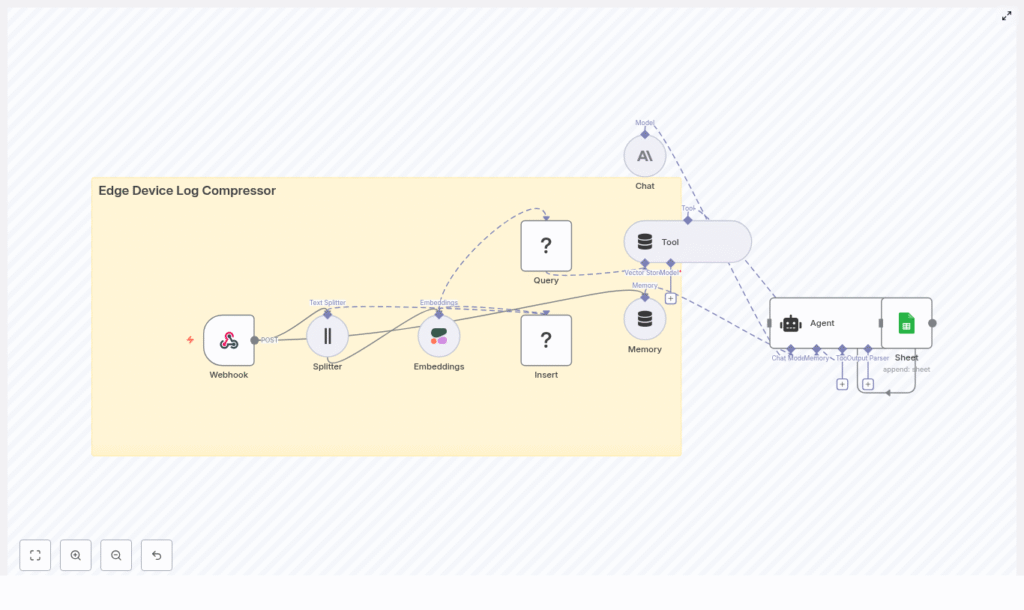
Edge Device Log Compressor with n8n: A Step-by-Step Teaching Guide
What You Will Learn
In this guide, you will learn how to use an n8n workflow template to:
- Ingest logs from edge devices securely using a Webhook
- Split large log payloads into smaller, meaningful text chunks
- Convert those chunks into vector embeddings for semantic search
- Store embeddings and metadata in a Redis vector database
- Query logs using an AI agent that uses memory and tools
- Summarize or compress logs and save the results into Google Sheets
- Apply best practices around configuration, security, and cost
This is the same core architecture as the original template, but explained in a more instructional, step-by-step way so you can understand and adapt it for your own edge device environment.
Why Compress Edge Device Logs?
Edge devices generate continuous streams of data: telemetry, error traces, health checks, and application-specific events. Keeping all raw logs in a central system is often:
- Expensive to store and back up
- Slow to search and filter in real time
- Hard to interpret because of noise and repetition
The n8n Edge Device Log Compressor template focuses on semantic compression rather than simple file compression. Instead of just shrinking file sizes, it turns verbose logs into compact, meaningful representations that are easier to search, summarize, and analyze.
Key benefits of compressing logs in this way include:
- Lower storage and transfer costs by storing compressed summaries and embeddings instead of full raw logs everywhere
- Faster incident triage using semantic search to find relevant events by meaning, not just keywords
- Automated summarization and anomaly detection with an AI agent that can read and interpret log context
- Better indexing for long-term analytics by keeping structured metadata and embeddings for trend analysis
Conceptual Overview: How the n8n Architecture Works
The template implements a full pipeline inside n8n. At a high level, the workflow:
- Receives logs from edge devices via a secured Webhook
- Splits large log payloads into overlapping chunks
- Creates vector embeddings for each chunk using an embeddings model such as Cohere
- Stores embeddings and metadata in a Redis vector store
- Lets a user or system send a query that performs vector search on those embeddings
- Uses an AI agent with memory and tools to summarize or act on the retrieved logs
- Appends the final summarized output to Google Sheets for review or auditing
Core Components of the Workflow
Each component in the n8n template plays a specific role:
- Webhook – Entry point that receives HTTP POST requests from edge devices.
- Splitter – Splits large log text into smaller chunks using configurable chunk size and overlap.
- Embeddings (Cohere or similar) – Turns each text chunk into a vector embedding that captures semantic meaning.
- Insert (Redis Vector Store) – Stores the embeddings and metadata in a Redis index for fast similarity search.
- Query + Tool – Performs vector search against Redis and exposes the results as a tool to the AI agent.
- Memory + Chat (Anthropic or other LLM) – Maintains context across multiple queries and responses.
- Agent – Orchestrates the LLM, tools, and memory to answer questions, summarize logs, or recommend actions.
- Google Sheets – Final destination for human-readable summaries, severity ratings, and references to raw logs.
Understanding the Data Flow Step by Step
Let us walk through the full lifecycle of a log entry in this n8n workflow, from ingestion to summarized output.
Step 1 – Edge Device Sends Logs to the Webhook
Edge devices send their logs to an HTTP endpoint exposed by the n8n Webhook node. The endpoint usually accepts JSON payloads and should be protected with secure transport and authentication.
Security options for the Webhook:
- Use HTTPS to encrypt data in transit
- Require an API key in headers or query parameters
- Optionally use mutual TLS (mTLS) for stronger authentication
Example Incoming Payload
An example POST request to /webhook might look like this:
{  "device_id": "edge-123",  "timestamp": "2025-08-31T12:00:00Z",  "logs": "Error: sensor timeout\nReading: 123\n..."
}
Step 2 – Splitter Node Breaks Logs into Chunks
Raw log payloads can be quite large. To make them manageable for embeddings and vector search, the Splitter node divides the log text into smaller, overlapping segments.
The key settings are:
- chunkSize – The maximum length of each chunk in characters.
- chunkOverlap – The number of characters that overlap between consecutive chunks.
For example, you might start with:
- chunkSize: 300 to 600 characters (shorter if logs are noisy or very repetitive)
- chunkOverlap: 10 to 50 characters to keep context between chunks
This overlapping strategy ensures that important details at chunk boundaries are not lost. In the example payload above, the Splitter might create 3 to 5 overlapping chunks from the original log string.
Step 3 – Embeddings Node Converts Chunks to Vectors
Once the logs are split, each chunk is sent to an Embeddings node. This node calls an embeddings provider such as Cohere to convert each text chunk into a fixed-length numeric vector.
These vectors encode the semantic meaning of the text, which makes it possible to search by similarity rather than by exact keyword match.
When configuring embeddings, consider:
- Model choice – Cohere is a solid default, but OpenAI and other providers are also options.
- Dimensionality – Higher dimensional embeddings can capture more nuance but require more storage and compute.
Step 4 – Redis Vector Store Persists Vectors and Metadata
The resulting embeddings are then stored in a Redis vector store. This is typically implemented using Redis modules such as Redisearch or Redis Vector Similarity.
For each chunk, the workflow stores:
- The embedding vector
- Metadata such as:
- device ID
- timestamp
- severity (if available)
- a reference or link to the original raw log
Configuration tips for Redis:
- Use a Redis cluster or managed Redis with Redisearch for better performance and reliability.
- Store rich metadata so you can filter queries by device, time range, or severity.
- Plan for retention and archiving by compacting old vectors or moving them to cold storage when they are no longer queried frequently.
Step 5 – Query and Tool Nodes Perform Semantic Search
Later, when you or a monitoring system needs to investigate an issue, you send a query into the workflow. The Query node performs a similarity search on the Redis vector store to find the most relevant log chunks.
The Tool wrapper then exposes this vector search capability to the AI agent. In practice, this means the agent can:
- Call the tool with a natural language question
- Receive back the top matching log chunks and metadata
- Use those results as context for reasoning and summarization
Example Query
For the earlier payload, a user might ask:
Why did edge-123 report sensor timeout last week?
The Query node will retrieve the most relevant chunks related to edge-123 and sensor timeouts around the requested time window.
Step 6 – AI Agent Uses Memory and Tools to Summarize or Act
Once the relevant chunks are retrieved, an Agent node orchestrates the AI model, tools, and memory.
In this template, the agent typically uses an LLM such as Anthropic via a Chat node, plus a memory buffer that keeps track of recent messages and context. The agent can then:
- Summarize the root cause of an incident
- Highlight key errors, patterns, or anomalies
- Suggest remediation steps or link to runbooks
Memory configuration tips:
- Use a windowed memory buffer so only the most recent context is kept.
- Limit memory size to control API costs and keep responses focused.
Step 7 – Google Sheets Stores Summaries and Audit Data
Finally, the workflow writes the agent’s output to a Google Sheets spreadsheet. Each row might include:
- A human-readable summary of the log events
- A severity level or classification
- The device ID and timestamp
- A link or reference back to the raw log or observability system
This makes it easy for SRE teams, auditors, or analysts to review incidents without digging through raw logs.
Configuring Key Parts of the Template
Configuring the Splitter Node
The Splitter is one of the most important nodes for balancing performance, cost, and quality of results.
- chunkSize:
- Start with 300 to 600 characters.
- Use smaller chunks for very noisy logs so each chunk captures a clearer event.
- chunkOverlap:
- Use 10 to 50 characters of overlap.
- More overlap preserves context across chunks but increases the number of embeddings you store.
Choosing and Tuning Embeddings
For embeddings, you can use Cohere or an alternative provider. When choosing a model:
- Balance cost against semantic quality.
- Check the embedding dimensionality and make sure your Redis index is sized appropriately.
- Consider batching multiple chunks into a single embedding request to reduce API overhead.
Optimizing the Redis Vector Store
To keep Redis efficient and scalable:
- Use a clustered or managed Redis deployment with Redisearch support.
- Store metadata fields like:
device_idtimestampseverity
- Implement retention policies for old vectors, such as:
- Archiving older embeddings to object storage
- Deleting or compacting low-value historical data
Agent, Memory, and Cost Control
The AI agent is powerful but can be expensive if not tuned correctly. To manage this:
- Keep the memory window small and relevant to the current analysis.
- Use concise prompts that focus on specific questions or tasks.
- Limit the number of tool calls per query where possible.
Security and Compliance Best Practices
Since logs may contain sensitive information, treat them carefully throughout the pipeline.
- Secure the Webhook
- Always use HTTPS.
- Protect the endpoint with API keys or mTLS.
- Encrypt data at rest
- Encrypt sensitive metadata in Redis.
- Encrypt Google Sheets or restrict access using proper IAM controls.
- Sanitize logs for PII
- Remove or mask personally identifiable information before creating embeddings if required by policy.
- Retention policies
- Limit how long you keep raw logs.
- Store compressed summaries and embeddings for longer-term analysis instead.
Use Cases and Practical Benefits
This n8n template is useful in several real-world scenarios:
- Real-time incident triage
- Engineers can query semantic logs to quickly identify root causes.
- Long-term analytics
- Compressed summaries and metadata can be analyzed to detect trends and recurring issues.
- Automated alert enrichment
- The AI agent can enrich alerts with contextual summaries and recommended runbooks.
Monitoring, Scaling, and Cost Management
To keep your deployment efficient and cost effective, monitor:
- Embedding request volume
- This is often a primary cost driver.
- Use batching where possible to reduce per-request overhead.
- Redis storage usage
- Track how many vectors you store and how quickly the dataset grows.
- Shard or archive old vectors to cheaper storage if you need long-term semantic search.
Hands-On: Getting Started with the Template
To try the Edge Device Log Compressor workflow in your own environment, follow these practical steps:
- Clone the n8n workflow template
- Use the provided template link to import the workflow into your n8n instance.
- Configure credentials
- Set up API keys and connections for:
- Cohere (or your embeddings provider)
- Redis (vector store)
- Anthropic or your chosen LLM
- Google Sheets
- Set up API keys and connections for:
- Test with sample edge payloads
- Send sample JSON logs from your edge devices or test tools.
- Tune
chunkSizeandchunkOverlapbased on log structure and performance.
- Set up retention, alerting, and access control
- Define how long you keep raw logs and embeddings.
- Configure alerts for high error rates or anomalies.
- Ensure only authorized users can access logs and summaries.
