


Effortless WordPress to Pipedrive Integration Guide
Overview: From Website Inquiry to Qualified Lead in Pipedrive
Connecting WordPress contact forms directly to Pipedrive with n8n transforms how inbound leads are captured, qualified, and handed off to sales. Instead of manually copying form submissions into your CRM, this automated workflow ensures every inquiry is consistently logged, enriched, and followed up on.
This guide explains how to implement a production-ready automation using Contact Form 7, a webhook extension, n8n, and the Pipedrive API. It covers configuration of all components, the core workflow logic, and recommended customization options for advanced users and automation professionals.
Architecture of the Automation
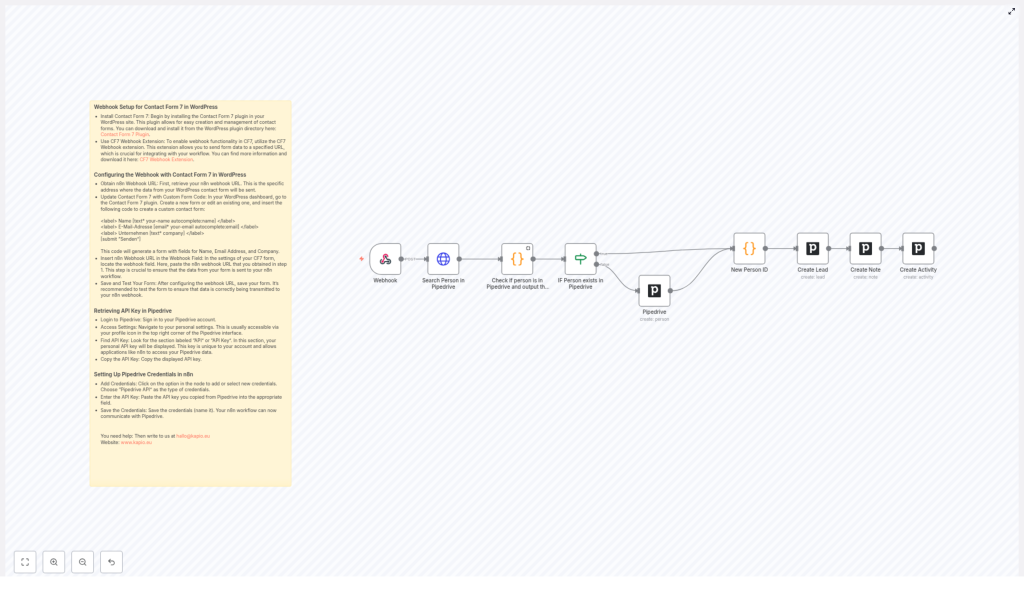
The integration follows a straightforward, scalable pattern:
- Contact Form 7 on WordPress collects lead data.
- A CF7 webhook sends the submission payload to an n8n Webhook node.
- n8n uses the Pipedrive API to:
- Identify or create the person record.
- Create a new lead linked to that person.
- Attach a note with context from the website form.
- Create a follow-up activity for the sales team.
The result is a fully automated pipeline from website form to actionable lead in Pipedrive, with all key interactions tracked.
Preparing WordPress and Contact Form 7
1. Install and Configure Contact Form 7
Begin by setting up the data capture layer on your WordPress site.
- Install Contact Form 7:
From the WordPress admin dashboard, navigate to Plugins > Add New, search for Contact Form 7, install, and activate it. This plugin provides a flexible way to create and manage forms without custom PHP.
- Create or edit your form:
Design a form that collects the minimum viable data for lead creation. The following example includes fields for name, email, and company:
<label> Name [text* your-name autocomplete:name] </label>
<label> E-Mail-Adresse [email* your-email autocomplete:email] </label>
<label> Unternehmen [text* company] </label>
[submit "Senden"]
You can extend this with additional fields as required, but ensure that the field names are consistent with what you expect to process in n8n.
2. Enable Webhook Support for CF7
- Install the CF7 Webhook extension:
Add a plugin that introduces webhook functionality to Contact Form 7. This allows each form submission to be sent as an HTTP request to an external URL, which in this case will be your n8n Webhook node.
- Configure the webhook URL:
Once the extension is active, open your Contact Form 7 form settings. In the webhook configuration section, you will later paste the n8n webhook URL generated by your workflow. For now, note where this setting is located, as you will return to it after the n8n Webhook node is created.
Connecting n8n and Pipedrive
3. Retrieve the Pipedrive API Key
To allow n8n to communicate with Pipedrive, you must authenticate using a personal API key.
- Log into your Pipedrive account.
- Open your personal settings from the profile icon in the top navigation.
- Locate the API or API Key section.
- Copy your personal API key and store it securely for use in n8n credentials.
4. Configure Pipedrive Credentials in n8n
With the API key available, define a reusable credential in n8n.
- In n8n, open the Credentials section or create credentials directly from within a Pipedrive node.
- Select Pipedrive API as the credential type.
- Paste the API key into the appropriate field.
- Assign a clear, descriptive name to the credential, for example Pipedrive – Production, and save it.
This credential will be referenced by all Pipedrive nodes in the workflow, which simplifies maintenance and rotation of keys.
Building the n8n Workflow
5. Define the Webhook Trigger
The Webhook node is the entry point for the automation.
- Create a new workflow in n8n.
- Add a Webhook node and configure:
- HTTP Method: Typically
POST. - Path: A descriptive endpoint path, such as
/wordpress-contact.
- HTTP Method: Typically
- Save and activate the workflow temporarily to generate the webhook URL.
- Copy the URL and return to your Contact Form 7 webhook settings.
- Paste the n8n webhook URL into the CF7 webhook configuration and save the form.
- Submit a test form on your website and verify in n8n that the Webhook node receives the payload with all expected fields.
6. Implement the Pipedrive Logic
Once the webhook is receiving data, you can design the CRM logic that follows best practices for lead management.
6.1 Search for an Existing Person in Pipedrive
- Add a Pipedrive node configured for the Person resource and the Search operation.
- Use the email address from the Webhook node as the search parameter, for example with an expression referencing the
your-emailfield. - Connect the Webhook node to this Pipedrive node.
The purpose of this step is to avoid creating duplicate person records and to maintain clean CRM data.
6.2 Apply Decision Logic: Existing vs New Person
- Insert an IF or Switch node after the search.
- Configure a condition that checks whether the search result contains at least one person. This can be based on the length of the returned items or the presence of an ID.
- Branch the workflow:
- If person exists: Use the existing Pipedrive person ID from the search results.
- If person does not exist: Create a new person in Pipedrive.
6.3 Create a New Person When Needed
On the branch where no existing person is found:
- Add another Pipedrive node configured to:
- Resource: Person
- Operation: Create
- Map the fields from the Webhook payload, such as:
- Name from
your-name - Email from
your-email - Company from
company(optionally mapped to organization or a custom field, depending on your Pipedrive setup)
- Name from
Both branches (existing person and newly created person) should converge to a state where you have a reliable person ID to use in downstream nodes.
6.4 Create a Lead Linked to the Person
- Insert a Pipedrive node configured for:
- Resource: Lead
- Operation: Create
- Reference the person ID from the previous step, either from the search result or the create-person node.
- Set a clear lead title, for example with an expression such as:
Website inquiry from {{ $json["your-name"] }}
This ensures that each website submission becomes a distinct lead object that can be tracked through your pipeline.
6.5 Attach a Note with Contextual Information
- Add another Pipedrive node configured to:
- Resource: Note
- Operation: Create
- Link the note to the appropriate entities:
- Associate with the lead ID created in the previous step.
- Optionally, also associate with the person ID for richer history.
- Compose the note content using form data, for example:
- Submission source (e.g. “Website contact form”).
- Submitted fields such as company, email, and any message field if present.
This note provides sales with immediate context about the request without needing to reference the original email notification or website backend.
6.6 Create a Follow-up Activity for Sales
- Add a final Pipedrive node configured for:
- Resource: Activity
- Operation: Create
- Link the activity to the person and lead where appropriate.
- Define the activity subject and type, for example:
- Subject:
Follow up with website lead {{ $json["your-name"] }} - Type: Call, meeting, or follow-up depending on your internal process.
- Subject:
- Optionally set a due date or relative time frame (for example, within 1 business day) to ensure timely follow-up.
With this final step, the workflow not only logs the lead but also enforces a follow-up action, which is critical for consistent sales execution.
Customizing and Optimizing the Workflow
7. Tailoring Fields and Expressions
The template is intentionally flexible and can be adapted to different sales processes and data models.
- Lead title and description: Adjust expressions to match your naming conventions and include key qualifiers such as product interest or source campaign.
- Note content: Expand the note to incorporate additional form fields, UTM parameters, or referrer information if you capture it.
- Activity subject and type: Align activity settings with your Pipedrive activity types and internal SLA requirements.
8. Best Practices for Reliability and Maintenance
- Validation and error handling: Consider adding nodes to validate incoming data, handle missing email addresses, or route failed API calls to a notification channel.
- Testing in a sandbox: If available, test the workflow with a non-production Pipedrive environment before activating it for live traffic.
- Version control: Export and store workflow definitions in version control so changes can be tracked and rolled back if needed.
Deploy the Template and Scale Your Lead Management
By connecting Contact Form 7, n8n, and Pipedrive, you eliminate repetitive manual data entry and ensure every website inquiry is consistently captured, enriched, and actioned. This integration improves data quality, speeds up response times, and provides your sales team with a complete, structured view of each inbound lead.
If you require support with implementation or need tailored automation solutions that fit complex sales operations, reach out at hallo@kapio.eu.
Image Source: Kapio Logo

