


Export Google Slides Thumbnails & Email Alerts
Imagine opening your inbox and finding a neat set of slide thumbnails from your latest presentation, ready for review, sharing, or archiving. No downloading, no exporting, no manual screenshots. Just clear visual previews delivered automatically while you focus on more meaningful work.
This is exactly what this n8n workflow template helps you do. It takes a Google Slides presentation, generates thumbnails for each slide, and emails them using Gmail. In this guide, you will walk through the problem this solves, the mindset behind automating it, and then the exact steps to set up and customize the workflow in n8n.
Think of it as a small but powerful step toward a more automated, focused workday.
From manual busywork to automated clarity
Manually exporting slide thumbnails is one of those tasks that feels small but adds up quickly. Every time you need previews for a client, a marketing review, or a course update, you:
- Open the Google Slides file
- Export or screenshot individual slides
- Rename and organize the images
- Compose an email and attach everything
It is repetitive, easy to forget, and definitely not the best use of your time or your team’s energy.
Automation flips that script. Instead of repeating the same steps over and over, you design the process once, then let it run for you. You free up mental space, reduce errors, and create a reliable system that works the same way every time.
This n8n template is a practical example of that shift. It gives you a clear, configurable workflow that:
- Retrieves all slides from a Google Slides presentation
- Generates a thumbnail image for each slide
- Sends those thumbnails by email via Gmail
Once it is set up, you can run it manually, on a schedule, or trigger it from other tools. The result is the same: instant visual updates without manual effort.
How the n8n Google Slides thumbnail workflow works
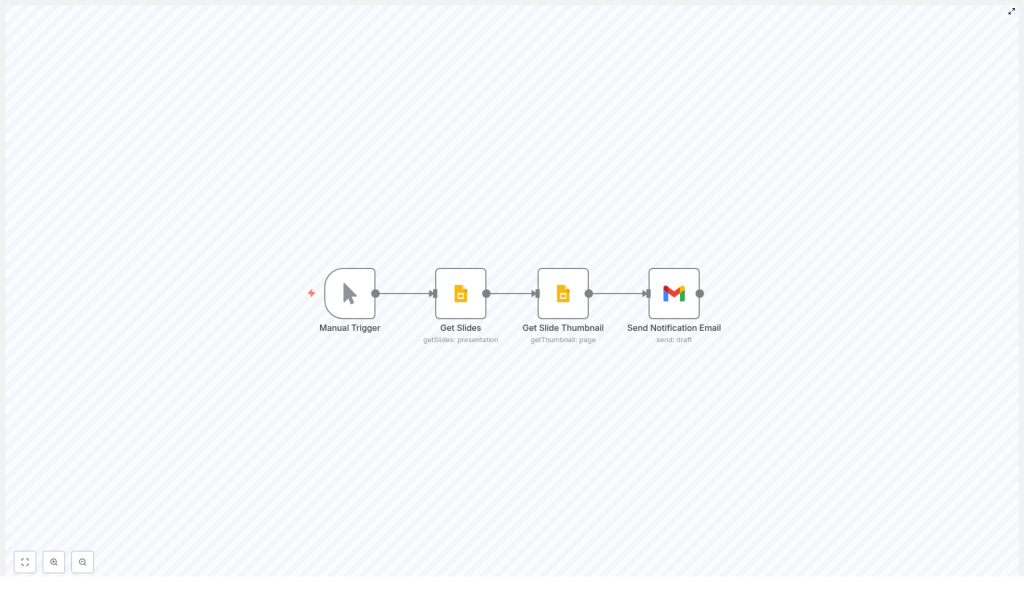
At its core, this workflow connects Google Slides and Gmail inside n8n using a series of nodes that each play a clear role. Here is the high-level flow you will be building and customizing:
- Trigger the workflow manually or on a schedule
- Get Slides from a specific Google Slides presentation
- Generate thumbnails for each slide
- Send thumbnails by email using Gmail
As you follow the steps below, you can keep it simple or start experimenting with enhancements like batching, archiving, or combining multiple thumbnails into a single email. This workflow is meant to be a starting point for your own automation ideas.
Step 1: Choose how and when the workflow runs
Manual Trigger node
The template starts with a Manual Trigger node. It is perfect for testing and for workflows you want to run on demand.
Later, as you gain confidence and want more automation, you can replace or complement it with:
- Cron node to run on a schedule (for example, every morning)
- Webhook to trigger from another app or service
- Other trigger nodes depending on your use case
This flexibility lets you start simple, then gradually move toward a fully automated system as your needs grow.
Step 2: Retrieve all slides from Google Slides
Get Slides (Google Slides node)
The next step is to fetch the slides you want to convert into thumbnails. For that, the workflow uses a Google Slides node with the following configuration:
- Operation:
getSlides - Return all:
trueso every slide in the deck is retrieved - presentationId: the ID from your Google Slides URL
The presentationId is the part of the URL between /d/ and /edit. You can:
- Hard-code it directly in the node for a fixed deck
- Pass it dynamically as a parameter or variable if you are automating multiple presentations
This node returns one item per slide, including the slide’s objectId. That ID is essential because it is what you will pass into the next node to generate each thumbnail.
Step 3: Turn each slide into a thumbnail image
Get Slide Thumbnail (Google Slides node)
Once you have the list of slides, the workflow uses another Google Slides node to create thumbnails:
- Operation:
getThumbnail - Resource:
page - pageObjectId: an expression that uses each slide’s ID, for example
{{$json["objectId"]}}
The key detail here is how the slide ID is passed. By using the expression {{$json["objectId"]}}, each item from the previous node (each slide) is processed and turned into its own thumbnail.
There is one more very important setting: make sure the node returns the actual image file, not just a link.
- Enable download or configure the node to return binary data
With download enabled, the node will add a binary property to each item that contains the thumbnail image data. You will use this binary property when attaching the file in Gmail.
Step 4: Send thumbnails by email using Gmail
Send Notification Email (Gmail node)
The final core step is to send the generated thumbnails as email attachments. This is handled by a Gmail node with:
- Operation:
send - Recipients, subject, and body: set these according to your needs
- binaryPropertyName: the name of the binary property that holds the thumbnail
For example, if the thumbnail node stores the image under the key thumbnail, you would set binaryPropertyName in the Gmail node to thumbnail. If the key is data or something else, match that name exactly.
Make sure your Gmail OAuth2 credentials include the right scope so n8n can send emails:
https://www.googleapis.com/auth/gmail.send
Once this is set, each slide thumbnail can be attached and delivered to your chosen recipients, whether that is a marketing team, a client, or your own inbox.
Setting up Google credentials in n8n
Before this workflow can talk to Google Slides and Gmail, you need to configure OAuth2 credentials in n8n. This setup is done once and can be reused across multiple workflows.
Required credentials
- Google Slides OAuth2 credentials with at least:
https://www.googleapis.com/auth/presentations.readonly
If you plan to use Google Drive in related workflows, you can also include the relevant Drive scopes.
- Gmail OAuth2 credentials with:
https://www.googleapis.com/auth/gmail.send
In n8n:
- Go to Settings > Credentials
- Create or import OAuth2 credentials for Google Slides and Gmail
- When creating each credential, make sure the redirect URI shown in n8n is also added to your Google Cloud OAuth client configuration
Once this is done, you can select these credentials in your Google Slides and Gmail nodes and they will be ready to use across your automations.
Key configuration details that keep the workflow smooth
To make this automation robust and easy to extend, pay attention to a few important configuration points.
presentationId
The presentationId in the Get Slides node tells n8n which deck to process. You can:
- Paste it directly from the Slides URL for a single presentation
- Pass it dynamically if your process involves different decks
pageObjectId
Use the expression {{$json["objectId"]}} in the Get Slide Thumbnail node so that each slide from the previous node is used correctly. This is what connects each slide to its thumbnail.
Binary property naming
The thumbnail node will store the image binary under a specific key, for example data or thumbnail. You can see this in the node’s output. Use that exact key in the Gmail node’s binaryPropertyName field so attachments are mapped correctly.
Handling large presentations
If your presentations have many slides, you may want to control how they are processed to avoid rate limits or quota errors. You can:
- Use the SplitInBatches node to process slides in smaller groups
- Add a Wait node or delays between email sends
- Use n8n’s built-in concurrency controls to pace the workflow
This lets you scale up your automation without running into limits.
Mapping thumbnails cleanly into your email
For a polished, reliable result, make sure your thumbnails are attached with the right filenames and MIME types.
- Confirm that the Get Slide Thumbnail node returns binary data with:
- A filename
- An appropriate MIME type such as
image/pngorimage/jpeg
- In the Gmail node:
- Set
binaryPropertyNameto the binary key from the thumbnail node, for examplethumbnail - Set a descriptive attachment filename, such as:
Slide-{{$json["index"]}}.png- or a name based on the slide’s
objectId
- Set
If you only see a URL in the output instead of a file, go back to the thumbnail node and ensure the download option is checked. That switch is what tells n8n to fetch the actual image binary rather than just referencing a remote link.
Troubleshooting common issues
As you experiment and refine your workflow, you may run into a few common issues. Here are quick checks to get you back on track.
- No slides returned:
- Verify the
presentationId - Confirm that the authorized Google account has at least view access to the presentation
- Verify the
- Thumbnail returns only a URL:
- Enable the download option or set the node to return binary
- Confirm that the Slides API scopes and permissions are correct
- Gmail send fails:
- Check that the Gmail OAuth2 credential includes
https://www.googleapis.com/auth/gmail.send - Re-authenticate the credential if the token has expired or was revoked
- Check that the Gmail OAuth2 credential includes
- Rate limits or errors with many slides:
- Use SplitInBatches to process slides in smaller sets
- Add a Wait node or delays between sends
- Adjust concurrency or pacing to respect Google’s quotas
Going beyond the basics: ideas to extend the workflow
Once the core workflow is running, you can start shaping it around your own processes. Here are some powerful enhancements you can add with just a few more nodes.
- Archive thumbnails before sending
Save images to Google Drive or Amazon S3 using their respective nodes. This is useful for:- Creating a visual archive of all your decks
- Feeding thumbnails into other tools or content pipelines
- Send a single email with multiple attachments
Instead of sending one email per slide, you can:- Use Merge or Wait nodes to collect all thumbnails
- Send one combined email once every thumbnail is ready
- Enrich the email body with slide details
Pull extra data from the Get Slides node, such as:- Slide index or position
- Slide notes or annotations
Then map that information into the email body for more context.
- Trigger the workflow from other tools
Replace the Manual Trigger with:- A Google Drive trigger when a presentation changes
- A Slack or webhook trigger to generate thumbnails on command
This moves you closer to a fully automated, event-driven system.
Security and privacy you can trust
Automation should make your life easier, not introduce new risks. As you connect Google Slides and Gmail, keep these security practices in mind:
- Grant only the scopes you need
Prefer readonly Slides scopes and the minimal Gmail send scope required for this workflow. - Be mindful of who receives thumbnails
If your slides contain sensitive content, send them only to trusted recipients and keep distribution lists controlled. - Rely on secure transport
Gmail already uses TLS for email in transit, but you can add further protections if your organization requires them. - Audit which Google account is used
Make sure the account behind your OAuth credentials is appropriate for the content you are automating, especially for internal or confidential decks.
Real-world ways to use this n8n template
This workflow is intentionally simple, yet it fits into many real-world scenarios. Here are a few examples to spark ideas:
- Marketing teams
Receive daily thumbnail previews of updated sales or campaign decks so everyone can review changes visually without opening the full presentation. - Content operations
Automatically generate image previews for slide galleries, knowledge bases, or CMS uploads. - Education and training
Send instructors a digest of slide thumbnails after they update course materials, making it easy to review and share changes.
Each of these use cases starts with the same foundation: this n8n workflow template. From there, you can adapt and expand it to fit your exact process.
Bringing it all together
This Google Slides thumbnail workflow is more than a handy shortcut. It is a small but meaningful shift toward a more automated way of working. Instead of spending time on repetitive exports and manual emails, you design a reliable system once and let n8n handle the rest.
With this template you can:
- Convert Google Slides pages into thumbnails automatically
- Deliver those thumbnails via Gmail with zero manual effort
- Easily extend the flow to archive, batch, filter, or enrich your outputs
Use it as a stepping stone. Start with the basic template, then experiment. Try batching, add storage, pull in slide notes, or connect a new trigger. Each improvement brings you closer to a workflow that reflects how you actually work, not how tools expect you to work.
Next step: open this template in n
