


How One Marketer Stopped Manually Exporting Google Slides Thumbnails With n8n
On a Tuesday evening, long after most of her team had logged off, Mia was still at her desk.
She was the marketing manager in charge of weekly product updates, which meant one thing: Google Slides. Every week the presentation changed, and every week she had to export new thumbnails, attach them to emails, and send them to product managers, sales, and a handful of executives who never opened the full deck.
Click, export, download, rename, attach, send. Then repeat for every slide.
It felt like a punishment for caring about good communication.
That night, while dragging yet another PNG into yet another email, Mia finally asked herself a question she should have asked months ago: “Why am I doing this manually?”
The Pain Of Manual Google Slides Thumbnails
Mia’s team loved having visual previews. Thumbnails made it easy to skim changes, review designs, and spot issues quickly. But the process behind the scenes was a mess.
- Every new version of the presentation meant a fresh round of exports.
- Stakeholders in different time zones wanted updates at different times.
- She needed a repeatable way to share previews, not a fragile checklist.
Whenever someone asked for “just a quick preview of the latest slides,” Mia knew it would cost her at least half an hour of repetitive work. The more the presentation evolved, the more often she had to repeat the same steps.
She knew there had to be a better way to:
- Generate thumbnails for every slide in a Google Slides presentation
- Attach those thumbnails to emails automatically
- Run the process on a schedule or on demand
- Reuse the thumbnails in other tools like Slack, a CMS, or cloud storage
That was when a colleague mentioned something that would change her workflow completely: an n8n template called “Google Slides Thumbnail Export and Notify.”
Discovery: An n8n Template That Promised To Do It All
Mia had heard of n8n before, mostly from the engineering team. They used it to connect APIs, automate reports, and trigger alerts. She had always assumed it was “too technical” for her.
Then she opened the template description.
The workflow did exactly what she had been doing by hand:
- Retrieve slides from a Google Slides presentation
- Download a thumbnail for each slide via the Google Slides API
- Send each thumbnail as an attachment in Gmail
In other words, it promised to turn her late-night export ritual into a hands-off automation.
There was only one catch: she would need to understand how the workflow was built and configure it herself. But the template already had the core structure in place. She just had to make it her own.
Setting The Stage: Authentication And Access
Before Mia could touch the nodes inside n8n, she had to give the workflow permission to talk to Google Slides and Gmail.
With a quick search and a bit of help from a dev colleague, she followed these steps:
- Opened Google Cloud Console and created OAuth credentials
- Set up an OAuth client ID and secret with the right scopes:
- For Google Slides:
https://www.googleapis.com/auth/presentations.readonly - For Gmail:
https://www.googleapis.com/auth/gmail.send(or readonly + send)
- For Google Slides:
- Added both credentials to n8n’s credentials manager
- Selected those credentials inside the Google Slides and Gmail nodes
During the first authentication, Google asked her to grant access. Once she confirmed, the n8n template was ready to talk to her Slides and send emails on her behalf.
The hard part was over. Now came the fun part: shaping the workflow to match her real-world process.
Inside The Workflow: How The Nodes Tell The Story
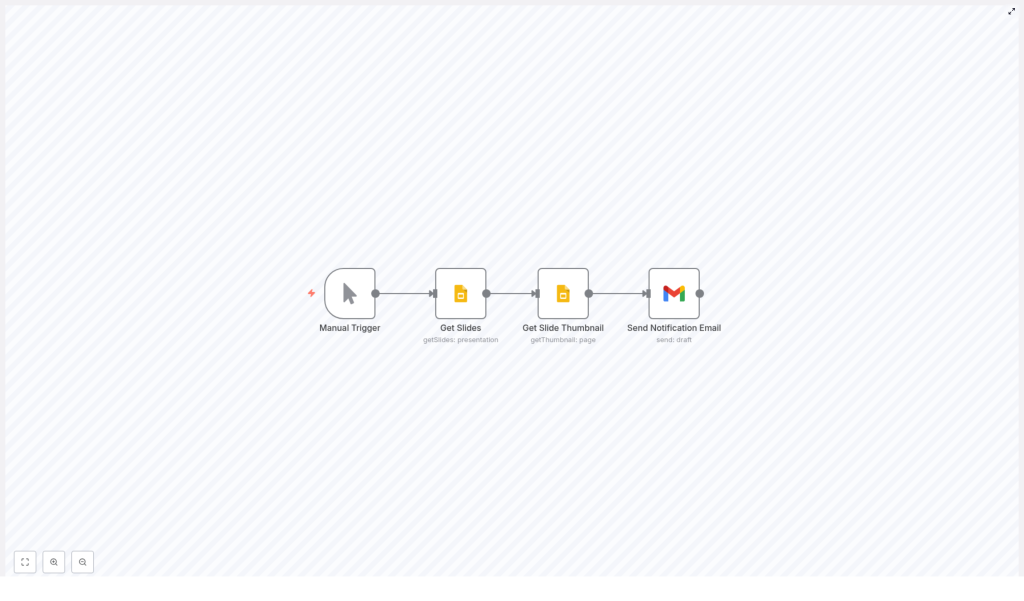
When Mia opened the template in n8n, she saw four main nodes connected together. It looked less like “coding” and more like a flowchart of the steps she had been doing manually.
The Trigger: From Manual Starts To Scheduled Runs
The first node was a Manual Trigger. During testing, this was perfect. She could click “Execute Workflow,” watch the steps run, and see what happened at each stage.
Later, she knew she could swap it for a Cron node and schedule it to run:
- Every morning before her team’s standup
- Hourly during a big launch week
- Or only on specific weekdays
If another system needed to kick off the process, she could even replace it with a Webhook trigger. For now, she left it as Manual Trigger so she could test safely.
Step 1: Getting All The Slides
The next node was called Get Slides, built using the Google Slides node.
Its configuration was simple but crucial:
- Node type: Google Slides
- Operation:
getSlides - presentationId: the long ID in her Google Slides URL, between
/d/and/edit - returnAll: set to
trueso that every slide in the deck was included
When she ran the workflow, this node produced an array of slide objects. Each one had an objectId that identified a specific slide. Those IDs would become the key to getting thumbnails in the next step.
Step 2: Turning Each Slide Into A Thumbnail
The real magic happened in the Get Slide Thumbnail node.
This node used the Google Slides API again, but in a different way:
- Node type: Google Slides
- Operation:
getThumbnail - Resource:
page
She needed to tell n8n which slide to turn into a thumbnail. To do that, she mapped the pageObjectId to the slide’s ID from the previous node using an expression:
{{$json["objectId"]}}For the presentationId, she had two options:
- Type in the same presentation ID she used earlier, or
- Map it from the Get Slides node:
{{$node["Get Slides"].parameter["presentationId"]}}
Finally, she toggled download to true. That told n8n to fetch the thumbnail as binary data, usually a PNG or JPEG file.
Now, each item in the workflow carried a binary thumbnail of a slide. All that was left was to send those images out.
Step 3: Sending Notification Emails With Thumbnails Attached
The last node in the base template was Send Notification Email, using the Gmail node.
- Node type: Gmail
- Operation:
send
Mia filled in the obvious details: recipient email addresses, subject line, and email body. Then she had to make sure the attachment mapping was correct.
In the Gmail node, she set binaryPropertyName to the key used by the thumbnail node, often data by default. That told Gmail which binary field to attach as a file.
Once configured, every time the workflow ran, Gmail would use that binary property to include the thumbnail image as an email attachment.
The Turning Point: From First Test To Reliable Automation
With all nodes configured and credentials in place, Mia took a breath and clicked “Execute Workflow.”
First, the Manual Trigger fired. Then the Get Slides node pulled in every slide. The Get Slide Thumbnail node iterated through them, creating a thumbnail for each. Finally, the Gmail node sent emails, one per slide, each with a thumbnail attached.
Her inbox filled with messages from herself. Every slide, neatly attached as an image.
It was working.
She had just replaced a repetitive manual task with a repeatable automation. But Mia quickly realized she could go further and tailor the template to her exact needs.
Leveling Up: Enhancements That Made The Workflow Truly Useful
Once the basic flow was stable, Mia started to refine it. The template was flexible enough that she could adapt it without breaking the core logic.
Combining Thumbnails Into Fewer Emails
Sending one email per slide worked, but it was noisy. Her stakeholders preferred a single digest.
So she adjusted the workflow to batch thumbnails:
- Collected multiple binary files into an array
- Attached them all in one Gmail node execution
Now her team received a single email with all the slide previews for that presentation.
Making File Names Human Friendly
By default, the attachments had generic names. To make them easier to understand, she added a small Function node that set the fileName in the binary data.
She used a simple naming pattern like:
Slide-1.pngSlide-2.pngSlide-3.png
Reviewers could now see exactly which thumbnail matched which slide at a glance.
Saving Thumbnails To Cloud Storage
Some teams did not want email at all. They preferred a folder in Google Drive or a bucket in S3.
Because the template already produced binary thumbnail data, Mia simply added another node after the Get Slide Thumbnail step:
- A Google Drive node to upload files to a shared folder, or
- An S3 or other storage node for archival and backups
From there, it was easy to link those thumbnails in Slack or a CMS without adjusting the core logic.
Adding Error Handling And Reliability
To make sure her automation would not silently fail, Mia introduced Error handling:
- Used the Error Trigger node to capture failures
- Configured alerts to notify her or an admin when something broke
- Added simple retry logic where it made sense
Now, if Google APIs had a bad day or credentials expired, she would know before stakeholders started asking, “Where are today’s thumbnails?”
Automating The Schedule
With everything working smoothly, Mia finally replaced the Manual Trigger with a Cron node.
She scheduled the workflow to run every weekday at 8:00 AM. By the time her team logged in, they already had fresh slide previews in their inbox or storage system.
Real-World Use Cases Mia Unlocked
Once the workflow was in place, Mia began to see new ways to use it across the company.
- Daily thumbnail digests for product and marketing decks, so leadership could skim updates without opening the full presentation
- Automated QA reviews, emailing updated slides to designers and editors every time the deck changed
- Content previews, pushing thumbnails to a CMS or Slack channel for quick visual checks before publishing
- Archival and backup, saving thumbnails to cloud storage so publishers could track how slides evolved over time
The same n8n template supported all of these scenarios with only minor variations.
When Things Go Wrong: Troubleshooting Lessons
It was not all smooth sailing. During her experimentation, Mia hit a few common issues. Fortunately, each one had a clear fix.
- 401 / Permission errors
She learned to:- Recheck the OAuth scopes in Google Cloud Console
- Confirm that both the Slides and Gmail APIs were enabled
- Re-authenticate the credentials in n8n
- No thumbnails returned
This usually meant:- The
presentationIdwas wrong, or - The Google Slides API was not properly enabled
- The
- Email failing to send
She had to:- Verify Gmail OAuth scopes included sending permissions
- Check that the sending account was allowed to email the recipients
- Ask the G Suite admin to whitelist the app if necessary
- Binary mapping errors
When attachments did not show up, the culprit was usually thebinaryPropertyNamein the Gmail node. Making sure it matched the thumbnail node’s binary key, oftendata, fixed the issue.
Security And Best Practices She Adopted
As the workflow became more critical to her team, Mia tightened up security.
- She stored all credentials in n8n’s secure credential storage and avoided hardcoding tokens in any node.
- She limited OAuth scopes to only what the workflow needed, especially the readonly Slides scope and minimal Gmail send permissions.
- She kept an eye on Google API quotas and rate limits, particularly once she scheduled the workflow to run daily.
By treating the automation like a small internal product rather than a quick hack, she ensured it would scale with the team’s needs.
What The Template Does Out Of The Box
At its core, the “Google Slides Thumbnail Export and Notify” n8n template does the following whenever it is triggered:
- Lists all slides in a specific Google Slides presentation
- Iterates through each slide and downloads a thumbnail using the Google Slides API
- Sends each thumbnail as a separate email attachment via Gmail
From there, you can adapt it to:
- Aggregate all thumbnails into a single digest email
- Upload thumbnails to Google Drive, S3, or other storage
- Post thumbnails to Slack or Microsoft Teams channels
The template gives you a working baseline. The story you tell with it is up to you.
The Resolution: From Late Nights To Hands-Off Previews
Weeks later, Mia realized something surprising. Her Tuesday evenings were quiet.
No more exporting thumbnails. No more frantic last-minute previews before a leadership call. The automation simply ran, morning after morning, delivering exactly what her stakeholders needed.
What started as a tedious recurring task had become a stable workflow powered by n8n. She had turned manual steps into a reliable system that scaled effortlessly as her presentations and audience grew.
Her only regret was not setting it up sooner.
Ready To Automate Your Own Slide Previews?
If you see yourself in Mia’s story, you do not have to keep exporting thumbnails by hand.
- Import the Google Slides Thumbnail Export and Notify template into n8n.
- Add your Google Slides and Gmail credentials with the correct OAuth scopes.
- Run it manually, confirm the thumbnails and emails look right, then put it on a schedule.
From there, you can customize the workflow to save thumbnails to Drive, push them to Slack, or integrate them into your CMS or QA process.
Call to action: Import the workflow, try a scheduled run, and subscribe for more n8n automation templates that remove repetitive work from your week.
