

Faceless YouTube Generator: Build an AI-powered n8n Workflow
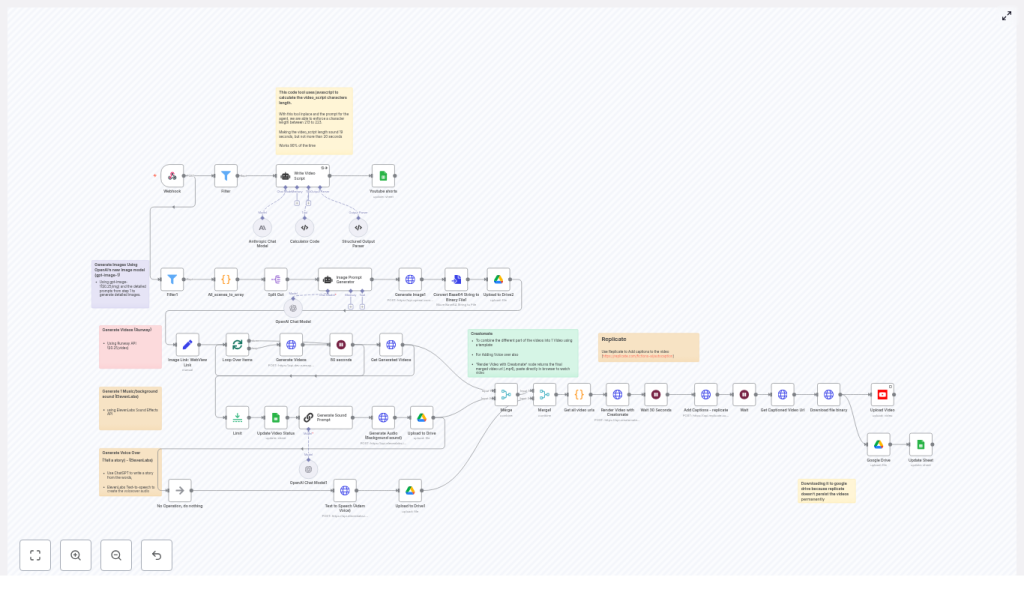
If you have a YouTube idea list a mile long but no time (or desire) to be on camera, this one is for you. This Faceless YouTube Generator template for n8n helps you automatically create short, faceless YouTube videos using AI. Think of it as a little production studio that runs in the background while you do other things.
In this guide, we will walk through what the workflow actually does, when it makes sense to use it, and how all the tools fit together: RunwayML, OpenAI, ElevenLabs, Creatomate, Replicate, Google Drive, Google Sheets, and YouTube. You will also see configuration tips, cost considerations, and a few ideas to help you scale without headaches.
What this n8n faceless YouTube workflow actually does
At a high level, this automation turns a single row in Google Sheets into a fully edited, captioned YouTube Short, then uploads it for you. No manual editing, no recording, no timeline juggling.
Here is the journey from spreadsheet to YouTube:
- You add a new row in Google Sheets with a title, scenes, style, and caption info.
- n8n catches that change via a webhook and checks if the row should be processed.
- An LLM writes a tight 4-scene video script with strict character limits.
- AI turns each scene into an image prompt, then generates images with OpenAI.
- RunwayML converts those images into short 5-second vertical videos.
- ElevenLabs creates a voiceover and matching background ambience.
- Creatomate merges all clips and audio into one polished MP4.
- Replicate adds subtitles and exports a captioned version.
- The final video is uploaded to YouTube and the Google Sheet row is updated.
The result is a repeatable pipeline you can trigger simply by filling a spreadsheet cell.
Why use a faceless YouTube automation workflow?
Faceless channels and YouTube Shorts are great if you want to:
- Publish content consistently without showing your face
- Test ideas quickly without spending hours editing
- Scale to dozens or hundreds of videos with minimal effort
- Lean on AI for scripts, visuals, and audio while you focus on strategy
Instead of manually stitching together clips, generating images, recording voiceovers, and uploading each video one by one, this n8n workflow does the heavy lifting for you. You stay in control of the concepts, titles, and style, and the automation handles production.
When this template is a good fit
You will get the most value from this n8n template if you:
- Run or plan to start a faceless YouTube channel or Shorts channel
- Like working from simple spreadsheets and templates
- Are comfortable using external APIs like OpenAI, ElevenLabs, RunwayML, and Creatomate
- Want a repeatable, scalable way to produce short-form content
If you prefer to manually edit every frame or record live footage, this might be more of a helper than a full solution. But if your goal is volume, experimentation, and consistency, it can feel like a superpower.
How the workflow is structured in n8n
The template is organized into clear phases so you can understand or tweak each part. Let us walk through the main building blocks and integrations.
1. Triggering from Google Sheets with a webhook
The whole process starts in Google Sheets. You add or update a row with columns like:
- Video title
- Scene ideas or structure
- Style or mood
- Caption or description info
n8n listens to changes through a Webhook node. When a row changes, the webhook fires and passes the row data into the workflow. A filter node then checks a specific column (for example, a status column set to “To Do”) so only eligible rows trigger the automation. That way you can prep multiple ideas in your sheet but only process the ones you are ready for.
2. Script generation with an LLM
Next up is the script. The workflow uses a central agent called something like “Write Video Script”, powered by an LLM such as gpt-4.1-mini or an Anthropic model.
The interesting part is the length control. A small JavaScript tool is used inside the workflow to enforce an exact character range for the video_script output. The target is:
- 4 scenes in total
- Each scene designed to fit a 5-second clip
- Full narration kept between 213 and 223 characters
Why so strict? Because consistent pacing makes your videos feel intentional and keeps audio and visuals in sync. If the script is too long or too short, the workflow will simply retry the generation until it lands within that range.
One small tip: when you write titles in your sheet, keep them short and list-friendly, for example “3 Ways To Sleep Better” or “Top 5 Productivity Hacks”. If the title is not list-style, the script generator will usually reshape it into a list anyway to keep the pacing smooth.
3. Turning scenes into images with OpenAI and Google Drive
Once the script is ready, each scene is converted into an image prompt. A dedicated Image Prompt Generator node takes the scene text and adds brand or style context so your visuals feel consistent over time.
The workflow then calls OpenAI’s image model, gpt-image-1, to create one image per scene. To keep everything organized and reproducible, the generated images are uploaded to Google Drive. This serves two purposes:
- You have a permanent copy of every asset the workflow generates
- Later nodes, like RunwayML and Creatomate, can easily access those URLs
If you ever want to tweak your visuals or reuse them in another project, they are all there in Drive.
4. Generating short clips with RunwayML
Now comes the motion. For each image, the workflow calls RunwayML’s Image-to-Video endpoint. This turns your static images into short video clips. Typical settings look like:
- Vertical format, for example
768x1280 - Clip length of 5 seconds per scene
The workflow loops through every scene image, sends it to Runway, then waits for the tasks to finish. Since these tasks can take a few seconds, a polling node checks the status and collects the final video URLs once they are ready. Those URLs are stored for the merge step later.
If you run into missing video URLs, it usually means the merge step tried to run before Runway finished. In that case, double-check the polling logic and any wait times between checks.
5. Sound design and voiceover with ElevenLabs
A faceless video still needs personality, and that is where audio comes in. The workflow uses ElevenLabs in two different ways:
- Background audio A sound-generation call to the ElevenLabs Sound API creates subtle ambience. You can define the vibe through a style prompt, for example “soft lo-fi textures” or “cinematic ambience”. The idea is to keep it light so it supports the voiceover instead of overpowering it.
- Voiceover ElevenLabs Text-to-Speech (TTS) takes the script and turns it into a natural-sounding narration. You pick the voice model that fits your channel and optionally tweak speech rate to better match YouTube Shorts pacing.
If you notice audio and video drifting out of sync, check that each video clip is exactly 5 seconds and that your TTS output duration is consistent. You can also add a small step to normalize audio length or pad short clips with ambience.
6. Merging everything into one video with Creatomate
With your clips and audio ready, the workflow hands everything off to Creatomate. This is where the final video is assembled.
You provide a predefined Creatomate template that knows:
- Where to place each scene clip
- How to line up the background audio and voiceover
- Any overlays, branding, or CTAs you want to show
The workflow injects the collected video URLs and audio files into that template and triggers a render. Creatomate then outputs a single MP4 that is ready for captions and upload.
Over time, you can experiment with multiple Creatomate templates, for example different layouts, fonts, or dynamic text overlays for your branding and calls-to-action.
7. Adding captions with Replicate and uploading to YouTube
Captions are important for watch time, especially on mobile where many people scroll with the sound off. To handle this, the workflow sends the merged video to a Replicate autocaption model.
Replicate generates subtitles, burns them into the video, and returns a captioned MP4. Since some outputs on Replicate are not stored forever, the workflow downloads this final file and saves it, typically to Google Drive, so you always have a copy.
Finally, the video is uploaded to YouTube through the YouTube node. You can configure the upload settings to mark videos as:
- Unlisted
- Private
- Or adjust them manually later
Once upload is complete, the workflow updates the original Google Sheets row with status info and metadata, such as the YouTube video link. That sheet becomes your simple control panel and log of what has been published.
Configuration tips, costs, and best practices
Handling API keys and rate limits
Each external service in this workflow needs its own API key. Wherever you see a placeholder like YOUR_API_TOKEN, replace it with your real credentials for:
- OpenAI (for images and LLM)
- RunwayML
- ElevenLabs
- Creatomate
- Replicate
- Google (Drive, Sheets, YouTube)
To avoid hitting rate limits, especially when you scale up, it helps to:
- Limit how many workflow executions run in parallel
- Add small waits between heavy steps like video generation
- Batch process rows during quieter hours to reduce contention
Keeping 5-second scenes consistent
The entire template is built around short, 5-second scenes. That is why the script length is so tightly controlled and why each Runway clip is generated at a fixed duration.
To keep things running smoothly:
- Use list-style titles in your sheet so the LLM naturally creates 3 or 4 punchy points
- Make sure your RunwayML settings always return exactly 5-second clips
- If you change the timing, update the character limits and audio timing logic to match
Storage and file persistence
Some providers, including Replicate, do not store generated files forever. To avoid surprises later, the workflow is designed to:
- Download important assets, especially the final captioned MP4
- Save them to Google Drive for long-term access
- Keep URLs handy for Creatomate and any other tools that need them
This gives you a clean archive of all your videos and intermediate assets, which is handy if you ever want to re-edit, reuse, or audit them.
What this workflow is likely to cost
Exact pricing depends on your usage and provider plans, but here are the main cost areas to consider when estimating per-video cost:
- Image generation (OpenAI gpt-image-1) Charged per image generated.
- Video generation (RunwayML) Charged per clip, often around $0.25 per clip depending on the model and settings.
- Sound and TTS (ElevenLabs) Typically billed per request or per minute of audio.
- Creatomate rendering Charged per render based on your Creatomate plan.
- Replicate captioning Charged per prediction or per run of the caption model.
Because everything is automated, you can easily track how many videos you are producing and map that to your monthly costs.
Troubleshooting common issues
Script not matching the character limit
If the generated script does not land in the 213 to 223 character range, the workflow is set up to retry. If it keeps failing, check:
- That your LLM prompt clearly states the character constraint
- That your sheet titles are not overly long or complex
- Any custom logic you added to the JavaScript tool that counts characters
Missing or incomplete video URLs from RunwayML
Runway tasks take a bit of time to complete. If the merge step runs too early, it might find missing URLs. To fix this:
- Use the polling node provided in the template to repeatedly check task status
- Add a delay or increase the wait time between polls if needed
- Log any failed tasks so you can see what went wrong
Audio and video out of sync
Sync issues almost always come down to timing mismatches. Here is what to double-check:
- Each Runway clip is exactly 5 seconds long
- The total script length and TTS voice speed match your total video duration
- Any extra padding or trimming steps you added in Creatomate are consistent
If your audio is shorter than the video, you can loop or extend background ambience. If it is longer, consider slightly faster TTS or shorter scripts.
Ideas to optimize and experiment
Once the core workflow is stable, you can start using it as a testing ground for your content strategy.
- A/B test your hooks Try different first-scene scripts or thumbnail-style image prompts to see what gets better retention and click-through.
- Play with different voices Experiment with multiple ElevenLabs voices and slightly faster speech rates to match the snappy feel of YouTube Shorts.
- Upgrade your branding Build multiple Creatomate templates that add dynamic text overlays, logos, and CTAs so your videos are instantly recognizable.
- Batch your content Queue several rows in Google Sheets and let the workflow run during off-peak hours to reduce API contention and potentially lower costs.
Ethical and legal things to keep in mind
Automated content is powerful, so it is important to stay on the right side of ethics and law. A few reminders:
- Make sure you have rights to any assets you use or generate
- Disclose AI-generated content where required by platforms or local regulations
- Get permission before using recognizable likenesses or trademarks

