

Generate AI-Ready llms.txt Files from Screaming Frog Website Crawls
If you have ever exported a giant Screaming Frog CSV and thought, “Cool, now what?” you are not alone. Manually turning that CSV into something an AI can actually use is the kind of repetitive task that makes people consider a career in pottery instead.
Luckily, this is exactly the sort of job that automation loves. With a ready-to-run n8n workflow, you can feed in a Screaming Frog export and get back a clean, structured llms.txt file that large language models can happily digest for content discovery, summarization, indexing, or fine-tuning.
In this guide, you will:
- See what an llms.txt file actually is and why it matters for AI
- Learn how the n8n workflow transforms your Screaming Frog crawl
- Get a simplified setup walkthrough so you can generate llms.txt in minutes
- Pick up best practices for filters, multi-language exports, and scaling
First things first: what is an llms.txt file?
An llms.txt file is a simple text file that gives large language models a friendly shortcut to your best content. Instead of forcing an LLM to crawl your entire site and guess what matters, you hand it a curated list of pages.
Each line usually contains:
- The page title
- The URL
- A short description or meta description
That is enough context for an LLM to understand what a page is about without crawling everything. When you generate llms.txt from a Screaming Frog crawl, you:
- Accelerate AI content discovery
- Make summarization and indexing much easier
- Prepare your site for fine-tuning or other downstream AI tasks
In short, llms.txt is like a VIP guest list for your website. The n8n workflow is the bouncer that decides who gets in.
What this n8n workflow actually does
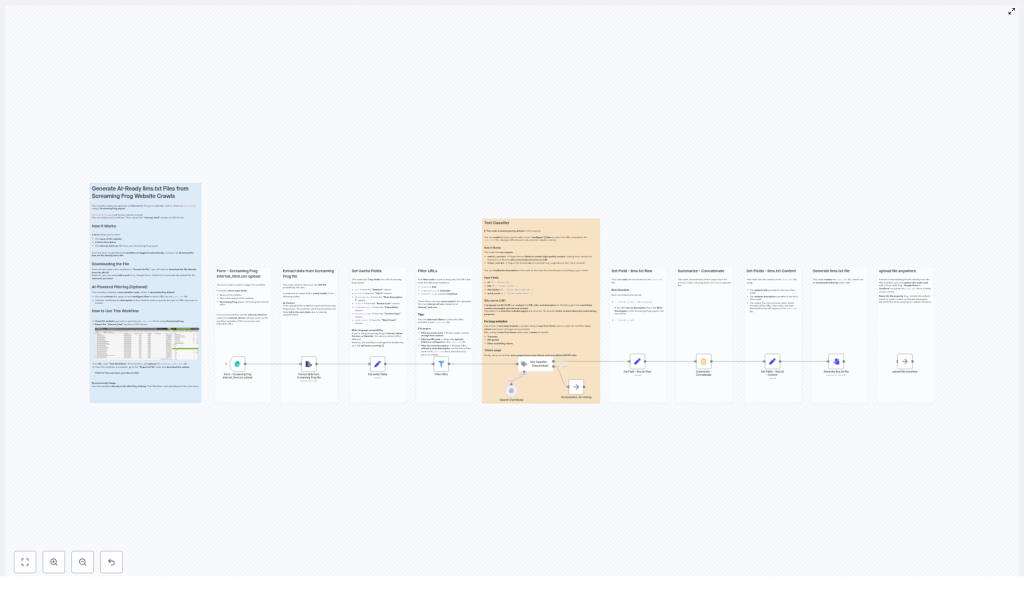
This template takes a Screaming Frog CSV export (ideally internal_html.csv) and turns it into a structured llms.txt file with minimal human effort and zero spreadsheet rage.
At a high level, the workflow:
- Accepts a form submission with your website name, description, and CSV
- Extracts and normalizes key fields from the Screaming Frog crawl
- Filters out non-indexable or irrelevant URLs
- Optionally runs an LLM-based text classifier to keep only high-value pages
- Formats each page into a neat llms.txt row
- Builds a header, concatenates everything, and outputs a final
llms.txtfile - Lets you download it or push it to cloud storage like Google Drive or S3
You get a repeatable, scalable way to produce AI-ready discovery files from any Screaming Frog website crawl.
Quick setup: from Screaming Frog CSV to llms.txt in n8n
Step 1 – Trigger the workflow with a form
The workflow starts with a built-in Form Trigger. This is where you provide the basics:
- Website name – the name that will appear in your llms.txt header
- Short site description – in your site’s language, for extra context
- Screaming Frog export (.csv) – ideally
internal_html.csv
The website name and description go straight into the header of your generated llms.txt file. The CSV becomes the raw material for the rest of the workflow.
Step 2 – Extract data from the Screaming Frog file
Next, a file-extraction node converts your CSV into structured records that n8n can work with. The workflow is friendly to Screaming Frog users in multiple languages.
It maps column names for:
- English
- French
- German
- Spanish
- Italian
So even if your Screaming Frog interface is not in English, the workflow knows which columns are which and you do not have to manually rename anything.
Step 3 – Normalize the useful fields
To keep things consistent, the workflow maps the Screaming Frog columns into seven normalized fields. These fields are then used in every later step:
url– from Address / Adresse / Dirección / Indirizzotitle– from Title 1 / Titolo 1 / Titel 1description– from Meta Description 1status– from Status Codeindexability– from Indexability / Indexabilitécontent_type– from Content Typeword_count– from Word Count
This normalization step is what lets the rest of the workflow stay clean and language-agnostic, instead of becoming a tangle of “if this column name, then that” logic.
Step 4 – Filter the URLs to keep only good candidates
Not every page deserves a spot in llms.txt. The workflow applies a few core filters so you do not end up feeding AI your 404s, PDFs, or random tracking URLs.
The built-in filters keep only pages where:
- Status is
200 - Indexability is recognized as indexable
- Content type contains
text/html
On top of that, you can easily add your own filters, for example:
- Minimum
word_count, such as keeping only pages with more than 200 words - Restricting URLs to certain paths like
/blog/or/docs/ - Excluding specific query parameters or utility pages
These filters are your main lever for quality control before the AI even sees anything.
Step 5 – Optional: use the Text Classifier for extra curation
For some sites, the basic filters are enough. For others, you might want a smarter bouncer at the door. That is where the optional Text Classifier node comes in.
This node is deactivated by default, but once enabled, it uses an LLM to evaluate each page based on:
- Title
- URL
- Meta description
- Word count
The classifier then decides whether a page is likely to contain high-quality, useful content. This is particularly helpful for:
- Very large sites with thousands of URLs
- Sites where content quality varies a lot
- Situations where you want a higher signal-to-noise ratio in llms.txt
When using AI classification, keep a few things in mind:
- Use a loop or batching mechanism for big sites so you do not run into API quotas or timeouts.
- Adjust the classifier prompt to match what you care about, for example long-form guides, detailed product pages, or in-depth documentation.
- Monitor token usage, since LLM calls can incur costs if you are not paying attention.
Step 6 – Turn each page into an llms.txt row
Once the pages are filtered (and optionally classified), the workflow formats each one into a simple, human-readable row for llms.txt.
The standard pattern looks like this:
- [Title](https://example.com/page): Short meta description
If a page does not have a meta description, the workflow simply drops the description part and keeps it clean:
- [Title](https://example.com/page)
Each of these rows is stored in a field such as llmTxtRow. The workflow then concatenates all rows with newline separators to create the main body of your llms.txt file.
Step 7 – Build the header and export the llms.txt file
Finally, the workflow assembles the full llms.txt content by combining:
- The website name from the form
- The short site description you provided
- The concatenated list of formatted rows
The last node converts this full string into a downloadable llms.txt file. From there, you can:
- Download it directly from the n8n UI
- Swap the final node for a Google Drive, OneDrive, or S3 node to upload automatically to your preferred cloud storage
That is it. One form submission in, one AI-ready llms.txt file out, and no spreadsheets harmed in the process.
Best practices for clean, AI-friendly llms.txt files
Handling multi-language Screaming Frog exports
Screaming Frog likes to adapt to your language settings, which is great for users but annoying for automation if you are not prepared. Column headers change between English, French, Italian, Spanish, and German.
This workflow already accounts for those variants by normalizing the expected column names, so in most cases you can just drop in your CSV and run it.
If you ever see fields not being picked up correctly:
- Check the exact column names in your export
- Update the mapping node to include any missing variants
Refining filters to improve content quality
The default filters (status 200, indexable, text/html) are a solid starting point, but you can go further to keep llms.txt focused on pages that actually matter.
Consider experimenting with:
- A minimum
word_count, for example only keeping pages with more than 200 words - URL path filtering, so you can focus on directories like
/blog/,/docs/, or/resources/ - Excluding pagination, tag pages, and archive listings that rarely add value for LLMs
A bit of tuning here can drastically improve the usefulness of your llms.txt file while keeping it compact.
Scaling the workflow for large sites
If your site has a modest number of pages, you can usually run everything in one go. For large sites with thousands of URLs, it is better to think in batches.
Use a Loop Over Items node in n8n to process pages in chunks. This:
- Reduces the risk of workflow timeouts
- Gives you more control over LLM API usage
- Makes it easier to monitor progress and debug if needed
Combined with the optional Text Classifier, this lets you scale from “small blog” to “massive content library” without changing your basic approach.
Example: what a finished llms.txt can look like
To give you a feel for the final output, here is a sample snippet of an llms.txt file that this workflow could generate:
# Example Site
> A short description of the site

- [How to run an SEO audit](/seo-audit): A concise step-by-step guide to auditing your website.
- [Pricing](/pricing)
- [Product overview](/product): Details about features and integrations.
Simple, readable, and very friendly to both humans and LLMs.
When to turn on the Text Classifier (and when to skip it)
The Text Classifier is like a helpful but slightly opinionated editor. It is not always necessary, but it can be very powerful in the right context.
Use the classifier if:
- You have a large site and want to focus only on high-value content
- You are comfortable trading some API calls for better curation
- You want an AI-assisted way to decide which pages belong in llms.txt
Skip the classifier if:
- Your site is small or already well structured
- You have strong deterministic filters like word count and path rules
- You want the fastest, cheapest possible run
In many cases, simple filters do a great job. The classifier is there for the times when “good enough” is not actually good enough.
Next steps: generate your own AI-ready llms.txt
You now have everything you need to turn a Screaming Frog crawl into an AI-friendly llms.txt file without getting lost in CSV hell.
To recap your action plan:
- Export
internal_html.csvfrom Screaming Frog - Open the n8n workflow template and trigger the form
- Provide your website name, short description, and CSV
- Adjust filters and, if needed, enable the Text Classifier
- Download or auto-upload your freshly generated
llms.txt
Ready to automate away one more tedious task? Try this n8n workflow with your next Screaming Frog crawl. If you want help fine-tuning filters, scaling to huge sites, or wiring in cloud storage, get in touch or request a custom workflow template and we will help you automate the whole process.
One thought on “Generate AI-Ready llms.txt from Screaming Frog”
Leave a Reply


I love how this guide breaks down the n8n workflow. It’s a great way to automate the creation of llms.txt files, which are so crucial for efficient content discovery by LLMs. Are there any other automation tools you recommend for optimizing LLM discovery workflows?