


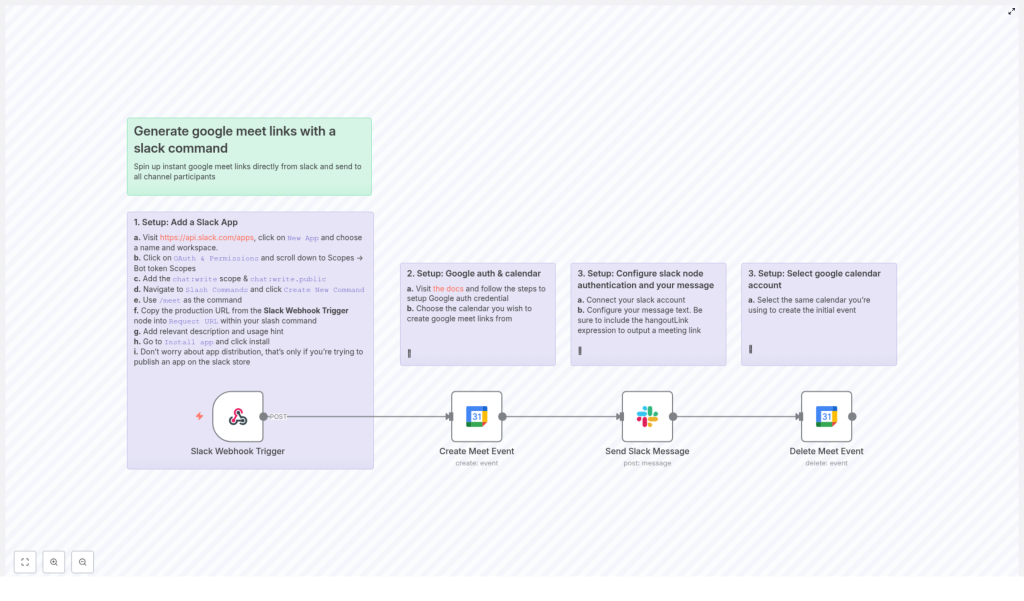
Generate Google Meet Links Directly From Slack
Picture This: “Can Someone Drop a Meet Link?”… Again
You are in a busy Slack channel, the discussion is heating up, and someone says the classic line: “Let’s just jump on a quick call.” Then the chaos begins.
Who creates the Google Meet? Who has the right calendar? Why is everyone waiting for that one person who always “just needs a second” to find the Meet button?
If you are tired of playing “who has the meeting link,” this n8n workflow template is your new favorite coworker. With a simple Slack slash command, you can instantly generate a Google Meet link, drop it in the channel, and move on with your life.
What This n8n Workflow Template Actually Does
This template connects Slack and Google Calendar so you can create Google Meet links directly from Slack using a slash command. No tab switching, no manual event creation, no copy-paste juggling.
Here is the magic in plain terms:
- You type
/meetin Slack. - n8n listens for that command, creates a short Google Calendar event with a Meet link, and grabs the
hangoutLink. - It posts that Google Meet link right back into the same Slack channel.
- Then, to keep your calendar from looking like a graveyard of 15-minute “Quick chat” events, the workflow deletes the event again.
Result: instant Google Meet links in Slack, with zero manual work.
Why Automate Google Meet Links in Slack?
Manually creating and sharing meeting links is one of those tiny tasks that does not feel like a big deal… until you do it 20 times a day. Then it becomes a full-time job you never applied for.
Automating Google Meet link generation with n8n and Slack helps you:
- Save time – No more jumping between Slack and Google Calendar.
- Avoid mistakes – No wrong links, no forgotten invites, no “which Meet is this?” confusion.
- Keep everyone aligned – The link is shared right in the channel where the conversation started.
- Keep your calendar clean – The event is deleted after the link is shared, so your calendar is not cluttered with temporary calls.
In short, you get smoother meetings, less friction, and fewer “wait, where is the link?” messages.
How the n8n Workflow Works Behind the Scenes
Here is what happens each time someone uses the slash command in Slack:
- The Slack Webhook Trigger node listens for the
/meetcommand in your Slack workspace. - When the command comes in, the workflow uses the Google Calendar node to create a Google Meet event that:
- Starts immediately
- Lasts 15 minutes
- Includes a Google Meet
hangoutLink
- The workflow then sends a Slack message back to the originating channel with the newly created Meet link.
- Finally, the Google Calendar event is deleted so your calendar stays tidy while the Meet link lives on in Slack.
All of this happens automatically in the background. You just see a Meet link appear like it was always meant to be there.
Quick Setup Overview
To get this workflow running, you will set up three main things:
- A Slack app with a slash command.
- Google authentication and calendar access in n8n.
- Slack messaging configuration that posts the Meet link back to your channel.
Below is the detailed guide, step by step, so you can get everything connected without guesswork.
Step 1 – Create and Configure Your Slack App
This is where you teach Slack how to talk to your n8n workflow.
- Go to the Slack API Apps page and create a new app.
- Pick a name that makes sense (for example, “Meet Bot” or “Instant Meet”).
- Select the workspace where you want to use the
/meetcommand.
- In your app settings, navigate to OAuth & Permissions.
- Under Bot Token Scopes, add these scopes:
chat:writechat:write.public
This gives your bot permission to post messages in channels.
- Next, set up a Slash Command:
- Create a new command named
/meet. - Copy the webhook URL from your Slack Webhook Trigger node in n8n.
- Paste that URL as the Request URL for the slash command.
- Add a short description and usage hint so your teammates know what it does, for example:
- Description: “Create an instant Google Meet link.”
- Usage hint: “Type /meet to generate a meeting link.”
- Create a new command named
- Finally, click Install App to add your new Slack app to your workspace.
Once this is done, Slack knows how to send the /meet command to your n8n workflow.
Step 2 – Connect Google with n8n and Choose Your Calendar
Now you need to let n8n talk to Google Calendar so it can create the Meet links for you.
Follow the official n8n Google OAuth documentation to configure your Google credentials. This ensures secure access to your Google account and calendar.
After your credentials are set up, choose the Google Calendar where you want these Google Meet links to be created. This is the calendar that will briefly host the 15-minute events used to generate the Meet URLs.
Step 3 – Configure the Slack Message in n8n
With Slack and Google both connected, you can now define what gets posted back into the channel.
In your Slack node inside the workflow:
- Connect your Slack account so the node can send messages as your bot.
- Set the message text to include the Google Meet link by using the
hangoutLinkexpression.
The hangoutLink expression dynamically inserts the meeting URL created by the Google Calendar node, so each time you run the workflow, a fresh link is sent to Slack.
Step 4 – Make Sure the Right Google Calendar Account Is Used
To avoid any surprise “wrong account” issues, double check that the Google Calendar node is using the same calendar account you used for the initial Google Meet event configuration.
This keeps everything consistent and ensures that the event is created and deleted correctly in the right calendar.
Benefits You Get From This n8n Template
Once you have everything wired up, you get a surprisingly big payoff for a small setup:
- Instant meeting links in Slack – Just type
/meetand the link appears. - Google Calendar automation – Events are created automatically to generate Meet links.
- Cleaner calendars – Temporary events are deleted after the link is posted, so your calendar is not flooded with “test” or “quick chat” entries.
- Better team productivity – Less time chasing links, more time actually talking.
It is the small automation that quietly saves you from a lot of repetitive clicks.
Next Steps: Try the Template and Stop Manually Creating Meet Links
If your team lives in Slack and uses Google Meet, this workflow is a simple quality-of-life upgrade. No more asking “who has the link” or digging through calendar invites.
Set up the Slack app, connect your Google Calendar, configure the Slack message, and you are ready to generate instant meeting links with a single slash command.
Ready to plug this into your n8n instance and let it do the boring part for you?
