


Generate Google Slides Thumbnails with n8n
Ever wished you could grab thumbnail images for every slide in a Google Slides deck without doing it by hand? With n8n, you can turn that into a simple, reusable workflow that runs whenever you need it.
In this guide, we will walk through an n8n workflow template that pulls in all the slides from a Google Slides presentation and automatically generates thumbnails for each one. It is perfect for things like website previews, internal dashboards, newsletters, course platforms, or any place where a quick visual of each slide makes life easier.
What this n8n workflow actually does
Let us start with the big picture. This workflow is a small one, but it packs a punch. It:
- Starts with a manual trigger (you can swap this out for any trigger later)
- Calls the Google Slides API to list every slide in a presentation
- Uses each slide’s
objectIdto request and download a thumbnail image
Once it is running, n8n loops through all the slides for you, grabs their thumbnails, and makes those images available for whatever you want to do next, such as saving them to storage or sending them somewhere else.
When should you use this template?
Think about any time you have a presentation and you want quick visual previews without opening the file. This workflow is especially handy if you want to:
- Automatically generate thumbnails whenever a new presentation is created or updated
- Show slide previews in a CMS, internal tool, or learning platform
- Send thumbnail galleries in reports or emails
- Scale thumbnail generation across multiple presentations without manual work
If you are already using n8n for automation, this template fits in nicely as a building block that you can connect to other workflows, like Drive triggers, S3 uploads, or CMS updates.
What you will build, step by step
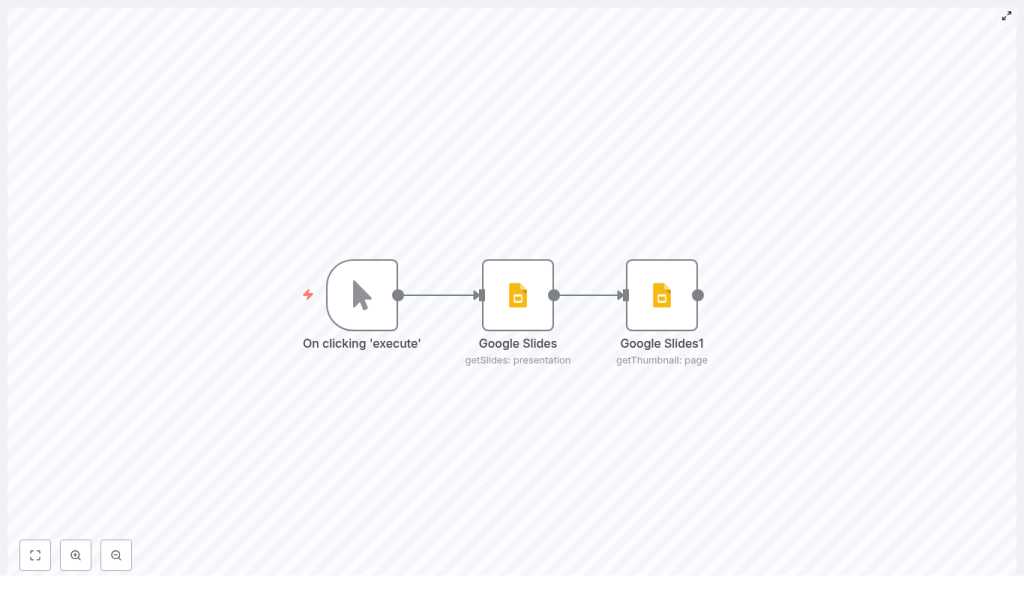
The workflow is intentionally simple so you can understand it quickly and then extend it. It uses three nodes:
- Manual Trigger – starts the workflow when you hit Execute in n8n. Later, you can replace this with a webhook, schedule, or Drive trigger.
- Google Slides (getSlides) – fetches the presentation and returns all its pages, which are the slides.
- Google Slides1 (getThumbnail) – uses each slide’s
objectIdto request and download a thumbnail image.
Once the thumbnails are downloaded, they are available as binary data in n8n. From there, you can chain on more nodes to save, upload, or email them.
What you need before you start
Before importing or running the template, make sure you have the basics ready:
- n8n installed (either n8n Cloud or your own self-hosted instance)
- Google Slides API enabled in your Google Cloud Console
- OAuth2 credentials configured in n8n for Google Slides
- The presentation ID of the Google Slides deck you want to process
The presentation ID is the long string in the Slides URL after /presentation/d/. You will plug this into the workflow template in a moment.
Importing and understanding the workflow template
Here is the JSON for the core workflow. You can import this directly into n8n and then tweak it as needed:
{  "nodes":[  {  "name":"On clicking 'execute'",  "type":"n8n-nodes-base.manualTrigger",  "position":[270,280],  "parameters":{},  "typeVersion":1  },  {  "name":"Google Slides",  "type":"n8n-nodes-base.googleSlides",  "position":[470,280],  "parameters":{  "operation":"getSlides",  "returnAll":true,  "authentication":"oAuth2",  "presentationId":"YOUR_PRESENTATION_ID"  },  "credentials":{  "googleSlidesOAuth2Api":"Google Slides Credentials"  },  "typeVersion":1  },  {  "name":"Google Slides1",  "type":"n8n-nodes-base.googleSlides",  "position":[670,280],  "parameters":{  "download":true,  "resource":"page",  "operation":"getThumbnail",  "pageObjectId":"={{$json[\"objectId\"]}}",  "authentication":"oAuth2",  "presentationId":"={{$node[\"Google Slides\"].parameter[\"presentationId\"]}}"  },  "credentials":{  "googleSlidesOAuth2Api":"Google Slides Credentials"  },  "typeVersion":1  }  ],  "connections":{...}
}
After importing, replace YOUR_PRESENTATION_ID with the actual ID from your Slides URL.
Step 1 – Set up Google OAuth2 credentials in n8n
First, n8n needs permission to talk to the Google Slides API on your behalf. In n8n:
- Create a new Google OAuth2 credential.
- Make sure it includes scopes for reading Slides, and optionally Drive if you plan to save files there.
Typical scopes you will want:
https://www.googleapis.com/auth/presentations.readonlyhttps://www.googleapis.com/auth/drive.file(optional, if you want to save thumbnails to Google Drive)
Once the credential is set up and tested, select it in both Google Slides nodes in your workflow.
Step 2 – List all slides with the getSlides node
Next, configure the first Google Slides node so it can fetch the slides from your presentation:
- Operation:
getSlides - presentationId: your Google Slides presentation ID
- returnAll: set to
trueso you get every slide
This node returns an array of page objects. Each page represents a slide and includes an objectId. That ID is exactly what you need to request a thumbnail for that specific slide in the next node.
Step 3 – Generate thumbnails with the getThumbnail node
Now for the fun part. The second Google Slides node, often named something like Google Slides1 in the template, is responsible for actually downloading the thumbnails.
Configure it like this:
- resource:
page - operation:
getThumbnail - pageObjectId: use an expression so it reads from each item
{{$json["objectId"]}} - download:
trueso n8n fetches the binary image data - presentationId: use the same presentation ID, often referenced from the previous node:
{{$node["Google Slides"].parameter["presentationId"]}}
Make sure this node runs once for every item coming from the getSlides node. n8n will then iterate over all slides and fetch a thumbnail for each one automatically.
Thumbnail formats and sizes you can expect
The Google Slides API supports different thumbnail sizes and MIME types. When you call getThumbnail, you can:
- Specify width and height, or
- Let the API return a default size
The returned thumbnail is usually a PNG or JPEG. In n8n, you receive this as binary data, which means you can pass it directly into other nodes for storage, transformation, or delivery.
What can you do with the thumbnails next?
Once the thumbnails are in n8n, you can connect almost anything to this workflow. A few common patterns:
- Google Drive node – save each thumbnail as a file inside a chosen Drive folder.
- AWS S3 node – upload thumbnails to a bucket and serve them via a CDN.
- HTTP Request node – POST images to your CMS, asset manager, or custom API.
- Email node – include thumbnails in automated summary or report emails.
Because the workflow is modular, you can insert extra steps, like image processing, renaming, or logging, anywhere in the chain.
Real world use cases for Google Slides thumbnails
1. CMS slide previews
When someone uploads a new presentation, you can trigger this workflow, generate all thumbnails, and push them into your CMS. Editors then see slide previews right next to the content, which makes choosing or organizing decks much easier.
2. Automated reporting
Maybe you are generating weekly or monthly reports as slide decks. Run this workflow to grab a gallery of slide images and then feed them into another workflow that compiles a PDF or summary email.
3. Learning and training platforms
If you host courses or training materials, you can show slide previews next to each module. Learners get a quick visual sense of what is inside before opening the full presentation.
Error handling and best practices
Like any workflow that talks to external APIs, it is worth planning for edge cases. A few tips:
- Rate limits – Google APIs have quotas. If you are processing lots of presentations, consider adding delays, batching work, or scheduling runs during quieter times.
- Retries – set up error handling or use the Execute Workflow node to automatically retry thumbnail downloads that fail temporarily.
- Permissions – double check that your OAuth scopes allow reading from Slides and, if needed, writing to Drive.
- Pagination – using
returnAll = trueingetSlidestakes care of pagination for you. If you ever switch to a more customized query, make sure you handle pagination manually.
Troubleshooting common issues
If something is not working the way you expect, here is where to look first:
- Authentication errors – try refreshing or recreating your OAuth2 credentials and confirm that the Slides API is enabled in your Google Cloud project.
- Missing thumbnails – inspect the output of the
getSlidesnode and confirm thatobjectIdis present and correctly passed into thegetThumbnailnode. - Binary data issues – open the Binary tab on the
getThumbnailnode in n8n to check that the file is present and that the MIME type matches what you expect.
Security considerations
Since this workflow interacts with your Google account, it is worth keeping security in mind:
- Use the minimum OAuth scopes necessary for your use case.
- Store your credentials securely inside n8n and avoid sharing them between unrelated workflows.
- Limit access to workflows that handle sensitive presentations or internal content.
Ideas for next steps and enhancements
Once you have the basic thumbnail generation working, you can build on it in lots of ways:
- Trigger the workflow automatically when a file is added to a specific Google Drive folder using a Drive trigger.
- Resize, crop, or watermark thumbnails using an image processing service or dedicated n8n node before uploading.
- Create a dashboard that lists the latest presentations, their thumbnails, and direct links to the full Slides file.
Why this workflow makes your life easier
Instead of manually opening a deck, exporting slides, and uploading images one by one, you can let n8n do the repetitive work. The Manual Trigger → getSlides → getThumbnail pattern is a clean base you can reuse across projects, teams, and tools.
Once set up, all you have to do is point it at a presentation and run it, or hook it into an automatic trigger and forget about it.
Try the template yourself
Ready to see it in action?
- Import the workflow JSON into your n8n instance.
- Replace
YOUR_PRESENTATION_IDwith your actual Google Slides presentation ID. - Select your Google Slides OAuth2 credentials in both Google Slides nodes.
- Click Execute on the Manual Trigger node to generate thumbnails for each slide.
You will then have all your slide thumbnails ready to store, share, or plug into other automations.
Need help customizing it? You can extend this same workflow to push thumbnails to Drive, S3, or your CMS with just a few extra nodes.
Call to action: Subscribe for more n8n automation tutorials and get a free workflow template delivered to your inbox.
