


Automate Sitemap Indexing with Google Indexing API and n8n
If you publish content regularly, you probably know the feeling: you hit “publish”, then wait and hope Google notices your new page quickly. Sometimes it happens fast, other times it takes days. What if you could gently tap Google on the shoulder every time your sitemap updates, without lifting a finger?
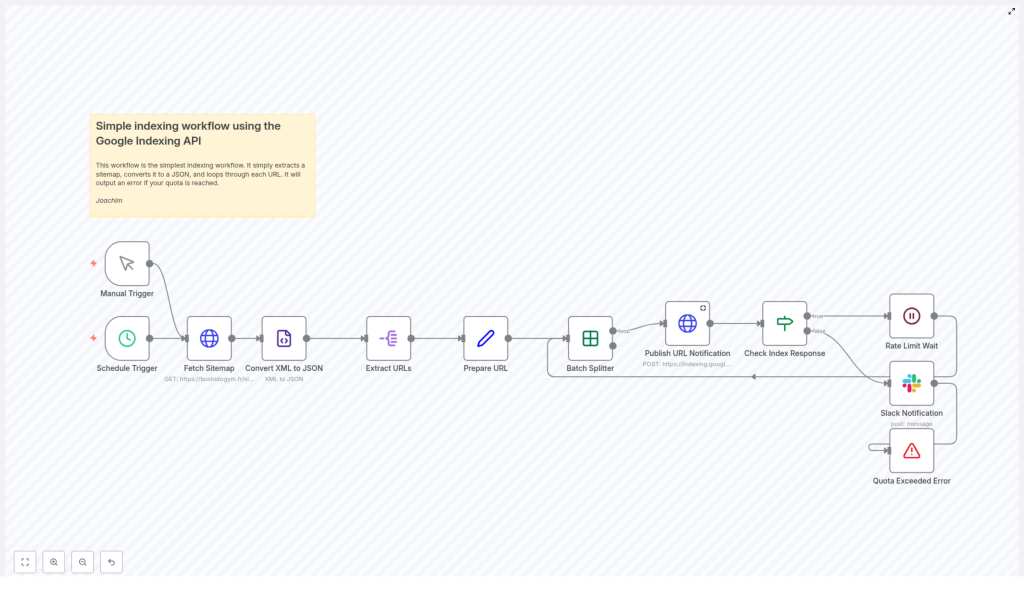
That is exactly what this n8n workflow template does. It grabs your sitemap, pulls out every URL, and uses the Google Indexing API to let Google know what changed, all while respecting quotas, handling errors, and pinging you on Slack if something goes wrong.
In this guide, we will walk through what the template does, when to use it, and how each node works, so you can tweak it for your own site with confidence.
What this n8n sitemap indexing workflow actually does
At a high level, this workflow is your quiet background assistant for Google indexing. Once configured, it can run on a schedule or whenever you trigger it manually. Each run:
- Fetches your
sitemap.xml(or sitemap index) - Converts the XML into JSON so it is easy to work with in n8n
- Extracts each URL from the sitemap
- Prepares the payload for the Google Indexing API
- Sends URL notifications to Google in controlled batches
- Waits between requests to respect rate limits
- Checks responses and alerts you in Slack if there is a problem
Think of it as an automated “please re-crawl this” system that keeps Google up to date on your most important URLs.
Why bother automating sitemap indexing?
You can absolutely submit URLs manually, but that gets old fast. Automation starts to make sense when:
- You publish new articles or product pages frequently
- You push big updates or redesigns and want Google to react quickly
- You want fewer manual steps in your SEO workflow
- You need to stay within Google Indexing API quotas without thinking about it
Using the Google Indexing API can significantly shorten the time it takes for key pages to show up or refresh in search results. Connecting that API to your sitemap with n8n means:
- No more copy-pasting URLs into tools
- Consistent, repeatable indexing behavior
- Built-in rate limiting so you do not accidentally hit Google’s daily caps
- Automatic alerts when something breaks, instead of silent failures
When this template is a good fit
This workflow is especially handy if:
- Your site already exposes a proper
sitemap.xmlor sitemap index - You want a low-maintenance way to notify Google of updates
- You are comfortable setting up a Google Cloud service account
- You use Slack (or are happy to set it up) for alerts
If that sounds like you, this template can save you a lot of repetitive work.
How the workflow runs, from trigger to Slack alert
Let us look at the flow from start to finish, then we will break down each node in more detail.
- A trigger starts the workflow, either manually or on a schedule.
- n8n fetches your sitemap via HTTP.
- The sitemap XML is converted to JSON.
- Each URL entry is extracted into its own item.
- The workflow prepares a clean payload with the URL and notification type.
- URLs are processed in batches (often one by one) to stay within quota.
- Each URL is sent to the Google Indexing API with authenticated credentials.
- The response is checked to confirm success.
- A short wait is inserted to respect rate limits.
- If something fails or quota is exceeded, a Slack notification is sent and the workflow stops safely.
Triggers: run once, or let it run itself
Manual Trigger
Sometimes you just want to hit a button and run indexing right after a big release. That is where the Manual Trigger node comes in. Use it when you are testing the workflow or when you want to force a one-off indexing run.
Schedule Trigger
For ongoing sites, you will probably lean on the Schedule Trigger. In the template example, it is set to run daily at 01:00, but you can adjust that to suit your publishing rhythm. Scheduling gives you:
- Regular coverage of new or updated content
- Less chance of forgetting to notify Google
- A predictable pattern for API usage and quotas
Fetching and parsing your sitemap
Fetch Sitemap (HTTP Request)
The first real action step is the HTTP Request node that downloads your sitemap. You simply point it at the URL of your sitemap, such as:
https://yourdomain.com/sitemap.xml- Or a sitemap index file if your site uses multiple sitemaps
This node is configured to return the raw XML. That XML is then passed along to the next node for parsing.
Convert XML to JSON
Working directly with XML in n8n gets messy fast, so the template uses a Convert XML to JSON node. It:
- Turns the XML structure into JSON
- Normalizes and trims fields so you get clean data
- Makes tags like
<loc>easily accessible in later steps
Once the sitemap is in JSON form, it is much easier to loop through each URL and build the payloads Google expects.
Extracting URLs from the sitemap
Extract URLs (splitOut)
Next, the workflow uses a splitOut step to pull out the array of URL objects, usually found at urlset.url in a typical sitemap. The idea is simple:
- Each sitemap entry becomes a separate item in n8n
- Each item contains one URL record with its
locvalue
This structure makes it straightforward to iterate over every single sitemap entry and send it to the Indexing API.
Prepare URL (Set node)
Before calling Google, the workflow standardizes the data. The Set node:
- Creates a field called
url - Populates it with the value from the sitemap’s
<loc>tag
The Indexing API does not need much. The only required fields are:
url– the full page URL you want indexedtype– usuallyURL_UPDATEDorURL_REMOVED
Keeping the payload minimal helps avoid accidental schema errors and keeps things clean.
Controlling speed with batching and waits
Batch Splitter (Split In Batches)
Google’s Indexing API has quotas. For many projects, the default is 200 calls per day. To avoid burning through that too quickly, the template uses a Split In Batches node.
In the provided configuration:
batchSizeis set to 1, so each URL is processed individually- This gives you precise control over timing and error handling
You can adjust the batch size, but starting with 1 is a safe way to ensure you respect limits and can easily see what is happening per URL.
Rate Limit Wait
Right after a successful API call, the workflow pauses using a Wait node. The example uses a 2 second delay, which is often enough for moderate volumes.
You can tune this based on your situation:
- Shorter waits if you index only a handful of URLs per day
- Longer waits, or an exponential backoff strategy, if you index large lists or hit 429/5xx responses
The key idea is that you are in control of how aggressively you use your quota.
Talking to Google: Indexing API request details
Publish URL Notification (HTTP Request with Google credentials)
This is where the magic happens. The workflow sends a POST request to:
https://indexing.googleapis.com/v3/urlNotifications:publish
The HTTP Request node is configured to:
- Use a Google Cloud service account credential stored in n8n
- Send a JSON body with:
url– the page from your sitemaptype– typicallyURL_UPDATEDorURL_REMOVED
Setting up Google credentials
To authenticate correctly, you will need:
- A Google Cloud Service Account with access to the Indexing API
- The Indexing API enabled in your Google Cloud project
- The service account JSON key added as a credential in n8n
Some key points:
- Create a dedicated service account just for the Indexing API
- Grant it the minimum required permissions for the relevant project
- Upload the JSON key into n8n’s credential store, or use Workload Identity where supported
Once that is in place, n8n handles authentication for each request to the Indexing API.
Checking responses and handling errors
Check Index Response (If node)
After each call to the Indexing API, the workflow does not just assume success. The If node inspects the response, typically looking at:
urlNotificationMetadata.latestUpdate.type
If this equals URL_UPDATED (or the expected type), the workflow treats that URL as successfully processed and moves on to the Wait node. If the response indicates a failure or an unexpected state, the workflow branches to the error path.
Slack Notification + Quota Exceeded Error
When something goes wrong, you want to know about it. The workflow includes a Slack node and a controlled Stop and Error node. Together they:
- Send a message to your chosen Slack channel describing the error
- Stop the workflow gracefully to avoid hammering the API or repeating failures
This is especially useful if:
- Your quota has been exceeded
- You get a non-recoverable error from Google
- There is a misconfiguration or unexpected response format
Instead of silently failing for hours, you get a clear ping in Slack so you can investigate.
Configuration checklist: what you need to set up
Before you rely on this workflow in production, run through this quick setup list:
- Create and configure a Google Cloud service account with Indexing API permission
- Enable the Indexing API in your Google Cloud project
- Download the service account JSON key and add it to n8n credentials
- Set your sitemap URL in the Fetch Sitemap HTTP Request node
- Adjust
batchSizein the Split In Batches node according to your quota and needs - Configure the Wait node duration to space out requests appropriately
- Set up Slack credentials and pick a channel for alerts
- Test the workflow manually with a small set of URLs before enabling the schedule
Best practices to keep things smooth
Respect quotas and tune your batching
Always keep an eye on your daily Indexing API quota in Google Cloud. If you are indexing lots of URLs:
- Spread indexing across multiple days
- Increase the Wait time between requests
- Consider requesting higher quotas from Google if your use case justifies it
Use a sitemap index if you have many sitemaps
If your site generates multiple sitemap files, you have two main options:
- Point the Fetch Sitemap node at a sitemap index and iterate through each sitemap listed there
- Run this workflow separately for each sitemap file
Either way, the goal is the same: cover all your important URLs without manually managing long lists.
Retry logic and backoff strategies
Network hiccups and transient errors are normal. For production workloads, it is smart to implement:
- Retries for 5xx and 429 responses
- Increasing wait intervals between retries (exponential backoff)
The template ships with a simple linear wait between requests. You can extend it with additional logic to back off more aggressively when errors appear.
Selective indexing to save quota
You do not always need to re-index everything. You can add filters before batching, for example:
- Only index URLs where
lastmodis within the last 30 days - Skip certain sections or content types that rarely change
This keeps your Indexing API calls focused on high-value pages and helps you stay well within quota.
Monitoring and logging
For better visibility, consider logging results somewhere persistent, such as:
- A database table
- A spreadsheet
- A dedicated logging service
Tracking both successes and failures over time makes it easier to spot patterns, debug issues, and prove that your indexing automation is working as intended.
Troubleshooting common issues
- 401 / 403 errors: Double-check that:
- The Indexing API is enabled in your Google Cloud project
- Your service account has the correct permissions
- You are using the correct credentials in n8n
- Quota exceeded:
- Reduce the number of URLs processed per run
- Increase the Wait node delay between API calls
- Consider spreading indexing across multiple days
- Invalid payload:
- Confirm the request body is a JSON object with exactly
urlandtype - Make sure the URL is fully qualified (including protocol)
- Confirm the request body is a JSON object with exactly
- Empty sitemap or missing URLs:
- Verify that the Fetch Sitemap node is hitting the correct URL
- Check that the Convert XML to JSON node is mapping to the right path, usually
urlset.url.loc - Inspect the raw XML if needed to confirm structure
Security considerations
Your Google service account key is powerful, so treat it like a secret:
- Store it only in n8n’s credential system, which encrypts data at rest
- Limit the service account to the minimum permissions required
- Rotate keys periodically
- Monitor IAM logs for unusual activity
Good security hygiene here keeps both your project and your indexing pipeline safe.
Wrapping up
This n8n template gives you a solid, ready-to-customize foundation for automating sitemap indexing with the Google Indexing API. Out of the box, it:
- Fetches and parses your sitemap
- Iterates through URLs safely, in batches
- Honors rate limits with controlled waits
- Checks Google’s responses for success
- Notifies your team on Slack when something goes wrong
With a few tweaks to batching, backoff, and filters, you can scale it to match most publishing workflows, from small blogs to larger content sites.
Ready to automate your indexing pipeline?
