


How to Automate Email Replies and Save to Google Sheets in n8n
What You Will Learn
In this guide, you will learn how to use an n8n workflow template to:
- Automatically detect and process incoming emails
- Clean and extract the main message content
- Send the content to ChatGPT (OpenAI) to generate a reply
- Send the AI-generated response back to the original sender
- Store both the incoming message and the reply in Google Sheets
- Collect feedback on the AI reply through links in the email
- Update the Google Sheet with feedback for later analysis
By the end, you will understand how each part of the n8n workflow fits together and how you can adapt it to your own use case.
Concept Overview: How the Automation Works
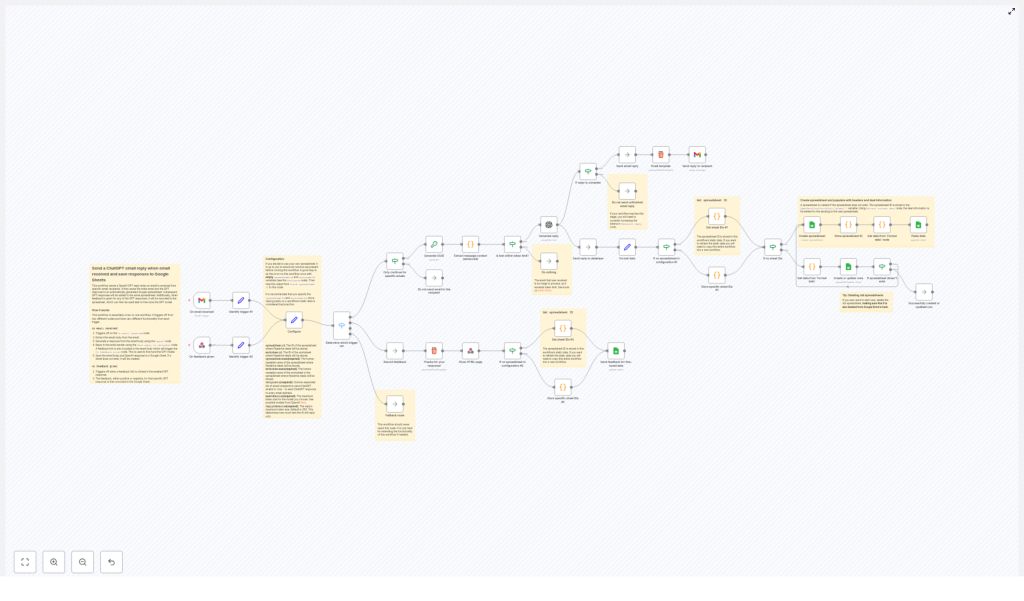
This n8n workflow connects Gmail, OpenAI (ChatGPT), and Google Sheets to create a complete loop:
- Trigger: A Gmail trigger listens for new emails, and a webhook trigger listens for feedback.
- Processing: The email content is extracted, cleaned, and validated against token limits.
- AI Reply: ChatGPT generates a response based on the cleaned email text.
- Storage: A unique ID (UUID) is created, and all data is stored in a Google Sheet.
- Reply & Feedback: The AI reply is emailed back to the sender with feedback links. When feedback is submitted, the workflow updates the corresponding row in the sheet.
This setup is ideal for handling common support questions, FAQs, or repetitive email tasks while keeping a full record of every interaction.
Key Components of the n8n Workflow
1. Email Trigger and Feedback Webhook
The workflow begins with two separate triggers:
- Gmail trigger node: Watches for incoming emails that match your filter rules.
- Webhook node: Receives feedback when users click on feedback links in the reply email.
These two triggers allow the same workflow to handle both the initial conversation and the later feedback update.
2. Recipient Filtering
Not every email that hits your inbox should be processed. To control which emails are handled by the automation, the workflow uses a filtering node that checks the sender address.
- You can specify a list of allowed email addresses.
- You can use a wildcard to process all emails if needed.
Only emails that match your configuration move on to the next steps in the workflow.
3. Email Content Extraction and Cleanup
Real emails often contain signatures, quoted messages, or disclaimers. To ensure ChatGPT receives a clear prompt, the workflow uses an advanced email parser node to:
- Extract the main body of the email
- Remove signatures and footers
- Strip out quoted previous messages and irrelevant fragments
The result is a concise and focused text that is much easier for the AI model to interpret.
4. Token Length Check for OpenAI
OpenAI models have token limits for each request. To avoid errors, the workflow checks the length of the email content before sending it to ChatGPT.
- If the message is within the configured token limit, the workflow continues.
- If the message is too long, the workflow skips the AI generation step to prevent API errors.
This step ensures your automation stays stable and respects your OpenAI configuration.
5. Generating the ChatGPT Reply
Once the content is validated, it is passed to the OpenAI node in n8n. This node:
- Sends the cleaned email body as a prompt to the selected language model
- Generates a reply that is relevant to the original message
- Limits the number of tokens used in the response according to your settings
The AI-generated response is then captured and prepared for both emailing back to the user and logging in Google Sheets.
6. UUID Creation and Data Structuring
To keep track of each conversation, the workflow generates a unique identifier (UUID) for every interaction.
This UUID, along with:
- The original email content
- The ChatGPT-generated reply
- Sender information
is combined into a structured data object. This structure makes it easy to store and later retrieve the information from Google Sheets.
7. Google Sheets Setup and Data Storage
The workflow integrates with Google Sheets to create a persistent log of all conversations. It works as follows:
- The workflow first tries to read an existing spreadsheet ID from static data storage.
- If no spreadsheet exists yet, it automatically creates a new Google Spreadsheet.
- The new spreadsheet ID is saved for future runs so the workflow can reuse it.
After that, the structured data (including the UUID, email content, and AI reply) is:
- Appended as a new row, or
- Updated in a specific worksheet, depending on your configuration.
This creates a complete and searchable history of all automated email conversations.
8. Sending the Reply Email with Feedback Links
Once the AI response is ready and stored, the workflow sends a reply email back to the original sender using Gmail.
The reply email typically includes:
- The AI-generated answer
- Feedback links that allow the recipient to rate or comment on the quality of the response
Each feedback link is usually tied to the UUID so that the workflow can connect the feedback to the correct row in the Google Sheet.
9. Receiving and Logging Feedback
The feedback mechanism is handled through the webhook trigger node. When a recipient clicks a feedback link:
- The webhook receives the feedback data, often including the UUID and rating or comment.
- The workflow locates the matching row in the Google Sheet using the UUID.
- The feedback fields in that row are updated with the new information.
This creates a feedback loop that you can later use to evaluate response quality or improve how you prompt the AI model.
Step-by-Step: Using This n8n Workflow Template
Step 1: Prepare Your Accounts and Credentials
Before importing or using the template, make sure you have:
- Gmail access for the account that will send and receive emails
- A Google Cloud project with Google Sheets API enabled
- OAuth credentials for Gmail and Google Sheets configured in n8n
- An OpenAI API key with token limits that fit your expected usage
Step 2: Import the Template into n8n
Use the provided template link to load the workflow into your n8n instance:
Once imported, open the workflow editor to review the nodes and connections.
Step 3: Configure the Gmail Trigger and Filters
- Open the Gmail trigger node and connect it to your Gmail credentials.
- Specify the mailbox or label you want to monitor.
- Adjust the filtering node so it only processes emails from:
- A list of specific sender addresses, or
- All senders using a wildcard if you want broad coverage.
Step 4: Review the Email Parsing and Token Check Nodes
- Inspect the email parser node to confirm it is extracting the correct body content.
- Check any settings that control removal of signatures or quoted text.
- Verify the token size check node configuration so it matches your OpenAI plan and model limits.
Step 5: Configure the OpenAI Node
- Connect your OpenAI credentials in the OpenAI node.
- Select the language model you want to use.
- Set the maximum tokens for responses so they are concise but useful.
- Optionally adjust system or prompt instructions to match your tone and use case.
Step 6: Set Up Google Sheets Integration
- Connect the Google Sheets node to your Google account.
- Review the logic that reads or creates the spreadsheet ID from static data.
- Confirm the name of the spreadsheet and worksheet where rows will be stored.
- Check the mapping of fields so that:
- UUID
- Original email
- AI reply
- Sender details
- Feedback fields (rating, comments)
are correctly assigned to columns.
Step 7: Customize the Reply Email and Feedback Links
- Edit the Gmail node that sends the reply to include your desired subject and body format.
- Insert the AI-generated reply into the email body.
- Ensure feedback links include the UUID so the webhook can identify the correct row.
- Adjust the wording of the feedback request so it fits your brand voice.
Step 8: Test the Workflow
- Send a sample email from an allowed address.
- Check that:
- The email is detected by the Gmail trigger.
- The content is correctly parsed and cleaned.
- A ChatGPT reply is generated without hitting token limits.
- A new row appears in the Google Sheet with all expected data.
- A reply email is sent back with working feedback links.
- Click a feedback link to confirm the webhook updates the correct row in the sheet.
Step 9: Move to Production and Monitor
- Once testing looks good, enable the workflow in n8n.
- Monitor:
- Google Sheets logs for accuracy and completeness
- Feedback entries to see how users rate the AI responses
- Any errors in the n8n execution log, especially around token limits or API credentials
- Iterate on your filters, prompts, and reply templates based on real-world feedback.
Benefits of This n8n Email Automation Workflow
- Time savings: Common or repetitive queries are answered automatically, reducing manual work.
- Consistent tone: ChatGPT-generated replies follow a uniform style and level of professionalism.
- Complete data history: Google Sheets stores every message, reply, and feedback entry for later review.
- Built-in feedback loop: Feedback links let you measure and improve AI response quality over time.
- Scalability: The workflow can handle large volumes of emails without adding new team members.
Setup Tips and Best Practices
- Double-check your Gmail and Google Sheets OAuth credentials in n8n before going live.
- Start with a small group of allowed recipient addresses to test behavior safely.
- Align OpenAI token limits with your subscription to avoid unexpected costs or errors.
- Use clear and concise prompts in the OpenAI node to guide the tone and structure of replies.
- Review Google Sheets regularly to identify patterns in questions and improve your automation.
- Use feedback data to adjust prompts or routing if certain types of questions need human review.
FAQ: Common Questions About This Workflow
Can I process all incoming emails automatically?
Yes, you can configure the recipient filter to use a wildcard so that all emails are processed. However, it is usually better to start with a restricted list of senders or a specific mailbox to keep control over what is automated.
What happens if an email is too long for the OpenAI token limit?
The workflow includes a token size check. If the email body exceeds your configured limit, the workflow skips the AI generation step to prevent API errors. You can then decide whether to handle those cases manually or adjust your limits.
Do I need to manually create the Google Sheet?
No, the workflow attempts to read a stored spreadsheet ID. If it cannot find one, it automatically creates a new Google Spreadsheet and stores its ID for future runs.
How is feedback linked to the correct conversation?
Each interaction gets a UUID. This UUID is stored in the Google Sheet and also embedded in the feedback links. When feedback is submitted, the webhook uses the UUID to find and update the correct row.
Can I customize the AI’s tone and style?
Yes, you can modify the prompt and settings in the OpenAI node to instruct the model to respond in a particular tone, level of formality, or language.
Conclusion
This n8n workflow template combines Gmail, OpenAI, and Google Sheets to create a powerful automated email system. It not only generates ChatGPT-based replies and sends them back to users, it also records every interaction and captures feedback for continuous improvement.
By putting this automation in place, you can improve customer communication, reduce repetitive email work, and gain data-driven insights from the logs and feedback stored in Google Sheets.
Get Started With the Template
If you are ready to automate your email replies with AI and keep everything organized in Google Sheets, start by exploring the template below, then adapt it to your needs inside n8n.
