


How to Build a Chinese Translator with Line and OpenRouter.ai (So You Never Copy-Paste Into Google Translate Again)
Imagine This…
You are chatting with someone in Chinese, screenshots are flying in, text blocks are piling up, and you are stuck in a never-ending loop of:
- Copy message
- Open translator
- Paste
- Squint at tones and characters
- Repeat until your soul leaves your body
Now imagine instead that you just send a message or image in Line, wait for a short loading animation, and then – like magic – you get Chinese characters, pinyin, and English translation back in the same chat.
That is exactly what this n8n workflow template does, using the Line Messaging API plus OpenRouter.ai large language models. No more manual copy-paste gymnastics, just smooth, automated translation right where you are already chatting.
What This n8n Workflow Actually Does
This workflow turns your Line account into a mini Chinese translator bot that can:
- Receive text messages in Line and send them to an OpenRouter.ai LLM
- Return Chinese characters, pinyin, and English meaning
- Handle images, grab them via Line’s Get Image API, and send them to an image-capable LLM for translation
- Reply directly in Line with the translation results
- Politely tell users when they send something unsupported, like audio, instead of silently panicking
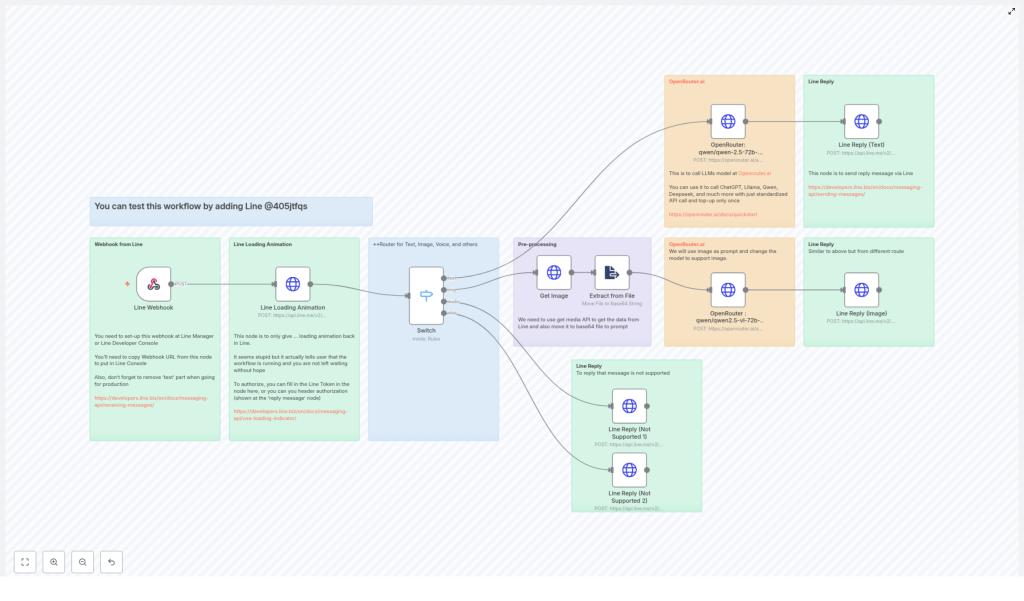
Under the hood, the flow is powered by:
- A Line Webhook that listens for incoming messages
- A loading animation node to reassure users that things are happening in the background
- A Switch node that decides if the message is text, image, audio, or something else
- Text and image OpenRouter.ai LLM calls for translation
- Reply nodes that send everything back neatly to the user
How the Workflow Flows (From Message to Translation)
1. Line Webhook – Your Entry Gate
Everything starts with the Line Webhook node. This is where Line forwards incoming messages to your n8n workflow.
To make it work, you need to:
- Set your workflow URL as the Webhook URL in the Line Manager or Developer Console
- Ensure the webhook is enabled so Line can actually send events to your workflow
Once that is done, every time a user sends a message, your workflow wakes up and gets to work.
2. Line Loading Animation – The “Please Hold” Moment
Users hate staring at silence, and so do we. That is why the workflow sends a loading animation in Line right after receiving the message.
This node simply tells the user, in a friendly visual way, that their request is being processed. No one needs to wonder if the bot fell asleep.
3. Switch Node – Message Type Router
Next up is the Switch node, which acts like the bouncer at the door deciding where each message should go.
It checks the message type and routes it accordingly:
- Text – goes to the text translation chain using an OpenRouter text model
- Image – goes to the image processing nodes for OCR-style translation
- Audio & others – get sent to a friendly “unsupported message type” reply
This way, each type of content is handled by the right part of the workflow, and you do not need to manually sort anything.
Handling Text vs Images
4. Text Messages – Straight to OpenRouter
When the user sends text, the flow is pleasantly simple:
- The text is passed to an OpenRouter.ai text translation model
- The model returns:
- Chinese characters
- Pinyin
- English translation
- The result is formatted and sent back through a Line reply node
The result: the user gets a neat translation bundle with characters, pronunciation, and meaning all in one place.
5. Image Messages – Pre-processing Before Translation
Images take a slightly longer route, but it is still fully automated.
For image messages, the workflow does the following:
- Uses Line’s Get Image API to fetch the image binary data
- Extracts the image file content and converts it into a base64 string
- Includes that base64-encoded image in the prompt for an image-capable OpenRouter.ai LLM
- Receives translated text back from the model
In other words, the workflow handles the annoying technical bits of binary data and encoding so you do not have to.
Talking to OpenRouter.ai
6. Calling the Right OpenRouter Models
The workflow uses two different OpenRouter.ai model setups, depending on the content type:
- Text translation model
– Input: raw user text from Line
– Output: Chinese characters, pinyin, and English translations - Image translation model
– Input: base64-encoded image content
– Output: extracted text plus translations, using image understanding and OCR-like capabilities
Both models plug neatly into n8n nodes, so your main job is configuring the prompts, credentials, and any formatting you want in the final response.
Replying in Line (And Handling the “Nope” Cases)
7. Reply Nodes – Sending Results Back to the User
Once the translation is ready, the workflow uses Line Reply nodes to send everything back through Line’s Messaging API.
These nodes:
- Take the processed translation from the LLM
- Format it into a Line reply message
- Send it directly to the user in the same conversation thread
The user experience is simple: send message or image, wait for the loading animation, receive translation.
8. Unsupported Message Types – Polite Decline
Not every message type is supported in this template. When the Switch node detects something like audio or other unsupported content, the workflow does not just fail silently.
Instead, it sends a clear and polite message, for example:
“Please try again. Message type is not supported.”
This keeps the user informed and gently nudges them back to using text or images, which the workflow can actually handle.
Setup Tips & Important Details
Before you unleash your new Chinese translator bot on the world, keep these practical points in mind:
- Line Channel Access Token
Make sure you set your Line Channel Access Token correctly so the API calls can authenticate and the bot can send replies. - Webhook URL Cleanup
If you used any test or temporary URLs during development, remove or update them when you move to production. Old test settings can cause very confusing bugs. - Official Documentation
For deeper configuration, rate limits, and extra capabilities, check:- The official Line Messaging API docs
- The official OpenRouter.ai documentation for supported models and features
Try the Workflow Live in Line
If you want to see this in action before you start tweaking the template, you can test the workflow directly in Line.
Add this Line ID:
@405jtfqs
Then:
- Send a text message you want translated
- Or send an image that contains text
- Watch as the bot replies with:
- Chinese characters
- Pinyin
- English meaning
It is a quick way to confirm the full flow, from webhook to LLM to reply, is working as expected.
Next Step: Use the n8n Template and Build Your Own Bot
If you are tired of repetitive translation tasks and ready to let automation handle the boring parts, this n8n workflow template is a great starting point.
You can customize it further by:
- Adjusting the prompt for the OpenRouter models
- Formatting the reply messages to match your brand or teaching style
- Extending the Switch node logic to handle more cases in the future
Ready to explore the template in n8n?
Start building your own integrated translation bot today, and let n8n, Line, and OpenRouter.ai handle the language heavy lifting while you focus on the conversation.
