


Importing XML to MySQL with n8n (Without the Headache)
If you have an XML file full of product data and a MySQL database waiting to receive it, you might be thinking, “There has to be an easier way to get this in.” You’re right. That’s exactly where n8n comes in.
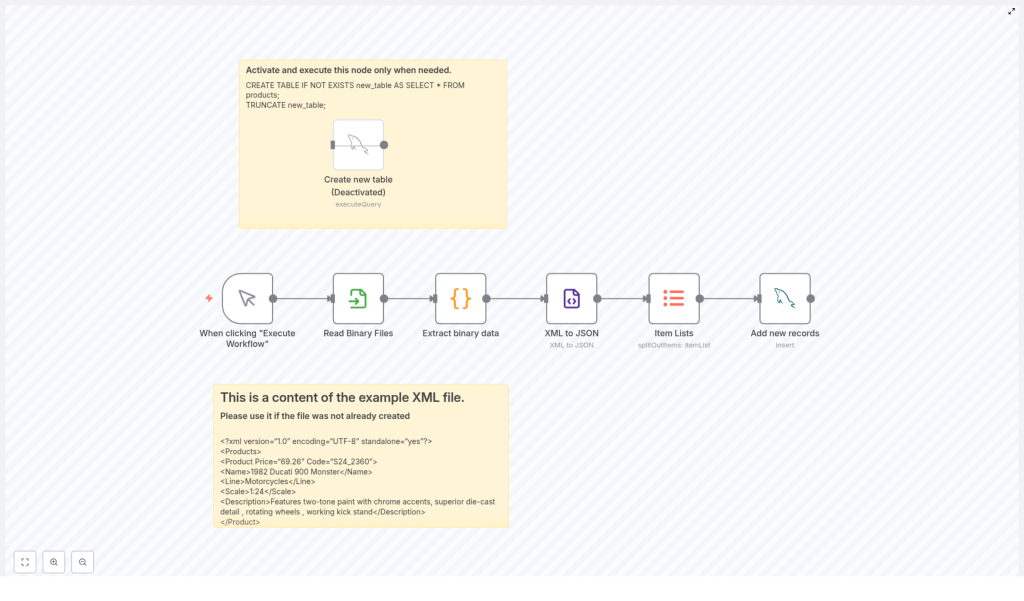
Instead of wrestling with custom scripts or one-off import tools, you can build (or simply reuse) an n8n workflow that:
- Reads your XML file
- Converts it into JSON
- Splits it into individual items
- And inserts everything neatly into a MySQL table
All of this happens in a visual, drag-and-drop interface. No need to be a hardcore developer to follow along.
What This n8n Workflow Template Actually Does
Let’s start with the big picture. This workflow is built to automate a very specific job: importing XML product data into a MySQL table.
Here’s what the template takes care of for you:
- Manually triggering the workflow whenever you need to run an import
- Loading an XML file from a given file path
- Turning the binary file content into readable text
- Converting XML into structured JSON
- Splitting that JSON into individual product records
- Inserting each product into a MySQL table called
new_table
So instead of copy-pasting data or writing custom scripts every time, you just run the workflow and let n8n handle the heavy lifting.
When You’d Want To Use This Template
This setup is perfect if you:
- Receive product catalogs, price lists, or inventory updates in XML format
- Have a MySQL database where this data needs to live
- Want a repeatable, low-maintenance way to keep data in sync
For example, maybe your supplier sends you regular XML exports of their product list, or your legacy system spits out XML files that you now want in MySQL. Instead of doing manual imports every time, you can run this workflow and be done in a few clicks.
Before You Start: Preparing Your MySQL Table
Before the workflow starts inserting data, you need a target table in MySQL. The template already includes a Create new table node that is commented out by default. You can enable it if you want n8n to prepare the table for you.
Inside that node, you’ll find this SQL:
CREATE TABLE IF NOT EXISTS new_table AS SELECT * FROM products;
TRUNCATE new_table;
Here’s what that does:
CREATE TABLE IF NOT EXISTS new_table AS SELECT * FROM products;Creates a new table callednew_tablethat has the same structure as your existingproductstable.TRUNCATE new_table;Emptiesnew_tableso it’s clean and ready for fresh data.
If you already have a table set up the way you like, you can skip this part. If not, this is a quick way to clone your existing structure and get a blank slate.
Getting Familiar With the XML Data
The workflow is built around a sample XML structure that represents a collection of products. Each product has attributes and nested tags such as:
CodePriceNameLineScaleDescription
Here’s a snippet of the example XML used in the template:
<Products>  <Product Price="69.26" Code="S24_2360">  <Name>1982 Ducati 900 Monster</Name>  <Line>Motorcycles</Line>  <Scale>1:24</Scale>  <Description>Features two-tone paint with chrome accents, superior die-cast detail , rotating wheels , working kick stand</Description>  </Product>
</Products>
The workflow expects data in this general shape: a root <Products> element, with one or more <Product> entries inside. If your XML file has a different structure, you can still use the same approach, you’ll just need to adjust the nodes that reference specific paths like Products.Product.
How the n8n Workflow Is Structured
Now let’s walk through the actual building blocks of the workflow. Each piece has a clear job, and together they form a simple, reliable import pipeline.
1. Manual Trigger – Starting the Workflow
The first node is a Manual Trigger. This node does exactly what it sounds like: it lets you run the workflow whenever you click “Execute Workflow” in n8n.
This is ideal if you want full control over when imports happen, for example after you upload a new XML file or receive it from another system.
2. Read Binary Files – Loading the XML
Next, the Read Binary Files node takes over. Its job is to read the XML file from your filesystem.
In the template, the file path is set to:
/home/node/.n8n/intermediate.xmlYou’ll want to update this path to point to your actual XML file. Once configured, this node pulls in the file as binary data so the rest of the workflow can start working with it.
3. Extract Binary Data – Turning It Into Text
Binary content is not very fun to work with directly, so the workflow uses an Extract binary data node (a Code node) to convert that binary content into a UTF-8 string.
Behind the scenes, this node runs a small JavaScript snippet that:
- Reads the binary data from the previous node
- Converts it into a human-readable text string
That string is then ready to be fed into the XML to JSON conversion step.
4. XML to JSON – Making the Data Easy to Work With
Once the XML is in text form, the XML to JSON node takes it and turns it into a structured JSON object.
Why JSON? Because JSON is much easier to handle inside n8n. You can easily access nested properties, loop through arrays, and map fields to database columns without needing to manually parse XML tags.
5. Item Lists – Splitting Products Into Individual Items
After the conversion, you’ll have a JSON object where all products live inside something like Products.Product.
The Item Lists node is used to:
- Look at that
Products.Productarray - Split it so that each product becomes its own item in the workflow
This is important because the MySQL node later on expects one item per row to insert. By splitting the array, you make sure each product is handled individually.
6. Add New Records – Inserting Data Into MySQL
Finally, the Add new records node connects to your MySQL database and inserts each product into the target table.
In this template, the node is configured to insert data into new_table with fields such as:
productCodeproductNameproductLine- And other related product columns
Each item coming from the Item Lists node corresponds to one row in the database. As long as your MySQL credentials and column mappings are set correctly, n8n will handle the inserts automatically.
Why This Makes Your Life Easier
Could you write a script to do all of this? Sure. But here’s why using an n8n workflow template is often a better choice:
- Visual and easy to tweak – You can see every step, adjust nodes, and add new ones without rewriting code.
- Reusable – Once set up, you can run it again and again for new XML files.
- Flexible – Need to add validation, send a notification, or log results? Just drop in extra nodes.
- Less error-prone – The workflow is structured, so it’s easier to debug than a long script.
Tips for a Smooth XML to MySQL Import
To keep things running smoothly, here are a few practical tips:
- Double-check the file path Make sure the path in the Read Binary Files node actually points to your XML file.
- Validate your XML structure Confirm that your XML matches the expected format, especially the root element and product tags.
- Review node settings Pay close attention to field names in the XML to JSON, Item Lists, and Add new records nodes, as well as your MySQL connection details.
- Start with a small sample Test the workflow with a small XML file first. Once everything looks good, move on to larger datasets.
Wrapping Up
Importing XML data into MySQL doesn’t have to be a painful, manual process. With this n8n workflow template, you can:
- Convert XML to JSON automatically
- Split products into individual items
- Insert everything into a MySQL table with minimal effort
Whether you’re dealing with product catalogs, inventory lists, or any other structured XML data, this approach gives you a reliable bridge between XML files and your relational database.
Ready to stop doing imports by hand and let automation take over?
Try this n8n template and streamline your XML to MySQL imports today.
