


How One Marketer Stopped Copy-Pasting JSON and Let n8n Do the Work
The Night Sara Almost Quit Spreadsheets
Sara stared at her screen, eyes blurring over yet another JSON response from an API. Her job as a marketing operations specialist should have been about strategy and insights, yet her evenings kept disappearing into a maze of copy-pasting data into Google Sheets, cleaning columns, and exporting CSV files for her team.
Every campaign meant the same routine. Pull data from an API, download a file, reformat it, import it into Google Sheets, then export a CSV for reporting and backups. One missed field or a wrong column, and her dashboards broke. She knew there had to be a smarter way to load JSON data into Google Sheets and CSV, but every solution she found seemed too complex or too rigid.
Then one afternoon, while searching for “automate JSON to Google Sheets and CSV,” she stumbled on an n8n workflow template that promised exactly what she needed: a simple way to load JSON data from any API directly into Google Sheets or convert it into a CSV file, all without manual effort.
Discovering the n8n Workflow Template
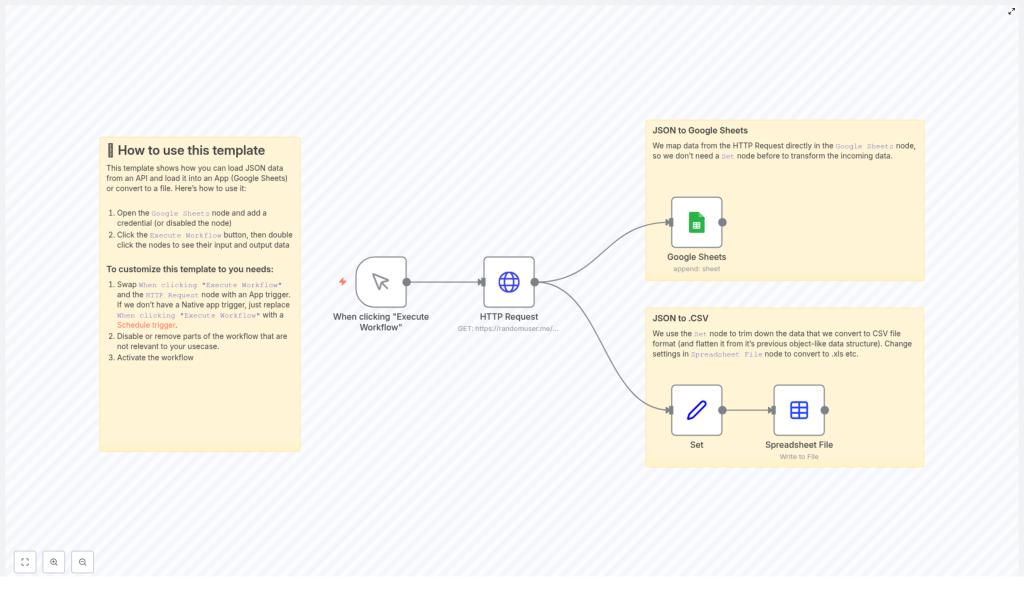
The template description sounded almost too good to be true. It showed a workflow that would:
- Fetch JSON data from an API using an HTTP Request node
- Send that JSON straight into Google Sheets, appending new rows automatically
- Transform the JSON into a flat structure and generate a CSV file using a Spreadsheet File node
Instead of a vague promise, this was a concrete, working automation. It even used a public RandomUser API as an example so she could see the full flow in action before plugging in her own data.
Sara clicked the template link, imported it into n8n, and decided to test it exactly as it was. If it worked with sample data, she could adapt it to her real API later.
First Run: From Click To Clean Data
The Manual Trigger That Changed Her Routine
The workflow started with something simple: a Manual Trigger node. No schedules, no external events, just a button labeled Execute Workflow.
At first, that felt almost too basic, but as she thought about it, it made sense. She could:
- Use the manual trigger while testing the workflow
- Later replace it with an app trigger or schedule trigger when she was ready to automate everything
She hit Execute Workflow and watched the next node light up.
Meeting the HTTP Request Node
The core of the template was an HTTP Request node. It was configured to call the RandomUser API at:
https://randomuser.me/api/
The response came back in JSON format, complete with nested objects. There were fields like name, email, and location, all neatly structured but not exactly spreadsheet friendly. For years, this kind of nested JSON had been the reason she spent hours wrangling data.
In n8n, though, she could see the JSON clearly in the node’s output. This was the raw material the rest of the workflow would use.
Two Paths From One JSON: Sheets And CSV
From the HTTP Request node, the workflow split into two distinct paths. This was where Sara realized the template was not just a demo, but a flexible pattern she could reuse across multiple projects.
Path 1 – Sending JSON Straight To Google Sheets
The first branch flowed into a Google Sheets node. Instead of doing complex transformations, it took the JSON output from the HTTP Request node and mapped it directly into a spreadsheet.
The node was configured to:
- Append new rows to a specific Google Sheet
- Use the JSON fields as column values
Since some apps and spreadsheets can handle nested JSON, this direct approach worked surprisingly well. For quick reports or internal tools that understand JSON structures, she could skip the whole flattening process and let the data flow straight in.
All she had to do was:
- Authorize the Google Sheets node with her account
- Select the target spreadsheet and worksheet
- Map the JSON fields to the appropriate columns
Within minutes, fresh user data from the RandomUser API appeared in her sheet. No more downloading files or importing manually.
Path 2 – Flattening JSON And Generating A CSV
The second branch was what really caught her attention. It showed how to take the same JSON response and turn it into a clean CSV file using two nodes working together.
Step 1 – The Set Node As A Data Sculptor
The Set node acted like a sculptor for the JSON. Instead of keeping the original nested structure, it:
- Extracted only the relevant fields, such as full name, country, and email
- Combined nested properties into simple strings, for example merging first and last name
- Created a much flatter, spreadsheet-friendly layout
For Sara, this was the missing piece she had been manually reproducing in spreadsheets for years. Now she could define exactly which fields to keep and how to format them, all inside the workflow.
Step 2 – Spreadsheet File Node For CSV Output
Once the data was flattened, it flowed into the Spreadsheet File node. This node converted the structured data into a downloadable file.
In the template, it was configured to generate a CSV file, ideal for:
- Sharing data with teammates who preferred CSV
- Uploading into other analytics tools
- Archiving snapshots of data for later audits
She also noticed that with a quick settings change, the same node could convert the data into other formats like XLS. That meant the workflow could adapt to whatever her team or tools needed.
Shaping The Template Around Her Own API
After running the template a few times with the RandomUser API, Sara felt confident enough to tailor it to her real use case. The structure was already there, she just had to swap in her own details.
How She Customized The Workflow
Step by step, she adapted the template:
- Replaced the Manual Trigger She switched the manual trigger to a schedule trigger so the workflow would run automatically every morning before her team checked their dashboards.
- Updated the HTTP Request URL She changed the
HTTP Requestnode to point to her marketing analytics API instead ofhttps://randomuser.me/api/, adjusting any authentication settings as needed. - Remapped the Google Sheets Node She updated the
Google Sheetsnode so that the columns matched her actual reporting structure, mapping each JSON field to the correct column name. - Refined the Set Node Fields In the
Setnode, she selected the exact fields she wanted in her CSV report, flattening nested objects into clear labels like “campaign_name,” “country,” and “click_through_rate.” - Enabled and Authorized Google Sheets She made sure the Google Sheets node was fully authorized with her Google account and had access to the right spreadsheet.
- Removed Unnecessary Parts For one project, she only needed the CSV output, so she disabled the Google Sheets branch. For another, she only needed live data in Sheets and turned off the CSV generation.
The template did not lock her into a single pattern. Instead, it gave her a flexible foundation that she could reshape for each data source and reporting requirement.
The Turning Point: From Manual Drudgery To Reliable Automation
A week later, something quietly remarkable happened. The morning rush of “Did you update the sheet?” messages stopped. Her teammates opened their dashboards and found everything already up to date.
The n8n workflow handled:
- Fetching JSON from her APIs on a schedule
- Appending data directly into Google Sheets
- Generating CSV files for archival and sharing
What used to be an hour or more of manual work each day was now a background process she barely had to think about. If she needed to adjust a field, she changed it in the Set node. If a new API endpoint became available, she updated the HTTP Request node and mappings.
Why This n8n Template Became Her Go-To
Looking back, Sara realized the value of the workflow was not just in saving time, but in making her data process more reliable and scalable.
Key Benefits She Experienced
- Automated Data Integration No more copying and pasting JSON API data into spreadsheets. The workflow handled the entire extraction and loading process automatically.
- Flexible Output Options She could push data directly into Google Sheets for live reporting or convert it into CSV files for sharing, backups, or imports into other systems.
- Simplicity And Extensibility The template was easy to understand and customize. She could plug in different APIs, adjust JSON mappings, and switch formats without rebuilding everything from scratch.
From Overwhelmed To In Control
What started as a desperate search for “how to load JSON data into Google Sheets and CSV” turned into a complete shift in how Sara handled API data. Instead of wrestling with exports and imports, she designed workflows that did the heavy lifting for her.
Now, when a new project comes in, she does not dread the data side. She opens n8n, clones her workflow template, updates a few nodes, and lets automation take over.
If you are tired of repetitive data handling, this n8n workflow template can be your turning point too. Use it to automate the extraction, transformation, and loading of JSON data into Google Sheets or CSV files, whether you need real-time syncs or scheduled exports.
Set it up once, refine it as you go, and reclaim the hours you used to spend on manual work.
Happy automating.
