


How One Marketer Stopped Losing HubSpot Contacts With a Simple n8n Workflow
The Night Emma Realized Her Reports Were Lying
Emma stared at her dashboard, confused. HubSpot said there were more than 50,000 contacts in their CRM, yet her weekly report exported only 9,800. Again.
She was the marketing operations lead at a fast-growing SaaS company. Every Monday she pulled contact data from HubSpot into their analytics stack, then built performance reports for the leadership team. Except lately, the numbers were not adding up. Campaigns that should have been winning looked flat, and churn analysis kept missing entire segments of customers.
After a few hours of digging, Emma spotted the problem. Her integration was only pulling the first “page” of results from the HubSpot API. Everything after that was quietly ignored.
She was bumping into a classic issue with large datasets in HubSpot: pagination.
When “Just One API Call” Is Not Enough
Emma had always assumed that calling the HubSpot API once would return everything she needed. Instead, she learned that HubSpot returns data in chunks called pages. Each response includes a subset of the total results, plus information about where to find the next chunk.
In other words:
- Each API call returns one page of contacts.
- The response includes a
pagingobject if more data exists. - Inside that object is a
next.linkURL that points to the next page. - You must keep requesting new pages until there is no
pagingobject left.
Her current setup was only grabbing the first page and stopping. Thousands of contacts were never making it into her reports.
Emma needed a way to automatically loop through every page of HubSpot’s paginated API until all contacts were retrieved, without writing a full application from scratch.
Discovering an n8n Template That Could Save the Day
Emma had experimented with n8n before and liked how it let her build automations visually. While searching for “HubSpot pagination n8n” she came across a workflow template designed specifically to retrieve all paginated contacts from HubSpot’s API.
The promise was simple: plug in your HubSpot API key, hit execute, and let n8n do the heavy lifting of looping through every page while respecting rate limits. No more half-complete exports, no more manual stitching in spreadsheets.
Curious and a little desperate, she decided to try it.
Setting the Stage: How the Workflow Is Structured
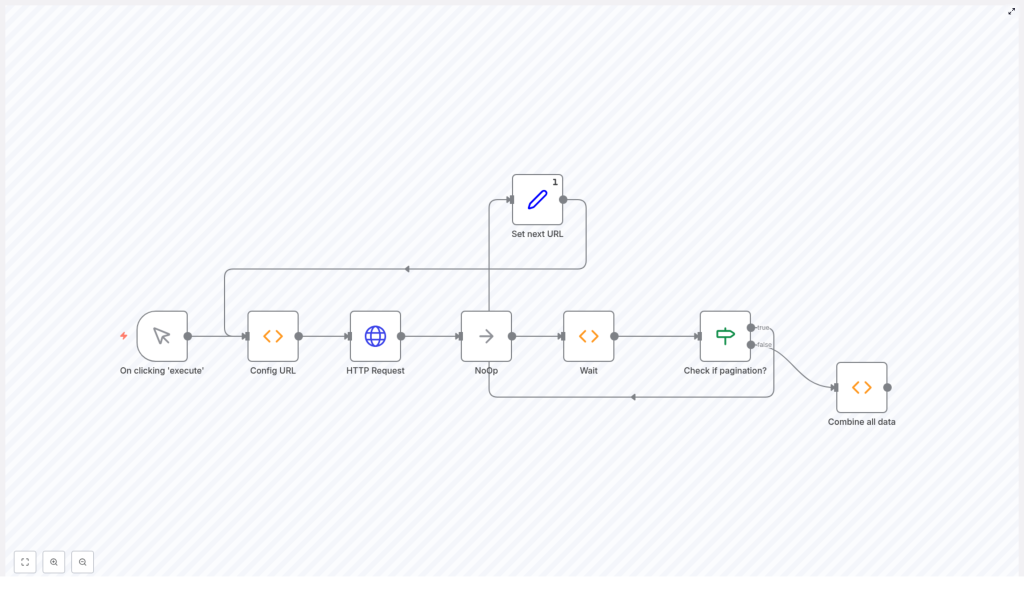
Instead of a long list of disconnected nodes, the workflow told a story of its own. It started, looped, waited, checked for more data, and then wrapped everything into one clean dataset. Emma could see the logic right on the n8n canvas:
- Trigger – She would start the workflow manually by clicking “Execute”.
- Config URL – This node defined the URL for the next HubSpot API call, starting with the first 100 contacts.
- HTTP Request – The node that actually called the HubSpot CRM API with her API key and a limit parameter.
- NoOp – A simple placeholder node to keep the execution flow organized.
- Wait – A pause of 5 seconds between requests to avoid hitting HubSpot’s rate limits.
- Check if Pagination? – A decision point that looked at the response to see if a
pagingobject existed. - Set next URL – If more data existed, this node grabbed the next page URL from the response.
- Loop – The workflow then cycled back to the Config URL node and repeated the process.
- Combine all data – Once no more pages were left, this node merged all the results into a single dataset.
It was exactly what Emma needed: a reusable n8n workflow that handled HubSpot API pagination without her writing a full custom script.
The Turning Point: Teaching n8n Where to Look Next
The magic of the template lived in a few small but powerful snippets. As Emma clicked into each node, she realized she was not just using a black box. She could actually understand how the workflow handled pagination.
The Config URL Node – Deciding the Next Request
The first key piece was the Config URL node. This node used JavaScript to decide what URL the next HTTP Request should call:
let next = 'https://api.hubapi.com/crm/v3/objects/contacts';

if (items[0].json.next) {  next = items[0].json.next;
}

return [  { json: { next: next } }
];
On the very first run, there was no “next” value yet, so the node defaulted to HubSpot’s base contacts endpoint. After the first API call completed, the workflow would supply the next page URL to this node, and the logic would pass that URL forward instead.
In effect, this tiny script turned the workflow into a loop that could keep following the trail of next-page links until the data ran out.
Respecting HubSpot Rate Limits With a Simple Wait
Emma had been burned before by hitting API rate limits. The template handled this gracefully with a Wait node that paused between calls:
return new Promise((resolve) => {  setTimeout(() => {  resolve([{ json: {} }]);  }, 5000);
});
Every time the workflow finished a request, it waited 5 seconds before making the next one. That gave HubSpot enough breathing room, and it gave Emma peace of mind that she was not going to throttle their account.
Knowing When to Stop: The Pagination Check
The next crucial question was: how does the workflow know when it has reached the end?
The Check if Pagination? node looked directly at the HTTP Request response to see if HubSpot had returned a paging object:
{{$node["HTTP Request"].json["paging"] ? true : false}}
If the paging property existed, the workflow knew there was another page to fetch. If it did not, that meant the last page had been reached and the loop could end.
Following the Trail: Setting the Next URL
When more data was available, the Set next URL node pulled out the link for the next page:
{{$node["HTTP Request"].json["paging"]["next"]["link"]}}
This link was then fed back into the Config URL node, and the cycle continued. From Emma’s perspective, it felt like watching a crawler move through HubSpot’s entire contacts collection, one page at a time, without missing a single record.
Bringing It All Together: Combining Every Page
Finally, Emma opened the Combine all data node. This was where all the scattered pages of results were merged into one unified list:
const allData = [];
let counter = 0;
do {  try {  const items = $items("HTTP Request", 0, counter).map(item => item.json.results);  const pageItems = items[0].map(item => ({ json: item }));  allData.push(...pageItems);  } catch (error) {  return allData;  }  counter++;
} while(true);
The node looped through every execution of the HTTP Request node, extracted the results array, and pushed each contact into allData. If anything unexpected happened, it simply returned what it had collected so far instead of breaking the workflow.
By the time this node finished, Emma had a complete, combined dataset of all contacts from every page the HubSpot API had served.
Emma’s First Run: From Anxiety to Full Data Confidence
With the logic clear in her mind, Emma connected her HubSpot credentials and adjusted one final detail in the HTTP Request node: the API key.
- She replaced
<YOUR_API_KEY>with her real HubSpot API key in the HTTP Request node. - She saved the workflow and clicked the Execute button.
- She watched n8n step through each node, waiting 5 seconds between calls as the pages stacked up.
- When the workflow reached the Combine all data node, she opened the output and saw thousands upon thousands of contacts.
This time, the numbers in her report finally matched what HubSpot showed in the UI. No more missing contacts, no more misleading performance metrics.
From One Use Case to a Reusable Automation Pattern
Once Emma had her contacts flowing correctly, she realized this was more than a one-off fix. She had just learned a reusable pattern for handling any paginated HubSpot API in n8n.
With a few tweaks, she could:
- Change the initial URL in the Config URL node to point at other HubSpot objects, such as deals or companies.
- Adjust the limit parameter in the HTTP Request node if she wanted more or fewer records per page.
- Send the combined data directly into a data warehouse, BI tool, or email platform.
The workflow gave her a flexible template that could be extended across her entire marketing stack.
Polishing the Workflow: Emma’s Next Improvements
After a few successful runs, Emma started thinking about how to harden and scale this automation. She made a short checklist for future improvements:
- Handle API errors gracefully by adding error handling and retry logic around the HTTP Request node.
- Tune the wait time based on her HubSpot plan and actual rate limits, so she did not wait longer than necessary.
- Use environment variables in n8n to store her HubSpot API key securely instead of pasting it directly into the node.
- Extend to more endpoints by adjusting the initial URL to fetch other HubSpot objects beyond contacts.
Each of these changes would make the workflow even more robust and production ready, but the core pagination logic was already working reliably.
What This n8n Template Really Gave Her
On the surface, the workflow helped Emma retrieve paginated data from the HubSpot API. Underneath, it solved a deeper problem: trust in her data.
By using a code-light n8n template to handle pagination, she:
- Eliminated silent data gaps that were skewing her reports.
- Automated a task that would have taken hours to script and maintain by hand.
- Created a repeatable pattern for any future HubSpot integrations.
Her weekly reporting ritual went from stressful to straightforward. Instead of wondering what she was missing, she could focus on interpreting results and recommending strategy.
Try the Same Workflow in Your Own Stack
If you are dealing with large HubSpot datasets and partial exports, you do not need to build a complex integration from scratch. This n8n workflow template already handles pagination, looping, and rate limiting for you. All you need to do is plug in your API key, run the workflow, and connect the output to the rest of your tools.
Use it to simplify your HubSpot data syncs, strengthen your analytics, and free yourself from manual export headaches.
