


How to Set Up an Automated Error Notifier in n8n Workflows
What You Will Learn
In this guide, you will learn how to:
- Understand what the Error Notifier workflow in n8n does and when to use it
- Set up a central error notification workflow in n8n
- Connect popular channels like Telegram, WhatsApp, Gmail, Discord, and Slack for alerts
- See how each node in the template works, from error detection to message delivery
- Customize and extend the template for your own automation projects
Why Automated Error Notifications Matter
In business automation and software development, small issues in workflows can quickly turn into major problems if they go unnoticed. A failed n8n workflow might mean:
- Missed customer messages
- Unsent reports or invoices
- Data not being synced between tools
An automated error notification system solves this by alerting you the moment a workflow fails. This reduces downtime, improves reliability, and saves you from manually hunting for errors in the execution logs.
Overview of the Error Notifier Workflow Template
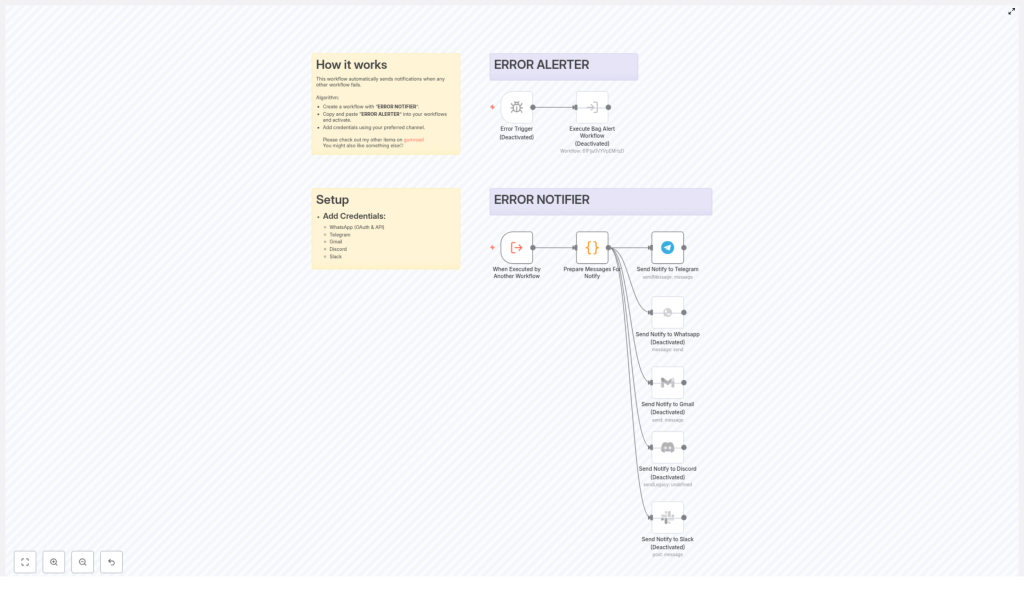
This n8n template acts as a central Error Notifier for your entire system. Instead of checking each workflow manually, you configure this one workflow to listen for failures in other workflows and send alerts through your preferred communication channels.
Key Features
- Automatic monitoring of other workflows
- Real-time notifications when a workflow fails
- Multi-channel support for Telegram, WhatsApp, Gmail, Discord, and Slack
- Structured error details, including workflow name, node, error message, timestamp, and execution link
How It Fits Into Your n8n Setup
The template is designed to be your central error handler. You create one main workflow, often named ERROR NOTIFIER, then connect other workflows to it using a special node, sometimes referred to as the ERROR ALERTER node. Whenever one of those workflows fails, the Error Notifier workflow is triggered and sends you a detailed alert.
Concepts You Need to Know Before Setup
1. The “ERROR NOTIFIER” Workflow
This is the main workflow that you will create in n8n. Its role is to:
- Listen for errors from other workflows
- Format the error information in a readable way
- Send notifications through your selected channels
2. The “ERROR ALERTER” Node
The ERROR ALERTER node is a piece of logic that you copy into any workflow you want to monitor. It connects that workflow to your central Error Notifier. When the monitored workflow fails, this node helps trigger the Error Notifier workflow.
Typical usage:
- Open a workflow you want to monitor
- Paste the ERROR ALERTER node into it
- Configure it to call the ERROR NOTIFIER workflow when an error occurs
3. Communication Credentials
To send alerts through channels like Telegram or Slack, n8n needs credentials for each service. In this template you can use:
- WhatsApp (OAuth & API)
- Telegram
- Gmail
- Discord
- Slack
Once credentials are added, you can decide which channels are active and which remain disabled.
Step-by-Step Setup Guide
Step 1 – Create the ERROR NOTIFIER Workflow
- Open your n8n instance.
- Create a new workflow.
- Name it something clear, for example ERROR NOTIFIER.
This workflow will become the central place where all error notifications are processed and sent.
Step 2 – Import or Build the Template Structure
Use the provided template (see link at the end of this article) or recreate its structure in your workflow. The core components you need are:
- Error Trigger node
- Execute Bag Alert Workflow or equivalent execution node
- Prepare Messages For Notify (a Code node)
- Notification nodes for:
- Telegram
- Gmail
- Discord
- Slack
Step 3 – Add and Configure Credentials
Before notifications can be sent, you must add credentials for your preferred channels in n8n:
- WhatsApp (OAuth & API) – for sending WhatsApp messages via an API provider
- Telegram – using a Telegram bot token
- Gmail – via OAuth for sending emails
- Discord – using a webhook or bot configuration
- Slack – via OAuth or webhook URL
After adding credentials in n8n’s Credentials section, return to the Error Notifier workflow and assign the correct credential to each notification node.
Step 4 – Connect Other Workflows Using the ERROR ALERTER Node
- Go to a workflow that you want to monitor for failures.
- Copy the ERROR ALERTER node from the template.
- Paste it into the target workflow.
- Configure the node so that when an error occurs, it triggers the ERROR NOTIFIER workflow.
- Activate the workflow.
Repeat this process for every workflow you want to monitor. This way, a single Error Notifier workflow can handle alerts from multiple workflows.
Step 5 – Enable Your Preferred Notification Channels
In the template, some notification nodes are active by default, while others are disabled. The typical default configuration is:
- Telegram – active
- WhatsApp – disabled by default
- Gmail – disabled by default
- Discord – disabled by default
- Slack – disabled by default
To enable additional channels:
- Open the node for the channel you want to use.
- Activate the node in the workflow.
- Assign the correct credential.
- Optionally, customize the message format for that channel.
How the Template Works Inside n8n
1. Error Trigger Node
The Error Trigger node is responsible for listening to errors from other workflows. When a monitored workflow fails, this node is triggered in the ERROR NOTIFIER workflow.
It captures useful context, such as:
- Which workflow failed
- Which node caused the error
- The technical error message
2. Execute Bag Alert Workflow
After an error is detected, the workflow uses a node (commonly named Execute Bag Alert Workflow or similar) to run the main alert logic. This step ensures that all the data from the error trigger is passed into the part of the workflow that prepares and sends notifications.
3. Prepare Messages For Notify (Code Node)
The Prepare Messages For Notify node is a Code node that formats the raw error data into a human-readable message. It typically collects and structures:
- Workflow name – so you know which automation broke
- Node name – the specific step where the error occurred
- Error message and description – technical details that help debug
- Timestamp – when the error happened
- Execution link and ID – a direct link to the failed execution in n8n
The result is a clear and structured message that can be reused across all notification channels. For example, a Telegram alert might look like:
- Workflow:
Customer Onboarding - Node:
Send Welcome Email - Error:
SMTP connection failed - Time:
2025-12-08 10:15 UTC - Execution:
Link to failed run
4. Notification Nodes (Telegram, WhatsApp, Gmail, Discord, Slack)
Once the message is prepared, it is sent to one or more notification nodes. Each node is configured to deliver the same core message through a different platform:
- Telegram – sends a message to a chat or channel (typically active by default)
- WhatsApp – sends a WhatsApp message via an API (usually disabled until configured)
- Gmail – sends an email with the error details
- Discord – posts to a Discord channel, often via webhook
- Slack – posts a message to a Slack channel
You can use any combination of these channels. For example, you might:
- Send quick alerts to Telegram for on-call team members
- Send a summary email via Gmail to a support inbox
- Post to a Slack or Discord channel for your engineering team
Benefits of Using This n8n Error Notifier Template
- Instant alerts – You are notified as soon as a workflow fails, so problems do not sit unnoticed.
- Multi-channel support – Choose one or multiple platforms that best fit your team communication.
- Easy setup – Copy-pasting the ERROR ALERTER node and adding credentials is usually all you need.
- Centralized error handling – Manage all workflow failures from one dedicated notifier workflow.
- Faster troubleshooting – Detailed, structured messages with execution links make it easy to jump straight into debugging.
Quick Recap
- Create a dedicated ERROR NOTIFIER workflow in n8n.
- Use the Error Trigger and Execute Bag Alert Workflow nodes to listen for and process errors.
- Use the Prepare Messages For Notify Code node to format detailed error information.
- Configure notification nodes for Telegram, WhatsApp, Gmail, Discord, and Slack.
- Copy the ERROR ALERTER node into workflows you want to monitor and activate them.
Once this is set up, your automations will be safer, easier to maintain, and much quicker to debug.
FAQ
Do I need to use all notification channels?
No. You can use only one channel or any combination. By default, Telegram is usually active and the others are disabled. You can enable additional nodes as needed.
Can I customize the error message format?
Yes. The Prepare Messages For Notify Code node is where the message is built. You can edit this node to change the text, add extra fields, or adjust formatting for each platform.
What if I add new workflows later?
Simply copy the ERROR ALERTER node into the new workflow, configure it to use the same Error Notifier, and activate the workflow. It will then be monitored like the others.
Will this affect performance?
The notifier workflow only runs when an error occurs, so it does not significantly impact normal execution. It helps you react quickly without constantly checking logs.
Next Steps
If you want to streamline your error management and make sure no workflow failure goes unnoticed, set up this n8n Error Notifier workflow today. It is a simple way to add reliability and visibility to your automations.
For more automation templates, examples, and advanced n8n workflows, visit Boanse’s Gumroad page.
