


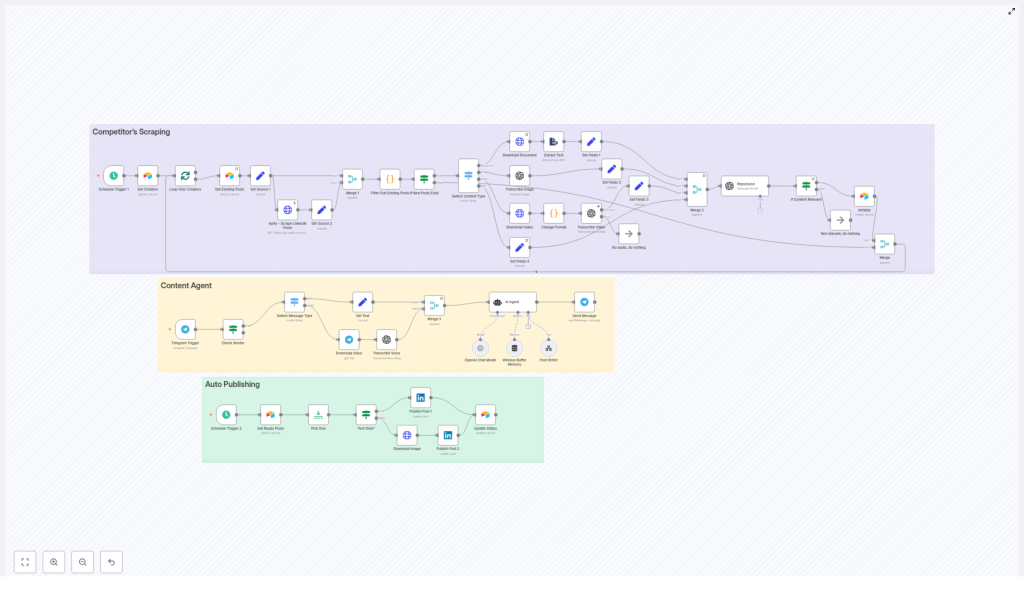
LinkedIn AI Agent: Automate Content with n8n
Automating LinkedIn content creation and publishing is now practical and accessible. With a carefully designed n8n workflow that connects tools like Airtable, Apify, OpenAI, Telegram, and the LinkedIn API, you can:
- Scrape posts from competitors or favorite creators
- Extract and repurpose high-value content automatically
- Store drafts for human review in Airtable
- Publish approved posts to LinkedIn on a schedule
All of this happens while you keep full editorial control over what actually goes live.
What you will learn in this guide
This article walks you through the LinkedIn AI Agent workflow template in n8n step by step. By the end, you will understand how to:
- Set up an automated content pipeline using n8n
- Scrape LinkedIn posts with Apify and avoid duplicates
- Extract and classify content (text, image, video, document)
- Repurpose content with OpenAI into multiple LinkedIn-ready formats
- Manage an editorial queue in Airtable and keep humans in the loop
- Publish posts automatically through the LinkedIn API
- Apply best practices for security, quality, and scaling
Concept overview: How the LinkedIn AI Agent works
Before we dive into the step-by-step build, it helps to understand the big picture. The workflow is built around three core ideas:
1. A consistent content pipeline
Brands and creators grow on LinkedIn when they publish consistent, high-quality content. The AI Agent supports this by automating the pipeline from discovery to publishing:
- Discover relevant posts from selected creators or competitors
- Extract insights and text from different content types
- Repurpose the content into several LinkedIn-friendly formats
- Store everything as drafts in Airtable for review
- Publish approved content at scheduled times
The outcome is higher content velocity, better reuse of ideas, and a more predictable posting schedule.
2. Key tools and integrations
The workflow relies on a few main components, each with a specific role:
- n8n – The automation engine that orchestrates the whole process using nodes, triggers, and conditional logic.
- Apify – Scrapes LinkedIn posts from chosen profiles or creators. This is often used for competitor or inspiration scraping.
- Airtable – Acts as your content database and editorial dashboard. It stores creators, scraped posts, repurposed drafts, statuses, and metadata.
- OpenAI (GPT-4o / GPT-4o Vision) – Repurposes content, rewrites posts, transcribes audio or video, and analyzes images.
- Telegram (optional) – Provides a human-in-the-loop channel where you can send ideas or voice notes into the workflow.
- LinkedIn API – Publishes content (text-only or with images) directly to LinkedIn from n8n.
3. Three main workflow sections
The template is easiest to understand if you think of it as three connected but distinct sections:
- Competitor’s Scraping – Finds and fetches new LinkedIn posts.
- Content Extraction & Repurposing – Extracts text and transforms it into new LinkedIn content.
- Airtable, Review & Auto Publishing – Manages the editorial queue and publishes approved posts.
Step-by-step: Building and understanding the workflow in n8n
Step 1: Configure the content discovery (Competitor’s Scraping)
This first section runs on a schedule and keeps your content pipeline filled with fresh material.
1.1 Schedule Trigger
In n8n, start with a Schedule Trigger node:
- Set it to run at the frequency you prefer, such as daily or weekly.
- This ensures the workflow automatically checks for new posts without manual input.
1.2 Load target creators from Airtable
Next, add a node to Get Creators from Airtable:
- Connect to your Airtable base where you store a list of creators or competitors.
- Each record typically includes fields like LinkedIn profile URL, creator name, and any tags or notes.
- The workflow loops through this list and treats each creator as a source to scrape.
1.3 Scrape LinkedIn posts with Apify
For each creator, use an Apify node configured to Scrape LinkedIn Posts:
- Call an Apify actor that is set up to fetch recent posts for the given profile.
- Make sure to pass in the correct parameters, such as profile URL and the number of posts to fetch.
- Apify returns structured data for each post, including IDs, text, media links, and timestamps.
1.4 Filter out existing posts to avoid duplicates
Once Apify returns the posts, add a Filter Out Existing Posts step:
- Compare each scraped post’s unique ID against the records stored in Airtable.
- If the post ID already exists, skip it to avoid processing the same content twice.
- Only new posts move forward in the workflow.
This deduplication step keeps your system efficient and prevents repeated repurposing of the same content.
Step 2: Extract and repurpose content with OpenAI
After the workflow has identified new posts, it needs to understand what type of content each one is and extract usable text.
2.1 Detect the content type
Add a Switch Content Type node in n8n:
- This node checks what kind of content was scraped: text, image, video, or document.
- Each type follows a slightly different extraction path, but all of them end up as text for OpenAI.
2.2 Handle each content type
- Text
If the original post is text-only:- The text can be captured directly from the scraped data.
- No extra processing is required before sending it to OpenAI.
- Document
If the post contains a document, such as a PDF:- Download the document file using its URL.
- Run it through a PDF extractor or similar tool to capture the internal text.
- Clean up the extracted text if necessary before repurposing.
- Image
If the post includes an image:- Send the image to OpenAI Vision (GPT-4o with vision capabilities).
- Ask it to extract any embedded text and describe the context of the image.
- Use this description as the basis for the repurposed content.
- Video
If the post is a video:- Download the video file from the scraped URL.
- Reformat it if needed so it is compatible with your transcription tool.
- Transcribe the audio to capture the spoken script.
- The resulting transcript becomes the text input for OpenAI.
2.3 Merge extracted text into a standard record
Regardless of the original source, the final goal of this section is to produce a standardized text record. In n8n you can:
- Combine fields like title, description, transcript, and image description into one unified text block.
- Attach metadata such as creator name, original URL, and content type to this record.
2.4 Repurpose with OpenAI into three content variants
Now connect an OpenAI node configured to repurpose the text into multiple LinkedIn-ready formats. A common setup is to ask for three variants:
- Text-only LinkedIn post – A clear, engaging post suitable to publish as plain text.
- Text + image (tweet-style visual) – A version that includes copy designed to be placed on an eye-catching image, similar to a tweet-style graphic.
- Text + infographic instructions – Detailed guidance for a designer, including layout ideas, sections, and chart suggestions for an infographic.
The OpenAI node typically returns a structured JSON, for example:
{  "relevant": true,  "text": "...",  "infographic": "...",  "tweet": "..."
}
The relevant field is important:
- If the source content is marketing-related or valuable, the node marks
"relevant": trueand the workflow continues. - If the content is not suitable for your LinkedIn strategy, it can mark it as irrelevant and the workflow skips further processing.
Step 3: Manage drafts in Airtable and publish via LinkedIn
Once OpenAI has generated the repurposed content, the workflow moves into the editorial and publishing phase.
3.1 Store repurposed outputs in Airtable
Create an Airtable base that acts as your editorial queue. For each repurposed item, store fields such as:
- Final text for the LinkedIn post
- Image URLs or design instructions (for visual posts)
- Infographic brief for designers
- Original source URL and creator
- Content type (text-only, image, infographic)
- Status (for example:
review,ready,posted)
This structure lets your team see what has been generated, what needs review, and what is scheduled to go live.
3.2 Keep humans in the loop for editorial control
One of the strengths of this workflow is that it does not remove human judgment. Instead, it supports it:
- Editorial control – Team members can open Airtable, review the generated posts, make edits, and change the status from
reviewtoreadywhen they approve. - Optional Telegram integration – If you use Telegram, you can also send ideas or voice notes that flow into the same Airtable queue, giving you a central place for all content.
3.3 Schedule automatic publishing from Airtable
To publish approved posts, add a second Schedule Trigger in n8n that handles Publishing:
- This schedule might run multiple times per day, depending on your posting strategy.
- On each run, the workflow queries Airtable for records where status = ready.
- Those posts are then passed to the LinkedIn publishing logic.
3.4 Publish to LinkedIn with or without media
Use the LinkedIn API node in n8n to publish:
- Publish paths – If the Airtable record includes an image URL or generated media, the workflow creates a LinkedIn post with media attached.
- If there is no associated image, the workflow publishes a text-only post.
3.5 Update Airtable after publishing
Once the LinkedIn post is successfully published:
- The workflow updates the corresponding Airtable record to set status = posted.
- This prevents the same content from being published again in future runs.
Practical configuration tips for a stable workflow
Security and credentials
Because this workflow touches several APIs, secure configuration is essential:
- Store all API keys and OAuth credentials in n8n’s credentials manager, not in plain text inside nodes.
- Rotate keys on a regular schedule to reduce security risk.
- Use scoped tokens where possible, such as:
- Airtable Personal Access Tokens with only the required bases and permissions.
- LinkedIn OAuth clients with limited scopes that only allow necessary publishing actions.
Rate limits and retries
External services like Apify, OpenAI, and LinkedIn enforce rate limits:
- Use exponential backoff and retry logic in n8n’s HTTP Request nodes when calling APIs directly.
- Where supported, enable credentials throttling in n8n so requests are automatically paced.
- Spread your scraping and publishing tasks throughout the day instead of running everything at once.
Error handling for robustness
Errors will happen, especially with file downloads, transcriptions, and uploads. Plan for them:
- Use onError handlers on critical nodes to prevent the entire workflow from failing.
- Log failed items to a dedicated Airtable table or a Slack channel for manual review.
- Include meaningful error messages and metadata so you can quickly see what went wrong.
Data quality and deduplication
Good data hygiene makes your analytics and editorial work easier:
- Normalize fields such as dates, author names, and URLs before writing to Airtable.
- In addition to checking post IDs, add checks for near-duplicate content, for example:
- Similar titles or text segments
- Very small variations of the same idea
- This helps avoid reposting the same concept with only minor edits.
Best practices for repurposed LinkedIn content
Automation is powerful, but the content still needs to perform well on LinkedIn. Keep these guidelines in mind:
- Prioritize value – Focus on posts that offer clear lessons, frameworks, or case studies instead of vague inspiration.
- Use strong hooks – Make the first 1 to 2 sentences attention-grabbing to improve engagement and dwell time.
- Keep it scannable – Use short paragraphs, numbered lists, and bullet points to make posts easy to read.
- Add a call to action – Encourage readers to comment, repost, or follow to boost interaction.
- Experiment with formats – Test text-only posts versus image-driven posts to see what your audience prefers.
Scaling, analytics, and optimization
Once the basic workflow is stable, you can scale and optimize it using data:
- Track metrics like impressions, engagements, clicks, and follower
