


Log n8n Errors to Monday.com Automatically
Reliable automation requires robust error visibility. Instead of manually checking failed executions in n8n, you can centralize error reporting in Monday.com and treat incidents like any other trackable work item. This guide explains how to implement an n8n workflow template that captures runtime errors, creates a corresponding Monday.com item, and enriches it with the stacktrace, error message, workflow name, and timestamp – fully automated.
Why route n8n errors into Monday.com?
For teams that operate multiple automations, the n8n execution list alone is not sufficient for structured incident management. Logging n8n errors directly into Monday.com allows you to:
- Use a single board as an error inbox for all workflows
- Assign incidents to owners and track status through your existing process
- Maintain a historical record of failures with context and timestamps
- Collaborate via comments, automations, and notifications already in Monday.com
n8n provides a dedicated Error Trigger node that fires whenever a workflow execution fails. By combining this trigger with Monday.com nodes, you can turn every failure into a structured item on a board with no manual work.
Solution architecture
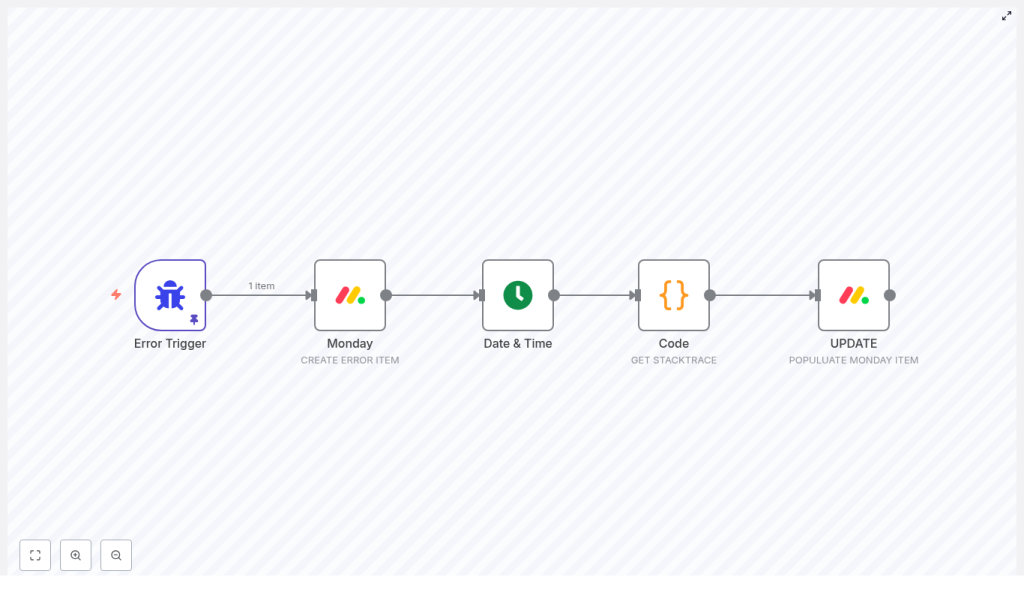
The automation uses a compact but powerful sequence of nodes in n8n. The workflow listens for errors, creates a Monday.com item, enriches it with contextual data, and formats the stacktrace for reliable storage.
Core nodes and responsibilities
- Error Trigger – Listens for failed executions and exposes execution metadata and error details.
- Monday (create item) – Creates a new item on a specified board and group to represent the incident.
- Date & Time – Generates a human readable timestamp for when the error occurred.
- Code – Processes the raw error object, extracts the stacktrace, and normalizes it for long text storage.
- Monday (update) – Updates the previously created item with detailed column values such as workflow name, stacktrace, error message, and timestamp.
The following sections walk through the configuration of each step and highlight automation best practices along the way.
Configuring the n8n workflow
1. Capture failures with the Error Trigger node
Start by adding an Error Trigger node to a new n8n workflow. This node emits data whenever a workflow run fails. You can:
- Attach it to a specific workflow you want to monitor, or
- Configure it globally to react to failures across multiple workflows.
The trigger provides access to execution metadata, the error object, and workflow information, which will later be mapped into Monday.com columns.
2. Create a Monday.com item for each error
Next, add a Monday node and configure it to create an item on your chosen error tracking board and group. This item represents a single failed execution.
Use a clear naming convention so the item title is meaningful at a glance. For example, you can use the execution ID, the workflow name, or a combination of both. In the example workflow, the item name is set to the execution ID:
={{ "".concat($('Error Trigger').last().json.execution.id) }}Ensure that:
- The board is dedicated to error tracking or clearly labeled.
- The group is specific to error items so triage is straightforward.
3. Generate a timestamp with the Date & Time node
Add a Date & Time node. Configure it to output the current date and time in your preferred format, such as ISO 8601 or a localized representation. This value will later populate a Monday.com column so that each incident includes an explicit occurrence time.
Having a standardized timestamp greatly simplifies correlation with logs, external monitoring tools, and on-call rotation schedules.
4. Process and normalize the stacktrace using a Code node
Stacktraces can be verbose and may include characters that do not render cleanly in project management tools. To make them safe and readable inside Monday.com long-text fields, insert a Code node (JavaScript) that reads the error object from the Error Trigger and prepares the data.
The following example is robust and handles missing fields gracefully:
// Get the last Error Trigger execution
const execution = $('Error Trigger').last().json.execution || {};
const error = execution.error || {};
const workflowName = execution.workflow ? execution.workflow.name : null;

const stack = error.stack || '';
// Replace newlines with literal \n so they are preserved in Monday long text
const escapedStack = stack.replace(/\r?\n/g, '\\n');

return [{  json: {  stack: escapedStack,  message: error.message || '',  workflowName  }
}];
This node outputs a normalized JSON object containing:
stack– the stacktrace with newlines escaped.message– the error message.workflowName– the name of the workflow that failed.
5. Enrich the Monday.com item with detailed column values
Once the item has been created, use another Monday node configured with the changeMultipleColumnValues operation. This node updates the existing item with structured data from the previous nodes.
Monday.com expects the columnValues field as a JSON string. Map your workflow fields into the appropriate column IDs for your board. A typical mapping might look like this (replace the placeholders with your actual column IDs):
={  "column_id_for_workflow_name (text)": "{{ $('Error Trigger').item.json.workflow.name }}",  "column_id_for_error_stack (long text)": "{{ $('Code').last().json.stack }}",  "column_id_for_error_message (text)": "{{ $('Error Trigger').item.json.execution.error.message }}",  "column_id_for_date (text)": "{{ $('Date & Time').last().json.currentDate }}"
}
It is critical to ensure that the update targets the same item that was created in the earlier Monday node. Set the itemId field accordingly:
itemId: ={{ $('Monday').last().json.id }}At this point, every failed n8n execution produces a Monday.com item that includes the workflow name, error message, timestamp, and a safely formatted stacktrace.
Implementation best practices
Column design and storage strategy
To keep your Monday.com board usable and performant, design columns with error data in mind:
- Workflow name – Text column.
- Error message – Text column for quick scanning.
- Stacktrace – Long text column to store detailed technical information.
- Timestamp – Date or text column, depending on your formatting needs.
If stacktraces become extremely large, consider truncating them in the Code node and storing the full raw trace in an external system such as S3 or Google Drive, then place a link in Monday.com instead of the full content.
Handling newlines and special characters
Stacktraces often contain newlines and other special characters. Escaping newlines as \n in the Code node, as shown earlier, preserves logical line breaks while avoiding rendering issues in some views.
If you prefer real newlines in the Monday.com UI, test the behavior against your specific board and API version. Validate that the long text field accepts unescaped newlines without corrupting the JSON payload.
Authentication and rate limiting
Use a dedicated Monday.com API credential within n8n, ideally scoped and labeled for error logging. This makes auditing and rotation easier.
In high volume environments, many workflows might fail within a short timeframe. To avoid hitting Monday.com rate limits or cluttering the board:
- Consider batching or grouping repeated errors by signature.
- De-duplicate incidents when the same error occurs repeatedly in a short period.
- Optionally create a single summary item that links to detailed logs stored elsewhere.
Testing and validation
Before relying on the integration in production, perform controlled tests:
- Use pinData in the Error Trigger to simulate an error payload during design time.
- Create a small test workflow that throws an error intentionally to validate end-to-end behavior.
- Verify that each Monday.com column is populated as expected and that the itemId mapping is correct.
Security and data sensitivity
Stacktraces and error messages can reveal sensitive implementation details, such as file paths, environment variables, or even PII. Treat these items as potentially confidential:
- Restrict access to the Monday.com board to only those who need to triage incidents.
- Consider redacting or masking known sensitive patterns in the Code node before logging.
- Align the retention policy of your error board with your compliance requirements.
Advanced enhancements
Once the basic workflow is in place, you can extend it to support more sophisticated incident management patterns:
- Automatic assignment – Use Monday.com automations or an additional Monday node in n8n to set a person column based on rotation or error type.
- Error aggregation – Detect repeated errors and increment a counter in a single item instead of creating one item per failure.
– Push complete stacktraces to object storage (for example S3) and only store a link in Monday.com to keep items concise. - Real time alerts – Combine this workflow with Slack or Microsoft Teams nodes to notify on-call engineers when a new error item is created.
End-to-end workflow summary
The complete n8n workflow follows this sequence:
- Error Trigger captures the failed execution and exposes error metadata.
- Monday (create item) creates a new item on the designated error board.
- Date & Time generates the timestamp for the incident.
- Code processes the error object, extracts the stacktrace, and escapes newlines.
- Monday (update) populates all relevant columns on the created item.
The diagram referenced in the original template illustrates this exact node order. Using the code snippets and mappings above, you can reproduce the workflow in your own n8n instance and adapt it to your internal standards.
Conclusion and next steps
Integrating n8n error reporting with Monday.com transforms raw failures into actionable work items. By using the Error Trigger, Monday nodes, and a small amount of custom code, you can establish a centralized, auditable error reporting pipeline in minutes and align it with your existing project management practices.
If you would like, I can:
- Provide a downloadable n8n workflow JSON with placeholder Monday.com column IDs.
- Adjust the Code node to automatically redact sensitive values from stacktraces.
- Help you map your specific Monday.com column IDs into the configuration.
Share which option you prefer and, if applicable, your board structure or column IDs, and I will generate an importable workflow JSON tailored to your environment.
