


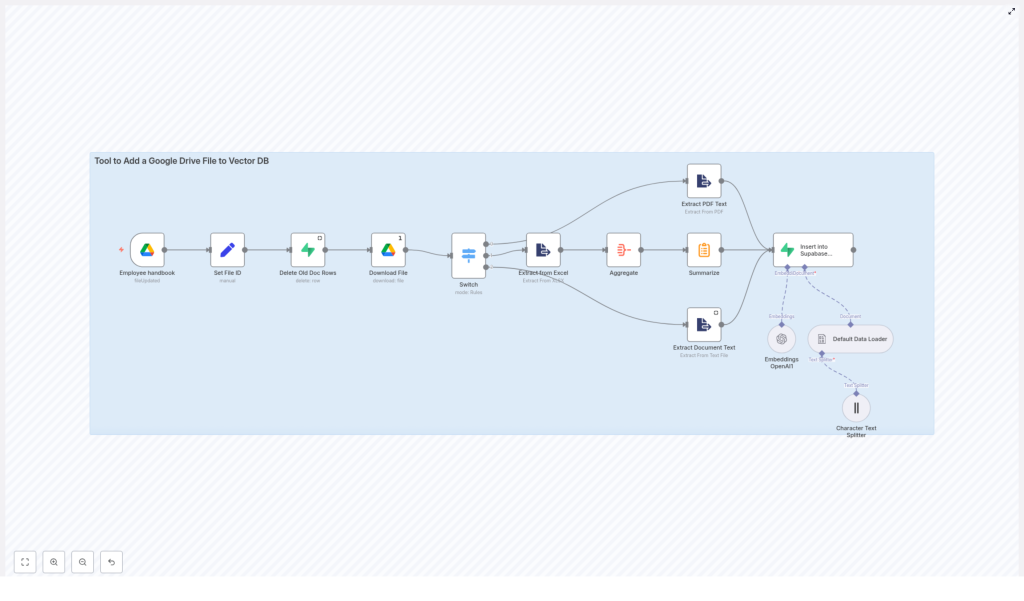
n8n Template Reference: Add Google Drive File to Supabase Vector DB with OpenAI Embeddings
This documentation-style guide describes a production-ready n8n workflow template that ingests a document from Google Drive, extracts its textual content, generates OpenAI embeddings, and writes the resulting vectors and metadata into a Supabase vector table. It is intended for technical users who want a reliable, repeatable ingestion pipeline for knowledge retrieval, RAG/chatbots, and enterprise semantic search.
1. Workflow Overview
The template implements an end-to-end ingestion pipeline that:
- Watches a specific Google Drive file or folder for changes
- Downloads the updated file and normalizes metadata
- Deletes any previous vector records for that file in Supabase
- Performs file-type-specific text extraction (Google Docs, PDF, Excel, text)
- Aggregates and optionally summarizes long content
- Splits the text into embedding-friendly chunks
- Generates embeddings using an OpenAI model
- Persists vectors and metadata into a Supabase vector table
The flow is linear with a single entry trigger and a single write operation into Supabase, and it is designed to be idempotent at the file level by removing old rows before inserting new ones.
2. Architecture & Data Flow
2.1 High-level sequence
- Trigger: A Google Drive Trigger node fires on file updates.
- Normalization: A Set node standardizes the file ID and MIME type.
- Cleanup: A Supabase node removes prior vectors for the same file.
- Acquisition: A Google Drive node downloads the file content.
- Routing: A Switch node routes execution based on MIME type.
- Extraction: Format-specific nodes extract raw text.
- Aggregation & summarization: Text is aggregated and optionally summarized.
- Chunking: A Character Text Splitter node breaks content into chunks.
- Document construction: A Default Data Loader node builds document objects.
- Embedding: An OpenAI Embeddings node generates vector representations.
- Persistence: A Supabase node inserts vectors and metadata into a vector table.
2.2 Core technologies
- n8n – Orchestration engine and workflow runtime.
- Google Drive – Source of documents (Docs, PDFs, Excel, text files).
- OpenAI – Provider of text embeddings (for example,
text-embedding-3-small). - Supabase – Postgres with pgvector extension used as a vector database.
3. Node-by-node Breakdown
3.1 Google Drive Trigger (Employee handbook)
Role: Entry point for the workflow.
Behavior: Listens for updates to a file or folder in Google Drive and starts the workflow when a change is detected.
- Trigger type:
fileUpdated - Configuration:
- Specify either a single
fileIdor afolderId. - Set polling frequency according to how quickly you need updates reflected in the vector store.
- For deterministic behavior, target a specific file (for example, an “Employee handbook”) rather than a broad folder.
- Specify either a single
Output: Metadata about the updated file, including its ID and MIME type, which is consumed by downstream nodes.
3.2 Set File ID
Role: Normalize and expose key identifiers for later use.
Behavior: A Set node extracts and standardizes fields such as:
file_id– The canonical ID of the Google Drive file.mimeType– The MIME type reported by Google Drive.
These fields are stored as workflow variables and referenced throughout the pipeline, especially for routing logic and for metadata written to Supabase.
3.3 Delete Old Doc Rows (Supabase)
Role: Ensure that each file has a single, current set of vectors in Supabase.
Behavior: This Supabase node issues a delete operation against the target vector table. It filters rows by the file identifier stored in metadata.
- Typical filter: using a JSONB metadata column, such as:
metadata->>'file_id' = :file_id
This step prevents duplicate or stale vector entries after a file is updated. If the delete query fails or the file is not yet present, the workflow can still proceed, but you may end up with multiple versions unless the delete is corrected.
3.4 Download File (Google Drive)
Role: Retrieve the file bytes from Google Drive.
Behavior: The Google Drive node downloads the file content using the ID from the trigger.
- For Google Docs: Configure the node to export as
text/plainto simplify downstream text extraction. - For other formats (PDF, XLSX, plain text): The node downloads the raw file for processing by specific extractor nodes.
At this stage, the workflow has both file metadata and raw file content available to route and transform.
3.5 Switch (file-type routing)
Role: Direct file content to the correct extractor based on MIME type.
Behavior: A Switch node evaluates the mimeType value and routes execution to one of several branches.
application/pdf→ PDF extraction branchapplication/vnd.openxmlformats-officedocument.spreadsheetml.sheet→ Excel extraction branchapplication/vnd.google-apps.documentortext/plain→ document/text extraction branch
If a MIME type does not match any configured case, the workflow will not have a valid extraction path. In that situation, add a default branch that logs or handles unsupported formats to avoid silent failures.
3.6 Extractors (PDF, Excel, Text)
Role: Convert different file formats to a normalized text representation.
Behavior by branch:
- PDF extraction:
- Uses a PDF extraction node or module to read selectable text.
- Output is typically a set of text segments or pages.
- If the PDF is image-only, you must enable OCR or use a dedicated PDF OCR node; otherwise, text may be missing.
- Excel extraction:
- Reads worksheets and converts rows into text representations.
- Rows are usually aggregated later into larger text blocks to avoid embedding each row individually.
- Text / Google Docs extraction:
- For Google Docs exported as
text/plain, the node works with plain text content. - For native text files, content is already suitable for direct processing.
- For Google Docs exported as
The output of all extractor branches is raw text, ready for aggregation, summarization, and chunking.
3.7 Aggregate & Summarize
Role: Consolidate granular extractions and generate optional summaries.
Behavior:
- Aggregation:
- For Excel, multiple rows are concatenated into a single field or a small number of larger segments.
- For PDFs or text documents, this step can merge smaller text fragments into cohesive sections.
- Summarization:
- Runs a lightweight summarization step to produce a short description or abstract of the document or segment.
- The summary is stored as metadata and improves retrieval quality by providing a quick overview for ranking or display.
Even if you do not rely heavily on summaries at query time, they are valuable for debugging, result previews, and manual inspection of vector records.
3.8 Character Text Splitter
Role: Prepare text for embedding by splitting it into manageable chunks.
Behavior: The Character Text Splitter node divides long content into overlapping segments. Typical parameters include:
- Chunk size: Approximately 1,000 to 2,000 characters.
- Overlap: A smaller overlap (for example, 200 characters) to preserve context across adjacent chunks.
This approach improves embedding quality and semantic search performance by maintaining local context while respecting embedding model token limits.
3.9 Default Data Loader
Role: Convert raw text chunks into document objects with structured metadata.
Behavior: The Default Data Loader node wraps each chunk in a document-like structure that includes:
- Content: The text chunk itself.
- Metadata:
file_idfilenamemimeType- Optional page or section indicators
- Summary or abstract, if available
- Chunk index or position within the original document
These document objects form the direct input to the Embeddings node, ensuring consistent structure for all chunks regardless of source format.
3.10 Embeddings OpenAI
Role: Generate vector embeddings for each text chunk.
Behavior: The OpenAI Embeddings node calls an OpenAI embeddings model for each document object.
- Typical model:
text-embedding-3-small(or another supported embedding model). - Credentials: Requires a valid OpenAI API key configured in n8n credentials.
Output: An array of floating-point numbers representing the embedding vector for each chunk. These vectors are aligned with the dimension of your pgvector column in Supabase.
If the model changes, verify that the new vector dimensionality matches the schema of your Supabase vector column to avoid insertion errors.
3.11 Insert into Supabase Vectorstore
Role: Persist embeddings and metadata into Supabase for vector search.
Behavior: The final Supabase node inserts one row per chunk into the configured vector table.
- Target table: In this template, the table is named
policy_doc. - Columns: A typical schema includes:
id(primary key)embedding(pgvector column)content(text of the chunk)metadata(JSON or JSONB, containing file_id, filename, mimeType, summary, chunk_index, etc.)created_at(timestamp)
- Vector search: The table can be queried using functions such as
match_documentsor other pgvector-compatible search patterns.
By storing rich metadata, you can filter or re-rank results based on source file, department, or other contextual fields during retrieval.
4. Configuration & Credentials
4.1 Google Drive OAuth2
- Configure OAuth2 credentials in n8n with access to the relevant Drive or shared drive.
- Ensure the scopes include read access for the files you want to ingest.
- Limit access to only the necessary files/folders for security and least privilege.
4.2 Supabase
- Provide Supabase API keys (service role or appropriate key) to allow insert and delete operations.
- Enable and configure the pgvector extension in the target database.
- Ensure the vector column dimension matches the embedding model dimension.
4.3 OpenAI
- Set up an OpenAI credential in n8n with an API key that has access to the chosen embeddings model.
- Confirm usage limits and rate limits are compatible with your expected ingestion volume.
4.4 n8n Runtime
- Allocate sufficient memory for handling large documents, especially PDFs and multi-sheet Excel files.
- Adjust execution timeout settings if you expect long-running extractions or large batch uploads.
5. Best Practices & Optimization
- Rate limiting:
- Batch embedding requests where possible.
- Add small delays between calls to avoid hitting OpenAI rate limits during bulk ingestion.
- Chunk configuration:
- Use chunk sizes that balance context and token constraints, for example:
- 500 to 1,000 words, or
- 1,000 to 2,000 characters with around 200-character overlap.
- Use chunk sizes that balance context and token constraints, for example:
- Metadata quality:
- Always capture
file_id, source URL or Drive link, and a summary field. - Consistent metadata improves debugging, traceability, and search filtering.
- Always capture
- Schema consistency:
- Keep a uniform schema in Supabase, for example:
id,embedding(vector),content,metadata(JSON),created_at.
- Avoid ad hoc schema changes that can break downstream query logic.
- Keep a uniform schema in Supabase, for example:
- Incremental updates:
- Always delete or mark old rows for a file before inserting new vectors.
- This template uses a delete-by-file_id pattern to keep the vector store clean.
6. Troubleshooting & Edge Cases
- Missing text from PDFs:
- Verify that the PDF text is selectable. If it is image-only, enable OCR or swap to a PDF OCR node.
- Without OCR, embeddings will be incomplete or empty.
- Credential errors:
- Re-authorize Google Drive, OpenAI, or Supabase credentials if nodes start failing with permission-related errors.
- Confirm scopes and roles allow the required read/write operations.
- Large files failing:
- Increase n8n execution timeouts and memory limits.
- Consider pre-splitting very large documents or limiting maximum file size.
- Embedding mismatches:
- Check that the embedding model you use matches the vector dimension configured in your pgvector column.
- If you change models,
