


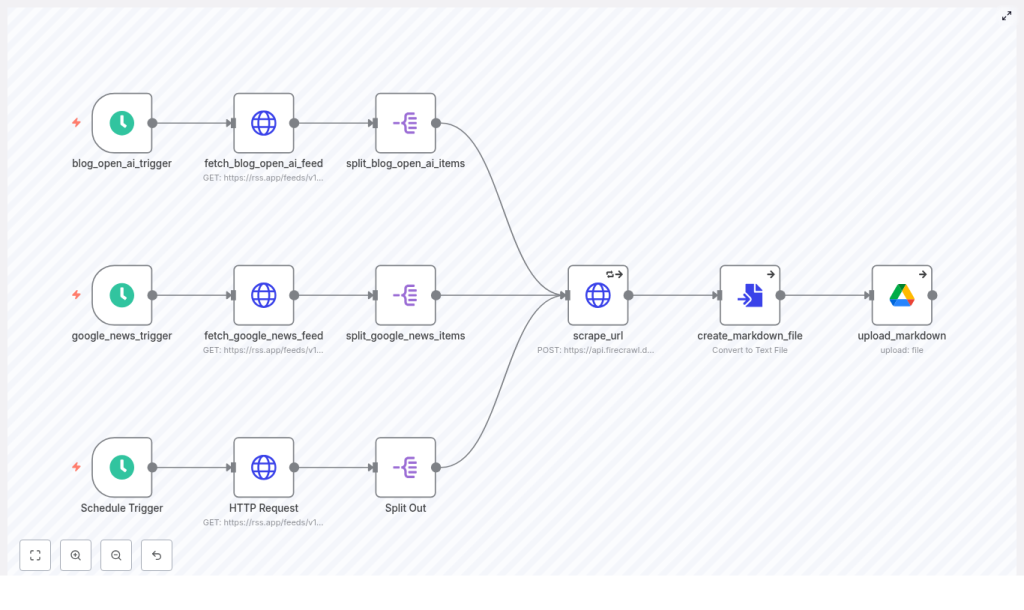
n8n AI Scraping Pipeline: How One Marketer Turned RSS Chaos Into a Clean Markdown Library
On a rainy Tuesday morning, Mia stared at the dozen browser tabs open across her screen. As the content marketing lead for a fast-growing startup, she had one job that never seemed to end: stay on top of industry news, competitors, and fresh ideas for content.
Every day she copied articles from RSS readers, stripped out ads and navigation, pasted text into a doc, tried to clean up the formatting, and then saved everything into a Google Drive folder. It was slow, repetitive, and easy to mess up. Some days she missed stories. Other days she discovered she had saved the same article three times under slightly different names.
She knew there had to be a better way to automate content extraction, but every scraping solution she tried felt brittle, hard to maintain, or too aggressive for her comfort. She wanted something respectful of site rules, structured, and reliable. That is when she discovered an n8n workflow template called the “AI Scraping Pipeline: From RSS to Markdown”.
The Problem: Drowning in Feeds and Manual Copy-Paste
Mia’s team used RSS feeds for news monitoring, research collection, and competitive intelligence. The feeds were great at surfacing fresh content, but everything after that was manual:
- Checking multiple RSS feeds several times a day
- Opening each article in a new tab
- Copying and pasting the main text into a document
- Removing headers, menus, ads, and unrelated sections
- Saving each article in Google Drive, hoping the naming made sense later
Her goals were clear. She needed to continuously collect new articles from multiple RSS feeds, extract only the main content, store everything as standardized Markdown files, and schedule the whole process so it ran without her.
The question was how to build a scraping pipeline that did all of this without breaking, overloading sites, or turning into a maintenance nightmare.
The Discovery: An n8n Template Built for RSS-to-Markdown Automation
While searching for “n8n scraping RSS to Google Drive”, Mia found a template that sounded like it had been written exactly for her use case: an n8n-based AI scraping pipeline that reads RSS feeds, calls Firecrawl to scrape article content, converts the result to Markdown, and uploads each article into a Google Drive folder.
What caught her attention was not just the automation itself, but the structure:
- RSS feeds as the starting point instead of raw homepage scraping
- Firecrawl used to extract only the main content and return Markdown
- Automatic conversion into .md files
- Uploads directly into a dedicated Google Drive folder
- Support for scheduled runs so she would never again forget to check a feed
She realized this was more than a quick hack. It was a repeatable scraping pipeline that could become the backbone of her research archive.
The Plan: Turning a Template Into a Daily Workflow
Mia decided to test the template in her own n8n instance. Her goal was simple: by the end of the week, she wanted a fully automated content collection process that would:
- Pull fresh items from multiple RSS feeds
- Scrape only the primary article content
- Save everything as clean Markdown files
- Store those files in a single, well-organized Google Drive folder
To get there, she followed a clear sequence of steps that the template already laid out, but she wove them into her own workflow logic.
Rising Action: Building the Pipeline Step by Step
Step 1 – Scheduling the Workflow With n8n Schedule Triggers
The first thing Mia configured was timing. The template used Schedule Trigger nodes to control how often the pipeline runs. By default, it was set to trigger every 3 to 4 hours.
That suited her needs. She wanted regular updates, but she also wanted to respect the target sites’ crawling rules. So she:
- Kept the interval at every 4 hours for high-volume feeds
- Set longer intervals for smaller or less frequently updated sources
Now, instead of remembering to check feeds, n8n would wake up on its own and start the process.
Step 2 – Fetching RSS Feeds as JSON With HTTP Request Nodes
Next, she configured the HTTP Request nodes that read each RSS feed. The template expected the RSS feeds to be available as JSON, often via a service like rss.app, with a structure that included an items array.
For each feed she used, she:
- Set the request URL to the JSON version of the RSS feed
- Confirmed that the response contained an
itemsarray - Verified that each item had a
urlfield pointing to the article
Using RSS instead of scraping homepages meant the pipeline focused only on fresh content. It reduced server load on the sites and cut down on unnecessary scraping.
Step 3 – Splitting Out Each Feed Item for Individual Processing
Once the JSON was in place, Mia needed to process each article separately. That is where the Split Out nodes came in.
These nodes took the items array and turned each entry into its own execution path. In other words, each RSS item became a separate “job” in the workflow. This allowed the scraper to:
- Call the article URL independently
- Run several article scrapes in parallel if needed
- Handle errors for individual items without breaking the entire run
For Mia, this meant her workflow could scale as she added more feeds and more items without becoming tangled.
Step 4 – Calling Firecrawl With scrape_url to Extract Main Content
At the heart of the pipeline was the content extraction itself. The template used a scrape_url HTTP Request node that made a POST call to Firecrawl, a scraping service designed to pull structured content from web pages.
The request body was configured to ask Firecrawl for multiple formats and to focus only on the main content. The simplified request looked like this:
{  "url": "{{ $json.url }}",  "formats": ["json","markdown","rawHtml","links"],  "excludeTags": ["iframe","nav","header","footer"],  "onlyMainContent": true
}
The key details Mia paid attention to:
- formats requested JSON, Markdown, raw HTML, and links
- excludeTags filtered out elements like
iframe,nav,header, andfooter - onlyMainContent was set to
true, so Firecrawl focused on the primary article body - A prompt and schema in the full template ensured the API returned the exact main content in a structured
markdownfield
This was the turning point for her. Instead of wrestling with raw HTML and random page elements, she now had clean Markdown content for each article, ready to be stored and reused.
Step 5 – Converting Scraped Markdown Into Files
Once Firecrawl returned the Markdown, n8n needed to treat it like an actual file. The template used a ConvertToFile node to transform the Markdown string into a binary attachment.
Mia configured it to create filenames like news_story_1.md, with the possibility to later add more descriptive naming based on titles or publication dates. This step was crucial, because it turned each article into a portable Markdown file that any downstream tool or workflow could understand.
Step 6 – Uploading Markdown Files to Google Drive
Finally, the Google Drive node took over. It uploaded each generated Markdown file to a designated folder in her company’s shared Drive.
Mia created a dedicated folder for these scraped articles, which made it easy to:
- Share content with her team
- Connect other tools to that folder for further processing
- Keep all research files in one consistent location
By the time she finished this step, she had a complete pipeline: from RSS to scraped content to Markdown files stored in Google Drive, all running on a schedule without her direct involvement.
The Turning Point: From Fragile Manual Process to Reliable Automation
The first full run of the workflow felt like a small miracle. Every few hours, n8n woke up, fetched RSS feeds, split out items, sent URLs to Firecrawl, converted the main content into Markdown, and dropped new files into her Drive folder.
But Mia knew that a solid automation is not just about the happy path. She needed to make sure it was ethical, robust, and scalable. So she refined the pipeline using a set of best practices built into the template.
Making the Pipeline Robust and Responsible
Respecting robots.txt and Terms of Service
Before ramping up, Mia reviewed the robots.txt files and terms of service for each site that appeared in her RSS feeds. She confirmed that:
- The sites allowed automated access or RSS-based retrieval
- There were no explicit prohibitions on scraping
- She used the content primarily for internal research and monitoring
For any ambiguous cases, she decided to either request permission or skip those sources entirely. She wanted her automation to be both powerful and respectful.
Throttling Requests and Handling Rate Limits
To avoid looking like abusive traffic, Mia tuned her workflow settings:
- She kept schedule intervals sensible instead of running every few minutes
- She used n8n’s built-in retry parameters like
maxTriesandwaitBetweenTriesto gracefully handle temporary failures - She paid attention to any rate limit headers from APIs and backed off accordingly
This ensured the pipeline stayed friendly to target servers and did not break whenever there was a temporary network issue.
Filtering and Deduplicating Content
After a few days, Mia noticed that some feeds occasionally re-sent older items. She did not want duplicates cluttering her archive.
So she added a simple deduplication layer before the Firecrawl call:
- She stored a unique identifier for each article, such as the URL or RSS GUID, in a small database or spreadsheet
- Before scraping, the workflow checked if that ID had already been processed
- If it had, the pipeline skipped the item
This “hasBeenProcessed” check kept her Drive folder clean and free of repeated files.
Handling Errors and Getting Alerts
To avoid silent failures, Mia configured the onError behavior in several nodes using continueRegularOutput, so the workflow would not completely stop if one article failed.
She also considered adding a small error-handling branch that would:
- Log failures in a separate sheet or database
- Send her an email or Slack message when repeated issues appeared
That way, she could quickly investigate problems without constantly watching the workflow dashboard.
Security, Credentials, and Peace of Mind
As the workflow matured, security became another key concern. The template encouraged using n8n’s credentials system rather than hardcoding any secrets into the flow JSON.
Mia stored her sensitive information as:
- A Firecrawl API key using bearer or header authentication
- Google Drive OAuth2 credentials for the upload node
She limited the scope of each credential to only what the workflow needed and set a reminder to rotate keys periodically. She also made sure no secrets appeared in logs or in any shared version of the template.
Scaling the Pipeline as Her Needs Grew
After a successful pilot, other teams in her company wanted in. Product, sales, and research all saw the value in a centralized news and article archive. That meant more feeds, more content, and more load on the pipeline.
To scale beyond a handful of sources, Mia looked at three strategies:
- Running multiple n8n workers or using n8n cloud or a beefier self-hosted instance
- Batching items and adding backoff logic to respect target servers during peak times
- Moving metadata like processed IDs and timestamps into a fast datastore such as Redis or a lightweight database
With these adjustments, the workflow remained stable even as the number of monitored feeds increased.
Enhancing the Workflow With AI and Publishing Integrations
Once the core pipeline was stable, Mia started to think beyond simple archiving. The template suggested several enhancements that mapped neatly to her roadmap.
- AI-generated tags and summaries After confirming license and usage rights for specific sources, she experimented with using an LLM to auto-generate summaries and tags for each Markdown file.
- Publishing directly to a CMS For curated content, she considered pushing selected Markdown files into the company’s CMS via API to support quick “news roundup” posts.
- Vector search across archived articles She explored indexing the Markdown files into a vector database so her team could run semantic search across months of collected content.
What started as a simple “save articles to Drive” automation was slowly becoming a powerful content intelligence layer for her organization.
Troubles Along the Way and How She Solved Them
The journey was not entirely smooth. A few recurring issues surfaced as she experimented with new feeds and sources. The template’s troubleshooting mindset helped her debug quickly.
- Empty feed items When certain feeds returned no content, she checked that the RSS provider actually returned valid JSON and that the
itemsarray existed and matched the template’s expectations. - Scrapes returning HTML or missing content For pages where Firecrawl did not isolate the main article correctly, she refined the prompt and adjusted
excludeTagsto better filter out unwanted elements. - Google Drive upload failures When uploads occasionally failed, she verified OAuth consent settings and folder permissions and confirmed that the correct Drive account was used.
- Duplicate files Any time she spotted duplicates, she improved her pre-check against stored metadata to ensure no article was processed twice.
Each fix made the pipeline more resilient and gave her more confidence to rely on it daily.
Ethical and Legal Considerations She Kept in Mind
Throughout the process, Mia stayed mindful that automated scraping is not just a technical challenge. It also touches copyright, privacy, and platform policies.
She decided on a few rules for her team:
- Use scraped content primarily for internal research, monitoring, and analysis
- Only archive or republish content when they had the right to do so
- Always link back to original sources when referencing content externally
- Comply with local laws and each target site’s terms of service
This kept her automation aligned with both legal requirements and the company’s values.
How You Can Follow Mia’s Path: Getting Started Checklist
If Mia’s story sounds familiar and you are ready to transform your own RSS chaos into a structured Markdown archive, you can follow a similar path. The template makes it straightforward to get started.
- Fork or import the n8n AI scraping pipeline template into your n8n instance.
- Configure your credentials:
- Add your Firecrawl API key via n8n credentials (bearer or header auth).
- Set up Google Drive OAuth2 and connect it to the upload node.
- Set the RSS feed URLs in the HTTP Request nodes, using JSON-based feeds that return an
itemsarray. - Choose schedule intervals that match feed frequency and respect target sites.
- Run a test with a single feed item, inspect the generated Markdown file, then enable full runs once you are satisfied.
The Resolution: From Overwhelm to a Searchable Markdown Library
Within a week, Mia no longer spent her mornings copying and pasting articles into documents
