


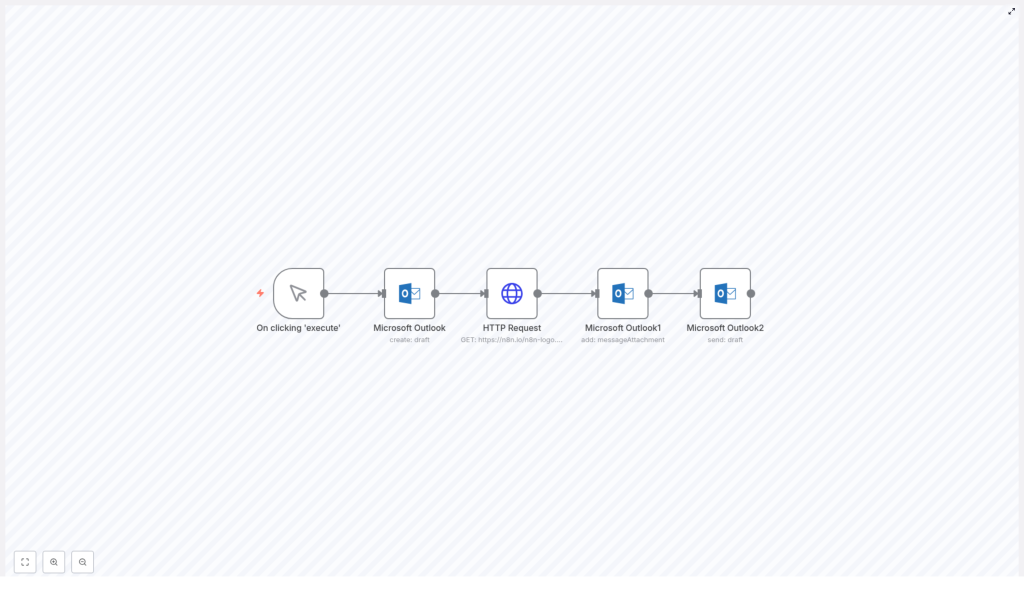
n8n: Create, Attach, and Send Outlook Drafts
This reference guide explains how to build an n8n workflow that creates an Outlook draft, downloads an external file, attaches it as binary data, and sends the final HTML email using the Microsoft Outlook node. It is written for users who are already familiar with n8n concepts such as nodes, credentials, and expressions, and who want a precise, implementation-focused walkthrough.
1. Workflow Overview
The workflow automates a complete Outlook email flow inside n8n:
- Create an Outlook draft email with HTML body content.
- Download a file (for example, an image) from a public URL using an HTTP Request node.
- Attach the downloaded file to the draft message in Outlook.
- Send the prepared draft to one or more recipients.
Core components:
- Manual Trigger – Starts the workflow during testing.
- Microsoft Outlook (create draft) – Creates the initial draft message.
- HTTP Request (download file) – Fetches a file as binary data.
- Microsoft Outlook (add message attachment) – Uploads the file as an attachment to the draft.
- Microsoft Outlook (send draft) – Sends the draft using its message ID.
2. Prerequisites and Environment
2.1 Required Infrastructure
- An n8n instance, either cloud-hosted or self-hosted.
- Access to the Microsoft Outlook node in n8n.
2.2 Outlook Credentials and Permissions
Configure Microsoft Outlook credentials in n8n using OAuth2 with the appropriate Microsoft Graph scopes:
Mail.ReadWrite– Required to create and modify drafts and attachments.Mail.Send– Required to send messages.
If your tenant enforces admin consent, ensure that the OAuth2 app has been approved by an administrator before testing the workflow.
2.3 Recommended Knowledge
- Basic understanding of n8n nodes, including how to configure parameters.
- Familiarity with expressions in n8n, such as referencing data from previous nodes using
{{$node["Node Name"].json[...]}}. - Comfort working with binary data in n8n (for example, outputs from HTTP Request configured with
responseFormat=file).
3. Workflow Architecture
This workflow is linear and synchronous. Each node depends on the output of the previous one:
- Manual Trigger Starts the execution manually from the editor.
- Microsoft Outlook (Create draft) Produces a JSON message object that includes a unique
id. This ID is required later for attachment and sending. - HTTP Request (Download file) Retrieves a file as binary data and stores it in the item’s
binaryproperty (for example,dataorfile). - Microsoft Outlook (Add message attachment) Uses the draft
messageIdand the binary data from the HTTP Request node to create a message attachment resource. - Microsoft Outlook (Send draft) Uses the same
messageIdto send the draft to the configured recipients.
The critical data flow is the propagation of the message ID and the binary file between nodes using expressions and correct binary property mapping.
4. Node-by-Node Configuration
4.1 Manual Trigger
Purpose: Provide a simple starting point for testing and iterating on the workflow.
Configuration:
- Node type: Manual Trigger
- Parameters: No additional configuration required.
When you click Execute Workflow in the n8n editor, the Manual Trigger node initiates the run and passes control to the next node.
4.2 Microsoft Outlook – Create Draft
Purpose: Create an Outlook draft email that will later receive attachments and be sent.
Key parameters:
- Resource:
draft - Subject: for example
Hello from n8n! - Body Content: HTML string, for example
<h1>Hello from n8n!</h1> - Additional Fields
- bodyContentType:
html
- bodyContentType:
On success, the node returns a JSON representation of the newly created draft. The important field is:
id– the unique identifier of the draft message in Outlook.
This id must be referenced by later nodes to attach files and send the draft.
4.3 HTTP Request – Download File
Purpose: Retrieve a file from a remote URL and store it as binary data that can be attached to the Outlook draft.
Key parameters:
- Method:
GET - URL: for example
https://n8n.io/n8n-logo.png - Response Format:
file
Setting Response Format to file instructs n8n to store the response body in the binary section of the item instead of json. Typical property names are:
binary.dataorbinary.file
The exact property name depends on your node configuration and version. You should inspect the node’s output in the n8n UI to confirm the key that holds the binary content. The subsequent Outlook attachment node must point to this same binary property.
4.4 Microsoft Outlook – Add Message Attachment
Purpose: Attach the previously downloaded file to the existing draft message.
Key parameters:
- Resource:
messageAttachment - Message ID: expression referencing the draft created earlier, for example:
={{$node["Microsoft Outlook"].json["id"]}}- Additional Fields
- fileName: the name that will appear in the email client, for example
n8n.png
- fileName: the name that will appear in the email client, for example
Binary data mapping:
Ensure the node is configured to read from the correct binary property output by the HTTP Request node. For example, if the HTTP Request node stores the file under binary.data, then the Outlook attachment node must reference data as the binary key.
If the binary property is not correctly mapped, Outlook will not receive the file bytes and the attachment will not be created.
4.5 Microsoft Outlook – Send Draft
Purpose: Send the prepared draft message, including any attachments and HTML body content, to the specified recipients.
Key parameters:
- Operation:
send - Message ID: expression referencing the same draft ID, for example:
={{$node["Microsoft Outlook"].json["id"]}}Recipients configuration:
Configure recipients using the Additional Fields section. Depending on your UI version, this might be:
- A simple To field where you can enter addresses such as
abc@example.com - Or a structured
toRecipientsarray that matches the Outlook / Microsoft Graph format.
Ensure that at least one valid recipient address is provided or the send operation will fail.
5. Key Expressions and Data References
The primary expression used in this workflow is the reference to the draft message ID created by the first Microsoft Outlook node:
={{$node["Microsoft Outlook"].json["id"]}}Usage contexts:
- Message ID in the Add message attachment node.
- Message ID in the Send draft node.
If you rename the node that creates the draft, update the expression accordingly, for example:
={{$node["Create Draft"].json["id"]}}6. Testing and Validation Steps
To verify the workflow end to end:
- In the n8n editor, select the Manual Trigger node and click Execute Workflow.
- After execution reaches the Create draft node, open its output and confirm that:
- The node status is successful.
- The JSON output contains a non-empty
idfield.
- Inspect the HTTP Request node:
- Verify the node executed successfully.
- Confirm that the response is stored under
binary(for examplebinary.data).
- Check the Add message attachment node:
- Confirm that it uses the correct
messageIdexpression. - Verify that the binary property name matches the HTTP Request output.
- Ensure the node returns a success status and the attachment metadata.
- Confirm that it uses the correct
- Inspect the Send draft node:
- Confirm the send operation completes without errors.
- Check the recipient mailbox or the sender’s Sent Items folder in Outlook to verify that the message was delivered and includes the attachment.
7. Common Issues and Troubleshooting
7.1 Attachment Not Uploaded or Binary Missing
- Verify that the HTTP Request node uses
Response Format = file. If it usesjson, no binary data will be available. - Open the HTTP Request node output and confirm the exact binary property name (for example
dataorfile). - In the Microsoft Outlook – Add message attachment node, ensure that:
- The binary property field matches the property name from the HTTP Request node.
- You have not accidentally referenced a different item or an empty binary key.
7.2 Message ID is Undefined
- Check that the Create draft node executed successfully and that the JSON output includes an
idfield. - Open the Execution log in n8n, inspect the draft node output, and confirm the correct path to the ID.
- Ensure the expression references the correct node name. If the node was renamed, update expressions such as:
={{$node["Microsoft Outlook"].json["id"]}}to match the new name, for example:
={{$node["Create Draft"].json["id"]}}
7.3 Authorization or Permission Errors
- Confirm that the Outlook OAuth2 credentials configured in n8n include the
Mail.ReadWriteandMail.Sendscopes. - If your organization uses tenant restrictions, ensure that:
- The OAuth2 app is allowed in the tenant.
- Admin consent has been granted where required.
- If credentials were recently updated, re-authenticate them in n8n and re-run the workflow.
8. Best Practices
- Use descriptive node names. Rename nodes such as Microsoft Outlook to Create Draft, Add Attachment, and Send Draft to reduce confusion when constructing expressions.
- Iterative testing. Execute the workflow step by step:
- First, run up to the draft creation and validate the
id. - Next, add the HTTP Request node and verify the binary output.
- Then, enable the attachment and send nodes once upstream data is correct.
- First, run up to the draft creation and validate the
- Temporary storage strategy. If you need to reuse attachments beyond a single workflow execution, store them in a secure external system rather than relying solely on in-memory binary data.
- HTML sanitization. When using user-generated or dynamic HTML in
bodyContent, sanitize it before inserting into the email body to reduce the risk of injecting unsafe content.
9. Advanced and Alternative Approaches
Depending on your use case, you may extend the base template with more complex logic.
9.1 Multiple Attachments
To send multiple attachments, you can:
- Use multiple HTTP Request nodes to download several files, then call the Add message attachment operation once per file.
- Or, build attachment structures programmatically using a Function node, especially if attachment URLs or metadata are dynamic.
9.2 Dynamic Recipients
If recipients are not static, consider:
- Constructing the recipients list in a Function node or via data from previous nodes (for example, CRM or database queries).
- Mapping that list into the
toRecipientsarray expected by Outlook / Microsoft Graph.
9.3 Using Microsoft Graph Directly
For scenarios that require Outlook or Graph features not exposed by the n8n Outlook node, you can:
- Use an HTTP Request node to call Microsoft Graph API directly.
- Reuse the same OAuth2 credentials where possible to authenticate requests.
This approach is useful for advanced scenarios but is not required for the basic create-attach-send pattern described here.
10. Security Considerations
- Credential storage. Store OAuth2 credentials only in n8n’s built-in credentials system. Avoid hardcoding client secrets or tokens in node parameters or Function nodes.
- Scope minimization. Grant only the scopes necessary for your workflow, such as
Mail.ReadWriteandMail.Send. Avoid broad permissions if they are not needed. - Handling sensitive files. Do not log or expose confidential binary content in public logs or external monitoring tools. Limit access to workflow execution data to trusted users.
11. Summary
Using n8n’s Microsoft Outlook node, you can implement a robust email automation pattern that:
