


n8n Developer Agent: AI Workflow Builder
Imagine turning a rough idea for an automation into a working n8n workflow in just a few minutes. No more wrestling with JSON, copying settings from one workflow to another, or losing time on repetitive setup. The n8n Developer Agent is designed to help you do exactly that, using AI to build, test, and deploy workflows so you can focus on higher-value work.
This guide walks you through the journey from manual, time-consuming workflow building to a more automated, scalable way of working. You will see how the template works, how to set it up, and how to use it as a stepping stone toward a more focused, automation-first mindset.
From manual grind to automation mindset
Building complex n8n workflows by hand can be powerful, but it can also be slow. Every new idea often means:
- Recreating similar node patterns again and again
- Carefully assembling valid workflow JSON for imports
- Manually wiring connections, notes, and configuration
Over time, these small tasks add up. They eat into the time you could spend designing better systems, refining your data flows, or experimenting with new automations.
The n8n Developer Agent helps you break that cycle. Instead of starting from a blank canvas, you describe what you want in natural language and let the agent generate an importable workflow JSON for you. You still stay in control, but you are no longer stuck doing all the repetitive work yourself.
What becomes possible with the n8n Developer Agent
Once you start thinking of workflow creation as something that can be automated, new possibilities open up. The n8n Developer Agent template combines a conversational interface, AI models, memory, and a dedicated developer tool so you can:
- Turn natural language prompts into complete, importable n8n workflow JSON
- Prototype workflows rapidly without constant manual JSON editing
- Scale your internal automation efforts by offloading repetitive build tasks to an AI agent
Instead of painstakingly configuring each node, you can focus on the bigger picture: what you want to automate, how it should behave, and how it fits into your wider systems. The agent becomes your automation assistant, helping you ship more ideas in less time.
Inside the template: how the n8n Developer Agent works
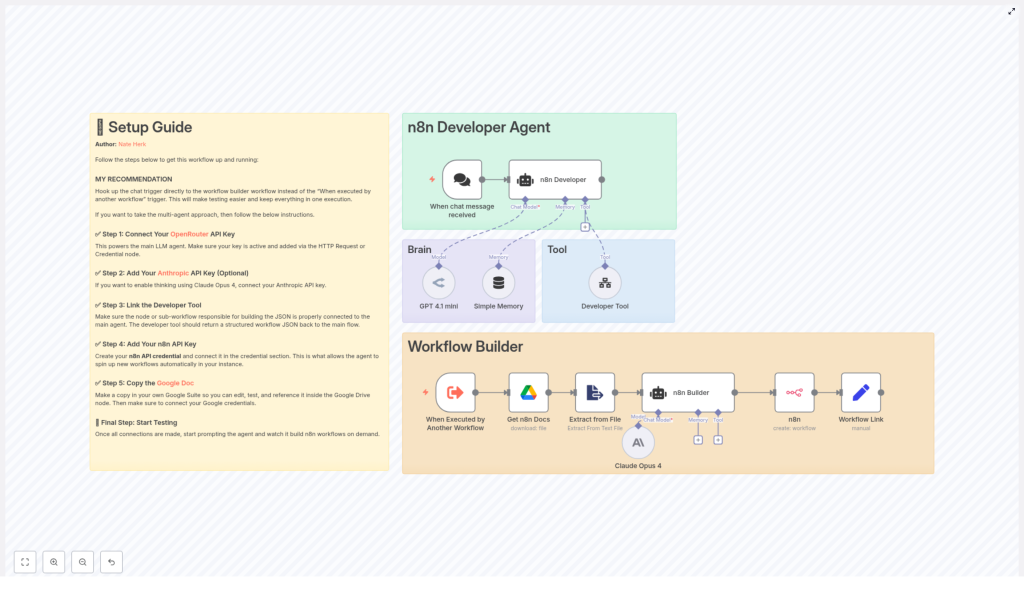
This template uses a multi-agent architecture. Each part of the system has a clear purpose, and together they form a powerful loop that starts with a chat message and ends with a ready-to-use workflow in your n8n instance.
1. Chat trigger – the starting point of your idea
Your journey begins when a chat message is received. The trigger node can be connected to:
- A chat UI
- A webhook
- Any front-end that can send your request
You might type something like: “Create a workflow that syncs new Google Sheets rows to Airtable.” This message kicks off the entire agent chain and becomes the blueprint for the workflow the agent will build.
2. n8n Developer – the main coordinating agent
The n8n Developer node is the central brain of the system. It receives your request and decides how to turn it into a workflow. It routes the prompt to the developer tool, chooses which models to use, and orchestrates the steps that lead to the final workflow JSON.
3. Brain – model and memory working together
The Brain combines a large language model, such as GPT 4.1 mini or Claude Opus 4, with a memory node. This pairing is what allows the agent to:
- Reason about your request and make design decisions
- Retain context across multiple prompts
- Remember preferences or previous design patterns for consistency
Over time, this memory can help you build a more coherent library of workflows that share structure and best practices.
4. Developer Tool – generating the workflow JSON
The Developer Tool is where your idea turns into a concrete n8n workflow. Based on the instructions and context from the Brain, it constructs a complete JSON object that n8n can import. This JSON includes:
- All nodes required for the workflow
- Connections between nodes
- Workflow settings
- Sticky notes that describe each step and explain assumptions
The result is not just a technical artifact, but also a documented starting point you can refine and extend.
5. Workflow creation – pushing into your n8n instance
Once the developer tool has produced the JSON, the template uses an n8n API node to create a new workflow directly in your instance. After creation, the flow generates a manual workflow link so you can:
- Open the workflow in your n8n UI
- Review the structure and notes
- Run tests and make adjustments
6. Optional power-ups: Google Drive and Extract from File
To make the agent even smarter, the template can pull in additional context from your own documentation. It uses:
- Google Drive to access a Google Doc with your n8n guidelines or templates
- Extract from File to read that documentation and feed it into the Brain
With this setup, the agent can generate workflows that better follow your internal standards, naming conventions, and credential practices.
Setting up the n8n Developer Agent template
Once you have imported the template into your n8n instance (using the template id from the original package), you are ready to connect your tools and bring the agent to life. The steps below assume you have admin access to your n8n instance and the necessary cloud APIs.
- Connect OpenRouter or your preferred LLM provider
Add your OpenRouter API key to the n8n credential store. This will power the main LLM agent. If you prefer another provider, simply replace the model node with the LLM you want to use, then update the credentials accordingly.
- Add Anthropic for deeper reasoning (optional)
If you plan to create complex or long-form workflows, you can connect an Anthropic credential and use Claude Opus 4 for more advanced reasoning. This node is optional but can be very helpful for intricate generation tasks or multi-step automations.
- Link the Developer Tool to the main agent
Verify that the sub-workflow or tool responsible for building the JSON is correctly connected to the n8n Developer agent. The developer tool must always return a single, valid JSON object that represents the complete n8n workflow, including nodes and connections.
- Configure the n8n API credential
Create an n8n API credential inside your instance and assign it to the “n8n” node in the template. This credential allows the agent to create workflows programmatically in your environment, which is key to making the process fully automated.
- Connect the Google Doc for documentation-aware workflows
Make a copy of the Google Doc referenced in the template (the doc id is included in the package). Then, connect your Google Drive OAuth credential to the “Get n8n Docs” node. This lets the agent read your documentation and follow your guidelines when building workflows.
- Test the flow with a simple prompt
Start small. For example, ask the agent for a simple webhook-to-Google-Sheets workflow. Review the JSON that the developer tool returns, then either import it manually into n8n or let the template create the workflow automatically via the API.
With this foundation in place, you now have a reusable, AI-assisted workflow builder that can accelerate almost any automation idea you have.
Working with the agent effectively: best practices
To get the most value from the n8n Developer Agent and keep your automations reliable, it helps to establish a few habits.
- Use clear, constrained prompts
Be specific about the nodes, services, and credentials you want to use. For example, mention if you want to use a particular Google Drive credential or a specific Slack workspace. - Enable saveManualExecutions during testing
In your workflow settings, turn onsaveManualExecutionswhile you are experimenting. This lets you inspect what the agent did step by step and understand its behavior. - Leverage sticky notes inside generated workflows
The agent can add sticky notes to explain assumptions, required credentials, and configuration steps that still need manual input. Use these notes as a checklist before you move a workflow into production. - Maintain a central Google Doc of patterns
Keep a shared document with reusable node patterns, naming rules, and credential instructions. Point the template at this doc so the agent can reuse your best practices automatically.
Troubleshooting and learning from issues
Even with a smart agent, you may occasionally run into errors. Treat these moments as learning opportunities that help you improve both the template and your prompts.
Handling JSON validation errors
If a generated workflow fails to import into n8n, inspect the JSON for:
- Missing required fields on nodes
- Malformed connections or references to non-existent nodes
The developer tool usually adds sticky notes with explanations. Read these notes carefully, fix the issues, and consider refining your prompt so future generations are more accurate.
Resolving API permission problems
If the n8n node returns 401 or 403 errors, your API credential may not have the correct permissions. Double-check that:
- The API key is valid and active
- The scope allows workflow creation
- The credential is assigned to the correct n8n node in the template
Security, governance, and responsible automation
As the agent starts generating fully functional workflows for you, it becomes even more important to manage credentials and access carefully. A strong security mindset will help you scale automation without sacrificing control.
- Limit API credential scope
Give the n8n API credential only the permissions it needs and rotate keys regularly. - Store secrets securely
Always keep API keys and passwords in secure credential stores. Never hardcode secrets directly in workflow JSON or sticky notes. - Review before production
Treat generated workflows like code. Review them, test them, and adjust environment-specific settings before enabling them in production.
Real-world ways to apply the template
Once your n8n Developer Agent is up and running, you can start using it to accelerate real business or personal workflows. Here are a few examples of how teams are putting similar setups to work:
- Onboarding automations
Ask the agent to build workflows that collect new user or employee data, create records in your systems, and notify the right teams automatically. - Custom integrations for internal tools
Quickly generate n8n workflows that connect internal tools or services without hand-writing every node from scratch. - Prototyping ETL pipelines
Describe your data sources and transformations, then let the agent assemble an initial extraction and transformation flow that you can refine.
Each workflow you generate and improve becomes another step in building a more automated, resilient operation.
A prompt to start your journey
To experience the template in action, try this example prompt:
“Create an n8n workflow that listens to a webhook, saves incoming JSON to a Google Sheet, and sends a Slack notification to #alerts with row details. Include required credential nodes and a sticky note explaining where to add the credentials.”
Run this through your n8n Developer Agent, inspect the resulting JSON, and explore how the agent structured nodes, connections, and settings. This is a great way to understand how the system thinks and how you can guide it with better prompts.
From single workflow to automation ecosystem
The n8n Developer Agent template is more than a shortcut. It can be the foundation for a new way of working with automation, where you:
- Spend less time wiring nodes and more time designing systems
- Move from idea to working prototype in minutes
- Continuously refine your prompts, docs, and patterns to improve every new workflow
With the right configuration of your LLM keys, n8n API credentials, and documentation access, you can build a repeatable automation engine that grows with your needs.
Ready to put it into practice? Import the template into your n8n instance, connect OpenRouter or your preferred LLM provider, add your n8n API credential, and run a simple test prompt. As you gain confidence, challenge the agent with more complex automations and refine your documentation so each new workflow is better than the last.
If your team wants to standardize on this approach, share the template internally, involve your automation lead, or start a discussion in your developer channel about how to integrate the agent into your existing workflow-building process.
Want more automation templates and in-depth walkthroughs? Subscribe to the project newsletter or follow the documentation to get new templates, advanced configuration ideas, and examples of how other teams are scaling their n8n automation efforts.
Next step: Ask the agent to build a simple webhook-to-spreadsheet workflow, then open the generated JSON to see exactly how it represents nodes, connections, and settings. Use that insight to guide your next, more ambitious automation.
