


n8n Document Ingestion to Supabase Vector DB
Automating document ingestion into a vector database is a foundational capability for any modern AI or search platform. By continuously transforming unstructured files into embeddings stored in a vector store, your knowledge base becomes searchable at scale and ready for retrieval-augmented generation (RAG), semantic search, and agent workflows.
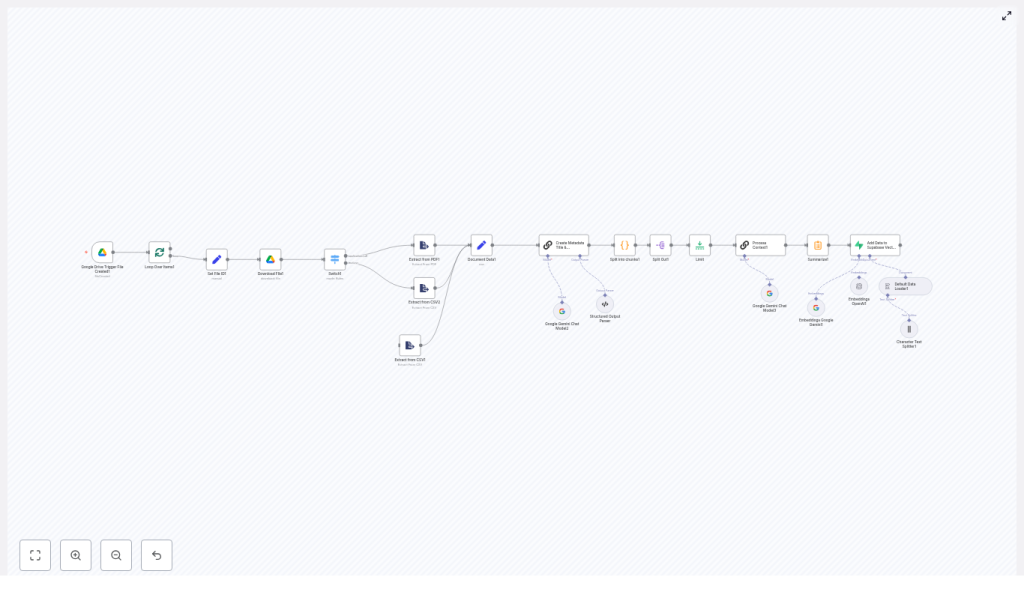
This article presents a production-oriented n8n workflow template that monitors a Google Drive folder, ingests PDFs and CSVs, performs text normalization and chunking, enriches content with LLM-generated metadata, creates embeddings, and writes the results into a Supabase vector table.
Why implement this ingestion pipeline with n8n?
Enterprise-grade AI systems depend on high quality embeddings and reliable data pipelines. Building the ingestion layer with n8n provides several advantages for automation professionals:
- Consistent data preparation – Ensure standardized metadata, chunking, and embedding generation across all documents.
- Visual orchestration – Design, debug, and extend workflows through n8n’s node-based interface.
- Vendor flexibility – Swap LLM or embedding providers (OpenAI, Google Gemini, etc.) without redesigning the pipeline.
- Operational robustness – Integrate rate limiting, error handling, and observability directly into the workflow.
- Scalable retrieval – Supabase’s vector capabilities provide a solid backend for semantic search and RAG applications.
The result is a reusable ingestion framework that you can adapt to new file types, models, or downstream applications with minimal engineering effort.
Solution architecture overview
The workflow follows a straightforward but extensible architecture:
- Trigger – Watch a Google Drive folder for newly created files.
- Acquisition – Download the file, converting Google Docs to PDF when required.
- Routing – Use MIME type switching to direct PDFs and CSVs to the appropriate extraction logic.
- Text processing – Normalize text, consolidate into a standard field, and split into overlapping chunks.
- Metadata generation – Use an LLM to generate titles, descriptions, and optional per-chunk context.
- Embeddings – Create vector embeddings using OpenAI or Google Gemini embedding models.
- Persistence – Store chunks, metadata, and embeddings in a Supabase vector table.
The sections below walk through the n8n nodes that implement this pipeline, along with configuration guidance and best practices.
Core n8n workflow: node-by-node
1. Google Drive Trigger: fileCreated
The workflow starts with a Google Drive Trigger node configured for the fileCreated event. Set the folder ID to the directory you want to monitor. Each time a new file appears in that folder, the workflow is initiated.
This approach ensures:
- Near real-time ingestion when collaborators upload or modify documents.
- Centralized control of which documents are indexed, simply by managing the folder.
2. Batch control: Loop Over Items (splitInBatches)
When the trigger returns multiple files, use the Split In Batches node (splitInBatches) so each file is processed independently. This pattern is important for:
- Staying within API rate limits for LLMs and embedding providers.
- Isolating errors to individual files so a single bad document does not halt the entire run.
3. Normalize identifiers: Set File ID
Introduce a Set node to capture key identifiers from the trigger output into predictable fields, for example:
file_id– the Google Drive file ID.- Optional additional metadata such as filename or path.
Standardizing these fields simplifies downstream mapping into Supabase and makes logging and debugging more straightforward.
4. File acquisition: Download File (googleDrive)
Next, a Google Drive node downloads the file using the stored file_id. Configure the node to handle format conversion where necessary:
- Enable Google Drive conversion for Google Docs so they are exported to PDF.
- Ensure the
googleFileConversionoptions are set consistently to avoid heterogeneous outputs.
This step provides the binary content that subsequent nodes will analyze and extract.
5. Content routing: Switch on MIME type
Use a Switch node to branch processing based on MIME type. The workflow evaluates $binary.data.mimeType and directs the file to the appropriate extraction path:
- PDF route for
application/pdf. - CSV route for
text/csvor related MIME types.
This design is naturally extensible. You can easily add cases for DOCX, PPTX, or images with OCR as your ingestion needs evolve.
6. Content extraction: PDF and CSV
For each route, use the Extract from File node to convert the binary file into structured data:
- PDFs – Extract raw text or structured content from the document body.
- CSVs – Parse rows into JSON objects, preserving column headers as keys.
If your PDFs are scanned images rather than text-based documents, insert an OCR step before extraction to ensure the text layer is available.
7. Standardize document payload: Document Data (Set)
After extraction, normalize the data into a consistent schema using a Set node. A common pattern is to consolidate the main text into a field such as data. For example:
- For PDFs, map the extracted text directly to
data. - For CSVs, you may choose to serialize rows into a single text block or retain them as structured JSON, depending on your retrieval strategy.
Having a single canonical field for downstream processing simplifies all subsequent nodes, especially chunking and LLM calls.
8. Document-level metadata: Title and Description via LLM
Before chunking, enrich the document with high quality metadata. Use a Chain LLM or similar LLM node to generate:
- A concise title that captures the main topic of the document.
- A short description summarizing key content and purpose.
The workflow can use Google Gemini or another LLM provider to produce structured output. These fields significantly improve retrieval quality and user experience when browsing search results or RAG responses.
9. Chunking logic: Split into overlapping segments (Code)
Large documents need to be split into smaller segments before embedding. A Code node runs JavaScript to chunk the text with overlap, prioritizing semantic boundaries where possible.
A typical configuration is:
chunkSize: 1000 characters.chunkOverlap: 200 characters.
The core algorithm resembles:
// chunkSize = 1000; chunkOverlap = 200
while (remainingText.length > 0) {  // prefer paragraph breaks, then sentences, then words  splitPoint = remainingText.lastIndexOf('\n\n', chunkSize) ...  chunk = remainingText.substring(0, splitPoint).trim();  chunks.push(chunk);  remainingText = remainingText.substring(Math.max(0, splitPoint - chunkOverlap)).trim();
}
This heuristic maintains sentence integrity where possible and uses overlapping windows so embeddings maintain contextual continuity across chunks.
10. Chunk expansion and control: Split Out and Limit
Once the chunks are computed, use a Split Out node to convert the array of chunks into individual n8n items. Each item then represents a single unit for embedding and storage.
Follow this with a Limit node to restrict the number of chunks processed per run. This is particularly useful for:
- Very large documents that may produce hundreds of chunks.
- Managing API costs and staying within rate limits for LLM and embedding services.
11. Optional enrichment: Per-chunk context (LLM helper)
For advanced retrieval scenarios, you can enrich each chunk with a short contextual label. A dedicated LLM helper node, often named something like Process Context, takes the chunk text and generates:
- A one-line summary or context string that describes the chunk.
This additional field can be extremely helpful for search result snippets, UI tooltips, or ranking signals in your retrieval logic.
12. Summarization and embedding generation
Depending on your design, you may introduce a summarization step for each chunk or for the full document. This can provide:
- Short extracts suitable for display in search results.
- Condensed representations that complement the raw chunk text.
After any optional summarization, the workflow calls an embeddings node. You can use:
- OpenAI Embeddings node.
- Google Gemini Embeddings node.
The template demonstrates both options as interchangeable components. Choose the provider that aligns with your stack, compliance requirements, and cost model.
13. Persistence layer: Insert into Supabase Vector Store
The final stage writes all relevant fields into a Supabase vector table, for example a table named documents. Each row typically includes:
- id / file_id – a unique identifier for the originating file.
- title / description – document-level metadata generated by the LLM.
- chunk – the text content of the individual chunk.
- context / summary – optional per-chunk context or summary string.
- embedding – the vector representation suitable for similarity search.
- raw_text – optional field retaining the original text for debugging or re-processing.
With Supabase’s vector capabilities configured, you can then perform similarity search queries directly against this table to power RAG pipelines and intelligent search experiences.
Configuration tips and automation best practices
Chunking strategy
- Chunk size and overlap: A typical starting point is 800-1200 characters per chunk with 150-300 characters of overlap.
- Trade-offs: Larger chunks reduce the number of vectors and API calls but may mix multiple topics, which can affect retrieval precision.
API limits and performance
- Rate limiting: Use
splitInBatchesandLimitnodes to control concurrency and volume. - Retries: Implement exponential backoff or retry logic for transient errors from LLM or embedding providers.
Metadata quality
- Invest in good LLM prompts for title and description generation.
- Ensure metadata is consistently formatted to support filtering and ranking in your search UI.
Security and compliance
- Store API keys and Supabase credentials using n8n’s credential system, not hardcoded in nodes.
- Leverage Supabase row-level security policies to restrict access to sensitive documents.
- Review data residency and compliance requirements when choosing LLM and embedding providers.
Cost management
- Filter out low-value content before embedding, such as boilerplate or repeated legal text.
- Use summarization to reduce token usage where possible.
- Limit the number of chunks per document if only the most relevant sections need to be searchable.
Extensibility: additional file types
- Extend the MIME type Switch node to handle DOCX, PPTX, and other office formats.
- Integrate OCR for images or scanned PDFs to bring previously inaccessible content into your vector store.
Error handling and observability
For production environments, robust error handling is essential. Recommended patterns include:
- Wrapping critical sections with try/catch logic in Code nodes where appropriate.
- Configuring a dedicated error workflow in n8n that captures failed items.
- Logging diagnostic details such as:
file_idand filename.- The node or stage where the failure occurred.
- The raw payload or error message for analysis.
Persisting these logs in a monitoring table or external observability stack allows you to reprocess failed documents and continuously improve pipeline reliability.
Representative use cases
This n8n-to-Supabase ingestion pattern is suitable for a wide range of AI and automation initiatives, including:
- Enterprise knowledge bases – Index internal documents so employees can perform semantic search across policies, procedures, and technical documentation.
- Legal and compliance repositories – Ingest contracts, regulations, and compliance documents for robust similarity search and RAG-driven analysis.
- Customer support intelligence – Feed manuals, FAQs, and support documents into a vector store to power chatbots and agent assist tools.
Next steps: from template to production
The described workflow provides a solid, reusable pattern for converting documents into vectors stored in Supabase. You can extend it with:
- Custom extractors for domain-specific formats.
- OCR integration for scanned documents and images.
- Multi-language handling and language detection.
- Alternative or additional embedding models as your stack evolves.
To deploy this pipeline in your environment:
- Export the workflow JSON from the template.
- Import it into your n8n instance.
- Configure credentials for Google Drive, your chosen LLM provider, and Supabase.
- Run a controlled set of test files to validate chunking, embeddings, and Supabase inserts.
- Iterate on prompts, chunk sizes, and metadata fields based on retrieval performance.
Call to action: If you need assistance tailoring this pipeline for your stack, such as integrating OCR, handling additional file types, or tuning model prompts and chunking strategy, reach out with your requirements and we can design a workflow that aligns with your architecture and operational constraints.
