


n8n Email Scraper with Firecrawl & Instantly
This guide shows you how to use an n8n workflow template to automatically scrape websites for email addresses and send those leads straight into Instantly. You will learn how each node works, how Firecrawl powers the scraping, and how to keep your automation reliable, ethical, and ready for production.
What you will learn
- How to trigger an n8n workflow with a simple form that accepts a website URL and scrape limit
- How to use Firecrawl to map a website and batch scrape pages for email addresses
- How to normalize obfuscated email formats and remove duplicates
- How to loop until a Firecrawl batch job is finished without hitting rate limits
- How to send each unique email to Instantly as a lead
- Best practices for compliance, security, and scaling your email scraping automation
Use case: Why this n8n workflow is useful
This n8n template is designed for teams that need a repeatable, no-code way to collect contact emails from websites. It works especially well for:
- Marketers and growth teams who want to feed new leads into Instantly campaigns
- Automation engineers who need a controlled, rate-limited scraping pipeline
- Anyone who wants to map a site, find contact pages, extract emails, and avoid manual copy-paste
The workflow:
- Maps a website to find relevant contact pages
- Scrapes those pages for email addresses using Firecrawl
- Normalizes obfuscated email formats (for example,
user(at)example(dot)com) - Deduplicates results
- Sends each unique email to Instantly as a lead
High-level workflow overview
Before we go node by node, here is the full automation at a glance:
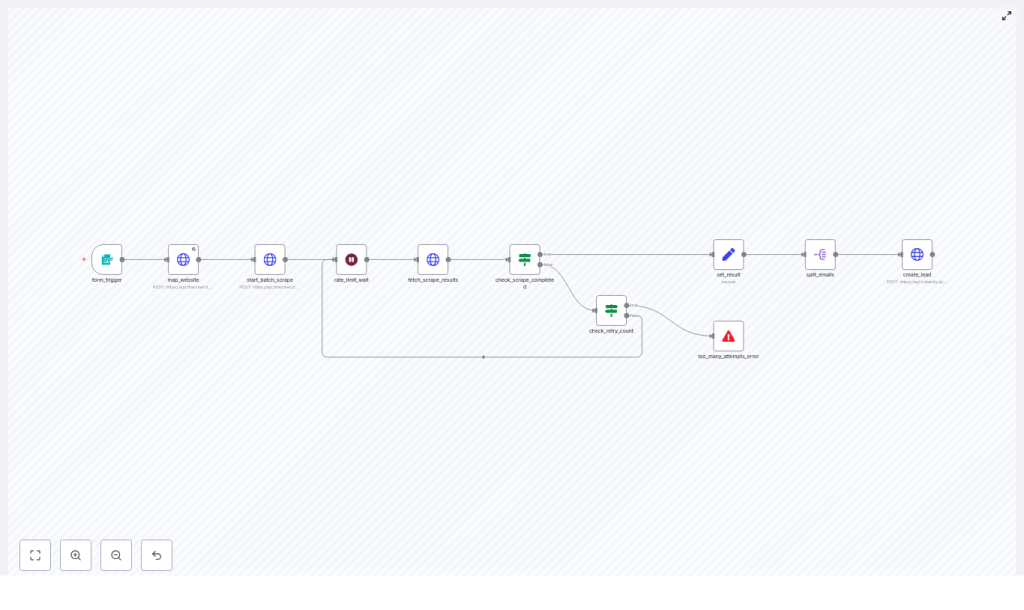
- Form trigger – User submits a website URL and a scrape limit.
- Website mapping – Firecrawl
/v1/mapfinds likely contact pages. - Batch scrape – Firecrawl
/v1/batch/scrapescrapes those URLs for emails. - Polling loop – The workflow waits, then checks if the batch job is completed.
- Result processing – Extract and normalize email addresses, then deduplicate.
- Split emails – Turn the array of emails into one item per email.
- Instantly integration – Create a lead in Instantly for every unique email.
Step-by-step: How the n8n template works
Step 1 – Collect input with form_trigger
The workflow starts with a form trigger node in n8n. This node presents a simple form that asks for:
- Website Url – The root URL of the site you want to scrape.
- Scrape Limit – How many pages Firecrawl should map and scrape.
You can use this form for ad-hoc runs, or embed it into an internal tool so non-technical users can start a scrape without touching the workflow itself.
Step 2 – Map the website with Firecrawl (map_website)
Next, the map_website node calls Firecrawl’s POST /v1/map endpoint. The goal is to discover pages that are likely to contain email addresses, such as contact or about pages.
The JSON body looks like this:
{  "url": "{{ $json['Website Url'] }}",  "search": "about contact company authors team",  "limit": {{ $json['Scrape Limit'] }}
}
Key points:
- url uses the value from the form.
- search provides hints like
about,contact,company,authors,teamso Firecrawl prioritizes pages that commonly list emails. - limit controls how many pages are mapped and later scraped, which helps manage cost and runtime.
The response contains a list of links that will be passed into the batch scrape step.
Step 3 – Start a batch scrape with Firecrawl (start_batch_scrape)
Once the relevant URLs are mapped, the start_batch_scrape node calls Firecrawl’s POST /v1/batch/scrape endpoint to process them in bulk.
Important options in the request body:
- urls – The list of URLs from the map step.
- formats – Set to
["markdown","json"]so you have both readable content and structured data. - proxy – Set to
"stealth"to reduce the chance of being blocked as a bot. - jsonOptions.prompt – A carefully written prompt that tells Firecrawl how to extract and normalize email addresses.
Example JSON:
{  "urls": {{ JSON.stringify($json.links) }},  "formats": ["markdown","json"],  "proxy": "stealth",  "jsonOptions": {  "prompt": "Extract every unique, fully-qualified email address found in the supplied web page. Normalize common obfuscations where “@” appears as “(at)”, “[at]”, “{at}”, “ at ”, “@” and “.” appears as “(dot)”, “[dot]”, “{dot}”, “ dot ”, “.”. Convert variants such as “user(at)example(dot)com” or “user at example dot com” to “user@example.com”. Ignore addresses hidden inside HTML comments, <script>, or <style> blocks. Deduplicate case-insensitively."  }
}
The normalization prompt is critical. It instructs Firecrawl to:
- Recognize obfuscated patterns like
user(at)example(dot)comoruser at example dot com. - Convert them into valid addresses like
user@example.com. - Ignore emails in HTML comments,
<script>, and<style>blocks. - Deduplicate emails without case sensitivity.
This ensures that the output is usable in downstream tools such as Instantly without additional heavy cleaning.
Step 4 – Respect rate limits with rate_limit_wait
After starting the batch scrape, Firecrawl needs some time to process all URLs. Instead of hammering the API with constant polling, the workflow uses a wait node (often called rate_limit_wait).
This node:
- Pauses the workflow for a set duration.
- Prevents excessive API requests and reduces the risk of being throttled.
- Gives Firecrawl time to complete the batch job.
Step 5 – Poll results with fetch_scrape_results
Once the wait is over, the workflow uses the fetch_scrape_results node to retrieve the current state of the batch job. It calls Firecrawl with the job ID returned from the start_batch_scrape node.
The URL typically looks like:
=https://api.firecrawl.dev/v1/batch/scrape/{{ $('start_batch_scrape').item.json.id }}
This endpoint returns the job status and, once completed, the scraped data including any extracted email addresses.
Step 6 – Check if the scrape is completed (check_scrape_completed)
The next node is an If node, often called check_scrape_completed. It inspects the response from Firecrawl to see whether the batch job’s status is completed.
- If status is completed – The workflow moves forward to process the results.
- If status is not completed – The workflow loops back into the waiting and retry logic.
This creates a controlled polling loop instead of a tight, resource-heavy cycle.
Step 7 – Limit retries with check_retry_count and too_many_attempts_error
To avoid an infinite loop or excessive API calls, the workflow includes a retry counter. This is typically implemented with:
check_retry_count– Checks how many times the workflow has already polled Firecrawl.too_many_attempts_error– If the retry count exceeds a threshold (for example 12 attempts), the workflow stops and surfaces a clear error.
This protects you from runaway executions, unexpected costs, and hitting hard rate limits.
Step 8 – Consolidate results with set_result
Once the Firecrawl job is completed, the workflow needs to gather all extracted email addresses into a single array. The set_result node does this using a JavaScript expression.
Example expression:
($node["fetch_scrape_results"].json.data || []) .flatMap(item => item?.json?.email_addresses || []) .filter(email => typeof email === 'string' && email.trim())
This logic:
- Looks at
fetch_scrape_resultsoutput, specifically thedataarray. - For each item, pulls out the
json.email_addressesarray if it exists. - Flattens all these arrays into one combined list.
- Filters out any non-string or empty entries.
After this node, you should have a single field, often named something like scraped_email_addresses, that contains a clean array of all emails found across the scraped pages.
Step 9 – Emit one item per email with split_emails
Most downstream API nodes in n8n work best when each item represents a single logical record. To achieve this, the workflow uses a SplitOut (or similar) node named split_emails.
This node:
- Takes the
scraped_email_addressesarray. - Emits one new n8n item for each email address.
After this step, the workflow will have one item per email, which makes it easy to send each one to Instantly or any other service.
Step 10 – Create leads in Instantly (create_lead)
The final main step is to send each email into Instantly as a new lead. This is handled by an HTTP Request node often called create_lead.
Typical configuration:
- Authentication – Use HTTP header auth with your Instantly API key stored as n8n credentials.
- Method –
POST. - Endpoint – Instantly’s leads endpoint.
- Body – Contains the email address and a campaign identifier.
Example request body:
{  "email": "={{ $json.scraped_email_addresses }},  "campaign": "4d1d4037-a7e0-4ee2-96c2-de223241a83c"
}
Each item coming from split_emails will trigger one call to Instantly, creating a lead and associating it with the specified campaign.
Best practices for using this n8n email scraper
Compliance and responsible scraping
- Check robots.txt and terms of service – Some websites explicitly disallow scraping or automated email harvesting.
- Follow privacy regulations – Comply with laws like GDPR and CAN-SPAM. Only use collected emails for lawful purposes and obtain consent where required.
- Prefer opt-in outreach – Use automation to support, not replace, ethical contact collection and communication.
Data quality and sender reputation
- Validate emails – Before pushing leads to a live campaign, run an email verification step (for example SMTP check or a service like ZeroBounce or Hunter) to reduce bounces.
- Deduplicate aggressively – The workflow already deduplicates at the scraping stage, but you can add extra checks before creating Instantly leads.
Performance and reliability
- Throttle and back off – The template includes a wait node and retry limits. For large jobs, consider implementing exponential backoff or per-domain throttling.
- Logging and monitoring – Store raw Firecrawl responses and n8n logs so you can debug data quality issues and API errors.
Troubleshooting and improvements
Common issues and how to fix them
- Problem: Empty or very few results
- Increase the
limitparameter in the map step so more pages are crawled. - Broaden the
searchkeywords if the site uses unusual naming for contact pages. - Inspect the mapped links from Firecrawl to confirm that the expected pages are being scraped.
- Increase the
- Problem: Job stuck in pending
- Check that your Firecrawl API key is valid and has remaining quota.
- Verify network and proxy settings if you are using custom infrastructure.
- Review the retry loop configuration to ensure it is not exiting too early.
- Problem: Duplicate leads in Instantly
- Add a dedicated deduplication step before the
create_leadnode. - Check Instantly campaign settings that control how duplicates are handled.
- Add a dedicated deduplication step before the
Suggested enhancements to the template
- Add email validation – Insert a node for a verification service (for example ZeroBounce, Hunter) between
split_emailsandcreate_lead. - Persist results – Save scraped emails and source URLs to a database (MySQL, PostgreSQL) or Google Sheets for auditing, export, and later analysis.
- Filter by domain or role – Add logic to ignore addresses like
info@or non-corporate domains if you want only specific types of leads. - Add notifications – Integrate Slack or email nodes to alert your team on errors or when a certain number of new leads are found.
- Advanced rate limiting – Implement exponential backoff, per-domain queues, or concurrency limits for very large scraping jobs.
Security and credential management in n8n
API keys are sensitive and should never be hard-coded in your workflow JSON.
- Use n8n’s credential system (for example HTTP Header Auth) to store Firecrawl and Instantly keys.
- Separate credentials by environment (staging vs production) so you can test safely.
- Restrict access to the n8n instance and credential store to authorized team members only.
Ethics and legal considerations
Automated email extraction can be a sensitive activity. To stay on the right side of both law and ethics:
- Always respect site owners’ preferences and legal notices.
-
