


n8n + Milvus Workflow: Index Paul Graham Essays for an AI Retrieval Agent
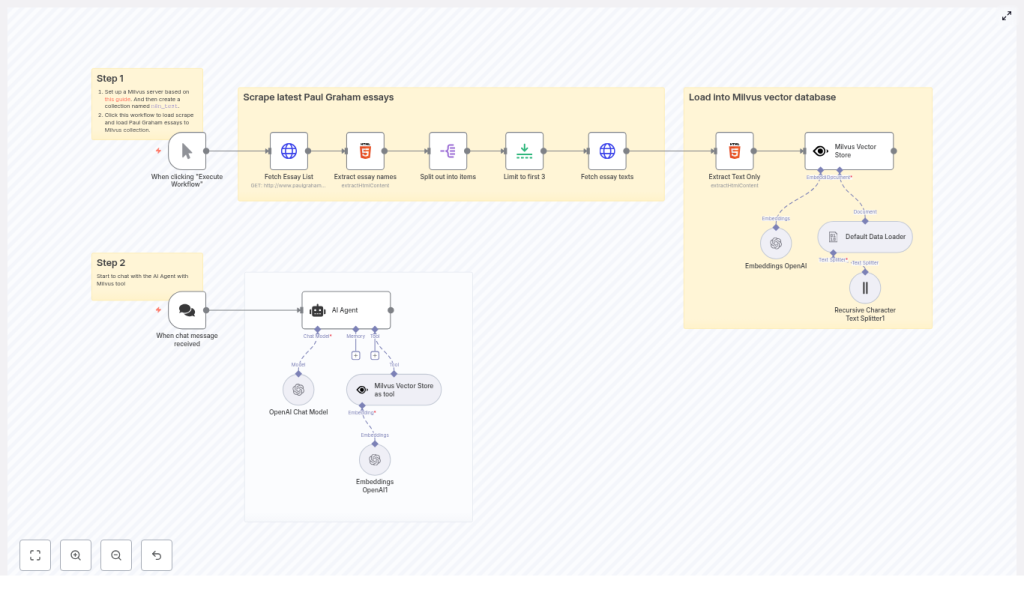
This guide describes a complete n8n automation that scrapes Paul Graham essays, extracts and chunks the content, generates OpenAI embeddings, and stores the vectors in a Milvus collection. The indexed corpus is then exposed to an AI agent in n8n so you can run semantic, retrieval-augmented chat queries over the essays.
Use case and architecture
Combining vector search with a conversational AI agent is a proven pattern for building knowledge-aware assistants. Instead of relying solely on the model’s training data, you maintain a curated, up-to-date knowledge base that the agent can query in real time.
In this workflow, Paul Graham essays serve as the reference corpus. The automation:
- Scrapes the essay index and individual articles from paulgraham.com
- Extracts clean text content from HTML
- Splits long essays into smaller chunks for efficient retrieval
- Generates embeddings with OpenAI for each chunk
- Persists embeddings in a Milvus vector database collection
- Lets an AI Agent in n8n use Milvus as a retrieval tool during chat
The result is a retrieval-augmented generation (RAG) pipeline that supports accurate, context-grounded answers to questions about Paul Graham’s writing.
What you will implement
The completed n8n workflow consists of two coordinated subflows: an indexing pipeline and an interactive chat flow.
Indexing pipeline (scrape, process, embed, store)
- Scraper for the Paul Graham article index and a subset of essays
- HTML text extraction that ignores navigation and images
- Text splitting and embedding generation using OpenAI
- Milvus vector store integration targeting a collection named
n8n_test
Chat pipeline (retrieval-augmented agent)
- Chat trigger to receive user messages
- n8n AI Agent using an OpenAI chat model
- Milvus vector store configured as a retrieval tool for the agent
Prerequisites
- n8n instance
Either self-hosted or n8n Cloud, with access to install and configure nodes. - Milvus deployment
A running Milvus server with a collection namedn8n_test. This can be standalone or via Docker Compose. Refer to the official Milvus documentation for setup details. - OpenAI credentials
API key with access to an embedding model and a chat completion model. - Network connectivity
Your n8n instance must be able to reachhttp://www.paulgraham.comand the Milvus endpoint.
High level workflow design
On the n8n canvas, the workflow is logically separated into two areas:
- Step 1 – Scrape and load into Milvus
- Step 2 – Chat with the AI Agent using Milvus retrieval
The following sections detail each node and provide configuration guidance and best practices.
Step 1 – Scrape and load Paul Graham essays into Milvus
1.1 Trigger and essay discovery
- Manual Trigger
Use the Manual Trigger node to start the indexing process on demand. Click “Execute Workflow” in n8n whenever you want to refresh or rebuild the Milvus collection. - Fetch Essay List (HTTP Request)
Configure an HTTP Request node to perform a GET request against the Paul Graham articles index page, for example:
http://www.paulgraham.com/articles.html
This returns the HTML that contains links to individual essays. - Extract essay names (HTML node)
Feed the HTML response into an HTML node. Use a CSS selector such as:
table table a
to extract all essay links from the nested tables on the page. The output should be an array of anchor elements or URLs representing individual essays. - Split out into items (SplitOut)
Add a SplitOut (or similar item-splitting) node to convert the array of links into separate items. This ensures that each essay is processed in isolation downstream. - Limit to first 3 (Limit)
For testing or cost control, insert a Limit node to restrict the number of essays processed, for example to the first three. This step is optional and can be removed once you are comfortable with the pipeline.
1.2 Essay retrieval and text extraction
- Fetch essay texts (HTTP Request)
For each essay URL produced by the previous step, use another HTTP Request node to perform a GET request and retrieve the full HTML of the essay page. - Extract Text Only (HTML node)
Pass the essay HTML into an HTML node dedicated to text extraction. Configure a selector such as:
body
and output the textual content. This should exclude navigation elements, images, and other non-article noise, resulting in a clean text blob for each essay.
1.3 Prepare documents and split into chunks
- Default Data Loader
Use the Default Data Loader node (from the LangChain integration) to convert the raw text into document objects suitable for downstream processing. This node standardizes the structure for the text splitter and embedding nodes. - Recursive Character Text Splitter
Add the Recursive Character Text Splitter node to segment long essays into smaller, semantically manageable chunks. Example configuration:
chunkSize: 6000 characters (or adjust based on your embedding budget and retrieval granularity)
Smaller chunks typically improve retrieval precision but increase the number of embeddings and associated cost. For many use cases, a range of 500 to 2000 characters is a good starting point.
1.4 Generate embeddings and store in Milvus
- Embeddings OpenAI
Configure the Embeddings OpenAI node with your OpenAI API credentials and the preferred embedding model. This node converts each text chunk into a dense vector representation. Ensure you monitor usage, since embedding cost scales with total text volume and chunk count. - Milvus Vector Store
Finally, connect the embeddings to a Milvus Vector Store node that writes vectors into then8n_testcollection.
Key considerations:- Set the collection name to
n8n_test. - Confirm the Milvus endpoint is reachable from n8n.
- Use the appropriate Milvus credentials in the n8n credential node.
- Optionally enable a setting to clear the collection before inserting new data if you want a clean reload.
This completes the indexing phase and makes the essay embeddings available for retrieval.
- Set the collection name to
Step 2 – Chat with an AI Agent backed by Milvus
2.1 Chat trigger
- When chat message received (Chat Trigger)
Add a Chat Trigger node that listens for incoming chat messages, typically via a webhook or integrated chat interface. Each incoming message will start a new execution of the chat subflow.
2.2 Configure the AI Agent
- AI Agent node
Insert an AI Agent node and configure it with:- An OpenAI chat model, for example
gpt-4o-minior another suitable model - Optional memory settings if you want multi-turn conversational context
- Tools, including the Milvus vector store, to provide retrieval capabilities
The agent will receive the user’s question from the Chat Trigger and can decide when to call tools to gather context.
- An OpenAI chat model, for example
- Milvus Vector Store as a tool
Configure the Milvus Vector Store node as a retrieval tool within the AI Agent. This exposes a search interface that the agent can use to:- Query the
n8n_testcollection - Retrieve the most relevant document chunks based on the user’s question
- Ground its responses in specific passages from Paul Graham’s essays
If the agent output feels generic, consider increasing the number of retrieved chunks or refining your chunking strategy so that relevant context is consistently available.
- Query the
Key configuration and tuning guidelines
Milvus collection setup
Before running the workflow, ensure that:
- A Milvus collection named
n8n_testexists with an appropriate schema for vector data. - The Milvus server endpoint is correctly configured in n8n.
- Authentication credentials in the Milvus credential node are valid.
- Network rules or firewalls allow n8n to access the Milvus service.
OpenAI models and cost management
- In the Embeddings OpenAI node, select a current, recommended embedding model.
- In the AI Agent node, choose a chat model that meets your latency and cost requirements.
- Monitor token and embedding usage, particularly if you remove the Limit node and index the full essay corpus.
Text splitting strategy
Chunking is central to retrieval quality and cost control:
- Smaller chunks (for example 500-2000 characters) typically yield more precise, targeted retrieval but result in more vectors and higher embedding costs.
- Larger chunks reduce the number of vectors but may mix multiple topics, which can dilute retrieval relevance.
- The example workflow uses a relatively large
chunkSizeof 6000 as a demonstration; adjust this parameter to align with your budget and accuracy requirements.
Security, compliance, and operational best practices
- Credential management
Store OpenAI and Milvus credentials in n8n’s secure credential store. Never commit API keys or secrets to source control or share them in logs. - Content and scraping considerations
Confirm that you have the right to scrape and repurpose content from the target site. Review and respect any robots.txt rules and applicable copyright or usage policies. - Network security
Restrict Milvus exposure to trusted networks. Use appropriate firewall rules, authentication, and TLS where applicable to protect the vector database.
Troubleshooting and diagnostics
Common failure points
- HTTP Request failures
If the HTTP Request node fails, verify the URL, DNS resolution, and outbound network access from your n8n instance. Test the URL from the same environment using curl or a browser. - Empty HTML extraction
If the HTML node returns no text, inspect the page structure and refine the CSS selector. The layout of paulgraham.com is relatively simple, but minor changes can break brittle selectors. - Milvus insert errors
Errors during vector insertion typically indicate issues with the collection schema, server availability, or credentials. Check Milvus logs, confirm the collection name, and test connectivity from the n8n host. - Generic or low quality agent responses
If answers seem generic or ungrounded:- Increase the number of retrieved documents per query.
- Adjust chunk size to provide more focused context.
- Confirm that embeddings were generated and stored correctly for the expected essays.
Extensions and enhancements
Once the base workflow is running, you can extend it to support more advanced production scenarios.
- Automated refresh scheduling
Add a Cron node to periodically re-run the scraping and indexing pipeline. This is useful if the source content changes over time or you want to keep the Milvus collection synchronized. - Richer metadata
Store additional fields such as title, URL, author, and publication date alongside each vector. This improves traceability, enables better filtering, and allows you to display richer context in responses. - Advanced splitting strategies
Use splitters that support overlapping windows so that important context is preserved across chunk boundaries. This often improves answer coherence for multi-paragraph reasoning. - Alternative retrieval strategies
Experiment with hybrid search that combines keyword and vector retrieval, re-ranking strategies, or different context window sizes passed to the chat model.
Conclusion and practical next steps
This n8n workflow demonstrates a complete, reusable pattern for converting web content into a vectorized knowledge base backed by Milvus and making it accessible to an AI agent. The same approach can be applied to internal documentation, support portals, technical blogs, and any other corpus you want your automation to reason over.
To get started:
- Deploy Milvus and create the
n8n_testcollection. - Configure your OpenAI credentials in n8n.
- Import or recreate the described workflow.
- Run the Manual Trigger to scrape and index a few essays.
- Send a chat message to the AI Agent asking about a Paul Graham topic and verify that responses are grounded in essay content.
If you need support, you can:
- Request help fine-tuning CSS selectors for more reliable text extraction.
- Ask for guidance on optimal chunk sizes balancing cost and retrieval quality.
- Obtain a sample n8n workflow JSON export that matches this architecture.
