


How a Frustrated Marketer Turned Phantombuster Chaos Into an Airtable Lead Machine With n8n
On a rainy Tuesday evening, Emma stared at yet another CSV export from Phantombuster. Her coffee was cold, her Airtable base was a mess, and the marketing team was already asking for “just one more” updated lead list.
Every week it was the same routine. Run a Phantombuster agent, download the output, open the file, clean the headers, paste everything into Airtable, fix broken rows, double check emails, and hope nothing got lost along the way. It worked, technically, but it was slow, fragile, and painfully manual.
Emma knew there had to be a better way to connect Phantombuster to Airtable. She wanted a workflow that would automatically pull the latest agent output and turn it into clean, structured records in her base – without her touching a single spreadsheet.
That is when she discovered an n8n workflow template that promised exactly what she needed: a simple automation that saves Phantombuster output straight into Airtable.
The Problem: Great Scraping, Broken Process
Emma’s team relied heavily on Phantombuster for:
- Scraping LinkedIn profiles and contact data
- Collecting leads from social platforms and websites
- Running recurring agents that produced JSON output
The data quality was solid, but the process of getting it into Airtable was not.
She needed to:
- Automatically capture leads scraped by Phantombuster into Airtable
- Keep one centralized, always-up-to-date dataset
- Avoid endless copy and paste between exports and tables
- Prepare data for CRM imports and enrichment tools
Her goal was clear. She wanted Phantombuster’s scraping power, n8n’s automation, and Airtable’s organization working together in a single, reliable pipeline.
The Discovery: An n8n Workflow Template That Glued It All Together
While searching for “n8n Phantombuster Airtable automation,” Emma landed on a template that did exactly what she had been trying to hack together manually. The description was simple but powerful: use n8n to fetch Phantombuster output and append it directly to Airtable.
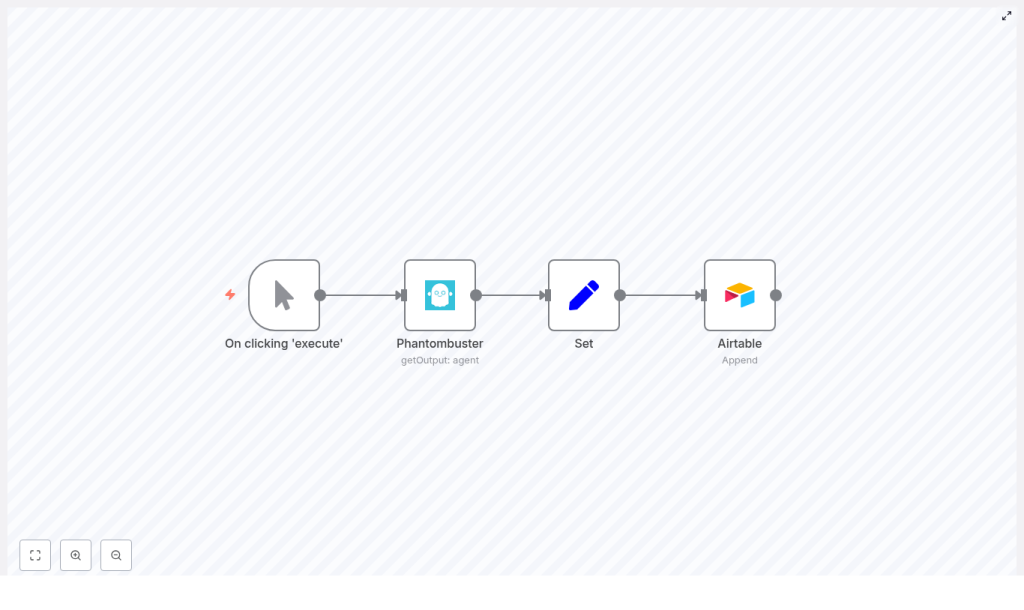
The heart of the workflow was built around four n8n nodes:
- Manual Trigger – to start the workflow on demand while testing
- Phantombuster – using the
getOutputoperation to fetch the latest agent run - Set – to map and transform the JSON fields into clean, named values
- Airtable – to append records into a chosen table
It was exactly what she needed, but she still had to wire it up to her own accounts and data structure. That is when her real journey with this template began.
Setting the Stage: What Emma Needed Before She Could Automate
Before she could press “Execute,” Emma made sure she had the basics in place:
- An n8n instance, running in the cloud
- A Phantombuster account with an agent that produced JSON output
- An Airtable account with a base and table ready for leads
- API credentials already configured in n8n for both Phantombuster and Airtable
With the prerequisites sorted, she opened n8n and started building.
Rising Action: Building the Workflow That Would Replace Her Spreadsheets
Step 1 – Starting With a Simple Manual Trigger
Emma began with a Manual Trigger node. She liked the control it gave her. Instead of setting up a schedule right away, she could run the workflow manually as many times as she wanted while she debugged and refined it.
The plan was easy. Once everything worked, she could later swap the Manual Trigger for a Scheduler node and have the workflow run automatically every few hours or once a day.
Step 2 – Pulling Phantombuster Output With getOutput
Next, she added the Phantombuster node. This was the engine that would pull in the latest scraped data.
She configured it like this:
- Set the operation to
getOutput - Selected her Phantombuster credentials with the API key
- Entered the Agent ID of the specific phantom whose results she wanted
She executed the workflow up to this node and inspected the output in n8n’s debug view. The JSON structure looked familiar, with keys such as general, details, and jobs. That meant she could now start mapping those fields to something Airtable would understand.
Step 3 – Turning Messy JSON Into Clean Fields With the Set Node
To make the data usable in Airtable, Emma added a Set node. This was where she would define exactly which data points she wanted to store, and how they should be named.
Using n8n expressions, she mapped values from the Phantombuster JSON like this:
Name: ={{$node["Phantombuster"].json["general"]["fullName"]}}
Email: ={{$node["Phantombuster"].json["details"]["mail"]}}
Company: ={{$node["Phantombuster"].json["jobs"][0]["companyName"]}}
In the Set node she:
- Created fields like Name, Email, and Company
- Used expressions that referenced the output of the Phantombuster node
- Tested each expression using the preview to ensure values resolved correctly
She also kept a few important rules in mind:
- If Phantombuster returned an array of profiles, she would need to handle each item separately
- She could use SplitInBatches or Item Lists if she needed to break arrays into multiple items
- She could add conditional expressions or fallback values to avoid writing
nullinto Airtable
This was the moment when her raw scraped data started looking like real, structured lead records.
Step 4 – Sending Leads Straight Into Airtable
With clean fields ready, Emma added the final piece: an Airtable node.
She configured it to:
- Use the append operation
- Select her Airtable credentials
- Choose the correct base and table for leads
Then she mapped fields from the Set node to Airtable columns:
- Airtable column “Name” <- Set node field “Name”
- Airtable column “Email” <- Set node field “Email”
- Airtable column “Company” <- Set node field “Company”
When this node ran, it would append each item that reached it as a new record in Airtable. She just had to make sure that if Phantombuster returned an array of profiles, her workflow split them into separate items before they hit the Airtable node.
The Turning Point: Handling Arrays and Multiple Records Without Breaking Anything
The first time Emma tested the workflow with a bigger Phantombuster run, she noticed something important. Instead of a single profile, she now had a whole list of them in the JSON output.
If she sent that entire array directly to Airtable, it would not create one record per profile. Airtable needed one n8n item per record.
To fix this, she explored two approaches that n8n supports for handling arrays:
Option 1 – Using a Function Node to Expand the Array
Emma added a Function node right after Phantombuster. Inside it, she wrote a small JavaScript snippet that transformed the array of profiles into multiple items that n8n could pass downstream, one per profile.
// items[0].json contains the Phantombuster payload
const payload = items[0].json;
const profiles = payload.profiles || payload.results || [];
return profiles.map(p => ({ json: {  Name: p.fullName || p.name,  Email: p.email || p.contact,  Company: (p.jobs && p.jobs[0] && p.jobs[0].companyName) || ''
}}));
This way, each profile became its own item with Name, Email, and Company already set. She could then send these directly to the Airtable node or through another Set node if she wanted to refine the mapping further.
Option 2 – Using SplitInBatches for Simpler Flows
In other workflows, Emma preferred not to write custom code. For those cases, she learned she could use the built-in SplitInBatches node to:
- Take an array from Phantombuster
- Split it into smaller chunks or single items
- Process each item one by one through Set and Airtable
Both options achieved the same goal: ensuring Airtable received exactly one record per profile scraped.
Testing, Debugging, and That First Perfect Run
Before she trusted the automation with live campaigns, Emma walked carefully through a testing checklist.
- Step 1: Execute the Manual Trigger and inspect the Phantombuster node output in n8n’s debug view to confirm the JSON structure.
- Step 2: Check the Set node or Function node to ensure each field (Name, Email, Company) resolved correctly and did not return null unexpectedly.
- Step 3: Run the full workflow and open Airtable to verify that new records appeared in the right table with the right values.
When something broke, she knew where to look:
- Phantombuster rate limits or incorrect Agent ID
- Missing or renamed Airtable columns
- Credential misconfigurations in n8n
After a few tweaks, she watched a full batch of leads appear in Airtable, perfectly formatted, no CSV in sight. That was her turning point. The workflow was finally doing the job she used to do manually.
Refining the System: Best Practices Emma Added Over Time
Once the basic pipeline worked, Emma started thinking like an automation architect instead of a spreadsheet firefighter. She added a few best practices to make her setup more robust.
- Descriptive Airtable columns that matched the Set node field names to reduce mapping confusion
- De-duplication logic by using the Airtable “search” operation in n8n to check if an email already existed before creating a new record
- Error handling so nodes could continue on fail, while sending a Slack or email notification if something went wrong
- Secure credential management and periodic API key rotation for both Phantombuster and Airtable
She also kept a small JSON snippet of the workflow structure as a reference whenever she needed to replicate or modify it:
{  "nodes": [  { "name": "Manual Trigger" },  { "name": "Phantombuster", "operation": "getOutput", "parameters": { "agentId": "YOUR_AGENT_ID" } },  { "name": "Set", "values": [ { "Name": "=..." }, { "Email": "=..." } ] },  { "name": "Airtable", "operation": "append", "parameters": { "table": "Leads" } }  ]
}
Going Further: Advanced Automation Tricks She Picked Up
As her confidence with n8n grew, Emma started enhancing the workflow with more advanced techniques.
- Data enrichment before saving She added extra API calls between the Set and Airtable nodes, for example to enrichment tools like Clearbit, to pull in more company details before writing to Airtable.
- Avoiding rate limits She inserted small Delay nodes or used SplitInBatches to spread out requests when dealing with large lists, so neither Phantombuster nor Airtable hit their rate limits.
- Handling large datasets For very big exports, she sometimes wrote data to CSV or Google Sheets first and then imported into Airtable in larger chunks.
Her once simple “save Phantombuster output in Airtable” automation had evolved into a scalable lead ingestion pipeline.
The Resolution: From Manual Exports to a Fully Automated Lead Pipeline
What started as Emma’s late-night frustration with CSV files turned into a smooth, automated workflow that her whole team now relied on.
By combining:
- Phantombuster for scraping and data collection
- n8n for flexible, visual automation
- Airtable for a user-friendly, filterable database
She built a pipeline that could:
- Pull the latest Phantombuster output with
getOutput - Map and transform JSON fields using Set or Function nodes
- Split arrays into multiple items so each profile became its own record
- Append clean, structured leads directly into Airtable
With a few extra touches like de-duplication, error handling, and batching, the workflow scaled gracefully as her campaigns grew.
Try it yourself: spin up your n8n instance, plug in your Phantombuster agent ID and Airtable credentials, and run the workflow. Start with a Manual Trigger, validate the output, then switch to a Scheduler when you are ready to automate everything.
If you want a ready-to-use version of the workflow that Emma used as her starting point, you can grab the template below and customize the field mapping for your own Phantombuster agents.
Want more stories like Emma’s and practical automation walkthroughs? Subscribe to our newsletter for weekly n8n recipes, integration ideas, and step-by-step templates you can plug into your own stack.
