


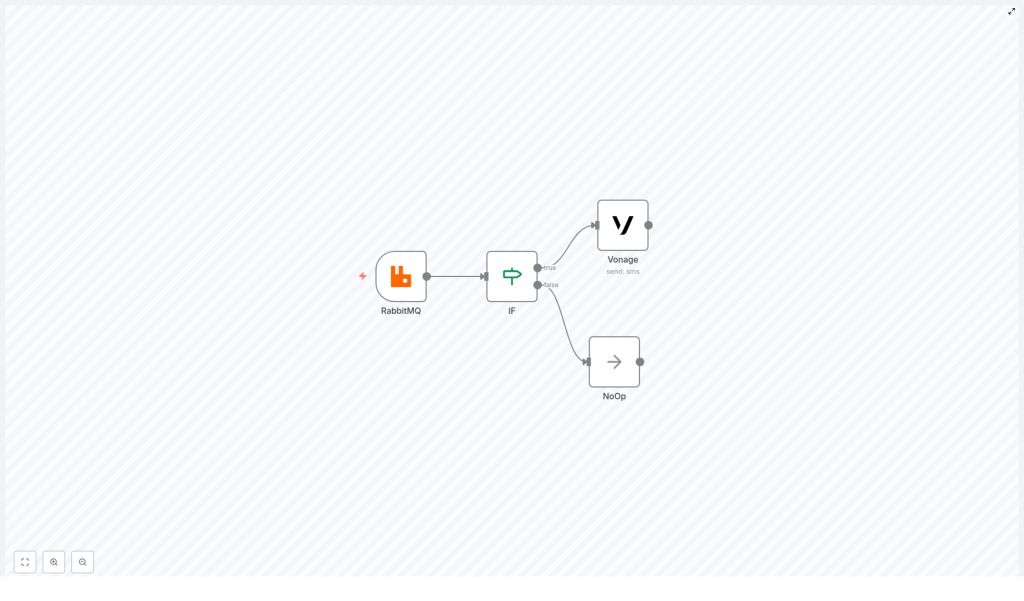
n8n: Receive messages from RabbitMQ and send an SMS alert
This tutorial walks you through a complete n8n workflow template that listens to a RabbitMQ queue, checks incoming data with an IF node, and sends an SMS alert with Vonage when a threshold is exceeded. The example use case is a temperature alert: if temp > 50, send an SMS, otherwise do nothing.
What you will learn
By the end of this guide, you will be able to:
- Import and use a ready-made n8n workflow template (Workflow ID: 186).
- Configure a RabbitMQ Trigger node to consume JSON messages from a queue.
- Use an IF node in n8n to compare numeric values and branch logic.
- Send SMS alerts with the Vonage node using dynamic data from your messages.
- Extend the false branch with your own logic, such as logging or storage.
- Troubleshoot common issues with RabbitMQ, JSON parsing, and SMS delivery.
Core idea: Event-driven SMS alerts with n8n
n8n is an open source workflow automation tool that connects services through nodes. In this template, you connect:
- RabbitMQ as a message broker that receives telemetry or event data.
- n8n as the automation engine that evaluates this data.
- Vonage as the SMS provider that notifies people in real time.
Your applications publish messages (for example, sensor readings) into a RabbitMQ queue. n8n listens to that queue, checks whether the temperature is above a limit, and if so, triggers a Vonage SMS to alert operators or on-call staff.
How the workflow is structured
At a high level, the template contains four nodes connected in a simple branching flow:
- RabbitMQ Trigger node – Listens for messages on a queue, for example
"temp". - IF node – Compares the temperature value in the message with a threshold, such as
50. - Vonage (Send SMS) node – Runs on the IF “true” branch to send an SMS alert.
- NoOp node – Runs on the IF “false” branch and does nothing. It is a placeholder that you can replace with your own logic.
This pattern is easy to adapt to other metrics, such as CPU load, error counts, or stock levels. You only need to change the condition and the message content.
Prerequisites
Before you start, make sure you have:
- An n8n instance, either self-hosted or on n8n.cloud.
- An accessible RabbitMQ server that n8n can connect to (correct hostname, port, user, password, and vhost).
- A Vonage account with SMS capabilities and credentials:
- API Key
- API Secret
- A virtual number or approved sender ID, depending on your region
- Basic familiarity with:
- JSON message structure
- n8n node configuration and expressions
Step 1 – Import the n8n RabbitMQ to SMS template
The workflow is available as a JSON template (Workflow ID: 186). To use it:
- Open your n8n editor.
- Use the import feature and paste or upload the JSON template for Workflow ID 186.
- After import, you should see four nodes:
- RabbitMQ Trigger
- IF
- Vonage
- NoOp
- Do not activate the workflow yet. First, review and update:
- Credentials for RabbitMQ and Vonage.
- Queue name in the RabbitMQ Trigger node.
- Phone numbers in the Vonage node.
Step 2 – Configure the RabbitMQ Trigger node
The RabbitMQ Trigger node is responsible for receiving messages from your queue.
Key configuration options
- Queue: Set this to the name of your queue, for example
temp. - Options:
onlyContent = true– This tells n8n to treat the message body as the main content and ignore transport metadata in the JSON.jsonParseBody = true– This parses the message body as JSON and converts it into object fields you can access in expressions.
With jsonParseBody enabled, if a message body looks like this:
{  "temp": 72
}
then in n8n you can access the value using:
$node["RabbitMQ"].json["temp"]If your message structure is nested, for example:
{  "payload": {  "data": {  "temp": 72  }  }
}
you would access it with:
$node["RabbitMQ"].json["payload"].data.tempStep 3 – Build the condition with the IF node
The IF node decides whether an SMS should be sent. It checks if the temperature is higher than a defined threshold.
Configure the IF node
In the IF node, add a numeric condition:
Conditions -> Number
value1: ={{$node["RabbitMQ"].json["temp"]}}
value2: 50
operation: larger
Important details:
- Use the expression syntax
= {{$node["RabbitMQ"].json["temp"]}}so the IF node reads the numeric value from the RabbitMQ node output. - If your data is nested, adjust the path accordingly, for example:
{{$node["RabbitMQ"].json["payload"].data.temp}} - True branch: Runs when
temp > 50. - False branch: Runs when
temp <= 50.
Step 4 – Send alerts with the Vonage SMS node
On the IF node “true” branch, connect the Vonage node to send an SMS when the threshold is exceeded.
Basic Vonage node setup
- Credentials: Choose your previously configured Vonage API credentials (API key and secret) from the credential store.
- Recipient: Enter the phone number or numbers to notify. Use E.164 format where possible, for example
+15551234567. - Message: Use an expression to include the live temperature value:
Alert! The value of temp is {{$node["RabbitMQ"].json["temp"]}}.
Optional Vonage fields you can configure:
- From name or number, depending on your region and account settings.
- Client reference for correlating messages with your internal systems.
- Callback URLs for delivery receipts and advanced tracking.
Step 5 – Handle non-alert cases with the NoOp node
The NoOp node is connected to the IF “false” branch. By default, it does nothing and simply allows the workflow to end cleanly when the condition is not met.
You can replace the NoOp node with logic that better suits your use case, for example:
- Write non-critical readings to a database for historical analysis.
- Forward the message to another RabbitMQ queue for further processing.
- Log the event to a file, monitoring system, or dashboard metric.
Step 6 – Test the complete workflow
Once all nodes are configured, it is time to verify that everything works as expected.
1. Publish a test message to RabbitMQ
Use your preferred tool such as rabbitmqadmin, the HTTP API, or any AMQP client to publish a JSON message to the temp queue.
Publishing a JSON message to queue 'temp'
{  "temp": 72
}
2. Check the n8n execution
- Open the n8n editor and make sure the workflow is active.
- Go to the Executions panel and look for a new run triggered by the RabbitMQ message.
- Inspect the data on each node:
- Confirm the RabbitMQ Trigger node shows the JSON payload with the
tempvalue. - Check the IF node to see that the condition evaluated to “true” for
temp = 72.
- Confirm the RabbitMQ Trigger node shows the JSON payload with the
3. Verify SMS delivery
- Ensure the Vonage node executed successfully in the workflow.
- Check your phone for the SMS alert.
- Use the Vonage dashboard to inspect delivery status and any provider-level details.
Troubleshooting common issues
Messages do not arrive in n8n
- Confirm RabbitMQ connection details:
- Hostname and port.
- Username, password, and vhost.
- Check firewall rules to ensure n8n can reach the RabbitMQ server.
- Verify the queue name in the RabbitMQ Trigger node exactly matches the queue you publish to.
JSON body does not parse correctly
- Make sure
jsonParseBody = trueis enabled in the RabbitMQ Trigger node options. - Verify that your publisher sends valid JSON and, where relevant, the correct
Content-Typeheader. - Inspect the raw message in the node output to confirm the structure.
IF node always evaluates to false
- Inspect the RabbitMQ node output to see the real value of the field you are comparing.
- Check that the path in your expression is correct, for example:
{{$node["RabbitMQ"].json["temp"]}}for a flat structure.{{$node["RabbitMQ"].json["payload"].data.temp}}for nested data.
- If the value is a string, convert it to a number:
- Use a Set node to cast or normalize the value.
- Or use a Function node with
Number()to explicitly convert it.
SMS sending fails
- Double-check Vonage API credentials in the n8n credential store.
- Confirm that the sender ID or virtual number is allowed in your target country.
- Ensure recipient phone numbers are in a valid format, ideally E.164.
- Inspect the Vonage node output for error messages or codes for more guidance.
Debugging workflow data flow
- Insert a Set node between RabbitMQ and the IF node to log or reshape values.
- Use a Function node if you need more complex transformations or validation.
- Run the workflow in manual mode with test data to watch each node’s output step by step.
Security and reliability best practices
Protecting credentials
- Always store RabbitMQ and Vonage credentials in n8n’s encrypted credential store.
- Avoid hard-coding credentials inside workflow JSON, especially if you share templates.
Handling duplicate messages
- If RabbitMQ publishers might re-send messages, design for idempotency.
- Use a unique key per event to detect duplicates and avoid sending multiple SMS messages for the same event.
- Consider storing processed message IDs in a database or cache.
Rate limiting and cost control
- SMS providers, including Vonage, may apply rate limits and charge per message.
- Implement throttling or batching if you expect spikes in alerts.
- Consider grouping events and sending summary messages instead of one SMS per event.
Monitoring and audit
- Log all alerts to a database or log management system.
- Use these logs for audits, analytics, or to feed dashboards.
- Monitor workflow execution failures in n8n to catch issues early.
Ideas for extending the workflow
Once the basic RabbitMQ to SMS workflow is running, you can extend it in several ways.
- Deduplicate alerts:
- Add a Redis node or database step to store recent alerts.
- Skip sending an SMS if a similar alert was already sent within a defined time window.
- Aggregate notifications:
- Collect multiple events over N minutes.
- Send a summary SMS or email instead of one message per event.
- Route based on severity:
- Use additional IF or Switch nodes to categorize alerts by severity or sensor type.
- Send critical alerts to on-call engineers, and minor alerts to a shared channel.
- Store raw events:
- Write all incoming RabbitMQ messages to a data lake or time-series database.
- Build dashboards and visualizations on top of this historical data.
FAQ and quick recap
What does this template do in simple terms?
It listens to a RabbitMQ queue for messages containing a temperature value, checks if the temperature is above a threshold, and sends an SMS via Vonage if the threshold is exceeded. If not, it does nothing or runs whatever logic you put on the false branch.
Which nodes are included in the template?
- RabbitMQ Trigger
- IF
- Vonage (Send SMS)
- NoOp
Where do I change the threshold?
Update the value2 field in the IF node’s numeric condition. For example, change 50 to any other number that fits your alerting needs.
Where do I change the queue name?
In the RabbitMQ Trigger node configuration, set the Queue field to your desired queue name, such as temp.
How do I customize the SMS message text?
Edit the Message field in the Vonage node. You can use expressions to include dynamic data from the RabbitMQ node, for example:
Alert! Sensor {{ $node["RabbitMQ"].json["sensorId"] }} reported temp {{$node["RabbitMQ"].json["temp"]}}.
