


Automating TheHive Case Workflow with n8n: Create, Update & Get (So You Click Less and Chill More)
Imagine this: you are in the middle of something important, coffee in one hand, and suddenly you are stuck creating the same type of incident in TheHive for the 37th time this week. Click, type, tag, set severity, repeat. At some point, you start questioning your life choices.
Good news, your keyboard can retire from this repetitive torture. With an n8n workflow, you can automatically create a case in TheHive, update it with new details, then fetch it again to verify everything worked as expected. No more manual copy-paste marathons.
This guide walks you through a simple but powerful n8n + TheHive workflow pattern: create a case, update the case, then get the case. It is especially handy for security operations centers (SOCs) that want to automate incident ingestion, enrichment, and verification.
Why n8n + TheHive is such a good combo
Before we dive into the step-by-step setup, let us quickly look at what each tool brings to the party:
- n8n is an open-source workflow automation tool that lets you connect APIs and services with minimal pain and zero glue code. Drag, drop, configure, done.
- TheHive is an open-source security incident response platform (SIRP) that handles case management, collaboration, and investigation workflows.
When you connect them, you get a flexible automation pipeline that can:
- Create incidents programmatically, instead of someone manually typing forms all day.
- Enrich cases using external services like threat intel, WHOIS, or malware scanning.
- Verify and post-process results, then trigger follow-up actions like notifications or additional tasks.
In other words, you let automation handle the boring bits so humans can focus on the interesting security problems.
The workflow in plain English
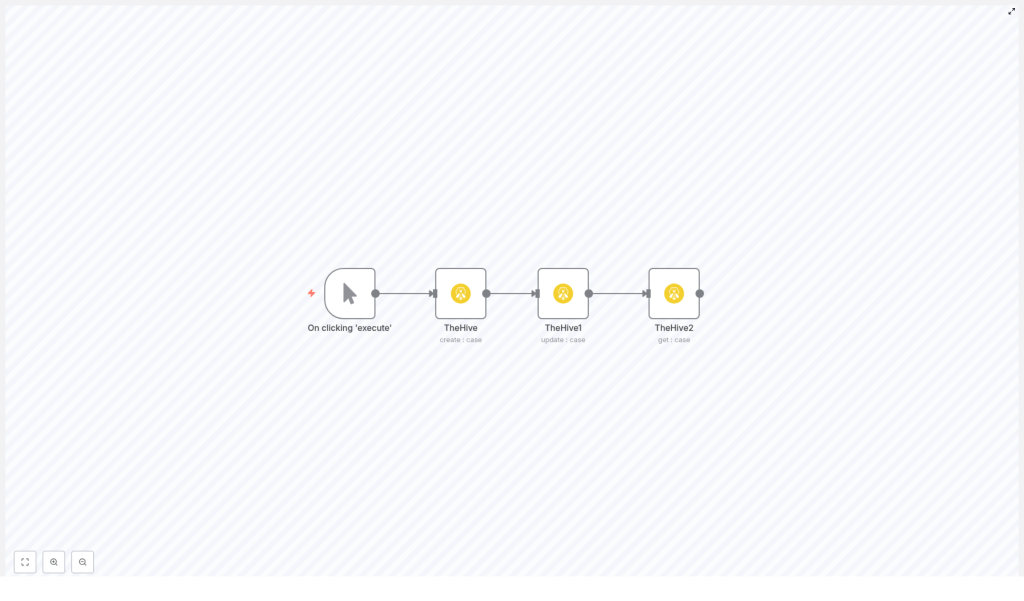
The example workflow consists of four nodes in n8n, wired up in a straight line:
- Manual Trigger – you click “Execute” to run the workflow while testing.
- TheHive (create : case) – creates a new case in TheHive.
- TheHive1 (update : case) – updates that same case, for example changing severity.
- TheHive2 (get : case) – retrieves the final state of the case.
Flow: Manual Trigger → Create Case → Update Case → Get Case.
The important bit: the create node returns the new case ID, and that ID is reused in the update and get nodes using n8n expressions. That is how n8n knows which exact case to touch, instead of just yelling into the void.
Quick setup guide: from zero to automated case in minutes
Step 1: Start with a Manual Trigger
To keep things simple while testing, begin with n8n’s Manual Trigger node. This lets you run the workflow on demand by clicking “Execute”.
Later, when you are confident it works and you are ready to go full automation, you can replace this with:
- An HTTP/Webhook trigger to ingest alerts from other systems.
- A Schedule trigger to run the workflow at regular intervals.
Step 2: Create a case in TheHive
Next, add a TheHive node and set the operation to create : case. This is where you define what your new incident looks like.
Key fields to configure:
- title – a short, descriptive title, for example
Suspicious login detected. - owner – the owner or team in TheHive that should handle the case.
- severity – severity level, often 1 to 3, depending on your TheHive setup.
- tags – useful labels for search and automation, for example
n8n, theHive. - startDate – an ISO timestamp for when the incident started.
- description – human-readable details about what is going on.
Example parameters inside the node might look like this:
{  "title": "n8n",  "owner": "Harshil",  "tags": "n8n, theHive",  "severity": 1,  "startDate": "2020-12-03T10:08:14.000Z",  "description": "Creating a case from n8n"
}
Make sure your TheHive credentials are set up in n8n, for example a credential named hive. The TheHive node uses those credentials to talk to TheHive’s API securely, so you do not have to paste tokens all over the place.
Step 3: Update the case you just created
Now add another TheHive node, often labeled something like TheHive1, and set the operation to update : case.
You need to tell this node which case to update. Instead of manually typing an ID, you use an expression that grabs the ID from the previous node’s output:
id: ={{$node["TheHive"].json["id"]}}
This expression says: “Look at the node named TheHive, grab its JSON output, and use the id field.” That is the case ID returned by the create operation.
Then define what you want to change. For example, you might increase the severity to 3:
{  "updateFields": {  "severity": 3  }
}
This pattern keeps your workflow predictable and repeatable: you create a case with some initial details, then immediately update it with enriched or adjusted information.
Step 4: Get the case and confirm everything worked
Finally, add a third TheHive node, often called TheHive2, and set its operation to get : case.
Again, use the same expression to reference the case ID from the original create node:
id: ={{$node["TheHive"].json["id"]}}
This node fetches the latest version of that case from TheHive. At this point you can:
- Verify that the severity and other fields were updated correctly.
- Branch the workflow to send notifications to Slack or Microsoft Teams.
- Create tasks, launch enrichment jobs, or push data into other systems.
How n8n expressions keep the data flowing
One of the reasons this workflow works so smoothly is n8n’s expressions. They are the glue that passes data from one node to another without you manually copying IDs or fields.
When the TheHive create node runs, it returns a JSON object that includes the new case and its id. You can reference any field from that JSON using a pattern like:
{{$node["NodeName"].json["fieldName"]}}
In this workflow, you use the case ID twice:
- Update node ID:
={{$node["TheHive"].json["id"]}} - Get node ID:
={{$node["TheHive"].json["id"]}}
If the response includes arrays or nested objects, you can use dot notation or indexes, for example:
{{$node["TheHive"].json["artifacts"][0]["data"]}}
Once you get comfortable with expressions, you will start wiring up much more complex logic without writing full scripts.
Make it safer: guard the update with an IF node
APIs occasionally have bad days. To avoid trying to update a case that never got created, you can insert an IF node right after the create step.
The IF node checks if the returned case ID actually exists before moving on:
// Pseudocode for IF condition
{{$node["TheHive"].json["id"]}} exists → true branch → Update node
else → false branch → send alert or stop
If the ID is missing, you can send an alert, log the failure, or simply stop the workflow gracefully instead of throwing an error. Your future self will thank you when debugging at 2 a.m.
Best practices so your automation behaves nicely
Once the basic workflow is running, you can make it more robust and production ready with a few tweaks.
- Credentials – store TheHive API credentials securely in n8n. Avoid hardcoding secrets in expressions or node parameters.
- Validation – use Function or IF nodes to confirm that required fields like
idare present before calling update or get. - Retries – configure n8n’s retry options or build a retry pattern if TheHive is temporarily unavailable.
- Rate limits – respect TheHive’s API limits. Add small delays if you are ingesting high volumes of incidents.
- Error handling – use a Catch node to handle failed API calls and route them to logs, email alerts, or Slack notifications.
- Enrichment – after creating a case, call external services like threat intel, WHOIS, or VirusTotal, then update the case with the results.
- Auditability – add tags or custom fields to mark which workflow created or modified a case. This makes audits and troubleshooting much easier.
When this create → update → get pattern shines
This simple pattern might look basic, but it is surprisingly versatile. It is ideal when you want to:
- Ingest incidents from emails, SOAR detections, or webhook alerts into TheHive.
- Enrich incidents asynchronously before letting teammates know about them.
- Automate repetitive triage tasks like assigning owners, setting severity, or adding tags.
In other words, anytime you find yourself doing the same case creation and follow-up steps over and over, this workflow can probably take that job off your plate.
Security and governance: automation with guardrails
Since this workflow can create and modify cases automatically, it is worth thinking about access control and governance.
- Use a dedicated API account for n8n with scoped permissions in TheHive.
- Enable logging so you know which workflow changed what and when.
- Document which workflows are allowed to change severity, ownership, or other sensitive fields.
That way, you get the benefits of automation without losing visibility or control over your incident lifecycle.
Next steps: leveling up your n8n + TheHive automation
Once the basic create-update-get flow is working, you can expand it into a more complete automation pipeline.
- Add enrichment – branch the flow to call external APIs, attach artifacts to the case, and then update the case with new data.
- Notify your team – send a summary of the final case to Slack or Microsoft Teams using the data from the get node.
- Use HTTP Request for advanced features – if the TheHive node does not expose a specific option, call TheHive’s API directly using n8n’s HTTP Request node.
- Store the case ID – save the case ID in a database so you can correlate it later with logs, tickets, or other systems.
Each of these additions turns your simple workflow into a more complete SOC automation playbook.
Wrapping up: a small template with big impact
Connecting n8n and TheHive gives you a lightweight but powerful way to automate your incident lifecycle. The pattern is simple:
- Create a case in TheHive.
- Update it with new or enriched information.
- Get the final version and use it to drive the rest of your workflow.
By using expressions to pass the case ID between nodes, adding some basic error handling, and extending the flow with enrichment or notifications, you can turn repetitive triage work into an automated pipeline that just quietly does its job in the background.
Try the n8n + TheHive workflow template now
Ready to give your mouse and keyboard a break?
- Recreate the flow in your own n8n instance.
- Configure your TheHive credentials.
- Replace the sample values like
titleandownerwith your own. - Run it using the Manual Trigger to confirm everything works.
If you prefer to start from something already built, you can clone the sample workflow template and tweak it for your environment instead of building from scratch.
Call to action: Test this workflow in n8n with your TheHive instance today and start automating those routine triage tasks. If you need help adapting it to your specific use case, just share your workflow goals and I will suggest improvements.
