


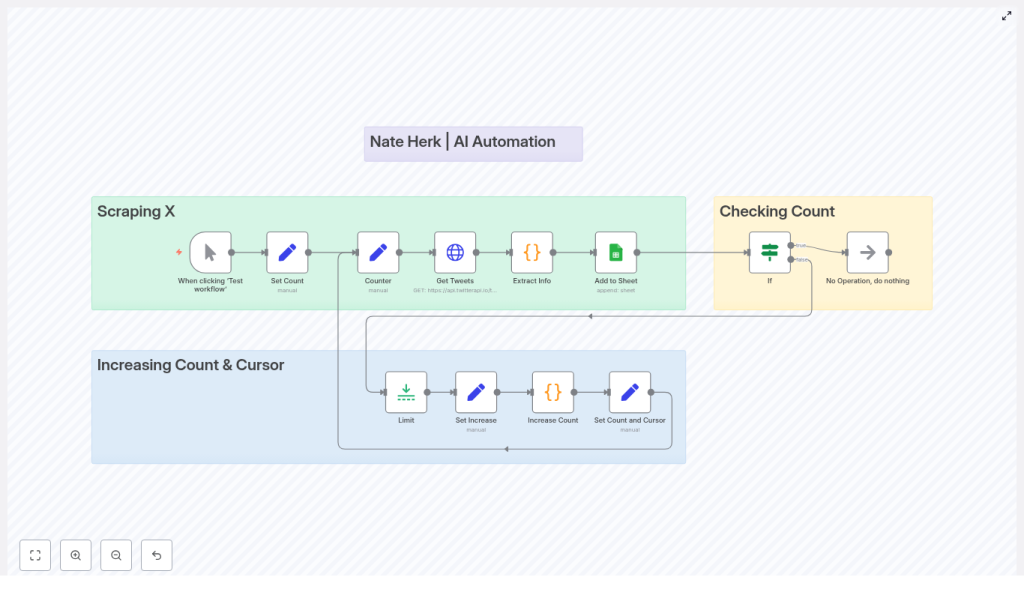
n8n Twitter/X Scraper Template – Setup, How It Works, and Enhancements
Imagine this: you are copying Tweets into a spreadsheet like it is 2009, your coffee is cold, and your soul has left the chat. If that sounds familiar, it is time to let automation do the boring stuff while you pretend it was your plan all along.
This n8n Twitter/X Scraper template does exactly that. It grabs Tweets (X posts) using an API, cleans up the data, and drops everything neatly into a Google Sheet. It handles pagination, counting, and basic safety around rate limits so you do not have to babysit your browser or your spreadsheet.
Below is a friendly walkthrough of what the template does, how the key nodes work, how to set it up, and how to take it from “fun experiment” to “reliable production workflow.”
What this n8n Twitter/X Scraper template actually does
At a high level, this workflow:
- Calls a Twitter/X search endpoint (or a compatible API exposing an
advanced_searchstyle endpoint). - Uses a cursor-based pagination loop with a counter so you can pull multiple pages of results without going infinite.
- Normalizes the data into clean fields like Tweet ID, URL, content, likes, retweets, and created date.
- Appends those fields into a Google Sheet using the Google Sheets node.
The result is a repeatable, configurable Tweet scraping pipeline that you can run on demand or on a schedule, without ever manually copying and pasting again.
Before you start: prerequisites
To get this n8n workflow template running, you will need:
- An n8n instance (cloud or self-hosted).
- Access to a Twitter/X API endpoint or a service that exposes a compatible
advanced_searchendpoint, along with API credentials. - A Google account with:
- A Google Sheet ready to receive Tweet data.
- OAuth credentials configured in n8n for the Google Sheets node.
- Basic familiarity with n8n:
- Using expressions like
{{ $json.fieldName }}. - Working with Function / Code nodes for light JavaScript logic.
- Using expressions like
How the Twitter/X Scraper workflow is structured
Instead of one giant mystery node, the template uses several small, understandable building blocks. Here is how the main pieces fit together:
1. Manual Trigger – starting things up
The template starts with a Manual Trigger. You hit “Test workflow” in n8n, it runs once, and you see what happens. For production use, you will typically swap this out for a Cron or Webhook trigger, but manual mode is perfect while you are still tweaking queries and sheet mappings.
2. Set Count – initializing the counter
This node sets up an initial counter value, usually starting at 1. That counter acts as your “number of pages processed” tracker. It is used later to decide when the workflow should stop looping so you do not accidentally scrape half of X in one go.
3. Counter – keeping state in the loop
The Counter node stores the current counter and cursor values and passes them around the loop. It is the little backpack of state that travels through each iteration, so every request knows:
- Which page you are on (
counter). - Which cursor to use for the next page (
cursor).
4. Get Tweets (HTTP Request) – talking to the API
The Get Tweets node is an HTTP Request that calls your Twitter/X search endpoint. In the template, it uses query parameters such as:
query=OpenAI– the search term.queryType=Top– the type of results.cursor– used for pagination between result pages.
Make sure you configure this node with the correct authentication credentials that match your API or service. If auth is wrong, you will know quickly, because nothing will come back except error messages and regret.
5. Extract Info (Code Node) – cleaning and shaping the data
The raw API response is usually not something you want to drop straight into a spreadsheet. The Extract Info Code node:
- Normalizes the API response into n8n items.
- Maps useful fields like:
tweetIdurlcontentlikeCountretweetCountcreatedAt(formatted as a readable date)
This is the step that turns messy JSON into structured rows that play nicely with Google Sheets.
6. Add to Sheet (Google Sheets) – writing to your spreadsheet
Next, the Add to Sheet node appends the formatted Tweet data to your target Google Sheet. The columns in this node are configured to match the fields coming out of Extract Info. Once configured, every run adds new rows with fresh Tweet data.
7. If (Checking Count) – deciding when to stop
To avoid endless loops, an If node checks the counter value against a threshold. For example, the template may stop after 3 pages of results:
- If
counter == 3, the workflow stops. - Otherwise, it keeps looping and pulls the next page.
This is your safety net so the workflow behaves and does not keep scraping forever.
8. Limit – pacing your requests
The Limit node is used for pacing and controlling concurrency. It helps you:
- Limit how many items get processed in a single run.
- Slow down rapid-fire API calls to avoid hitting rate limits.
Think of it as the “take a breath” node for your workflow.
9. Increasing Count & Cursor – advancing the loop
Inside the “Increasing Count & Cursor” sub-flow, you will find a small cluster of nodes that update your loop state:
- Set Increase – preps values that will be updated.
- Increase Count (Function/Code node) – increments the counter by 1.
- Set Count and Cursor – writes the updated
counterand newcursorback into the loop state for the next iteration.
This keeps your pagination moving forward page by page, without manually tracking anything.
Pagination and state handling in n8n
Twitter/X style APIs often use a cursor to move between pages instead of simple page numbers. The template is built around this cursor-based pagination model.
Here is what happens on each loop:
- The API response includes a
next_cursor(or similarly named field). - The Extract Info or Increase Count logic grabs that cursor value.
- The updated cursor is stored in the loop state (via the Counter-related nodes).
- On the next iteration, the Get Tweets HTTP Request sends that cursor as a parameter.
This way, the workflow walks through pages sequentially instead of guessing page numbers or refetching the same data.
Key expressions used in the template
The template uses some common n8n expressions to reference values like the counter and cursor:
{{ $('Counter').item.json.counter }}
{{ $json.cursor }}
{{ $json.count }}
These expressions help nodes read from and write to the shared loop state so everything stays in sync.
Step-by-step: setting up and testing the workflow
1. Import and connect your accounts
- Import the Twitter/X Scraper template into your n8n instance.
- Open the Get Tweets HTTP Request node and:
- Configure your Twitter/X or compatible API credentials.
- Adjust query parameters such as
queryandqueryTypeto match what you want to search.
- Open the Add to Sheet node:
- Select your Google Sheets credentials.
- Choose the target spreadsheet and worksheet.
- Map the columns to fields produced by
Extract Info.
2. Do a safe test run
To avoid flooding your sheet on the first try:
- Use the Manual Trigger to run the workflow.
- Set the stopping threshold in the If node to something small, like 1 or 2, so you only fetch a couple of pages.
- Check your sheet to confirm that:
- Columns line up with the data you expect.
- Dates look right.
- Content with emojis or long text is stored correctly.
3. Inspect and debug the API response
If anything looks off, use the Extract Info node to temporarily log or inspect the full API payload. This helps you verify:
- Field names and nesting in the response.
- Differences between single-tweet and multi-tweet responses.
- Where the cursor or next page token actually lives.
Make sure your code handles both single and multiple Tweet structures so it always outputs a consistent format to Google Sheets.
Handling rate limits and making the workflow reliable
APIs are not huge fans of being hammered with requests. To keep your n8n Twitter/X Scraper friendly and stable, consider these best practices:
- Respect rate limits:
- Use the Limit node to control how many items or pages you process in one run.
- Add explicit delays or pacing logic if your API plan is strict.
- Implement retries with backoff:
- Configure retries directly in the HTTP Request node if supported.
- Or add extra logic nodes to retry on 4xx/5xx responses with increasing delay.
- Persist state externally:
- Store cursors or last-run timestamps in a database (SQLite, Redis) or a dedicated Google Sheet.
- This prevents refetching the same pages after a restart or deployment.
- Use environment variables for secrets:
- Keep API keys and secrets in n8n credentials and environment variables.
- Avoid hardcoding credentials directly in nodes or code.
- Deduplicate before writing:
- Use Tweet ID as a unique key.
- Check for existing entries in the sheet before appending to avoid duplicates.
Production-ready improvements and extensions
Once your test runs look good and your sheet is filling up nicely, you can start upgrading the workflow for real-world use.
1. Replace Manual Trigger with Cron
Instead of manually clicking “Test workflow,” use a Cron trigger to schedule scraping:
- Run hourly for active monitoring.
- Run daily for slower-moving topics.
Always align your schedule with your API rate limits so you do not run into errors or throttling.
2. Persist state between runs
To avoid fetching the same Tweets again and again, store your cursor and last-run metadata somewhere external, such as:
- A lightweight database like SQLite or Redis.
- A configuration tab in Google Sheets.
This lets the workflow resume exactly where it left off and keeps your data collection tidy.
3. Add robust error handling
For a more resilient workflow:
- Wrap the HTTP Request logic in a try/catch style pattern using additional nodes.
- Detect 4xx and 5xx responses and:
- Trigger alerts via Slack or email if failures repeat.
- Apply retry logic with increasing delay between attempts.
4. Use official Twitter API v2 endpoints if available
If you have access to the official Twitter API v2, consider moving the template to those endpoints to unlock richer fields like:
- Media information.
- Context annotations.
- Detailed public metrics.
When you do this, update the Extract Info node to map any new fields you care about into your sheet.
5. Enrich your data
You can also add extra processing steps between extraction and Sheets, such as:
- Sentiment analysis to tag Tweets as positive, negative, or neutral.
- User metrics lookups for additional profile context.
- Topic or category classification via external APIs.
This turns your sheet from “raw Tweets” into a lightweight analytics dataset.
Security, compliance, and being a good API citizen
Even when automation makes life easier, it is important to stay on the right side of platform rules and privacy expectations:
- Follow the platform’s Terms of Service and any API usage guidelines.
- Avoid scraping private content or using data in ways that could violate user privacy.
- Rotate API keys when needed, and always store secrets securely using n8n credentials.
Troubleshooting common issues
If something is not working, here are some typical problems and where to look first:
- No results returned:
- Check your search query syntax.
- Confirm your account has the required API permissions.
- Verify that pagination is returning valid cursors.
- Rate limit errors:
- Reduce how often the workflow runs.
- Increase delays between requests.
- Process fewer items per run.
- Incorrect date or field mapping:
- Inspect the API payload in the Extract Info node.
- Update your date formatting helper or remap keys to match the actual response.
- Duplicate rows in Sheets:
- Implement a lookup step before appending new rows.
- Use a sheet or logic that supports update or merge by Tweet ID.
Sample code snippet for incrementing the counter
Here is an example Function node used to increase the count value in the loop:
// n8n Function node (Increase Count)

const items = $input.all();

return items.map(item => {  if (!item.json
