


Build an Automated Unpaid Invoice Reminder in n8n
If you are tired of chasing unpaid invoices by hand, you are not alone. Following up is important, but it is also repetitive, easy to forget, and honestly, not the most fun part of running a business. That is where this n8n workflow template comes in.
In this guide, we will walk through a ready-made n8n automation that sends smart, contextual unpaid invoice reminders using Webhooks, text splitting, vector embeddings, Weaviate, a RAG (retrieval-augmented generation) agent, Google Sheets, and Slack. Think of it as a polite, always-on assistant that never forgets to nudge your clients and keeps your accounting log tidy at the same time.
What this n8n template actually does
This workflow takes invoice data from your system, looks up relevant context like past emails or notes, and then uses a language model to write a friendly, personalized reminder. It also logs what happened to a Google Sheet and pings your Slack channel if something fails.
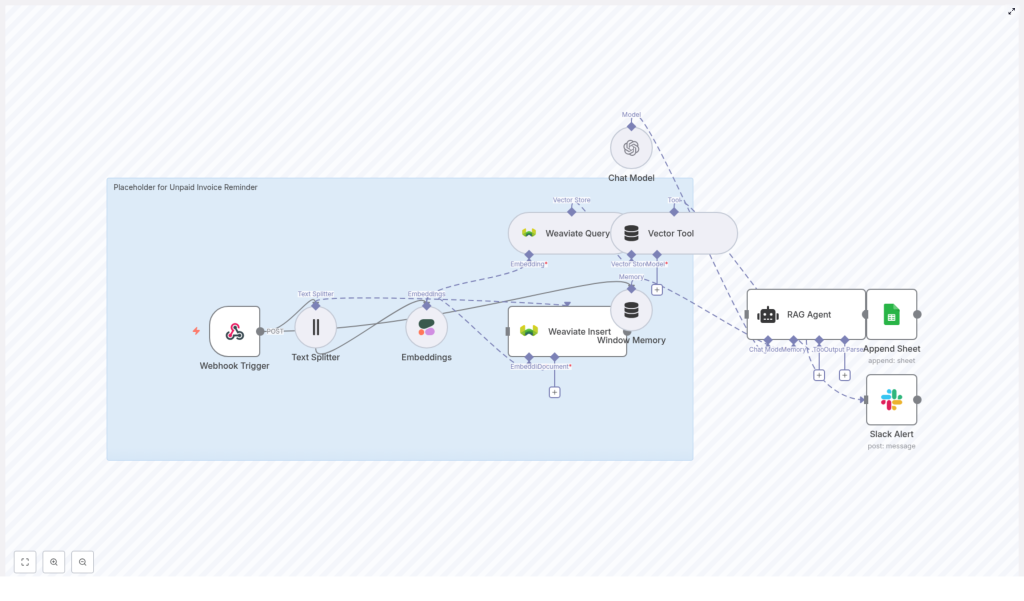
Here is a quick look at the main building blocks inside the template:
- Webhook Trigger – entry point that receives invoice data or a scheduled event at
POST /unpaid-invoice-reminder. - Text Splitter – breaks long notes or message histories into smaller chunks.
- Embeddings (Cohere) – turns each text chunk into a vector embedding for semantic search.
- Weaviate Insert & Query – stores and retrieves those embeddings and their metadata.
- Vector Tool – formats the retrieved documents so the RAG agent can use them effectively.
- Window Memory – short-term memory that keeps recent context available during processing.
- Chat Model (OpenAI) – the language model that actually writes the reminder message.
- RAG Agent – coordinates retrieval from Weaviate, memory, and the LLM to produce a contextual reminder.
- Append Sheet (Google Sheets) – logs reminder status and any extra info you want to track.
- Slack Alert – sends an alert to your
#alertschannel if something goes wrong.
When should you use this workflow?
This template is a great fit if you:
- Regularly send invoices and sometimes forget to follow up.
- Want reminders that sound human, not robotic.
- Need a traceable log of every reminder sent for accounting or reporting.
- Already use tools like Google Sheets, Slack, and an invoicing system that can hit a webhook.
Instead of manually writing, copying, and pasting the same type of email again and again, you can let n8n handle it and only step in when something special comes up.
Why automate invoice reminders in the first place?
Manual follow-ups are easy to delay or skip, and the tone can vary a lot from one message to the next. Automation fixes that.
With an automated unpaid invoice reminder workflow in n8n, you:
- Save time by eliminating repetitive follow-up tasks.
- Reduce late payments with consistent, timely nudges.
- Keep your cash flow healthier with less effort.
- Maintain a polite, professional tone every single time.
- Capture all activity in a log so you know exactly what was sent and when.
The extra twist here is the use of vector search and a language model. Instead of sending a generic reminder, the workflow can pull in invoice history, previous payment promises, or special terms and use that to write a more thoughtful, contextual message.
How the workflow pieces fit together
Let us walk through what happens behind the scenes when an unpaid invoice triggers this n8n automation.
1. Webhook receives invoice data
Everything starts with the Webhook Trigger. Your invoicing system or a scheduled job sends a POST request to /unpaid-invoice-reminder with details like:
- Invoice ID
- Client name or ID
- Due date
- Amount due
- Notes or previous communication
This payload becomes the raw material for the rest of the workflow.
2. Long text is split and embedded
If you have long notes or email threads, the Text Splitter node breaks them into smaller, overlapping chunks so they can be embedded cleanly. For example, you might use:
chunkSize: 400chunkOverlap: 40
Those chunks are then passed into a Cohere Embeddings node, using a model such as embed-english-v3.0. Each chunk is converted into a vector representation that captures the meaning of the text, not just the exact words.
3. Weaviate stores your invoice context
The embeddings and associated metadata are sent to a Weaviate Insert node. Here you store:
- The text chunk itself.
- The embedding vector.
- Metadata like invoice ID, date, client ID, or any tags you want.
This turns your invoice notes and communication history into a searchable knowledge base that you can query later using semantic similarity instead of simple keyword matching.
4. Relevant context is retrieved when needed
When it is time to generate a reminder for a specific unpaid invoice, the workflow uses a Weaviate Query node. It queries Weaviate with invoice details or client information to find the most relevant stored documents.
The results from Weaviate are then passed through a Vector Tool node, which formats and prepares the retrieved context in the way your RAG Agent expects. This might include trimming, concatenating, or structuring the snippets so the agent can use them effectively.
5. Short-term memory and the LLM come into play
To keep everything coherent within a single run, the workflow uses Window Memory. This acts as short-term memory that holds recent context, such as what has already been processed or any intermediate decisions.
The Chat Model (OpenAI) is wired in as the language model that will write the actual reminder text. The RAG agent sends it a combination of:
- System instructions (how to write).
- Retrieved context from Weaviate.
- Current invoice details and memory.
6. The RAG agent orchestrates everything
The RAG Agent is the conductor. It takes in:
- The documents returned by Weaviate.
- The short-term context from Window Memory.
- Your system prompt that defines tone, structure, and required fields.
For example, a typical system instruction might look like:
System: You are an assistant for Unpaid Invoice Reminder; produce a short, polite reminder including invoice number, amount due, due date, and call-to-action to pay.
The agent then calls the Chat Model (OpenAI) with all of that information and gets back a polished, human-friendly reminder message that acknowledges any important notes, such as previous promises to pay.
7. Logging and error alerts
Once the reminder is generated, the workflow writes a log entry using a Google Sheets Append node. You can use a sheet called something like Log and include columns such as:
- Status
- Invoice ID
- Client name
- Reminder date
- Any other fields you want to track
If anything fails along the way, an onError path routes the problem to a Slack node. This sends a message to your #alerts channel so your team can quickly jump in and fix the issue, instead of silently missing reminders.
Step-by-step: setting up the n8n template
Now let us go through the setup in a more practical, node-by-node way. You can follow this checklist while configuring the template.
1. Create and configure the Webhook
- Add a Webhook node in n8n.
- Set the HTTP method to POST.
- Use a path like
/unpaid-invoice-reminder. - Connect your invoicing app or scheduler so it sends unpaid invoice data to this endpoint.
2. Split long text and create embeddings
- Add a Text Splitter node and connect it to the Webhook output.
- Configure it with a chunk size and overlap, for example:
chunkSize: 400chunkOverlap: 40
- Attach a Cohere Embeddings node using a model such as
embed-english-v3.0. - Map the text chunks from the Text Splitter to the Embeddings node input.
3. Store your vectors in Weaviate
- Add a Weaviate Insert node and connect the output of the Embeddings node.
- Configure your Weaviate credentials and class/schema.
- Store:
- Original text chunk.
- Embedding vector.
- Metadata like invoice ID, client ID, date, or tags.
4. Query Weaviate for related context
- Add a Weaviate Query node for the reminder generation path.
- Build a query based on the invoice or client details.
- Return the top relevant documents for the specific unpaid invoice.
- Feed the results into a Vector Tool node to shape the data in the format expected by your RAG Agent.
5. Configure Window Memory and the Chat Model
- Add a Window Memory node to maintain short-term context across steps.
- Set up a Chat Model (OpenAI) node with your chosen model and API key.
- Ensure the RAG Agent uses this Chat Model for generating the reminder text.
6. Set up the RAG Agent orchestration
- Add a RAG Agent node.
- Connect:
- Retrieved documents from the Vector Tool node.
- Context from Window Memory.
- Invoice details from the Webhook or earlier nodes.
- Provide a clear system instruction, for example:
You are an assistant for Unpaid Invoice Reminder; produce a short, polite reminder including invoice number, amount due, due date, and call-to-action to pay.
7. Log activity and send Slack alerts
- Add a Google Sheets Append node after the RAG Agent.
- Point it to your accounting or logging spreadsheet and a sheet like
Log. - Include at minimum a
Statuscolumn and any other fields you want to track. - From the RAG Agent (or a central part of the workflow), configure an onError branch that leads to a Slack node.
- Set the Slack node to notify your
#alertschannel about failures or exceptions.
Prompt templates for consistent reminders
Clear prompts help the language model stay on-brand and avoid awkward wording. You can customize these, but here is a solid starting point.
System prompt example
Use a system message that defines tone, structure, and required fields:
System: You are an assistant that writes unpaid invoice reminders. Keep tone polite and professional. Include invoice number, amount due, due date, and payment link. If there are previous payment promises or notes, acknowledge them briefly.
User prompt example
Then pass a user prompt that includes the current invoice and any retrieved context. For example:
User: Compose a reminder for Invoice #12345 for Acme Co., amount $2,350, due 2025-10-10. Relevant notes: [retrieved documents].
In the actual workflow, [retrieved documents] is filled in by the Vector Tool and RAG Agent with the relevant snippets from Weaviate.
Best practices and security tips
Since this workflow touches external services and potentially sensitive data, it is worth locking it down properly.
- Store all API keys for Cohere, Weaviate, OpenAI, Google Sheets, and Slack using n8n credentials or environment variables.
- Protect your webhook with authorization tokens, IP allowlists, or other access controls.
- Validate and sanitize incoming data so malicious content does not end up in your logs or prompts.
- Monitor usage costs, since embeddings and LLM calls can add up. Batch operations where it makes sense.
- Version your Weaviate schema and keep backups of vector data to avoid accidental loss.
Testing and troubleshooting your n8n automation
Instead of turning everything on at once, it is easier to test in stages.
- Start with the Webhook: Send a sample payload and verify that n8n receives it correctly.
- Add logging: Temporarily log intermediate outputs so you can see exactly what each node is doing.
- Enable Text Splitter and Embeddings: Confirm that chunks are generated and embeddings are created without errors.
- Test Weaviate Insert and Query: Make sure data is stored and can be retrieved with meaningful results.
- Turn on the RAG Agent: Once context retrieval looks good, enable the agent and inspect the generated reminders.
If the reminder text looks off or irrelevant, check:
- Which documents are coming back from Weaviate.
- Whether your query filters or similarity thresholds need tweaking.
- Whether the system and user prompts are clear about what you want.
Use cases and easy extensions
Once you have the core unpaid invoice reminder workflow running, you can build on it quite a bit. Here are some ideas:
- Follow-up sequences: Create multiple reminder stages, such as:
- A soft nudge shortly after the due date.
- A firmer reminder after a set number of days.
- A final escalation message before collections.
- Multichannel delivery: Add email or SMS nodes so reminders go out through the channel your clients respond to fastest.
- Deeper personalization: Include client name, payment history, or custom payment terms to make messages more compelling and relevant.
- Analytics and reporting: Use your Google Sheets log as the data source for a dashboard that tracks days-to-pay, response rates, and follow-up efficiency.
Wrapping up
By combining n8n with Cohere embeddings, Weaviate vector search, and a RAG agent powered by OpenAI, you get more than a simple reminder script. You get an intelligent unpaid invoice reminder system that is:
