


n8n WhatsApp Audio Transcription & TTS Workflow
Imagine opening WhatsApp in the morning and seeing that every voice note, every audio question, and every voicemail has already been transcribed, answered with AI, turned back into audio, and sent as a helpful reply – all without you lifting a finger.
This is the kind of leverage that automation gives you. In this guide, you will walk through an n8n workflow template that receives WhatsApp media via a webhook, decrypts incoming audio, video, image, or documents, transcribes audio with OpenAI, generates a smart text response, converts it to speech (TTS), stores the audio on Google Drive, and sends a reply back via an HTTP API such as Wasender.
Use it to automate voice responses, voicemail transcriptions, or build conversational WhatsApp agents that work while you focus on higher value work. Treat this template as a starting point for your own automation journey, not just a one-off integration.
The problem: manual handling of WhatsApp voice notes
Voice messages are convenient for your customers and contacts, but they can quickly become a time sink for you and your team. Listening, interpreting, responding, and following up can eat into hours of your day, especially across different time zones.
Some common challenges:
- Listening to every single voice note just to understand the request
- Manually writing responses or recording reply audios
- Copying data into other tools like CRMs, support systems, or docs
- Missing messages because you were offline or busy
These are not just small annoyances. Over time, they slow your growth and keep you stuck in reactive mode.
The possibility: a smarter, automated WhatsApp workflow
Automation changes the story. With n8n, you can design a workflow that listens for WhatsApp messages 24/7, understands them with AI, and responds in a human-like way, in the same format your users prefer: audio.
This specific n8n workflow template:
- Automatically decrypts WhatsApp media (image, audio, video, document) sent to your webhook
- Uses OpenAI speech models to transcribe audio into text
- Runs the text through a GPT model to generate a contextual, natural language response
- Converts that response back into audio via text-to-speech (TTS)
- Stores the generated audio in Google Drive and creates a public share link
- Sends the audio reply back to the original sender through an HTTP API such as Wasender
In other words, you are building a full pipeline from WhatsApp audio to AI understanding and back to WhatsApp audio again. Once running, it saves you time on every single message and becomes a foundation you can keep improving.
Mindset: treat this template as your automation launchpad
This workflow is more than a recipe. It is a pattern you can reuse across your business. When you import it into n8n, you are not just solving one problem, you are learning how to:
- Receive webhooks from external platforms
- Decrypt and process media securely
- Use OpenAI models for transcription and conversation
- Handle files with Google Drive
- Call external APIs to send messages back
Start with the template as provided, then iterate. Change the prompts, add logging, store transcripts, or connect to your CRM. Each small improvement compounds into a more focused, more automated workflow that supports your growth instead of holding it back.
The architecture: how the workflow fits together
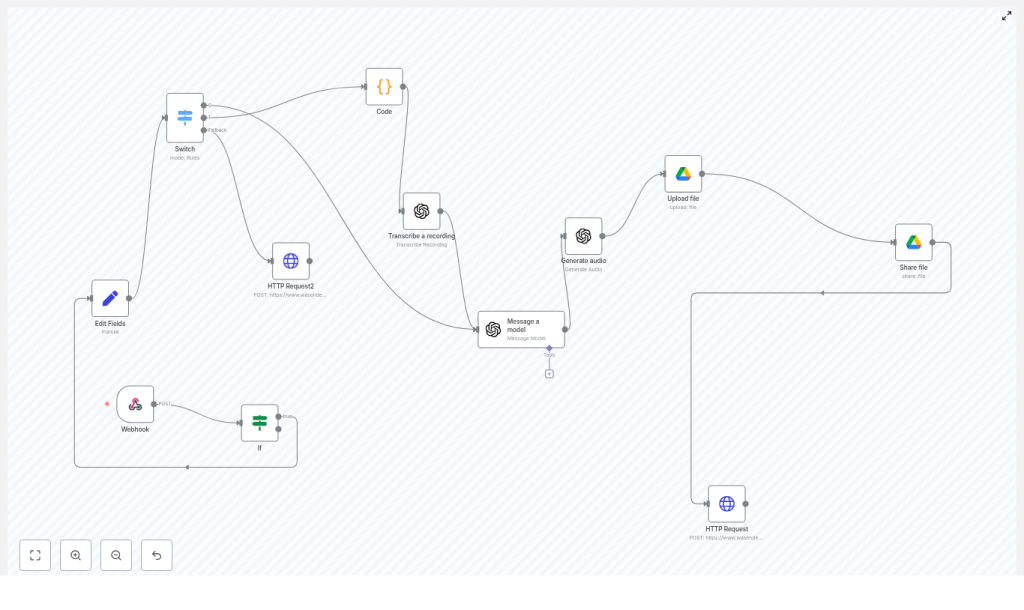
The n8n template is built from a set of core nodes that work together as a pipeline:
- Webhook node – receives incoming WhatsApp webhook POST requests
- If node – filters out messages sent by the bot itself using a
fromMecheck - Set (Edit Fields) node – extracts useful fields such as the message body and
remoteJid - Switch node – routes execution based on message content type (text, audio, unsupported)
- Code node – decrypts encrypted WhatsApp media using
mediaKeyand HKDF-derived keys - OpenAI nodes –
- Transcribe a recording (speech to text)
- Message a model (generate a reply)
- Generate audio (TTS output)
- Google Drive nodes – upload the generated audio and share it publicly
- HTTP Request node – sends the audio URL back through your messaging API (for example Wasender)
Once you understand this flow, you can adapt the same pattern for many other channels and use cases.
Step 1: receiving the WhatsApp webhook in n8n
Your journey starts with getting WhatsApp messages into n8n. Configure your WhatsApp provider or connector so that it sends POST requests to an n8n Webhook node whenever a new message arrives.
Key points:
- Set the Webhook node path to match the URL that you configure in your WhatsApp provider
- Use the If node right after the webhook to filter out messages sent by the bot itself by checking
body.data.messages.key.fromMe
By ignoring your own outgoing messages, you avoid loops and keep the logic focused on user input.
Step 2: extracting the data you actually need
Webhook payloads often come with deep nesting, which can make expressions hard to manage. The Set (Edit Fields) node helps you normalize the structure early so the rest of your workflow stays clean and readable.
For example, you can map:
body.data.messages.message  -> message payload
body.data.messages.remoteJid -> sender JID
By copying these nested values into top-level JSON paths, your later nodes can reference simple fields instead of long, error-prone expressions.
Step 3: routing by message type with a Switch node
Not all messages are equal. Some will be text, some audio, some images or other media. The Switch node checks the message content and decides what to do next.
Typical branches:
- Text – send directly to the GPT model for a text-based reply
- Audio – decrypt, transcribe, then process with GPT
- Unsupported types – send a friendly message asking the user to send text or audio
This structure lets you extend the workflow later with new routes for images or documents without changing the core logic.
Step 4: decrypting WhatsApp media with a Code node
WhatsApp media is delivered encrypted, so before you can transcribe audio or analyze video or images, you need to decrypt the file. The template uses a Code node that relies on Node.js crypto utilities to perform this decryption.
The high level steps are:
- Decode the
mediaKey(base64) from the incoming message - Use HKDF with
sha256and a WhatsApp-specific info string for the media type (for example"WhatsApp Audio Keys") to derive 112 bytes of key material - Split the derived key:
IV= first 16 bytescipherKey= next 32 bytes- The remaining bytes are used for MAC in some flows, but not required for decryption here
- Download the encrypted media URL as an
arraybufferand remove trailing MAC bytes (the template slices off the last 10 bytes) - Decrypt with AES-256-CBC using the derived
cipherKeyandIV - Use
n8nhelperhelpers.prepareBinaryDatato prepare the decrypted binary for downstream nodes
A simplified, conceptual example of the core decryption logic:
const mediaKeyBuffer = Buffer.from(mediaKey, 'base64');
const keys = await hkdfSha256(mediaKeyBuffer, info, 112);

const iv = keys.slice(0, 16);
const cipherKey = keys.slice(16, 48);

const ciphertext = encryptedData.slice(0, -10); // remove MAC bytes
const decipher = crypto.createDecipheriv('aes-256-cbc', cipherKey, iv);
const decrypted = Buffer.concat([  decipher.update(ciphertext),  decipher.final(),
]);
Important notes:
- HKDF info strings vary by media type: image, video, audio, document, or sticker
- The number of trailing MAC bytes can differ by provider, the example uses 10 bytes based on this template, but you should validate against your provider’s payload
- Never hard-code secrets or API keys, keep them in n8n credentials or environment variables
Once this step works, you have a clean, decrypted audio file ready for AI processing.
Step 5: transcribing audio with OpenAI
With decrypted audio binary data available, you can now turn spoken words into text. The template uses the OpenAI Transcribe a recording node for this.
Configuration tips:
- Model – choose a speech to text model that is available in your OpenAI account (for example a Whisper based endpoint)
- Language – you can let OpenAI detect the language automatically or specify one explicitly
- Long recordings – for very long audios, consider splitting them into chunks or using an asynchronous transcription approach
Once transcribed, the text can be reused across your entire stack, not just for replies. You can store it in a database, index it for search, or feed it into analytics later.
Step 6: generating a contextual reply with a GPT model
Now comes the intelligence layer. The transcribed text is passed to an OpenAI Message a model node, where a GPT model such as gpt-4.1-mini generates a response.
The node usually:
- Concatenates available text sources such as the transcription and any system prompts
- Sends this prompt to the GPT model
- Receives a conversational, summarized, or transformed response text
This is your moment to design how your assistant should behave. You can instruct it to respond as a support agent, a sales assistant, a coach, or a simple Q&A bot. Adjust the prompt to match your tone and use case, then iterate as you see how users interact.
Step 7: turning text back into audio with TTS
Many users prefer to receive audio replies, especially on WhatsApp. After you have the GPT generated text, the template uses an OpenAI Generate audio node to perform text to speech.
The flow is:
- Send the reply text to the TTS node
- Receive an audio file as binary data
- Upload that binary to Google Drive using the Upload file node
- Use a Share file node to grant a public “reader” permission and extract the
webContentLink
The result is a shareable URL to the generated audio that your messaging API can deliver back to WhatsApp.
Step 8: delivering the audio reply back to WhatsApp
The final step closes the loop. The template uses an HTTP Request node to call an external messaging API such as Wasender, passing the recipient identifier and the audio URL.
A conceptual example of the request body:
{  "to": "recipient@whatsapp.net",  "audioUrl": "https://drive.google.com/uc?export=download&id=<fileId>"
}
Adjust this payload to match your provider’s requirements. Some APIs accept a file URL like above, others require a direct file upload. Once configured, your user receives an audio reply that was fully generated and delivered by your automation.
Testing, learning, and improving your workflow
To turn this template into a reliable part of your operations, treat testing as part of your automation mindset. Start small, learn from each run, and improve.
- Begin with a short audio message to validate decryption and transcription
- Use logging in the Code node (
console.log) and inspect the transcription response to confirm intermediate data - If decryption fails, double check:
mediaKeybase64 decoding- Correct HKDF info string for the media type
- Number of bytes trimmed from the encrypted data
- That the encrypted media URL is accessible and complete
- For TTS quality, experiment with different voices or TTS models available in your OpenAI node
Each iteration brings you closer to a stable, production ready WhatsApp audio automation.
Security and operational best practices
As you scale this workflow, you also want to protect your data, your users, and your budget. Keep these points in mind:
- Store all API keys and OAuth credentials in the n8n credential manager, not in plain text in nodes
- Use HTTPS for all endpoints and, where possible, restrict access to your webhook using IP allowlists or secret tokens supported by your WhatsApp provider
- Monitor file sizes and add limits so that very large media files do not cause unexpected costs
- Think about data retention and privacy, especially for encrypted media, transcripts, and generated audio that may contain sensitive information
Good security practices let you automate confidently at scale.
Ideas for extending and evolving this template
Once the base workflow is running, you can treat it as your automation playground. Here are some improvements you can explore:
- Support multiple languages and enable automatic language detection in the transcription step
- Implement rate limiting and retry logic for external API calls to handle spikes and temporary failures
- Store transcripts and audio references in a database for audit trails, search, or analytics
- Add an admin dashboard or send Slack alerts when errors occur so you can react quickly
Every enhancement makes your WhatsApp assistant more capable and your own workload lighter.
Bringing it all together
This n8n WhatsApp Audio Transcription and TTS workflow template gives you an end to end pipeline that:
- Receives and decrypts WhatsApp media
- Uses OpenAI to transcribe and understand audio
- Generates helpful, contextual replies with a GPT model
- Converts those replies back into audio
- Stores and shares the audio via Google Drive
- Sends the response back over your WhatsApp messaging API
With careful credential handling, validation, and a willingness to iterate, you can adapt this pattern for customer support, automated voicemail handling, voice based assistants, or any audio first experience you want to build on WhatsApp.
You are not just automating a task, you are freeing up attention for the work that truly moves your business or projects forward.
Next step: try the template and build your own version
Now is the best moment to turn this into action. Import the workflow, connect your tools, and send your first test audio. From there, keep refining until it feels like a natural extension of how you work.
Call to action: Import this workflow into your n8n instance, configure your OpenAI and Google Drive credentials, and test it with a sample WhatsApp audio message. If you need help adapting it to your specific WhatsApp provider or want an annotated version for beginners, reach out to our team or request a walkthrough.
