

n8n: YouTube Advanced RSS Feeds Generator – A Story Of One Marketer’s Automation Breakthrough
Unlock automated RSS feeds for any public YouTube channel, without ever touching a Google API key. This is the story of how one overwhelmed marketer turned a messy manual process into a smooth, automated system using an n8n workflow that converts YouTube usernames, channel IDs, and video URLs into multiple RSS formats, powered by RSS-Bridge and a clever token workaround.
The Problem: One Marketer, Too Many YouTube Channels
When Lena joined a fast-growing media startup as a marketing lead, YouTube quickly became her biggest asset and her biggest headache. Her team followed dozens of creators, partner brands, and niche channels. Every new video could mean a content opportunity, a cross-promo, or a trend they needed to catch early.
But there was a catch. To track everything, Lena was:
- Manually checking channels every morning
- Copying links into spreadsheets
- Trying to wire up various RSS tools that kept breaking
Her developers suggested using the official YouTube Data API, but that meant:
- Setting up a Google Cloud project
- Managing API keys and quotas
- Constantly worrying about rate limits and maintenance
For quick, flexible monitoring of public channels, it felt like overkill.
What Lena really wanted was simple: “Give me reliable RSS feeds for any public YouTube channel, in multiple formats, without dealing with Google Cloud or custom code.”
The Discovery: An n8n Template That Promised a Shortcut
Lena had already been using n8n for email and CRM automations, so one late evening, while scrolling through community templates, a title caught her eye:
YouTube Advanced RSS Feeds Generator
The description sounded almost too good to be true:
- Accepts a channel username, channel ID, video URL, or video ID
- Resolves the channel ID using a lightweight third-party token method, no Google API key required
- Generates 13 output RSS URLs, including:
- 6 feed formats for channel videos
- 6 feed formats for channel community posts
- The official YouTube XML feed
- Supports HTML, Atom, JSON, MRSS, Plaintext, and Sfeed via RSS-Bridge
If it worked, it could replace her daily manual checks with a single automated workflow.
Behind The Curtain: How The Workflow Actually Works
Lena was curious. She did not just want a magic box, she wanted to understand what was happening inside. So she opened the workflow in n8n and started to follow the nodes like a story.
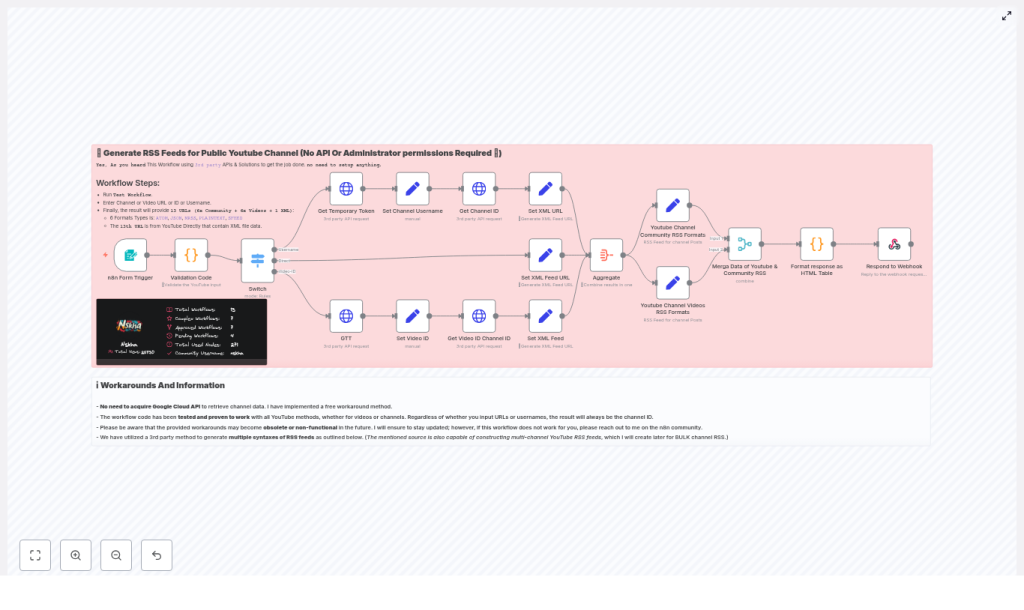
The Entry Point: A Simple Form Trigger
At the beginning of the workflow sat a Form Trigger node. This was where the entire process started. It was designed to accept any of the following:
- Channel username (for example
@usernameorusername) - Channel ID (starting with
UC) - Video URL (like
youtube.com/watch?v=...oryoutu.be/...) - Video ID (the 11+ character video identifier)
Lena realized this meant her team could paste in almost anything they grabbed from YouTube, and the workflow would figure out the rest.
The First Challenge: Understanding The Input
Next came the Validation Code node. This was the “brain” that parsed the input and decided what type it was. It checked whether the user had submitted:
- A username
- A channel ID
- A video URL
- A raw video ID
Once the type was determined, the workflow passed the result to a Switch node. This node acted like a traffic controller:
- If it was a username, route to username lookup
- If it was a video ID, route to video-based lookup
- If it was already a channel ID, skip lookups and go direct
So far, everything was still internal. No API keys, no Google Cloud setup, just smart parsing and routing.
The Clever Workaround: Temporary Token + Helper Service
The part that intrigued Lena the most was how the template resolved a channel ID without using the official YouTube API.
She found two key pieces:
- Get Temporary Token – a lightweight HTTP request to a helper service that returns a token required by a public channel-info endpoint.
- HTTP Request (commentpicker) – an HTTP node that uses this token to query a third-party helper service and retrieve channel metadata, including the channel ID.
This small chain effectively turned usernames or video IDs into a reliable channel ID, without any Google API key. It was a free third-party workaround, not an official integration, but for Lena’s use case it was exactly the low-friction solution she needed.
Turning Raw Data Into Feeds
Once the channel ID was resolved, the workflow finally started to generate the feeds Lena cared about.
The Set nodes came into play here. They were responsible for constructing feed URLs in different formats:
- Official YouTube XML feed:
https://www.youtube.com/feeds/videos.xml?channel_id=...
- 6 RSS-Bridge video feed formats:
- HTML
- Atom
- JSON
- MRSS
- Plaintext
- Sfeed
- 6 RSS-Bridge community feed formats:
- HTML
- Atom
- JSON
- MRSS
- Plaintext
- Sfeed
To bring everything together, the workflow used Aggregate and Merge nodes. These combined all generated URLs into a single response payload. Finally, a node titled Format response as HTML table transformed that payload into a neat, clickable HTML table.
That table was sent back to the form responder, ready for Lena or anyone on her team to copy, click, or plug into other tools.
The Turning Point: Lena Runs Her First Test
Armed with a basic understanding of the workflow, Lena decided it was time to try it with a real channel.
Step 1: Import And Activate The Workflow
She imported the template into her n8n instance, checked the nodes, and activated it. For her first run, she chose to execute it manually.
Step 2: Open The Form And Paste A Channel
She opened the exposed form URL from the Form Trigger node and pasted:
https://www.youtube.com/@NewMedia_Life
She hit submit and watched the execution in n8n’s editor. The nodes lit up in sequence:
- Form Trigger received the input
- Validation Code identified it as a username-style channel URL
- Switch sent it to the username resolution path
- Get Temporary Token fetched the token
- HTTP Request (commentpicker) returned the channel metadata
- Set nodes built all the RSS URLs
- Aggregate & Merge combined them
- Format response as HTML table produced the final output
Step 3: The Result
The form response page now showed a tidy HTML table. Inside were:
- 1 official XML feed for the channel’s videos
- 6 RSS-Bridge video feeds in different formats
- 6 RSS-Bridge community feeds in matching formats
For the first time, Lena had a complete set of feeds for a channel, including community posts, without touching Google Cloud. She could use:
- The XML feed for standard RSS readers
- The JSON or MRSS outputs for programmatic consumption in her automations
Why RSS-Bridge Became The Secret Weapon
As Lena explored the generated URLs, she noticed that most of them pointed to RSS-Bridge. She looked it up and realized why the template relied on it.
RSS-Bridge is an open-source project that converts many websites, including YouTube, into various feed formats. By pairing the official YouTube XML feed with RSS-Bridge URLs, the workflow gave her:
- Flexible formats for different tools and readers
- A way to consume both video uploads and community posts
- Options for HTML previews, JSON for scripts, or MRSS for media-heavy workflows
It was not just about one feed anymore. It was about a complete, multi-format feed toolkit for each channel.
From One-Off Test To Repeatable Automation
Once the first test worked, Lena immediately started thinking bigger.
Scheduling And Notifications
She realized she could schedule this workflow in n8n to:
- Check feeds for new videos on a regular interval
- Send updates to Slack or Discord whenever a new video appeared
- Email her editorial team with a daily digest of new uploads
- Store feed data in a database for long term analysis
Caching And Performance
To avoid hitting the helper service too often, she considered:
- Caching resolved channel IDs in a
Setnode or external database - Reusing stored IDs instead of resolving them every time
- Adding delays or rate limiting if she bulk processed many channels
Advanced Filtering
The template also hinted at something more advanced. By extending RSS-Bridge query parameters, she could:
- Filter videos by upload date
- Limit by duration range
- Filter by specific keywords
What started as a simple “get me a feed” workflow was slowly turning into a customizable YouTube monitoring system.
Limitations, Risks, And When To Use The Official API
Lena was happy, but she was also responsible. Before rolling this out across the company, she needed to understand the tradeoffs.
Common Issues She Had To Keep In Mind
- Helper endpoint downtime: If the third-party channel resolver became unavailable, the workflow would fail. The fix would be to:
- Switch to another helper service
- Host an internal resolver microservice
- Input not recognized: If someone pasted malformed data, the Validation Code node might not classify it correctly. The best practice was to:
- Ensure channel IDs start with
UC - Use clean, alphanumeric usernames
- Stick to supported YouTube URL formats
- Ensure channel IDs start with
- Private or restricted channels: The workflow only worked for public channels. It did not bypass any permissions or provide admin access.
Security And Reliability Considerations
The template used a free third-party workaround for resolving channel information. That made setup easy but introduced a dependency that Lena did not fully control.
For mission-critical or large scale automations, she noted that it might be safer to:
- Replace the helper token service with an internal microservice
- Or migrate the resolution step to the official YouTube Data API using her own API key and quota management
Either way, the workflow structure would remain useful. She could simply swap out the resolution nodes and keep all the feed generation logic intact.
Best Practices Lena Adopted
As she integrated the template into her team’s stack, Lena followed a few best practices to keep everything stable and maintainable:
- Validating and sanitizing all input inside the Validation Code node to avoid malformed requests
- Respecting rate limits when bulk resolving channels, with caching and small delays
- Monitoring the helper service for changes and keeping a backup resolver ready
These small steps helped keep the automation reliable as more teams started to rely on it.
The Resolution: From Manual Chaos To Structured Automation
Within a few weeks, Lena’s workflow had quietly become one of the most valuable pieces of automation in her marketing stack.
Her team no longer:
- Manually checked dozens of YouTube channels daily
- Copied and pasted video links into spreadsheets
- Missed important community posts or uploads
Instead, they had:
- Official YouTube XML feeds for each tracked channel
- Additional RSS-Bridge feeds in formats tuned for different tools and scripts
- Scheduled n8n workflows that pushed updates to Slack, email, and dashboards
All of this started with a single n8n template that took a simple input like @NewMedia_Life or a video URL, and returned a full suite of feeds in a clean HTML table.
Try The Same Workflow In Your Own Stack
If you find yourself in a situation like Lena’s, juggling multiple public YouTube channels and trying to track everything manually, this n8n template can save you hours every week.
How To Get Started
- Import the YouTube Advanced RSS Feeds Generator template into your n8n instance.
- Activate it, or run it manually for a first test.
- Open the exposed Form Trigger URL and paste:
- A channel username or URL
- A channel ID
- A video URL
- Or a raw video ID
- Submit and review the generated HTML table with all your RSS URLs.
From there, you can extend it just like Lena did: add scheduling, notifications, caching, or even swap in your own resolver or the official YouTube API if your needs grow.
Resources To Go Deeper
Next Step:

