


Nano Banana: How One Telegram Bot Turned Into an n8n AI Image Editor
On a quiet Tuesday night, Leo stared at his laptop, surrounded by half-finished mockups and a Telegram window full of images from his users. He had promised his small community a playful AI image editor bot that could transform their photos on the fly. Instead, he was drowning in manual downloads, uploads, and scripts that kept breaking.
Leo was a developer who loved rapid prototypes, not production-grade infrastructure. He wanted a way to turn Telegram photo messages into AI-edited images without building a custom backend, managing servers, or hand-rolling integrations. That is when he stumbled across an n8n workflow template with a curious name: Nano Banana.
Within a single evening, that template turned his messy idea into a working AI image editor powered by n8n, Telegram, and Gemini 2.5 Flash Image Preview via OpenRouter. The bot would receive a photo, send it to an AI model, and return a transformed image back into the same chat, all automatically.
The problem Leo faced: too many images, not enough automation
Leo’s community loved sending photos and asking for edits.
- “Can you blur the background of this?”
- “Add a fun caption here.”
- “Make this look like a watercolor painting.”
Every request meant:
- Downloading the image from Telegram
- Running it through some script or external tool
- Uploading the result back to the chat
It was slow, error-prone, and definitely not scalable. What he really wanted was:
- An AI that could understand images and captions together
- A no-code or low-code way to orchestrate the entire flow
- Something that worked directly inside Telegram chats
When Leo discovered that n8n could connect Telegram, OpenRouter, and Gemini into a single workflow, the pieces finally clicked. He did not need to build an API server. He just needed the right automation.
Why n8n and Gemini were the turning point
As Leo read through the Nano Banana description, he realized it did exactly what he envisioned. By combining n8n with Google Gemini through OpenRouter, he could:
- Apply intelligent transformations and filters to user photos
- Add AI-generated captions, annotations, and overlays
- Run visual analysis or moderation on incoming images
- Prototype chat-driven image editing bots without custom backend code
Gemini, as a large multimodal model, could “see” the image and “read” the caption at the same time. n8n would handle all the glue logic: receiving photos from Telegram, encoding them, sending them to the AI, parsing the response, and posting the result back to users.
The workflow had a name that made him smile, but the architecture was serious. Nano Banana was exactly the kind of n8n AI image editor workflow he needed.
What Nano Banana actually does behind the scenes
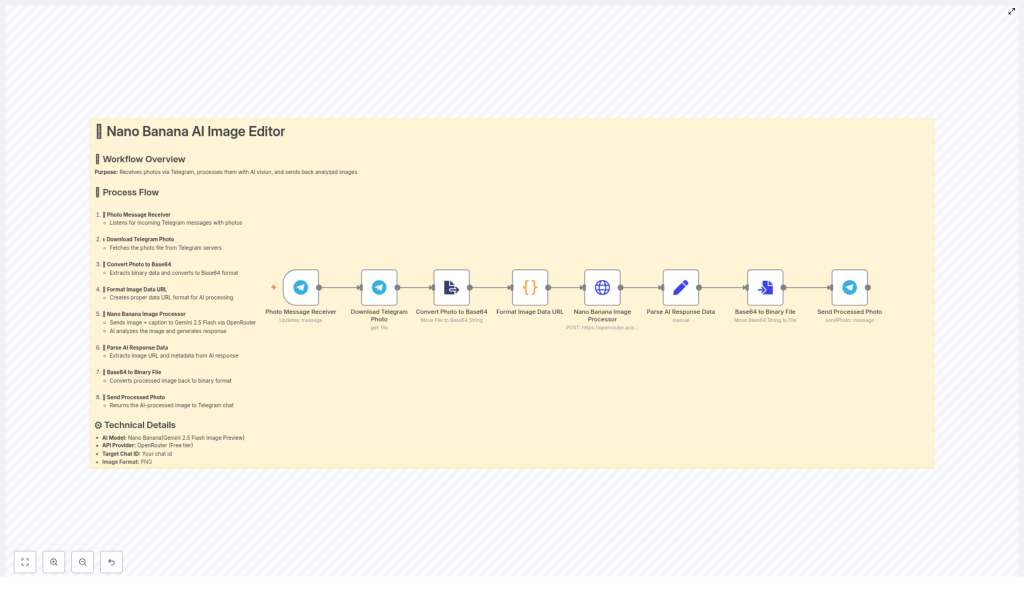
Before turning it on, Leo wanted to understand the flow. The Nano Banana n8n workflow follows a clear sequence:
- Listen for incoming Telegram messages that contain photos
- Download the photo file from Telegram’s servers
- Convert the photo from binary format to a Base64 string
- Wrap that Base64 string in a proper
data:image/png;base64,...URL - Send the image plus the user’s caption to OpenRouter using the Gemini 2.5 Flash Image Preview model
- Parse the AI response and extract the returned image data (Base64)
- Convert the Base64 back into a binary file
- Send the processed image back to the same Telegram chat
In human terms, Leo’s bot would now say: “Send me a photo and a caption, and I will send you back an AI-edited version.” Nano Banana handled the rest.
Setting the stage: what Leo needed before he could start
To bring the workflow to life, Leo gathered a few prerequisites:
- An n8n instance, either cloud or self-hosted
- A Telegram bot token and the relevant chat ID
- An OpenRouter API key with access to the Gemini image preview model
- Basic familiarity with n8n nodes, credentials, and how to map data between them
Once those were ready, he imported the Nano Banana template and started exploring the nodes that powered the magic.
Walking through the Nano Banana workflow as a story
1. The first contact: Photo Message Receiver
The story begins when a user sends a photo to Leo’s Telegram bot. In n8n, this is handled by the Telegram Trigger node, which listens for updates of type message.
Leo configured the node with his bot token and set it to pay attention to messages that contain photos. Whenever someone sent an image, the node captured the file_id from the message and passed it to the next step.
For the bot, this was the moment of “I have a new photo, let us process it.”
2. Getting the actual file: Download Telegram Photo
Next, the workflow needed the real image, not just an ID. The Telegram node, using the getFile resource, fetched the binary data for that photo.
In n8n, Leo mapped the file ID from the trigger node like this:
={{ $('Photo Message Receiver').item.json.message.photo[0].file_id }}With this, his workflow could download the original image from Telegram servers and move on to preparing it for Gemini.
3. Preparing the image for AI: Convert Photo to Base64
Gemini’s image endpoint needed the file in a specific format. The extractFromFile (or Convert Binary) node handled that conversion, turning the binary image into a Base64-encoded string.
This step was crucial. The AI endpoint expects a Base64-encoded data URL, so Leo made sure the node stored the Base64 value in a predictable property on the item.
4. Giving the image a proper URL: Format Image Data URL
Now Leo had a Base64 string, but Gemini needed it wrapped in a data:image/png;base64, URL. A simple Code node took care of this formatting.
Inside that node, he used JavaScript similar to this:
const items = $input.all();
const updatedItems = items.map((item) => {  const base64Url = item?.json?.data;  const url = `data:image/png;base64,${base64Url}`;  return { url };
});
return updatedItems;
After this step, each item in the workflow had a clean url field that Gemini could understand as an image input.
5. The brain of the operation: Nano Banana Image Processor (OpenRouter)
This was the heart of the story. The HTTP Request node, which Leo renamed “Nano Banana Image Processor,” sent a POST request to the OpenRouter chat completions endpoint.
He selected the google/gemini-2.5-flash-image-preview:free model and built a request body that included both the user’s text caption and the image URL. The payload looked like this:
{  "model": "google/gemini-2.5-flash-image-preview:free",  "messages": [  {  "role": "user",  "content": [  { "type": "text", "text": "...user caption..." },  { "type": "image_url", "image_url": { "url": "{{ $json.url }}" } }  ]  }  ]
}
In the headers, he passed his OpenRouter API key using the Authorization: Bearer pattern. This was the moment the bot asked Gemini, “Here is the photo and what the user wants. Please work your magic.”
6. Understanding the AI’s reply: Parse AI Response Data
The response from OpenRouter could contain one or more images, usually encoded as a data URL with Base64 inside. Leo used a Set node to extract exactly what he needed.
For example, to pull out the Base64 portion of the first returned image, he used an expression like:
=
{{$json.choices[0].message.images[0].image_url.url.split(',')[1]}}
This expression split the data URL at the comma and took the second part, which held the pure Base64 payload. Now the workflow had the AI-generated image in a form it could convert back to a file.
7. Turning Base64 back into a file: Base64 to Binary File
To send the result back through Telegram, Leo needed an actual file again. The ConvertToFile node converted the Base64 string into a binary file inside n8n.
Once that binary data was ready, the bot had a fresh, AI-processed image ready to share.
8. The big reveal: Send Processed Photo back to Telegram
For the final step, Leo used the Telegram node with the sendPhoto operation. He mapped the chat ID from the original trigger node so the image would go right back to the user who sent the photo.
In the chat, it looked seamless: the user sent a photo with a caption, waited a moment, and then received a transformed image created by Gemini, orchestrated by n8n, and delivered by Nano Banana.
Keeping things safe: security and best practices Leo adopted
As Leo prepared to share his bot more widely, he tightened up security and reliability:
- He never hardcoded API keys, instead using n8n’s credentials and environment variables for both Telegram and OpenRouter tokens.
- He added checks on image size and type before sending them to the AI to reduce costs and avoid timeouts.
- He implemented rate limiting and retries with exponential backoff to handle temporary API errors gracefully.
- He considered basic moderation of user captions to reduce the risk of inappropriate or malicious prompts.
These steps turned his fun prototype into a more robust automation.
When things go wrong: debugging the Nano Banana workflow
Not every run was perfect at first. Sometimes the AI did not return an image, or a data URL looked suspiciously short. To troubleshoot, Leo relied on a few n8n techniques:
- Using Execute Node on individual nodes to inspect their output step by step.
- Checking the raw JSON returned by OpenRouter in the HTTP Request node whenever the AI response did not include an image.
- Logging or inspecting the length of the generated data URL to ensure the Base64 string was complete and not truncated.
With these tools, he quickly identified configuration issues and adjusted his prompts or parsing logic as needed.
Where Leo wants to take Nano Banana next
Once the core workflow was stable, Leo started dreaming up enhancements. The Nano Banana template made it easy to extend the automation with additional nodes:
- Image caching so repeated requests with the same
file_idwould not trigger new AI calls every time. - Support for multiple image sizes or formats by adding a resizing step before the Base64 conversion.
- Telegram commands like
/style watercoloror/mode cartoonto tweak the model behavior dynamically. - Cloud storage integration with S3 or GCS so processed images could be stored and shared as links instead of raw binary files.
Each of these ideas was just a few nodes away inside n8n.
Thinking about costs and model selection
As his bot gained more users, Leo started paying attention to pricing and performance. OpenRouter provides access to multiple models and pricing tiers, and the Gemini 2.5 Flash Image Preview model he used was great for fast image experiments.
For larger scale usage, he planned to:
- Review the cost per request for different models
- Balance latency against quality for his particular use case
- Potentially switch or mix models depending on the type of transformation requested
n8n made it easy to swap models or add logic for routing different requests to different AI backends.
The resolution: from late-night frustration to a live AI image editor
By the end of that Tuesday night, Leo’s once chaotic idea had become a working n8n AI image editor workflow. The Nano Banana template let him:
- Turn Telegram photo messages into AI-processed images automatically
- Leverage Gemini’s multimodal capabilities without writing a traditional backend
- Prototype and ship a chat-driven image editing bot in a fraction of the time
It was more than a clever automation. It was a foundation he could build on for:
- Creative Telegram bots that apply filters and styles
- Visual moderation pipelines that flag risky content
- Automated image analysis tools that respond directly inside chat
Try the same journey: import the Nano Banana workflow into your n8n instance, plug in your Telegram and OpenRouter credentials, and activate the trigger. Send your bot a photo with a caption and watch the AI-edited image come back in real time.
If you want to push it further, you can experiment with different prompts and styles. Paste your Telegram bot messages into n8n or your prompt editor and iterate on the instructions you send to Gemini to shape the kind of image edits you want.
If this story sparked ideas, keep exploring more n8n automation patterns and AI integration recipes. Your next late-night experiment might turn into the workflow your users love most.
