


Nano Banana AI Image Editor – How One Telegram Bot Changed a Marketer’s Workflow
When Maya, a solo marketer at a fast-growing ecommerce startup, opened her Telegram one Monday morning, it was already overflowing with photos.
Customers were sending product shots, support requests with screenshots, and user-generated content for campaigns. Her job was to tag, moderate, and enhance these images before they ever touched a landing page or ad set.
She tried doing it all manually. Then she tried a patchwork of tools. Everything was slow, fragile, and impossible to scale. What she really wanted was simple: send a photo to a Telegram bot, have an AI model analyze or edit it, and get the processed image right back in the chat.
That is how she stumbled on an n8n workflow template that combined Telegram, OpenRouter, and Google’s Gemini 2.5 Flash image model (Nano Banana preview). It looked almost too good to be true: an end-to-end AI image pipeline that she could run on her own infrastructure.
The problem: too many images, not enough hours
Maya’s challenges will sound familiar to anyone working with visual content at scale:
- Customers sending photos at all hours through Telegram
- A need for fast moderation and visual tagging before publishing anything
- Constant requests for quick edits, crops, and enhancements
- No time to manually download, upload, and process every single image
She had experimented with AI tools before, but they all required her to jump between apps, upload files, and copy results back into Telegram or her CMS. Nothing felt integrated into her daily workflow.
What she really needed was automation that lived where her users already were: Telegram. That is when she discovered the Nano Banana AI Image Editor workflow built on n8n.
The discovery: a lightweight n8n + Telegram + OpenRouter pipeline
In a late-night search for “n8n Telegram AI image workflow,” Maya found a template that promised exactly what she wanted. It described a pipeline that could:
- Receive photos directly from Telegram
- Send them to Gemini 2.5 Flash image model via OpenRouter
- Return the processed image back to the same chat
Even better, it was designed to be:
- Lightweight – no heavy infrastructure required
- Inexpensive – efficient use of Gemini through OpenRouter
- Customizable – prompts and logic she could tweak herself
The workflow used OpenRouter’s access to Google’s Gemini family, including the Nano Banana / Gemini 2.5 Flash image preview model. It promised automated moderation, visual tagging, on-the-fly editing, and even conversational image assistance, all triggered by a simple Telegram message.
Maya decided to give it one weekend. If it worked, it could save her hours every week. If not, she would at least understand n8n better.
Rising action: wiring the workflow together
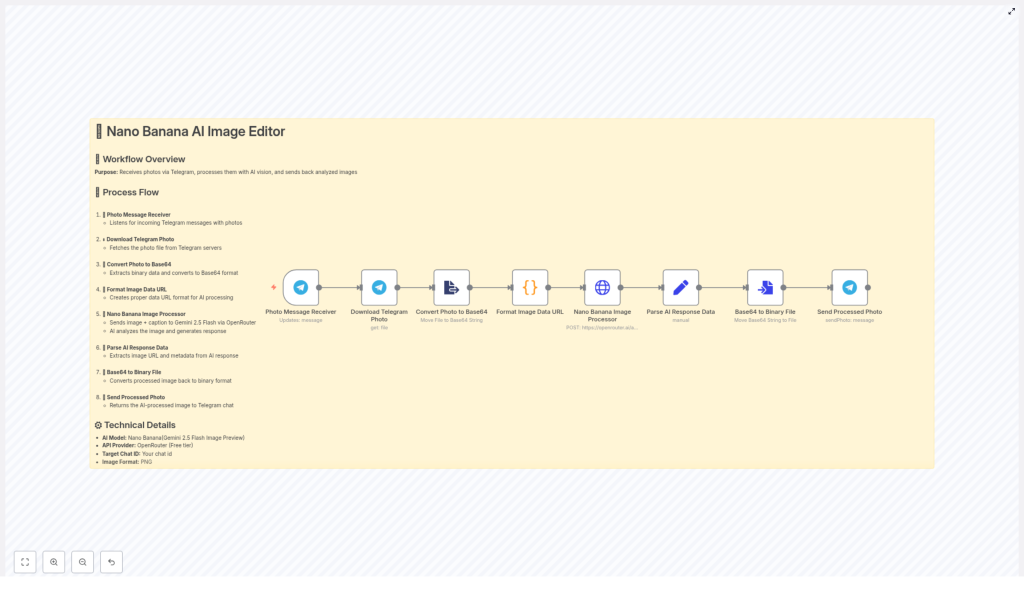
On Saturday morning, she opened n8n, imported the template, and started tracing the nodes. The flow looked surprisingly linear and understandable, even for a non-developer:
- Receive photo from Telegram
- Download the photo file
- Convert the image to base64
- Format it as a data URL
- Send it to Gemini via OpenRouter
- Parse the AI response
- Convert the result back to a binary file
- Send the processed photo back on Telegram
She decided to walk through each step, imagining what would happen when a customer sent a photo to her future bot.
Listening for photos: the Telegram trigger
The story begins every time a user sends a photo. The first node in her n8n canvas was the Telegram trigger, which would be the “ears” of her automation.
She configured it to listen for incoming messages that contain photos and made sure updates included message. Depending on her environment, she could choose between webhook or polling, but the idea was simple: whenever a user dropped an image into the chat, n8n would wake up and catch it.
Getting the actual file: Download Telegram Photo
Once a message landed, the next node, Download Telegram Photo, took over. Telegram only sends a file_id at first, so this node used that ID to fetch the real image from Telegram’s servers.
The node stored the image as a binary payload inside n8n. To Maya, this felt like the moment the photo truly “entered” her workflow, ready to be processed by AI.
Preparing the image for AI: base64 and data URLs
Many AI APIs, including Gemini through OpenRouter, prefer image data as base64 or data URLs. The template handled this in two steps that Maya quickly learned to appreciate.
Step 1 – Convert Photo to Base64: A Binary to JSON style node (n8n’s binary-to-property converter) took the binary image and extracted it into a base64 string. Without this, Gemini would not know how to consume the photo.
Step 2 – Format Image Data URL: Next, a small Code node formatted that base64 string as a data URL, something like:
// Example snippet used in the code node
const items = $input.all();
const updatedItems = items.map((item) => {  const base64Url = item?.json?.data;  const url = `data:image/png;base64,${base64Url}`;  return { url };
});
return updatedItems;
She made a note to adjust the mime type based on the incoming image, using image/png or image/jpeg as needed. It was a tiny detail, but crucial for consistent results.
The heart of the story: Nano Banana Image Processor
The real magic lived in the HTTP Request node that talked to OpenRouter. This was the Nano Banana Image Processor, and it was where her Telegram photos met Gemini.
The node sent a POST request to:
https://openrouter.ai/api/v1/chat/completionsIt used the model:
google/gemini-2.5-flash-image-preview:freeInside the request body, the node combined two key ingredients:
- The caption text that users typed along with their photo, which acted as the instruction or prompt
- The image itself, passed as a data URL from the earlier node
Maya stored her OpenRouter API key securely in n8n credentials so it never appeared in plain text inside the node. That small security practice made her feel more confident about eventually moving this into production.
Bringing the AI’s answer back to life
Once Gemini processed the image, OpenRouter returned a response. Sometimes it would contain base64 image data, other times an image URL. The next part of the workflow made sure that whatever came back could be turned into a Telegram-friendly photo.
Parse AI Response Data: This node extracted the base64 string or fetched the image from the URL and stored it in a property that the next node understood.
Base64 to Binary File: Using n8n’s conversion tools, the workflow turned the base64 result back into a binary file. This was the final format Telegram needed to attach the image correctly.
Send Processed Photo: Finally, the Telegram sendPhoto node took over. With binaryData enabled and the appropriate chat_id set to the original message’s chat.id, the workflow sent the AI-processed image right back to the user.
In Maya’s mind, she could already see it: a customer sends a product photo with the caption “make this background white and sharpen the image,” and the bot replies with a polished, ready-to-use image in seconds.
The turning point: from fragile scripts to a reliable automation
Of course, not everything worked perfectly on the first try. The first time Maya tested the workflow, nothing came back. No image, no error in Telegram, just silence.
Instead of giving up, she walked through a mental troubleshooting checklist, using the template’s guidance as her map.
Troubleshooting in the real world
- No image returned? She checked that the Telegram trigger was correctly extracting the
file_idand that the Download node was receiving a valid file. She also verified that her Telegram bot had the right permissions. - OpenRouter errors? She inspected the HTTP Request node. Was the API key correct? Model name exactly
google/gemini-2.5-flash-image-preview:free? Was the payload structured correctly? Looking at the HTTP response body quickly revealed a formatting mistake she had made. - Large files timing out? When a test image failed due to size, she added a guard to resize or reject overly large photos and considered sending a lower resolution version to Gemini to keep latency and cost under control.
- Broken base64? She confirmed that any data URL prefixes were either stripped or added correctly when converting between base64 and binary. One misplaced prefix had been enough to break the final file.
Within an afternoon, the workflow was stable. Maya could send an image with a caption from her phone and get back a transformed version in the same Telegram thread.
Hardening the workflow: environment, security, and performance
Once the basic flow worked, Maya started thinking like someone preparing for production. She did not want a fragile toy; she wanted a reliable image automation pipeline.
Environment setup and best practices
- Secrets in n8n credentials: She stored both her Telegram bot token and OpenRouter API key in n8n credentials instead of hardcoding them into nodes. That made it easier to rotate keys and share the workflow safely.
- Correct chat IDs: To make the bot feel conversational, she used the incoming message’s
chat.idas the target for replies, rather than a fixed ID. That way, each user got their own direct response. - Mime type detection: She added logic to detect whether the incoming file was
image/jpegorimage/pngand built the proper data URL. This small detail improved compatibility across different devices. - Handling rate limits: Knowing that OpenRouter and Gemini models enforce rate limits, she planned for spikes by adding retries and optional throttling. For future campaigns, she considered adding a queue so that high-volume bursts would not cause failures.
- Persistent storage: Since n8n’s filesystem can be ephemeral, she earmarked S3 or another cloud storage option for any images she wanted to keep long term, instead of relying on local storage.
Security and privacy considerations
Working with customer images meant Maya had to think about more than just convenience. She also needed to respect privacy and compliance requirements.
- She planned to inform users that their images were analyzed by an AI service and might be stored by the provider.
- For sensitive use cases, she looked into redacting or obfuscating parts of images before sending them to third-party APIs.
- She enabled encryption and secure storage for any persisted files or logs that might contain user data.
With these safeguards, she felt comfortable using the workflow beyond internal testing.
Optimization: from “it works” to “it scales”
After a week in light production, the workflow was already saving Maya hours. But she could also see where optimization would matter as usage grew.
- Caching results: She started caching processed results for repeated images or similar requests from the same user. That cut down on API calls and improved response times.
- Preprocessing images: Before sending photos to Gemini, she experimented with cropping and compressing images in n8n. This reduced latency and cost while still keeping quality high enough for her use cases.
- Asynchronous processing: For heavier tasks, she considered using asynchronous webhooks and job queues. The idea was to accept the upload quickly, enqueue the processing job, and notify the user when the image was ready, rather than making them wait.
These tweaks turned a clever prototype into a workflow she could trust during product launches and campaign spikes.
What Maya used it for (and what you might too)
Once the bot was live, new use cases appeared almost daily. Some of the most valuable ones included:
- Photo captioning and alt-text generation for accessibility on product pages
- Automated product image enhancement for ecommerce listings
- Scene analysis and tagging to organize user-generated content libraries
- Conversational image assistance where users could ask the bot to edit, annotate, or analyze their photos directly in Telegram
Every one of these started the same way: a simple Telegram message with a photo and a short caption. The Nano Banana workflow did the rest.
How she deployed it: a simple launch checklist
To move from test to production, Maya followed a straightforward checklist that you can reuse:
- Create a Telegram bot and add it to the target chat or channel.
- Store the Telegram bot token and OpenRouter API key in n8n credentials.
- Import or recreate the nodes from the template, wire them together, and enable the workflow.
- Send a test image with a descriptive caption to the bot and confirm that the processed image comes back successfully.
With that, her Telegram AI image editor was live.
Resolution: from overwhelm to a scalable AI image assistant
Two weeks after launch, Maya looked back at her old routine of downloading images manually and could not imagine going back.
The Nano Banana AI Image Editor workflow had become her invisible teammate. It handled moderation, tagging, and basic edits automatically, so she could focus on strategy and creative work instead of repetitive image chores.
The best part was that it was not a black box. Built on n8n, Telegram, and OpenRouter, it was modular and easy to extend. She could add new prompts for Gemini, plug in S3 to persist processed photos, or even chain additional workflows for publishing content to her CMS.
For her, this was not just an automation. It was a foundation for image-first conversational experiences that felt native to the tools her customers already used.
Want to follow Maya’s path?
The same Nano Banana AI Image Editor workflow is available as an n8n template that you can adapt to your own environment and use case. It is ready for production with the right throttling, error handling, and security practices in place, and it gives you a powerful starting point for any Telegram-based AI image automation.
If you would like, you can:
- Get a downloadable n8n workflow JSON with placeholders for your credentials
- Customize Gemini prompts for specific edits like retouching, cropping, or tagging
- Add S3 or a database step to persist processed photos automatically
When you are ready to build your own story with this workflow, you can start by importing the template and running your first test image.
