


Outlook Inbox Manager Template for n8n
By 9:15 a.m., Lena’s day already felt lost.
As the operations lead at a fast-growing SaaS startup, she spent her mornings buried in Microsoft Outlook. Urgent tickets, billing questions, promo pitches, and random newsletters all landed in the same inbox. She tried rules, color coding, and folders, but nothing kept up with the pace.
Important messages went unanswered for hours. Billing emails slipped through the cracks. Promotional offers clogged her view. The more the team grew, the worse it got.
One Monday, after missing yet another high-priority outage email, Lena decided something had to change. That search led her to an n8n workflow template called Outlook Inbox Manager, an automation that promised to classify emails, clean them with AI, and even draft or send responses on her behalf.
This is the story of how she turned a chaotic Outlook inbox into an automated, reliable system using n8n.
The problem: An inbox that controls your day
Lena’s inbox was not just busy, it was noisy. Every new message demanded a decision:
- Is this urgent or can it wait?
- Is this a billing question that needs a careful reply?
- Is this yet another promotion that needs a polite no?
She was spending hours each week doing the same manual tasks:
- Scanning subject lines and bodies to guess priority
- Moving emails into High Priority, Billing, or Promotions folders
- Writing nearly identical responses to billing questions
- Politely declining promotional offers one by one
It was not strategic work. It was triage. What Lena wanted was simple: a way to automate Outlook inbox management so she could focus on real conversations and decisions.
Discovery: Finding the Outlook Inbox Manager template
While exploring n8n templates, one title caught her eye: Outlook Inbox Manager. The description sounded like it had been written for her:
An automated n8n workflow that:
- Classifies incoming Outlook emails into High Priority, Billing, and Promotion
- Moves messages to the right folders automatically
- Uses AI to clean HTML-heavy emails for better processing
- Creates draft replies for billing inquiries
- Sends polite declines for promotional emails
If it worked, her daily grind of triaging Outlook could almost disappear.
So she decided to try it.
Rising action: Bringing the workflow to life in n8n
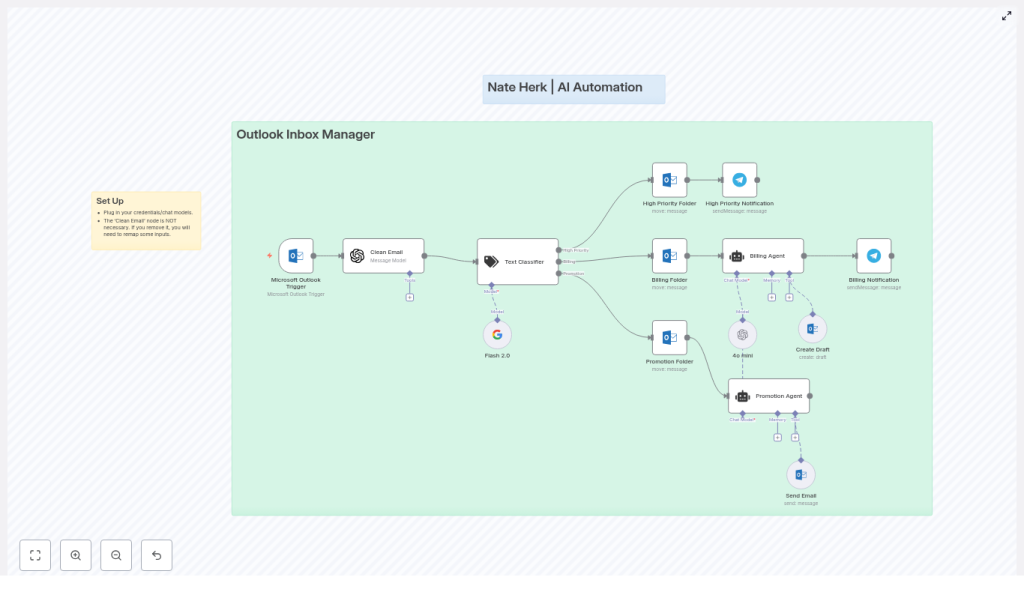
Lena opened her n8n instance, imported the template JSON, and watched the workflow appear on her canvas. It looked like a small assembly line for email decisions, with every step clearly mapped out.
Step 1 – Outlook listens for every new email
At the very start was the Microsoft Outlook Trigger node. This would sit quietly on her inbox and fire whenever a new message arrived. No more manual refreshing, no more checking folders.
She connected her Microsoft Outlook OAuth2 credentials in the trigger and subsequent Outlook nodes, then tested the connection. Success. Every new email would now enter this workflow automatically.
Step 2 – Cleaning the chaos with AI
Next in line was a node called Clean Email (AI). Lena knew many of her customer emails were packed with HTML signatures and formatting that made parsing painful.
The Clean Email node used a language model to:
- Strip out unnecessary HTML tags
- Normalize the message body
- Preserve all original content while turning it into clean, readable text
She connected her OpenAI credentials here, though the template also supported Google Gemini or Palm. Now the workflow would feed only clean text into the AI classifier, not messy HTML.
Step 3 – Teaching the workflow to recognize intent
The next node was where the magic happened: Text Classifier.
This AI-driven classifier would look at the cleaned email and assign it to one of three categories:
- High Priority
- Billing
- Promotion
Under the hood, it combined keyword lists with AI context analysis. The default rules were already close to what Lena needed:
- High Priority: urgent, ASAP, outage, escalation
- Billing: invoice, payment, subscription, outstanding balance
- Promotion: promo code, limited-time, special offer
She tweaked the keywords to match her team’s vocabulary, then adjusted the prompts so the model would be conservative at first. She wanted fewer false positives while she was still gaining trust in the automation.
Step 4 – Automatically sorting Outlook folders
Once the classifier decided on a category, the workflow branched into Folder Moves and Actions.
For each email, n8n would:
- Move High Priority messages to a dedicated High Priority folder
- Send Billing-related emails to a Billing folder
- File promotional content into a Promotion folder
Lena configured folder paths inside the Outlook nodes so they matched her existing structure. The goal was simple: open Outlook and see an inbox that already knew what belonged where.
Step 5 – Agents that write like a human
The final part of the workflow was what really got her attention: Agents & Auto-Responses.
There were two agent nodes in the template, each powered by her chosen language model:
- Billing Agent
- Promotion Agent
Billing Agent: Drafts that are ready to send
Whenever an email was classified as Billing, the Billing Agent would:
- Generate a draft response in Outlook for a human to review
- Sign off as a representative of Lena’s company
- Send a Telegram notification to the billing team with the details
Lena customized the system message for this agent so it understood her business context and policies. She added instructions like:
“You are a billing assistant for a SaaS company. Provide clear, concise, and friendly responses. Ask for invoice numbers if not provided, and never promise refunds without confirmation.”
This way, the drafts felt on-brand and accurate, but still left room for human oversight before sending.
Promotion Agent: Polite declines on autopilot
For emails tagged as Promotion, the Promotion Agent took a different role. It would:
- Compose a polite decline to promotional offers
- Use the Send Email node to reply automatically when configured to do so
These were the emails Lena always meant to respond to, but rarely had the time. Now, she could let the workflow send a courteous “no, thank you” without lifting a finger.
The turning point: First real-world test
With credentials connected and prompts tuned, Lena was ready for a live test. She sent a few sample emails from a personal account:
- Subject: “URGENT: Our billing portal shows a past due invoice”
- Subject: “Limited-time promo code for your team”
- Subject: “Outage on EU servers – escalation needed”
Here is how the workflow handled the first one, in real time:
- The Microsoft Outlook Trigger fired as soon as the email arrived.
- The Clean Email (AI) node removed HTML artifacts and normalized the body.
- The Text Classifier recognized the words “billing portal” and “invoice” and tagged it as Billing.
- The email was moved into the Billing folder in Outlook.
- The Billing Agent generated a draft reply, ready for a billing specialist to review and send.
- A Telegram notification pinged the team with a link to the draft and a summary of the issue.
For the promotional email, the workflow neatly filed it into the Promotion folder and, after Lena enabled auto-send, replied with a friendly decline.
For the outage escalation, the classifier put it in High Priority, and Lena added a separate notification step to make sure her on-call team never missed such messages again.
In a single morning of configuration and testing, her inbox started behaving like a well-trained assistant.
Refining the system: Best practices Lena adopted
Once the core workflow was running, Lena spent a few days watching how it behaved and fine-tuning it. She followed several best practices that made the automation both safe and effective.
1. Start conservative with classification
At first, she kept the classification thresholds conservative so fewer emails were auto-moved. She:
- Monitored which emails landed in each category
- Adjusted keyword lists in the Text Classifier
- Iterated on prompts to handle edge cases
Only after she trusted the accuracy did she expand the scope of what was automated.
2. Keep humans in the loop for sensitive topics
For anything involving money, contracts, or risk, Lena decided drafts were safer than auto-send. The Billing Agent always created drafts, not final emails.
This approach kept response times fast, while preserving human review for high-impact conversations.
3. Use rich, contextual prompts for AI agents
She learned that the more context she gave the agents, the better their replies became. Her system messages included:
- Preferred tone of voice
- Billing policies and refund rules
- When to ask for extra details like invoice numbers
By treating prompts like internal playbooks, she made sure AI-generated drafts sounded like her team, not a generic bot.
4. Log and monitor everything
To build long-term confidence, Lena enabled logging and notifications. For High Priority items, she set up alerts via Telegram, and later experimented with Slack integrations for team visibility.
By reviewing classification outcomes regularly, she could refine the workflow and keep accuracy improving over time.
Staying safe: Security and privacy in the workflow
Because emails often carry sensitive information, Lena took security and privacy seriously from day one. As she rolled out the Outlook Inbox Manager template, she followed a few guidelines:
- Avoid sending highly sensitive financial data to third-party AI models unless covered by clear data agreements.
- Prefer enterprise or private AI deployments if required by compliance policies.
- Restrict access to the n8n instance so only authorized team members can view or edit workflows and credentials.
- Use n8n’s audit capabilities to track changes to workflows and monitor credential usage.
The result was an automation system that respected both productivity and compliance.
Looking ahead: How Lena plans to expand the workflow
Once the core template was stable and trusted, Lena started thinking about what else she could automate. The Outlook Inbox Manager template was just a starting point.
On her roadmap:
- Multi-language support so international customers receive replies in their native language.
- Attachment analysis to automatically extract invoice numbers or order IDs from PDFs or images.
- CRM or ticketing system integration to open support tickets for High Priority issues directly from n8n.
- Rate limiting and batching to control AI model usage and keep costs predictable.
Because the template was built on n8n, extending it with new nodes and branches felt natural rather than overwhelming.
The resolution: An inbox that finally works for her
A few weeks later, Lena noticed something she had not felt in months: her mornings were calm.
Her Outlook inbox was no longer a chaotic mix of everything. It was a filtered, organized view of what truly needed her attention. Billing drafts appeared ready for review. Promotions were answered without effort. High Priority issues surfaced with clear alerts.
The Outlook Inbox Manager template for n8n had not just saved her time, it had given her back control of her day.
How you can follow the same path
If Lena’s story feels familiar, you can follow the same steps to automate your own Outlook inbox with n8n.
Set up the Outlook Inbox Manager template
- Import the template JSON into your n8n instance.
- Connect your Microsoft Outlook OAuth2 credentials in the Outlook Trigger and related nodes.
- Connect your OpenAI or alternative language model credentials for the Clean Email and agent nodes. The template supports GPT models and Google Gemini or Palm.
- Adjust classification keywords and categories in the Text Classifier to match your organization’s language.
- Customize the Billing Agent system message with your business context, billing rules, and FAQs so AI-generated drafts are accurate and on-brand.
- Test with sample emails, then iterate on prompts and thresholds until classification and drafts feel right.
From there, you can expand the workflow to match your team’s unique processes, tools, and channels.
Ready to automate your inbox?
If you are tired of living in Outlook, the Outlook Inbox Manager template can be your turning point, just as it was for Lena. Import the template into n8n, connect your Outlook and AI credentials, and start reclaiming hours of manual email work every week.
Need help tailoring billing prompts, adding CRM integrations, or tuning classification? Reach out to your automation specialist or join the n8n community to learn from others who are already running similar workflows in production.
Your inbox does not have to be the bottleneck. Let automation handle the routine, so you can focus on what actually moves your business forward.
