


Turn PDFs Into SEO-Ready Blog Posts (Without Losing Your Mind)
Imagine Never Copy-Pasting From PDFs Again
You know that feeling when you open a long PDF, sigh dramatically, and start copy-pasting chunks into your blog editor like a human OCR machine? Yeah, nobody enjoys that.
This n8n workflow template politely takes that painful job away from you. It grabs text from a PDF, feeds it to an AI model, formats everything as a structured, SEO-friendly blog post, then ships it straight into Ghost as a draft. You keep the control and editorial voice, the workflow does the boring bits.
If your content marketing stack includes PDFs, Ghost, and a burning desire to automate repetitive tasks, this workflow is about to become your new favorite coworker.
What This n8n PDF-to-Blog Workflow Actually Does
At a high level, the workflow takes a PDF and turns it into a polished, AI-written blog draft that is:
- Structured with headings, paragraphs, and HTML tags
- SEO-conscious, with a clean, concise title
- Formatted as a proper article with intro, body, and conclusion
- Ready to review as a draft in your Ghost CMS
Behind the scenes, it uses PDF text extraction, an AI language model, and n8n’s logic nodes to move your content from “static document” to “publishable blog post” with minimal manual effort.
Quick Overview Of The Workflow Steps
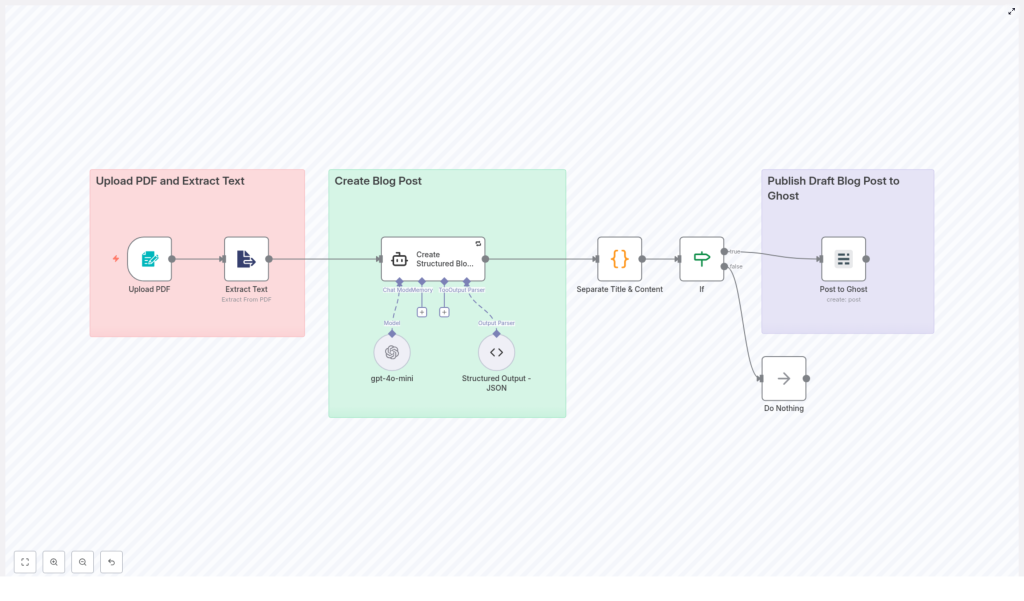
Here is the journey your PDF goes on, from dusty attachment to shiny blog draft:
- Upload PDF and extract readable text
- Send that text to an AI model to generate a blog post
- Parse the AI output to separate the title and content
- Run a conditional check to make sure the result is valid
- Publish the draft post to Ghost via the Ghost Admin API
Now let us walk through each step in more detail so you know exactly what is happening and where you can tweak things.
Step 1 – Upload Your PDF And Extract The Text
First, you provide the workflow with a PDF that contains your source content. This could be a report, whitepaper, article, or any other document you want to repurpose as a blog post.
n8n then uses a PDF extraction node that is built to pull out the readable text from the file. This is crucial, because AI models work with text, not with pretty PDF layouts. The node converts your static PDF into editable, analyzable text data that can be passed cleanly into the next step.
No more manual highlighting, copying, and fixing broken line breaks. The node quietly does the unglamorous work for you.
Step 2 – Let AI Turn That Text Into A Blog Post
Once the text is extracted, it is sent straight to an AI language model. This node is configured with a custom prompt that tells the AI exactly what kind of output you want: a structured, SEO-friendly blog post.
The AI responds with a JSON object that includes:
- A short, SEO-optimized title
- The full blog post content, formatted with HTML tags
The content is not just a wall of text. The AI structures the article into logical sections, making it easy to read, scan, and edit later inside your CMS.
What The AI Content Creation Node Is Set Up To Do
The AI node is carefully instructed so you get a usable blog post, not a random essay. Its main features include:
- Generating an engaging title under 10 words to support SEO performance
- Organizing the article using
<h2>headings and<p>paragraphs - Including a clear introduction, multiple thematic sections, and a conclusion
- Using
<blockquote>elements when citing or referencing source material from the PDF - Maintaining a professional tone with smooth transitions so the post reads naturally
In short, the AI does the first full draft for you, complete with structure and formatting, so you can focus on strategy and editing instead of layout and retyping.
Step 3 – Cleanly Separate The Title And Content
The AI sends back a JSON response that includes both the title and the HTML-formatted blog body. To make that usable for publishing, the workflow runs a code node that:
- Parses the JSON and extracts the
titlefield - Extracts the
contentfield that holds the HTML blog post - Cleans the HTML by removing any redundant or unwanted tags
- Ensures what remains is just the intended blog content
This node also performs validation checks to confirm that both the title and content are present and non-empty. If something looks off, the workflow will not blindly try to publish a broken draft.
Step 4 – Conditional Check Before Publishing
Next, an If node steps in as the responsible adult in the room. It checks whether the extracted title and content are valid and not empty.
- If the data looks good, the workflow continues to the publishing node.
- If something is missing or invalid, the workflow routes to a “Do Nothing” node.
The “Do Nothing” node safely ends the workflow without throwing errors or trying to publish incomplete content. It is like a quiet safety net that prevents half-baked drafts from appearing in your CMS.
Step 5 – Publish A Draft Blog Post To Ghost
Once the content passes the validation check, the workflow sends it to Ghost using the Ghost Admin API. The post is created as a draft, not published immediately.
This gives you full control to:
- Review the AI-generated article
- Edit the tone, add images, or tweak formatting
- Optimize internal links or add CTAs
- Hit “Publish” only when you are happy with the final result
Ghost handles the content management part, while n8n and the template handle the heavy lifting that gets you from PDF to draft in a few automated steps.
Why This PDF-To-Blog Workflow Is Worth Using
If you deal with recurring reports, documentation, or long-form PDFs, this workflow can save you from a lot of repetitive busywork. Key benefits include:
- Simplified content repurposing – Turn PDFs into structured blog posts without manually copying and reformatting.
- Automated SEO-friendly content creation – Get titles and structured sections that are easier to optimize for search.
- Less manual effort in digital publishing – Let automation handle extraction, drafting, and formatting so you can focus on strategy and editing.
- Easy integration with existing CMS – Works smoothly with Ghost and can fit into broader n8n workflows across your content stack.
Instead of spending hours on mechanical tasks, you can spend minutes reviewing and polishing the drafts that land in your CMS.
How To Get Started With This n8n Template
Ready to retire your copy-paste routine and let automation help with content creation?
- Open the n8n template using the link below.
- Connect your PDF source and set up the PDF extraction node.
- Configure your AI credentials and customize the prompt if needed.
- Add your Ghost Admin API details so the workflow can create drafts.
- Run a test with a sample PDF and review the resulting draft in Ghost.
Once it is working, you can plug this into your regular content pipeline and start turning reports, whitepapers, and long-form PDFs into ready-to-edit blog posts.
Next Steps And Ideas
After you have this workflow running, you can:
- Schedule regular PDF imports and automatic blog draft creation
- Chain additional n8n nodes for tagging, categorizing, or notifying your team
- Experiment with different AI prompts for varied tone or structure
Start converting those forgotten PDFs into fresh, SEO-optimized blog content today, and let automation handle the repetitive parts that no one will miss.
