


Replace a Face in Video With an Image Avatar Using Fal.ai & n8n
Why Face-Swapped Video Automation Is So Handy
Ever wished you could quickly swap a face in a video with a custom image avatar, without touching a video editor? That is exactly what this n8n workflow template does for you. It connects Fal.ai’s animation API with AWS S3 and wraps everything inside a simple n8n automation.
So instead of manually editing every clip, you upload a video and an image, let the workflow run, and get back a face-swapped video. It is perfect when you want to scale content creation or just avoid fiddling with complex editing tools.
What This n8n Template Actually Does
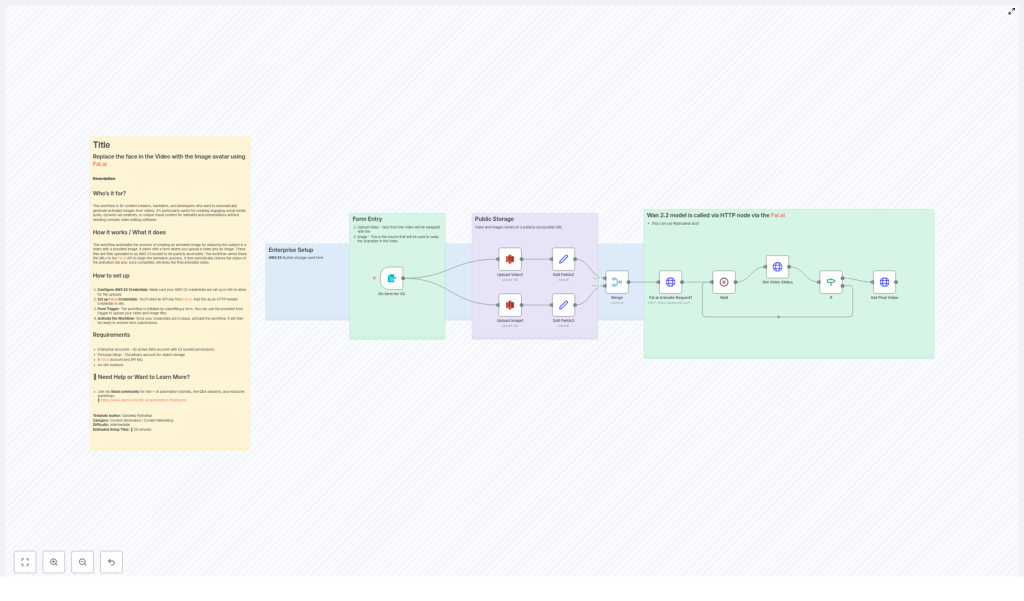
Here is the big picture of what the workflow automates for you:
- Collects a video and an image avatar from a simple n8n form
- Uploads both files to an AWS S3 bucket and makes them publicly accessible
- Sends those public URLs to Fal.ai’s animation API to run a face replacement
- Waits and keeps checking the job status until Fal.ai finishes processing
- Retrieves the final video URL with the face-swapped animation
All of that happens automatically once the form is submitted. You just grab the final video and use it wherever you like.
Who Will Love This Workflow?
This template is a great fit if you:
- Create content for social media and want fresh, personalized videos fast
- Run marketing campaigns and need attention-grabbing, dynamic visuals
- Build tools or internal apps that generate custom videos on demand
- Like automation, but do not want to spend hours editing video manually
It is especially useful for content creators, marketers, and developers who want to generate face-swapped videos at scale with minimal friction.
What You Need Before You Start
Before you fire up the template in n8n, make sure you have:
- An active AWS account with an S3 bucket and permissions to upload files
- A Fal.ai account and a valid API key
- An n8n instance (self-hosted or cloud) to run the workflow
- Basic familiarity with n8n workflows and simple HTTP requests
How the Automation Flows From Start to Finish
Let us walk through the process step by step so you know exactly what is happening behind the scenes.
1. A Simple Form Kicks Everything Off
The workflow starts with an n8n form trigger. This is where you (or your users) upload:
- The source video that contains the face to be replaced
- The image avatar that should replace that face
Once the form is submitted, n8n takes those uploaded files and passes them into the next steps automatically.
2. Upload Video and Image to AWS S3
Next, the workflow uploads both files to your AWS S3 bucket. This step is important because Fal.ai needs publicly accessible URLs to process the animation.
In n8n, the S3 node uses your AWS credentials to:
- Upload the video file
- Upload the image avatar file
- Ensure each file is accessible via a public URL or has the right read permissions
Those S3 URLs then become the input for the Fal.ai API request.
3. Call Fal.ai’s Animate Replace Endpoint
Once the files are safely in S3, the workflow sends an HTTP POST request to the appropriate Fal.ai animate replace endpoint.
This request includes:
- The S3 URL of the original video
- The S3 URL of the image avatar
- Your Fal.ai API key, passed via HTTP header authentication in n8n
Fal.ai then starts processing the face replacement job in the background and returns a job identifier or status reference that n8n can track.
4. Wait While the Animation Is Generated
Video processing takes a little time, so the workflow does not just sit idle. Instead, it uses a combination of a Wait node and an HTTP request loop to periodically check the animation status.
The loop keeps calling Fal.ai’s status endpoint until the job is marked as "COMPLETED". This way, you do not have to guess when the video is ready. The automation handles all the polling for you.
5. Retrieve the Final Face-Swapped Video
Once Fal.ai reports that the job is complete, the workflow makes a final API call to grab the output video URL.
From there, you can:
- Download the finished video
- Store it back in S3 or another storage location
- Send it via email, Slack, or any other integration supported by n8n
- Plug it into your own app or content pipeline
The end result is a fully automated pipeline that takes uploads in, calls Fal.ai, waits for the job, and returns a polished, face-swapped video.
Setting Everything Up in n8n
Now let us break down the actual setup steps you will follow inside n8n to get this template running.
Step 1 – Configure Your AWS S3 Credentials
In n8n, add your AWS credentials so the workflow can talk to your S3 bucket:
- Provide your AWS access key and secret key
- Specify the S3 bucket where videos and images will be uploaded
- Make sure the bucket is publicly accessible or that individual files are given public read permissions
Without proper permissions, Fal.ai will not be able to access the files, so this part is key.
Step 2 – Add Fal.ai API Credentials in n8n
Next, grab your Fal.ai API key from your Fal.ai account dashboard.
In n8n:
- Create a new credential using HTTP Header Authentication
- Add your API key in the header field as required by Fal.ai
This lets all your HTTP Request nodes securely authenticate with the Fal.ai animation API without hardcoding keys in every node.
Step 3 – Build the Upload Form With the Form Trigger Node
Use the built-in Form Trigger node in n8n to create a simple upload interface. Configure it so users can:
- Select a video file
- Select an image file to use as the avatar
When the form is submitted, the workflow starts and passes those two files into the S3 upload step automatically.
Step 4 – Upload the Files to Your S3 Bucket
After the trigger, add and configure the AWS S3 node to handle uploads:
- Connect it to your AWS credentials
- Map the form’s video input to one S3 upload operation
- Map the image avatar input to another S3 upload operation
Once uploaded, the node will return public URLs for both files, which you will then pass to Fal.ai.
Step 5 – Call the Fal.ai Animate API
Add an HTTP Request node to send a POST request to the Fal.ai animate replace endpoint.
Configure it to:
- Use your Fal.ai HTTP header credentials
- Include the S3 video URL and S3 avatar image URL in the request body
- Follow Fal.ai’s required JSON structure for the face replacement request
Fal.ai responds with details about the animation job, including whatever identifier you need for status checks.
Step 6 – Monitor the Animation Status Until Completion
To keep track of the job, set up a Wait node followed by an HTTP Request loop that:
- Waits a short period between checks to avoid spamming the API
- Calls the Fal.ai status endpoint using the job identifier
- Continues looping until the status is reported as "COMPLETED"
This pattern lets the workflow pause and resume intelligently, instead of blocking or timing out while the video is being processed.
Step 7 – Fetch and Use the Final Video
When the status check returns "COMPLETED", use another HTTP Request (or the same node configured appropriately) to retrieve the final video details from Fal.ai.
From there, you can:
- Store the final video URL in your database or another S3 bucket
- Send it to a user via email, chat, or webhook
- Trigger follow-up automations in n8n, such as posting to social media or notifying your team
Why This Workflow Makes Your Life Easier
So why bother setting all this up instead of doing it manually every time? A few big reasons:
- Real automation – Once configured, you just upload files and let the workflow handle everything else.
- Powerful AI without the headache – You get Fal.ai’s advanced animation and face swapping through a simple API call wrapped in n8n.
- Minimal editing skills needed – No need to learn complex video tools or hire editors for repetitive tasks.
- Cloud based and scalable – AWS S3 manages your storage, and n8n can run as many workflows as you need.
- Fully customizable – Since it is in n8n, you can plug in extra steps like notifications, approvals, or further processing.
Ready to Try It?
If you are excited to create unique, personalized videos by swapping faces with custom images, this template gives you a head start. You get a complete n8n workflow that connects Fal.ai, AWS S3, and a friendly upload form.
Want help, inspiration, or ideas from other automation enthusiasts? Join our Skool community here: n8n + AI Automation Champions.
Template Author: Sandeep Patharkar
Category: Content Generation, Content Marketing
Difficulty: Intermediate
Estimated Setup Time: 20 minutes
