


Safety Incident Alert Workflow in n8n: Turn Chaos Into Clarity With Automation
Every safety incident is a critical moment. How quickly you capture it, understand it, and respond can protect people, prevent future issues, and build a culture of trust. Yet many teams still rely on manual reporting, scattered spreadsheets, and delayed follow-ups that consume time and energy.
Automation gives you a different path. With n8n, you can turn each incident into a structured, intelligent, and instantly actionable event. In this guide, you will walk through a Safety Incident Alert workflow in n8n that:
- Captures incident data via a webhook
- Transforms text into embeddings with Hugging Face
- Stores and queries context in a Redis vector store
- Uses LangChain tools and memory for AI reasoning
- Logs final alerts to Google Sheets for reporting and audits
Think of this template as a starting point for a more automated, focused way of working. Once it is in place, you can spend less time chasing data and more time making informed decisions that move your team and business forward.
From Manual Headaches To Automated Confidence
Manual safety incident reporting often looks like this: emails buried in inboxes, inconsistent details, delays in notifying the right people, and a patchwork of logs that are hard to search or analyze.
Automating safety incident alerts with n8n turns that chaos into a clear, repeatable flow. An automated pipeline:
- Delivers immediate alerts to the right stakeholders
- Structures and enriches freeform text for search and analysis
- Maintains an auditable, centralized log for compliance
- Enables AI-driven triage and recommendations, even as your volume grows
Instead of reacting under pressure, you can design a system that works for you in the background, 24/7. This is not just about technology, it is about freeing your team to focus on higher-value work.
Adopting An Automation Mindset
Building this workflow is more than a technical exercise. It is a mindset shift. Each incident that flows through your n8n pipeline is a reminder that:
- Repetitive tasks can be delegated to automation
- Data can be captured once and reused many times
- AI can help you see patterns and insights you might miss manually
- Your workflows can evolve and improve over time, not stay frozen
Start with this Safety Incident Alert template, then keep iterating. Add new channels, refine prompts, expand your logs, and integrate with other tools. Every small improvement compounds into a more resilient, proactive safety process.
How The n8n Safety Incident Alert Workflow Works
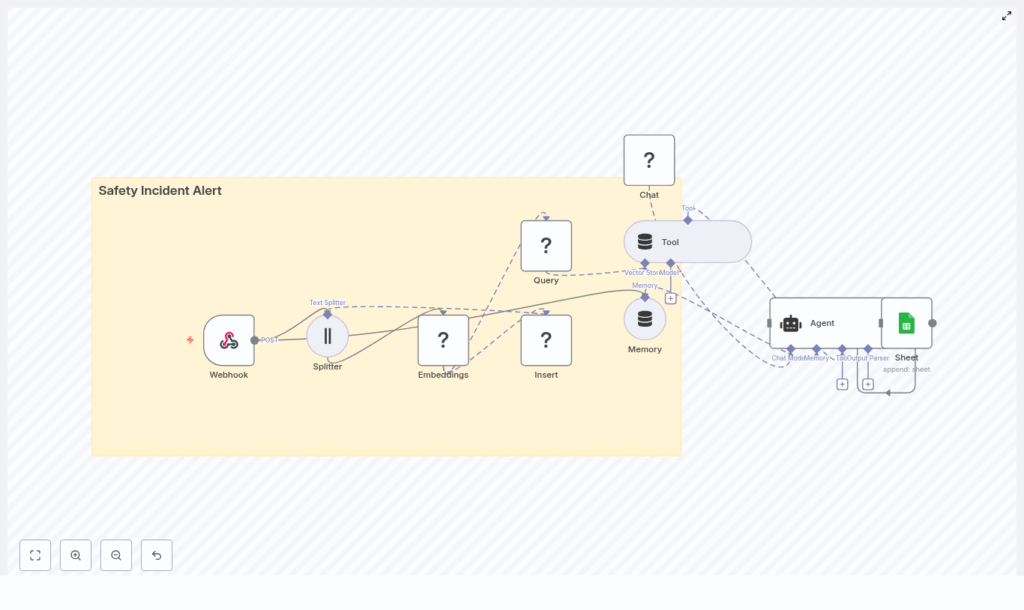
This n8n workflow connects several powerful components into one seamless pipeline. At a high level, it includes:
- Webhook – Receives incoming incident reports as POST requests
- Text splitter – Breaks long descriptions into manageable chunks
- Hugging Face embeddings – Converts text into vector representations
- Redis vector store – Stores and retrieves vectors and metadata
- LangChain tools and agent – Uses AI to reason, triage, and summarize
- Memory – Keeps recent context for more informed decisions
- Google Sheets – Logs structured incidents for reporting and audits
Each part plays a role in turning raw, freeform incident descriptions into consistent, searchable, and actionable insights.
Step-by-Step Journey: Building The Safety Incident Alert Workflow
1. Start At The Source With A Webhook
Every automated journey begins with a clear entry point. In this case, that is an n8n Webhook node.
Configure the Webhook node to accept POST requests on a path such as /safety_incident_alert. This endpoint can be called from your mobile app, internal form, or any third-party system that reports incidents.
A typical JSON payload might look like:
{  "reporter": "Jane Doe",  "location": "Warehouse 3",  "severity": "high",  "description": "Forklift collision with shelving, one minor injury. Immediate area secured."
}
By standardizing how incidents enter your system, you create a solid foundation that everything else can build on.
2. Prepare Text For AI With Smart Splitting
Incident descriptions can be long and detailed. To help your AI models understand them more effectively, use a text splitter node.
Configure the splitter (character-based or sentence-based) with a chunk size such as 400 characters and an overlap of around 40 characters. This approach:
- Improves the quality of embeddings for long descriptions
- Preserves context across chunks
- Makes semantic search more accurate and reliable
This step might feel small, yet it directly impacts the quality of your downstream AI analysis.
3. Transform Descriptions Into Embeddings With Hugging Face
Next, connect your split text to a Hugging Face embeddings node (or your preferred embeddings provider). This is where raw language becomes structured, machine-understandable data.
In this node:
- Select a model optimized for semantic search or similar tasks
- Pass in the text chunks from the splitter
- Store the resulting vectors along with useful metadata, such as:
- Timestamp
- Reporter
- Location
- Severity
- Original text or incident ID
These embeddings will power similarity search and contextual recommendations later in the workflow.
4. Build Long-Term Memory With Redis Vector Store
To make past incidents searchable and reusable, use the Redis vector store node to insert your embeddings.
Key configuration points:
- Choose an index name, for example
safety_incident_alert - Store metadata fields like reporter, location, severity, and timestamp for filtered retrieval
- Set the node to mode: insert so each chunk becomes a separate vector record
Over time, this builds a rich, semantic archive of incidents that your AI agent can query to spot patterns, find similar cases, and suggest better actions.
5. Enable Context-Aware Intelligence With Query And Tool Nodes
Embeddings are powerful only if you can retrieve them when needed. To give your AI agent that power, configure a Redis query node.
This node should:
- Search the Redis vector store for the most relevant chunks based on the new incident
- Optionally filter by metadata such as severity or location
Connect the query result to a Tool node (vector store tool). This tool becomes part of your LangChain agent’s toolkit, allowing the agent to call it during processing whenever it needs additional context.
This is what enables statements like “similar incidents in this warehouse” or “previous high severity forklift incidents” to be surfaced automatically.
6. Add Memory And An AI Agent For Triage
To move from simple data retrieval to intelligent triage, you will combine memory and a chat/agent setup.
First, add a conversation memory node, such as window-based memory. This keeps recent alerts or interactions in scope, which is useful for follow-up decisions and multi-step workflows.
Then configure a language model chat node (using Hugging Face or another provider). Finally, wire these into an Agent node that defines how to:
- Accept the incident report as input
- Call the Redis vector store tool when needed
- Use memory for continuity
- Produce a clear, structured alert as the final output
This is where your workflow begins to feel truly intelligent, not just automated. The agent can summarize incidents, confirm severity, and suggest actions informed by both the current report and historical context.
7. Log Everything In Google Sheets For Visibility And Audits
To close the loop, you want a reliable record of every incident. The Google Sheets node gives you a simple, accessible place to store that log.
Configure the node to append a new row to a sheet named Log (or your preferred name), and include fields such as:
- Timestamp
- Incident ID
- Reporter
- Location
- Severity
- AI-generated summary
- Recommended actions
- Status
With this in place, your team gains a single source of truth that is easy to filter, share, and audit, without manual data entry.
Crafting A Reliable Agent Prompt
A strong prompt is key to consistent AI behavior. Here is a pattern you can use and adapt:
Prompt: You are a safety incident triage assistant. Given the incident report and any retrieved context, produce:
1) A concise incident summary (1-2 sentences)
2) Severity confirmation and suggested actions
3) Any related past incidents (when found)

Report: {{description}}
Metadata: Reporter={{reporter}}, Location={{location}}, Severity={{severity}}
Context: {{retrieved_chunks}}
Feel free to refine this over time. Small prompt improvements can significantly enhance the clarity and usefulness of your AI-generated alerts.
Security And Compliance: Automate Responsibly
Safety data is sensitive. As you automate, keep security and compliance at the center of your design:
- Secure the webhook with authentication, such as API keys or HMAC signatures, to prevent spoofed reports
- Encrypt personally identifiable information (PII) in transit and at rest if incident reports include personal details
- Restrict Redis access using network controls, strong credentials, and regular rotation
- Limit who can access the Google Sheet, log access when possible, and allow write permissions only to the service account
By treating security as a first-class requirement, you build trust in your automated system from day one.
Testing, Monitoring, And Continuous Improvement
A powerful workflow is not something you set once and forget. It grows with your needs. Start by testing the pipeline with realistic examples:
- Send payloads with long descriptions
- Try edge cases such as missing fields or unusual wording
- Include scenarios that might cause errors or unexpected outputs
Monitor the workflow for:
- Webhook latency and failure rates
- Embedding or vector store errors
- Agent timeouts or hallucinations, and validate the outputs regularly
- Google Sheets append errors and quota limits
As you observe how the system behaves, adjust chunk sizes, prompts, metadata, and error handling. Each iteration makes your automation more robust and aligned with how your team actually works.
Best Practices To Get Even More Value
To keep your Safety Incident Alert workflow efficient and scalable, consider these practical tips:
- Keep chunk sizes consistent and experiment with overlap settings to find the best retrieval quality
- Re-embed older records periodically when you upgrade your embedding model, so your historical data benefits from improvements
- Store rich, structured metadata to enable filtered semantic searches, for example by location, severity, or time range
- Limit what you store in memory to recent and relevant items to control cost and latency
These small optimizations help your n8n workflow stay fast, accurate, and maintainable as your incident volume grows.
The Benefits You Unlock With This Workflow
Once this Safety Incident Alert workflow is live, you will notice the difference in your daily operations:
- Faster response – Time-to-action drops as incidents are captured and triaged automatically
- Better traceability – Every incident is logged in a structured, searchable format
- Deeper insights – Semantic search across past reports helps surface patterns and related incidents
- Smarter decisions – AI-driven triage and recommendations give you a more informed starting point
Most importantly, you gain peace of mind. Instead of worrying about what might have been missed, you can trust that your workflow is doing the heavy lifting and that you have the data you need to keep people safe.
Your Next Step: Turn This Template Into Your Own System
You do not need to build everything from scratch. The Safety Incident Alert workflow template gives you a ready-made foundation that you can adapt to your environment.
To get started:
- Clone the workflow template into your n8n instance
- Configure your API keys and credentials:
- Hugging Face (or your embeddings provider)
- Redis vector store
- Google Sheets
- Deploy the webhook and send a few test incident reports
- Review the AI outputs, the Redis entries, and the Google Sheets log
- Iterate on prompts, metadata, and alert formatting until it fits your team perfectly
If you want to go further, you can integrate this workflow with Slack, SMS, or your existing incident management system so that alerts reach people where they already work.
Call to action: Try this Safety Incident Alert workflow in n8n today. Deploy the webhook, send a sample report, and watch your Google Sheet start to populate with structured, AI-enriched incidents. Use it as a launchpad to automate more of your safety processes, and keep refining it as your needs grow. If you need help with custom configuration or troubleshooting, reach out for a tailored setup.
