


Send Google Sheets Data to a Discord Channel Automatically with n8n
Introduction
For teams that rely on both Google Sheets for data management and Discord for communication, connecting these tools can significantly improve visibility and reduce manual work. Instead of copying and pasting spreadsheet updates into chat, you can use an n8n workflow to push data changes directly from Google Sheets to a Discord channel in real time.
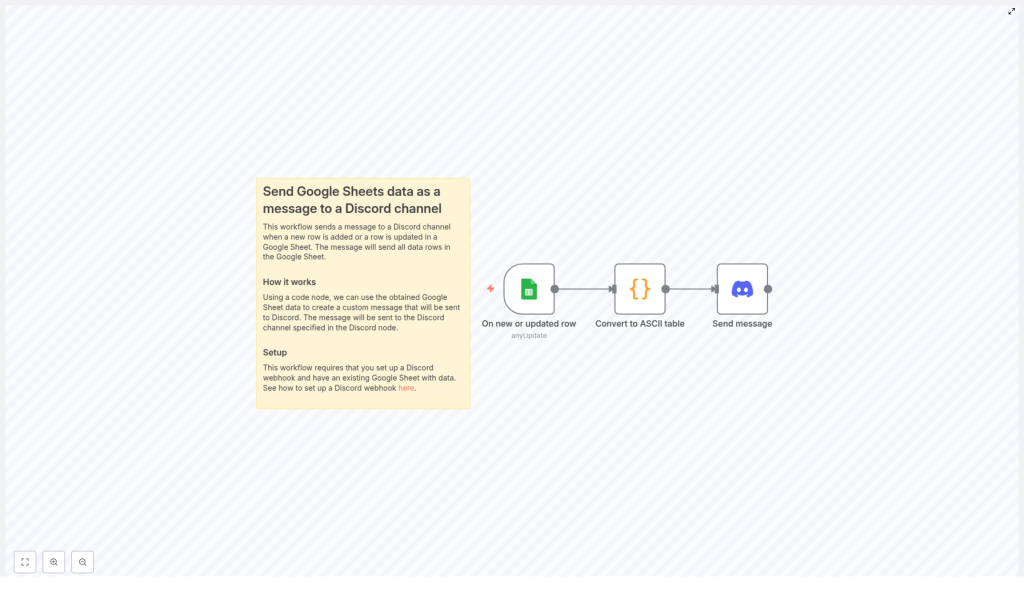
This workflow template automates that process. It listens for new or updated rows in a Google Sheet, converts the relevant data into a clean ASCII table, and posts the formatted output to a Discord channel via webhook. The result is a clear, readable summary of your sheet data available to your team without any manual intervention.
Use Case Overview
The template is ideal for scenarios where structured spreadsheet data needs to be surfaced quickly in a shared communication space, for example:
- Investment or portfolio tracking with fields such as Security Code, Price, and Quantity
- Operational dashboards that need to be broadcast to a team channel
- Monitoring lists where near real-time updates are important for decision making
By leveraging n8n, you gain a repeatable, low-maintenance automation that keeps Discord aligned with your Google Sheets data.
High-Level Workflow Architecture
The n8n workflow is composed of three core components that work together to deliver the automation:
- Google Sheets Trigger: Detects new or updated rows in a defined sheet and column.
- Code Node: Transforms the selected columns into a formatted ASCII table string using JavaScript.
- Discord Node: Sends the formatted table to a specified Discord channel through a webhook.
This architecture separates data detection, transformation, and delivery into distinct stages, which aligns with automation best practices and makes the workflow easier to maintain and extend.
Key Components and Configuration
1. Google Sheets Trigger – Monitoring Data Changes
The workflow starts with a Google Sheets Trigger node configured to watch a particular spreadsheet, for example a sheet named Investments. It monitors the Security Code column for any new or updated entries.
Important configuration aspects:
- Spreadsheet and Sheet selection: Choose the correct Google Sheet and tab where your data is stored.
- Watched column: Set the trigger to observe the Security Code column or any other column that uniquely identifies a row.
- Polling interval: Configure the node to poll approximately every minute to achieve prompt updates while balancing API usage.
Whenever a new row is added or an existing row is modified in the monitored column, the trigger node initiates the workflow and passes the current data to the next step.
2. Code Node – Converting Sheet Data to an ASCII Table
The next stage is a Code node that processes the rows provided by the trigger. This node uses custom JavaScript to convert selected columns into a structured ASCII table that is suitable for display in a Discord message.
The script focuses on the following columns:
- Security Code
- Price
- Quantity
Core logic implemented in the JavaScript function:
- Iterates through all items received from the Google Sheets Trigger.
- Calculates the maximum string length for each column to determine appropriate padding.
- Builds a header row using the column names and aligns them based on the calculated widths.
- Generates each data row so that values are aligned under the corresponding header, creating a consistent table layout.
The output of this node is a single string that represents a clean ASCII table. This format is easy to read in a chat environment and works particularly well when wrapped in a code block in Discord.
3. Discord Node – Sending the Formatted Message
The final component is a Discord node configured to post the ASCII table into a specific channel using a webhook URL.
Configuration highlights:
- Webhook URL: Use the webhook generated in your Discord server for the target channel.
- Message content: Map the output of the Code node into the message body.
- Code block formatting: Wrap the ASCII table in triple backticks (
```) so Discord renders it as a monospaced code block, preserving alignment and readability.
When the workflow runs, the Discord node posts the table directly into the designated channel, giving your team immediate visibility into the updated spreadsheet data.
Step-by-Step Setup Instructions
To implement this automation in your own environment, follow these steps:
- Prepare your Google Sheet
- Create or open a Google Sheet that contains the columns you want to track, for example Security Code, Price, and Quantity.
- Ensure column names are clearly defined in the header row.
- Configure the Google Sheets Trigger node in n8n
- Authenticate with your Google account in n8n.
- Select the appropriate spreadsheet and sheet.
- Set the trigger to watch the Security Code column or another key column.
- Adjust the polling interval to match your update frequency requirements.
- Set up the Code node
- Add a Code node after the Google Sheets Trigger.
- Use JavaScript to:
- Read the incoming rows from the previous node.
- Extract the Security Code, Price, and Quantity fields.
- Compute column widths and build an ASCII table string.
- Return the final table string in a field that will be referenced by the Discord node.
- Create a Discord webhook
- In your Discord server, open the channel where you want to receive sheet updates.
- Create a new webhook and copy the webhook URL.
- Configure the Discord node in n8n
- Add a Discord node after the Code node.
- Paste the webhook URL into the node configuration.
- In the message field, insert the ASCII table output from the Code node and wrap it in triple backticks to render it as a code block.
- Test and validate the workflow
- Activate the workflow in n8n.
- Add or update a row in the monitored Google Sheet.
- Confirm that the workflow runs successfully and that a formatted ASCII table appears in your Discord channel.
Automation Best Practices
- Use clear column naming: Consistent headers such as Security Code, Price, and Quantity simplify the mapping in the Code node and reduce errors.
- Optimize polling frequency: A 1-minute interval is suitable for near real-time updates, but you can adjust it to balance responsiveness with API usage and system load.
- Limit the data scope: If your sheet is large, consider filtering the rows or columns you include in the ASCII table to keep Discord messages concise.
- Standardize formatting: Keep the ASCII table structure consistent so that team members quickly understand the layout and can scan updates efficiently.
- Plan for growth: The same pattern can be extended to additional columns or other sheets. Design your Code node with maintainability in mind.
Key Benefits of This n8n Workflow
- Automated data distribution: Eliminates manual copying of spreadsheet data into Discord, reducing effort and the risk of mistakes.
- Readable, structured output: ASCII table formatting makes numeric and tabular data easy to interpret directly in a chat channel.
- Near real-time visibility: Frequent polling ensures that any new or updated row in Google Sheets is quickly reflected in Discord.
- Flexible configuration: You can customize which columns are included, adjust the polling interval, and adapt the code to different sheet structures.
- Improved collaboration: Teams receive consistent, formatted updates where they already communicate, which supports faster decisions and better monitoring.
Get Started
Implementing this workflow in n8n is a straightforward way to connect your Google Sheets data with your Discord communication channels. Once configured, it runs in the background and continuously keeps your team informed with structured, up-to-date information.
Deploy the template, adapt the column selection and formatting to your use case, and integrate it into your broader automation strategy in n8n.
Conclusion
This n8n workflow provides a reliable bridge between Google Sheets and Discord by transforming raw spreadsheet rows into well-formatted ASCII tables and posting them automatically to a designated channel. With minimal configuration and a small JavaScript function, you can convert routine data updates into real-time, high-quality notifications that improve transparency and coordination across your team.
