


Simple Google Indexing API Workflow, Explained Like We’re Chatting Over Coffee
If you’ve ever hit “publish” on a new page and then sat there wondering when Google will finally notice it, you’re not alone. Waiting for Google to crawl and index your content can feel slow and unpredictable.
That’s where the Google Indexing API comes in. And with an n8n workflow built around it, you can turn that whole process into a simple, hands-off automation that quietly does the work for you in the background.
In this guide, we’ll walk through what this n8n template does, when you should use it, and exactly how it works under the hood. We’ll keep things friendly and practical, so you can follow along even if you’re not a hardcore developer.
What This Google Indexing API Workflow Actually Does
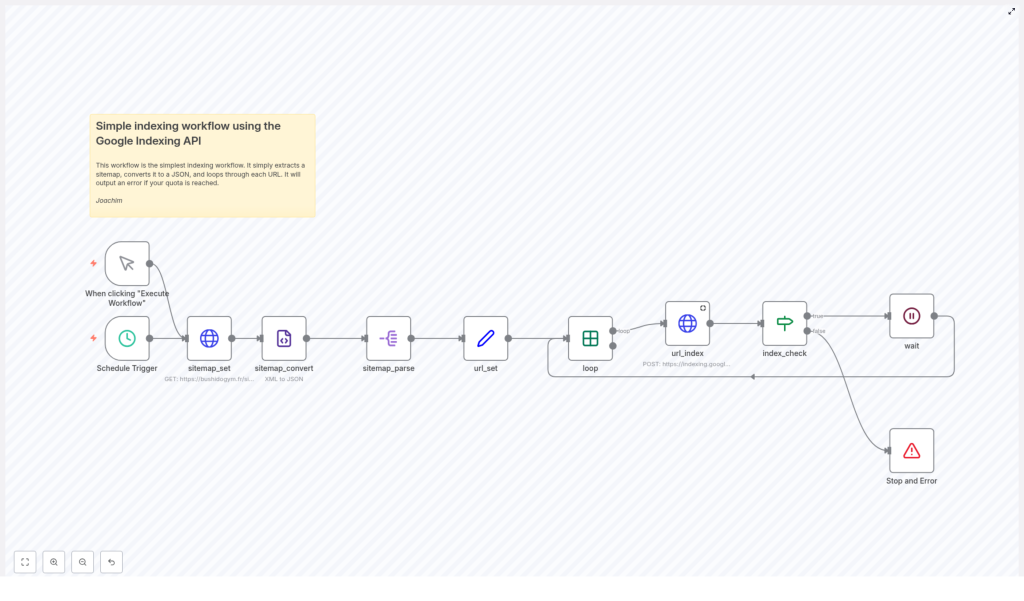
At a high level, this n8n workflow grabs all the URLs from your XML sitemap, then feeds them to the Google Indexing API in a controlled, automated way. It takes care of:
- Fetching your sitemap file, for example
https://bushidogym.fr/sitemap.xml - Converting that XML into a format that is easy to work with
- Extracting all the URLs from the sitemap
- Sending each URL to Google as an indexing request
- Respecting your API quota so you do not get blocked
- Pausing between requests to keep everything running smoothly
The end result: new or updated pages get submitted to Google automatically, without you having to paste URLs into tools or wait around hoping for a crawl.
When Should You Use This Workflow?
This workflow is especially useful if you:
- Publish new content regularly and want Google to see it quickly
- Update existing pages and need Google to re-crawl them
- Manage a site where manual URL submissions are becoming a time sink
- Care about SEO and want more control over how fast your pages get discovered
In short, if you have a sitemap and you are using n8n, this template is a very easy win for your automation stack.
How the Workflow Flows, Step by Step
Let’s break down how everything fits together inside n8n. Think of it as a small assembly line where each node has a specific job.
1. Starting the Workflow: Manual or Automatic
You get two ways to kick things off:
- Manual trigger: The “When clicking ‘Execute Workflow’” node lets you run everything on demand. Perfect for testing or occasional use.
- Scheduled trigger: The “Schedule Trigger” node can be set to run daily or at whatever interval you prefer. This is what turns your indexing into true “set it and forget it” automation.
2. Fetching Your Sitemap
Next up, the workflow needs to know where your sitemap lives.
The sitemap_set node is responsible for that. Here you simply provide your sitemap URL, such as:
https://bushidogym.fr/sitemap.xml
The node then passes that URL to the part of the workflow that actually fetches the file.
3. Converting XML to JSON for Easier Handling
Sitemaps are usually in XML format, which is not the most convenient to work with inside automations. That is why the workflow uses the sitemap_convert node.
This node converts the XML sitemap into JSON. Once it is in JSON, n8n can easily loop through the data, pick out specific fields, and pass them along to other nodes.
4. Parsing and Preparing the URLs
Now that the sitemap is in JSON, it is time to pull out the actual URLs.
sitemap_parsenode: This node digs into the JSON and extracts the list of URLs from the sitemap entries.url_setnode: Each URL is then set individually so the workflow can treat them one by one. This makes it easy to handle batch processing and apply logic per URL.
5. Looping Through URLs in Batches
Instead of firing all URLs at Google at once, the workflow uses a loop to process them in a controlled way.
The loop node goes through each URL, one at a time. This is important for:
- Staying within your Google Indexing API quota
- Preventing sudden spikes in requests
- Making it easier to debug if something goes wrong
6. Sending URLs to the Google Indexing API
Here is where the magic happens.
The url_index node sends a POST request to the Google Indexing API for each URL. It includes:
- The URL that needs to be indexed or updated
- The type
URL_UPDATED, which tells Google that the page is new or has changed and should be re-crawled
This node uses your configured Google API credentials, so authentication is handled securely and automatically once you set it up.
7. Checking Quota and Handling Limits
Google’s Indexing API has usage limits, so it is smart to keep an eye on those.
The index_check node looks at the response from Google and checks two things:
- Did the request succeed?
- Has the API quota been reached?
If everything looks good, the workflow can move on. If not, it knows when to stop.
8. Waiting or Stopping the Workflow
To avoid hammering the API, the workflow includes a small pause between each request.
waitnode: If the quota has not been exceeded, this node waits for a short time, usually about 2 seconds, before moving on to the next URL.- “Stop and Error” node: If the quota limit is hit, this node ends the workflow and returns an error message instead of continuing blindly.
This combination keeps your automation polite and API friendly.
How To Set Up And Use This Workflow In n8n
Getting this running is easier than it might sound. Here is a simple checklist to follow.
Step 1: Point To Your Own Sitemap
In the sitemap_set node, replace the example URL with your actual sitemap URL. For example:
https://yourdomain.com/sitemap.xml
Step 2: Configure Google API Credentials
In the url_index node, make sure your Google API credentials are set up correctly. This is what lets n8n authenticate with the Google Indexing API and send valid requests.
Step 3: Schedule the Workflow
Use the “Schedule Trigger” node to decide when this automation should run. Many people like to:
- Run it daily during off-peak hours
- Schedule it after regular content publishing times
Once that is in place, you do not need to manually trigger indexing every time you publish or update content.
Step 4: Fine Tune For Your Quota
Keep an eye on your API usage at first. If you notice that you are getting close to your quota, you can:
- Increase the delay in the
waitnode - Adjust how many URLs you process per run
This gives you a good balance between fast indexing and safe API usage.
Why This Automation Makes Your Life Easier
So what do you actually gain from all this? Quite a bit:
- Time savings: No more manually submitting URLs whenever you publish or update pages.
- Better SEO hygiene: Google gets notified about new or updated content faster, which helps with timely crawling and indexing.
- Quota friendly: The workflow respects API limits and avoids unnecessary failures.
- More control and visibility: You can see exactly which URLs are being sent and how the API responds.
Instead of hoping Google finds your pages quickly, you are actively giving it a nudge in a structured, automated way.
Ready To Try The Google Indexing API Workflow?
If you are looking to level up your SEO automation with n8n, this template is a great place to start. It is simple, practical, and once it is configured, it quietly keeps your sitemap and Google in sync.
Set it up, let it run on a schedule, and enjoy knowing your URLs are being submitted without you lifting a finger each time.
If you want to explore even more automation ideas or need help tailoring this workflow for your specific SEO strategy, do not hesitate to reach out.
