


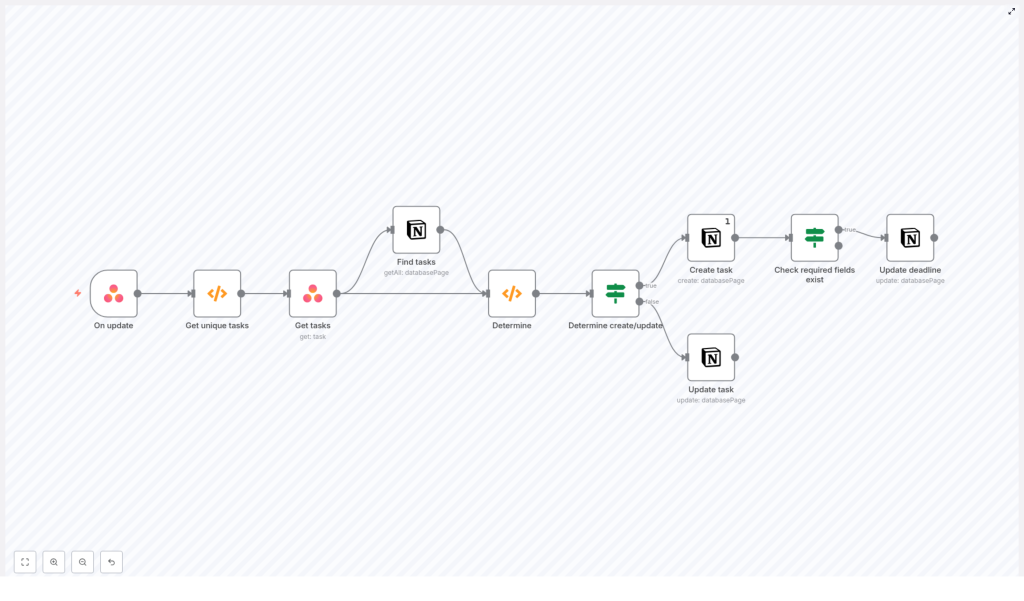
Keeping Asana and Notion aligned is a common requirement in mature automation environments. This guide explains how to implement a robust, production-ready Asana to Notion synchronization using n8n so that updates to Asana tasks automatically create or update corresponding pages in a Notion database.
Use case and architecture overview
Asana is typically the operational system of record for task management, while many teams rely on Notion as a central knowledge base and lightweight reporting layer. Synchronizing selected Asana task data into Notion allows stakeholders who work primarily in Notion to access key task metadata, such as Asana GID and deadlines, without context switching.
n8n provides the orchestration layer for this integration. It listens to Asana webhooks, processes and deduplicates events, enriches them with full task data, and then maps them into a Notion database. The workflow is designed to be idempotent, API-efficient and easy to extend.
What the n8n workflow automates
The workflow implements the following end-to-end logic:
- Subscribe to Asana task updates via an Asana Trigger node (webhook based).
- Extract and deduplicate task GIDs from the webhook payload.
- Fetch full task details from Asana for each unique GID.
- Query a Notion database for existing pages that reference the same Asana GID.
- Determine whether to create a new Notion page or update an existing one.
- On create, populate required properties, including the Asana GID and optional deadline.
- On update, push changes such as updated due dates into Notion while respecting data completeness checks.
Prerequisites and required components
Before implementing the workflow, ensure the following components are in place:
- An n8n instance, either self-hosted or n8n cloud.
- An Asana account with API credentials configured in n8n.
- A Notion integration with API token and access to the relevant database.
- A Notion database configured with at least:
- A numeric property named Asana GID.
- A date property, for example Deadline, to store the Asana due date.
High-level workflow design in n8n
The workflow can be conceptually divided into four stages:
- Event ingestion and normalization Capture Asana webhook events and extract unique task identifiers.
- Data enrichment Retrieve complete task data from Asana for each unique task GID.
- Lookup and decision logic Query Notion for existing records and decide between create or update.
- Write operations and validation Create or update Notion pages and apply field-level checks such as presence of due dates.
Node-by-node implementation details
1. Asana Trigger node – Task update events
The workflow starts with an Asana Trigger node configured to listen for task updates. This node creates a webhook subscription in Asana for the specified workspace and resource scope.
Key considerations:
- Configure the resource type to receive task-related events.
- Specify the correct workspace or project context.
- Be aware that a single webhook payload can contain multiple events, possibly for the same task or for non-task resources.
The downstream logic must therefore handle deduplication and resource-type filtering.
2. Function node – Extract and deduplicate task GIDs
The next step is a Function node that parses the webhook payload and produces a clean list of unique task GIDs. It also constructs a reusable Notion filter for each GID.
Typical responsibilities of this node:
- Filter events to only include items where
resource_type === "task". - Convert Asana GIDs to numeric values for consistent comparison with Notion’s number field.
- Remove duplicate GIDs within the same webhook batch.
- Build a Notion filter JSON that targets the Asana GID numeric property.
// simplified logic from the Function node
const gids = [];
for (item of items) {  const gid = parseInt(item.json.resource.gid);  const resource_type = item.json.resource.resource_type;  if (!gids.includes(gid) && resource_type === 'task') gids.push(gid);
}
return gids.map(gid => ({  json: {  gid,  notionfilter: JSON.stringify({  or: [  {  property: 'Asana GID',  number: { equals: gid },  },  ],  }),  },
}));
The output of this node is a list of items, each containing a single GID and a Notion filter string used later in the Notion query node.
3. Asana node – Retrieve full task details
For each unique GID, an Asana node is used to fetch the complete task object. This step enriches the event data with fields that are not included in the webhook payload.
Commonly used Asana fields:
name– mapped to the Notion page title.due_on– mapped to the Notion Deadline date property.gid– stored in the Asana GID numeric property.- Any additional custom fields required for reporting or downstream processes.
4. Notion node – Search for existing task pages
Next, a Notion node queries the target Notion database using the filter JSON prepared earlier. The goal is to identify whether a page for the given Asana task already exists.
Configuration points:
- Set the database ID to the correct Notion database.
- Use the JSON filter input referencing the Asana GID numeric property.
The node will typically return either:
- No results, which indicates that a new Notion page should be created.
- A single page, which indicates that an update operation is required.
5. Function node – Decide between create and update
A second Function node centralizes the decision logic. It compares Asana GIDs from the enriched task data with the pages returned by the Notion query and annotates each item with an action property.
// determine.js (conceptual)
const existingGids = $items('Find tasks').map(i => parseInt(i.json.property_asana_gid));

for (const item of $items('Get tasks')) {  const gid = parseInt(item.json.gid);  if (existingGids.includes(gid)) {  item.json.action = 'Update';  // attach Notion page ID for the update operation  } else {  item.json.action = 'Create';  }
}
return $items('Get tasks');
By the end of this step, each item clearly indicates whether it should follow the create path or the update path, and update candidates carry the associated Notion page ID.
6. If node – Route to create or update branches
An If node evaluates the action property and routes items into two separate branches:
- Create branch for items with
action = "Create". - Update branch for items with
action = "Update".
This separation keeps the workflow maintainable and makes it easier to apply different validation rules or mappings for each scenario.
7A. Create branch – Notion “Create page” node
In the create branch, a Notion node is configured to create a new page in the database. At minimum, the following mappings are recommended:
- Notion title property ← Asana
name. - Asana GID (number) ← Asana
gid(converted to number). - Deadline (date) ← Asana
due_onif available.
Additional fields, such as project references, assignee names or custom fields, can be added as needed. This is the ideal place to define your canonical mapping between Asana and Notion.
7B. Update branch – Notion “Update page” node
In the update branch, another Notion node updates the existing page identified in the decision step. Typical updates include:
- Synchronizing the Deadline property with Asana’s
due_on. - Refreshing the title or other metadata if they have changed.
8. If node – Validate required fields before updating
Asana tasks do not always have a due date. To avoid overwriting valid Notion data with null values, an additional If node can be placed before the update operation to check whether due_on is present.
Only when the Asana task has a valid due date should the Notion Deadline property be updated. This pattern helps maintain data integrity across systems.
Implementation best practices
API efficiency and rate limits
- Both Asana and Notion enforce API rate limits. Deduplicating GIDs in the Function node before calling the Asana and Notion APIs significantly reduces unnecessary traffic.
- Design the workflow so each Asana task is processed only once per webhook payload.
Idempotency and duplicate prevention
- Store the Asana GID in a dedicated numeric property (Asana GID) in Notion.
- Always query by this numeric field when checking for existing pages. This avoids accidental duplicates and simplifies troubleshooting.
Error handling and resilience
- Use n8n’s Continue On Fail option where partial failure is acceptable, for example when a single task update fails but others should continue.
- Log errors or route them to a separate error-handling workflow for retries or notifications.
Field mapping and data consistency
- Maintain a clear mapping strategy, for example:
- Asana
name→ Notion title - Asana
due_on→ Notion Deadline - Asana
gid→ Notion Asana GID (number)
- Asana
- Document the mapping so future changes to either schema are easier to manage.
Timezone and formatting considerations
- Asana often represents due dates as
YYYY-MM-DDwithout time information. - Ensure the format is compatible with Notion date properties and adjust for timezones if your reporting depends on specific time boundaries.
Key code snippets for reuse
Two Function node patterns are particularly reusable across similar workflows.
Deduplicating Asana task GIDs
This snippet, shown earlier, filters webhook events to tasks and returns a unique list of numeric GIDs together with a Notion filter definition:
// simplified logic from the Function node
const gids = [];
for (item of items) {  const gid = parseInt(item.json.resource.gid);  const resource_type = item.json.resource.resource_type;  if (!gids.includes(gid) && resource_type === 'task') gids.push(gid);
}
return gids.map(gid => ({  json: {  gid,  notionfilter: JSON.stringify({  or: [  {  property: 'Asana GID',  number: { equals: gid },  },  ],  }),  },
}));
Determining create vs update actions
This conceptual example illustrates how to compare Asana tasks with existing Notion pages and label each item with the appropriate action:
// determine.js (conceptual)
const existingGids = $items('Find tasks').map(i => parseInt(i.json.property_asana_gid));
for (const item of $items('Get tasks')) {  const gid = parseInt(item.json.gid);  if (existingGids.includes(gid)) {  item.json.action = 'Update';  // attach notion page id where needed  } else {  item.json.action = 'Create';  }
}
return $items('Get tasks');
In a production workflow, extend this logic to include the Notion page ID and any additional metadata you need for updates.
Testing and validation strategy
Before deploying the workflow broadly, validate it in a controlled environment:
- Update an Asana task (for example change its name or due date) in a test project.
- Confirm that the Asana webhook delivers events to n8n and that the Asana Trigger node fires as expected.
- Inspect the Get unique tasks Function node to ensure it extracts the correct GIDs and filters out non-task resources.
- Verify that items are correctly routed into the Create or Update branches based on the decision logic.
- Check the Notion database to ensure:
- A page is created when no existing record is found.
- An existing page is updated when a matching Asana GID is present.
- The Asana GID is stored as a numeric value and deadlines are synchronized correctly.
Common pitfalls and how to avoid them
- Incorrect Notion property names Property keys in the Notion node must match your database properties exactly, including case. Mismatches will result in missing or silently ignored updates.
- Mixing numeric and string GIDs Store Asana GIDs as numbers in Notion and convert them consistently in n8n. This ensures the Notion number filter behaves reliably.
- Processing non-task webhook events Asana webhooks can include events for other resource types. Always filter by
resource_type === "task"before proceeding with task-specific logic.
Conclusion and next steps
By using n8n as the orchestration layer, you can implement a reliable Asana to Notion synchronization that avoids duplicates, respects rate limits and keeps critical task metadata aligned across tools. The core pattern is straightforward and extensible:
- Deduplicate webhook events.
- Fetch full task data from Asana.
- Search for existing records in Notion by Asana GID.
- Decide whether to create or update.
- Apply changes with appropriate field checks.
This same approach can be expanded to include additional Asana fields such as assignees, custom fields or project information, or adapted to support more advanced scenarios like two-way synchronization.
If you would like support, I can:
- Provide a downloadable n8n workflow JSON that follows the structure described above.
- Help you map additional Asana fields (assignees, custom fields and more) into your Notion schema.
- Walk you through authentication setup for Asana and Notion in your n8n instance.
Call to action: Implement this workflow in a test workspace first, validate the mappings and behavior, then iterate toward your production configuration. If you need a customized version with extended field mappings, attachment handling or two-way sync logic, reach out with your Notion database schema and requirements.
