

Sync Discord scheduled events to Google Calendar with n8n
If you live in Discord all day but still rely on Google Calendar to keep your life organized, you’ve probably felt that annoying gap between the two. Events get scheduled in Discord, but your calendar stays clueless. This n8n workflow template fixes exactly that problem by automatically syncing Discord scheduled events to Google Calendar, so everything ends up in one clean, central place.
In this guide, we’ll walk through what the workflow does, when you’d want to use it, how to set it up, and what to watch out for. Think of it as having a friend show you around n8n while you sip your coffee, rather than a dry technical manual.
What this n8n workflow actually does
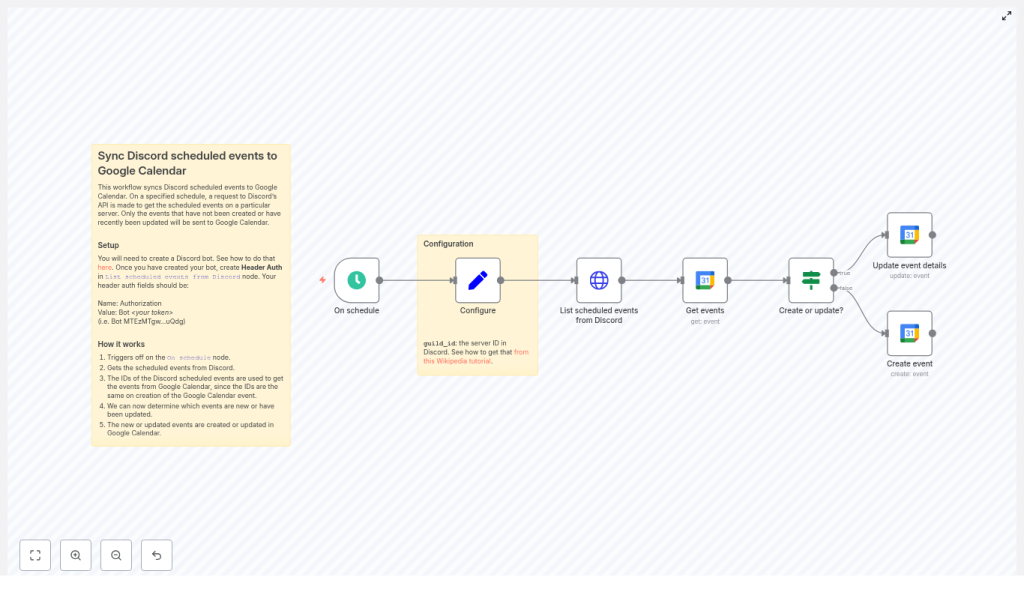
At a high level, this workflow acts like a bridge between your Discord server and your Google Calendar. On a schedule you choose, it:
- Calls the Discord API to fetch all scheduled events in a specific server (guild).
- Looks in Google Calendar to see if each Discord event already has a matching calendar event.
- Creates a new Google Calendar event if it doesn’t exist yet.
- Updates the existing Google Calendar event if details have changed in Discord.
The clever trick behind all this is that the workflow uses the Discord event ID as the Google Calendar event ID. That way, n8n can instantly tell whether an event is new or already synced.
Why bother syncing Discord events to Google Calendar?
If your community, team, or audience hangs out in Discord, you’re probably using Discord scheduled events to promote:
- Community calls or town halls
- Streams, live sessions, or watch parties
- Workshops, office hours, or recurring meetups
The problem is, many people still rely on Google Calendar for their day-to-day planning. By syncing Discord events to Google Calendar, you:
- Centralize your schedule in one place.
- Make it easy for teammates or community members to see events on their phones, tablets, and desktop calendar apps.
- Reduce “I forgot” moments because events show up alongside everything else in their calendar.
So if you’ve ever had to manually copy event details from Discord into Google Calendar, this workflow is about to save you a lot of repetitive clicking.
What you’ll need before you start
Before you import the template or build the workflow, make sure you have:
- An n8n instance You can use n8n Cloud or a self-hosted setup.
- A Discord bot token Create a bot in the Discord Developer Portal, and keep the token handy.
- A Google account with Calendar access You’ll need OAuth2 credentials set up in n8n so it can read and write events.
- The n8n workflow template You can import the template from the example or from the link at the end of this article.
How the workflow is structured
Let’s quickly outline the main pieces of the workflow so the setup steps make more sense:
- On schedule – runs the workflow at a fixed interval, like every 5 minutes or once an hour.
- Configure (Set) – stores your
guild_idso the workflow knows which Discord server to query. - List scheduled events from Discord (HTTP Request) – calls the Discord API to fetch all scheduled events from that server.
- Get events (Google Calendar – get) – tries to find a Google Calendar event whose ID matches the Discord event ID.
- Create or update? (If) – checks if the Google event exists and decides whether to create or update.
- Create event (Google Calendar – create) – creates a brand new event in Google Calendar using data from Discord.
- Update event details (Google Calendar – update) – updates an existing Google Calendar event when something changes in Discord.
With that mental map in place, let’s walk through the setup step by step.
Step-by-step setup in n8n
1. Create and configure your Discord bot
Head over to the Discord Developer Portal and create a new application, then add a bot to it. Once the bot exists:
- Copy the bot token and store it somewhere safe. You’ll need it for the n8n HTTP Request node.
- Invite the bot to your Discord server with permissions that allow it to read scheduled events. The bot must actually be in the guild you want to sync.
- Grab your server (guild) ID: Enable Developer Mode in Discord, right-click your server name, and choose Copy ID. This is the
guild_idyou’ll use in the workflow.
2. Set up header authentication for Discord in n8n
In the HTTP Request node that calls the Discord API, you’ll configure header-based authentication so Discord knows your bot is allowed to make the request.
Add this header:
Authorization: Bot <your_token> Replace <your_token> with your actual bot token. This value is sent in the Authorization header every time the workflow fetches scheduled events from Discord.
3. Connect Google Calendar with OAuth2
Next, in n8n, create or select your Google Calendar OAuth2 credentials:
- Use the standard OAuth2 flow in n8n to connect your Google account.
- Make sure the account has access to the calendar where you want the events to appear.
- Confirm that the scopes allow both reading and writing events.
Once this is set, the Google Calendar nodes in the workflow can create and update events without you needing to touch anything.
4. Import or build the workflow
You can either import the ready-made template or recreate it manually. Either way, here’s how the key nodes fit together:
- On schedule Configure this node to run on a sensible interval, like every 5, 15, or 60 minutes. Running it too frequently can hit rate limits, so start conservatively unless you really need near real-time updates.
- Configure (Set) Use a Set node to store your
guild_id. This keeps things flexible if you want to switch servers later without touching the HTTP Request URL. - List scheduled events from Discord (HTTP Request) Point this node to:
GET https://discord.com/api/guilds/{guild_id}/scheduled-events?with_user_count=trueReplace
{guild_id}with the value from your Set node. Thewith_user_count=trueparameter includes user counts if you want that data. - Get events (Google Calendar – get) For each Discord event, this node tries to fetch a Google Calendar event by ID. The ID used here is the Discord event ID, which is what makes the whole create-or-update logic work so smoothly.
- Create or update? (If) This If node checks whether the Google Calendar get operation found a matching event. If it did, the workflow follows the update path. If not, it goes down the create path.
- Create event (Google Calendar – create) When no event exists yet, this node creates a fresh calendar entry. It sets key fields like start, end, summary, location, and description, and most importantly, it explicitly sets the Google event ID to the Discord event ID.
- Update event details (Google Calendar – update) If the Google event already exists, this node updates it based on any changes in Discord, such as a new time, title, or description.
How to map Discord fields to Google Calendar
The magic of the sync comes from good field mapping. Here’s the typical mapping used in the example workflow:
- summary <= Discord
name - start <= Discord
scheduled_start_time(ISO 8601) - end <= Discord
scheduled_end_time(ISO 8601) - location <= Discord
entity_metadata.location - description <= Discord
description - id <= Discord
id
That last one is especially important. Using the Discord event ID as the Google Calendar event ID keeps everything aligned and makes updates painless.
Why use the Discord event ID as the Google event ID?
You could try to match events by name or time, but that gets messy fast. Titles change, times shift, and you can easily end up with duplicates.
By reusing the Discord event ID as the Google Calendar event ID:
- The workflow can reliably check if an event already exists in Google Calendar.
- The get operation becomes a simple yes-or-no check based on ID.
- Updates become straightforward, since each event has a unique, stable identifier.
In practice, this means:
- If the Google Calendar
getnode finds an event with that ID, the workflow knows it should update it. - If no event is found, the workflow knows it needs to create a new one.
Handling time zones and date formats
Time zones can be sneaky. Discord sends scheduled event times in ISO 8601 format, which is great, because Google Calendar also accepts ISO 8601.
Still, you should:
- Check that the times show up correctly in your Google Calendar client.
- Verify the calendar’s default time zone matches what you expect.
- Optionally transform the timestamps in n8n if you need to convert between time zones.
It is worth creating a couple of test events in Discord and confirming that they appear at the correct time in Google Calendar before you rely on this workflow for important events.
Staying within rate limits and keeping things reliable
Both Discord and Google Calendar APIs have rate limits, so it is a good idea to design your workflow with that in mind.
- Choose a reasonable schedule Running the workflow every few seconds is usually unnecessary and can hit limits quickly. Every 5 to 60 minutes works well for most communities.
- Use n8n error handling Configure retries or error workflows for transient API issues, so a temporary blip does not break your sync.
- Respect Discord rate limit headers If you manage multiple guilds or a large number of events, consider adding throttling or delays to avoid hitting Discord’s limits.
Troubleshooting common issues
1. Discord returns an empty list of events
If the HTTP Request node comes back with no events when you know there should be some:
- Confirm that your bot is actually in the correct Discord server.
- Make sure the bot has permission to read scheduled events.
- Double-check the
guild_idyou set in the workflow. - Verify the
Authorizationheader is exactlyBot <token>with your real token.
2. Google Calendar “get” does not find an event
In this workflow, a missing event is not necessarily a problem. It is what triggers the “create” path. However, if you expected an existing event to be found:
- Check that your Google Calendar credentials are correct and authorized.
- Ensure the OAuth token has the right scopes for reading and writing events.
- Confirm that the Google Calendar event ID is actually set to the Discord event ID.
3. Times look wrong or show up in the wrong time zone
If events appear at unexpected times in Google Calendar:
- Check the time zone settings for both your Discord server and your Google Calendar.
- Verify that the
scheduled_start_timeandscheduled_end_timefrom Discord are correctly passed through. - If needed, add a transformation step in n8n to adjust the timestamps into the desired time zone before sending them to Google.
Security and privacy best practices
Since this workflow deals with API tokens and credentials, it is worth taking a moment to lock things down:
- Never hard-code your Discord bot token or Google secrets directly in your workflow JSON.
- Use n8n’s built-in credential store to keep tokens and OAuth details secure.
- Do not commit tokens or credentials to source control or share them in screenshots.
- Restrict access to your n8n instance to trusted users only.
Ideas for next steps and improvements
Once the basic sync is working, you can start tailoring it to your specific use case. For example, you might:
- Filter events by type or name so only certain Discord events are synced.
- Add logging or alerts (via Slack, email, or another channel) whenever a sync fails.
- Experiment with a two-way sync, where changes in Google Calendar can update Discord events. This usually requires webhooks or more frequent polling and some careful conflict handling.
Wrapping up
This n8n workflow template gives you a simple, reliable way to sync Discord scheduled events into Google Calendar. It:
- Runs on a schedule you control.
- Fetches events from your Discord server.
- Uses the Discord event ID as the Google Calendar event ID.
- Creates new events or updates existing ones automatically.
Ready to try it out? Import the template into your n8n instance, plug in your Discord bot token and Google OAuth credentials, set your guild_id, and run a quick test with a sample event.
If this workflow helps simplify your event management, feel free to share it with your community or teammates, and keep an eye out for more n8n automation ideas to streamline the rest of your stack.
Call to action: Grab the template below, connect your accounts, and let n8n handle the busywork so you can focus on running

