


Sync Discord Events to Google Calendar with n8n
Ever said “yes” to a Discord event, only to forget about it because it never made it onto your Google Calendar? If you live in your calendar but your community lives in Discord, that gets old fast.
In this guide, we’ll walk through a ready-to-use n8n workflow template that quietly keeps your Discord scheduled events and Google Calendar in sync. No more copy-pasting, no more “What time was that again?” Just one source of truth in your calendar.
We’ll cover what the template does, when you’d want to use it, and exactly how to set it up step by step. Grab a coffee and let’s get your automation running.
What this n8n workflow template actually does
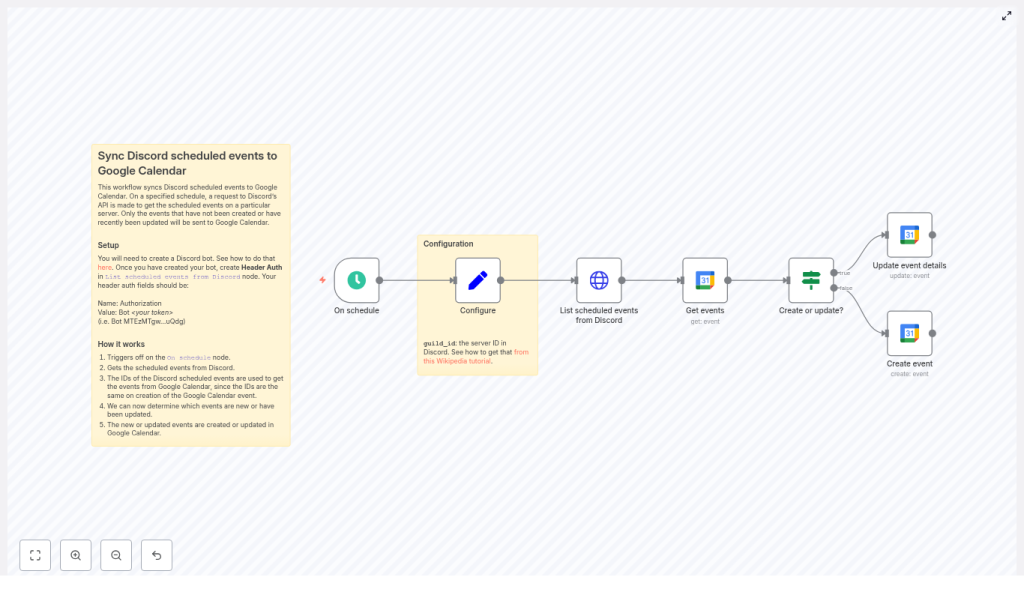
At a high level, this workflow acts like a bridge between your Discord server and a Google Calendar. On a schedule that you choose, it:
- Calls the Discord API to list all scheduled events in a specific server
- Checks Google Calendar to see if each Discord event already exists there (using the Discord event
id) - Creates new Google Calendar events when needed
- Updates existing Google Calendar events if any details have changed
The end result: every scheduled event on your Discord server appears in your Google Calendar with matching details, and stays updated over time.
When to use this Discord-to-Google Calendar sync
This template is perfect if you:
- Run a community, guild, or server that schedules events in Discord
- Rely on Google Calendar to plan your day or share availability
- Want your team or community to see Discord events in a shared calendar
- Are tired of manually recreating every Discord event in Google Calendar
In other words, if Discord is where you organize events but Google Calendar is where you actually look, this workflow saves you from juggling both.
Why this approach works so reliably
The magic here is in how we match Discord events to Google Calendar events. Discord gives each scheduled event a stable id. Instead of trying to match on names or times (which can change), we simply reuse that id as the Google Calendar eventId.
That means:
- Each Discord event maps to exactly one Google Calendar event
- The workflow can easily tell if an event already exists in Calendar
- We avoid duplicates and weird mismatches when details are edited
The logic stays simple: if an event with this ID exists, update it. If not, create it.
What you’ll build in n8n
Here is the core node flow you’ll end up with:
- On schedule – Triggers the sync every X minutes
- Set / Configure – Stores your Discord
guild_id(server ID) - HTTP Request – Lists scheduled events from Discord
- Google Calendar (Get events) – Tries to fetch a matching event using the Discord event
id - If – Decides whether to create or update in Google Calendar
- Google Calendar (Create event) – Creates a new calendar event when needed
- Google Calendar (Update event) – Updates an existing calendar event if it already exists
Let’s go through how to set this up from start to finish.
Before you start: prerequisites
You’ll need a few things ready to go:
- An n8n instance, either cloud or self-hosted
- A Discord bot token with permission to read guild scheduled events
- A Google account with OAuth credentials that allow access to Google Calendar
- The Google Calendar you want to sync events into, plus its Calendar ID (you’ll select it inside n8n)
Once you have these, you’re ready to wire everything together.
Step 1 – Create and configure your Discord bot
First, you need a Discord bot that can see scheduled events in your server.
- Create a bot in the Discord Developer Portal.
- Invite the bot to your server with permissions to view scheduled events.
- Copy the bot token. You’ll use this in n8n to authenticate API calls.
In n8n, open the HTTP Request node that lists scheduled Discord events and set up authentication:
- Use Header Auth
- Add a header:
Authorizationwith valueBot YOUR_BOT_TOKEN
In production, you’ll want to store that token in n8n credentials, not directly in the node. We’ll touch on security best practices later.
Step 2 – Configure the schedule trigger
Next up is deciding how often you want the sync to run.
In the On schedule node, choose a cadence that fits your use case, for example:
- Every 5 minutes if you want near real-time sync
- Every 15 or 30 minutes if you prefer lighter API usage
More frequent runs give faster updates, but also mean more calls to both Discord and Google APIs. Pick a balance that feels right for your server size and activity.
Step 3 – Add your Discord server ID (guild_id)
The workflow needs to know which Discord server to pull events from. That’s where the guild_id comes in.
In n8n:
- Add a Set node (you might name it “Configure”).
- Create a field called
guild_id. - Paste in your Discord server ID.
Not sure where to find the server ID? In Discord:
- Go to User Settings > Advanced.
- Enable Developer Mode.
- Right click your server name and select Copy ID.
Step 4 – List scheduled events from Discord
Now we’ll fetch the actual events from your server using the Discord API.
In your HTTP Request node, configure it to call:
GET https://discord.com/api/guilds/{{guild_id}}/scheduled-events?with_user_count=trueKey details:
- Method:
GET - URL: use the URL above, with
{{guild_id}}coming from your Set node - Headers:
Authorization: Bot <your_token>Content-Type: application/json(n8n usually adds this automatically when needed)
- Query parameter: set
with_user_count=trueif you want attendee counts in the response
This node will output an array of Discord scheduled event objects, each with fields like id, name, scheduled_start_time, scheduled_end_time, and so on.
Step 5 – Check Google Calendar for each Discord event
With the Discord events in hand, the next step is to see if each one already exists in your Google Calendar.
In n8n, add a Google Calendar node and use the Get operation. For each incoming Discord event, map:
- eventId to
{{ $json.id }}(the Discord eventid)
If the Get operation finds a matching event, you’ll get the event data back. If it fails or returns nothing, that means this Discord event has not been synced to Google Calendar yet.
Step 6 – Decide: create or update the event?
Now we need to branch the workflow based on whether the Google Calendar event already exists.
Add an If node and point it at the output of the Google Calendar Get node. A common condition is to check whether the result has an id value, for example:
{{ $json.id }} isNotEmptyInterpretation:
- If that condition is true, the event exists in Google Calendar, so you’ll update it.
- If it’s false, no event was found, so you’ll create a new one.
This simple check keeps the logic clean and avoids messy duplicate handling.
Step 7 – Create new Google Calendar events
On the “create” branch of the If node, add a Google Calendar node with the Create operation. This is where you map Discord fields to Google Calendar fields.
Typical mappings:
- Start:
{{ $json.scheduled_start_time }} - End:
{{ $json.scheduled_end_time }}(or calculate a duration if end time is missing) - Summary (title):
{{ $json.name }} - Location:
{{ $json.entity_metadata.location }} - Description:
{{ $json.description }} - ID / eventId: explicitly set to
{{ $json.id }}
That last step is crucial. By assigning the Google Calendar event ID to the Discord event id, future runs of the workflow will always be able to find and update the same event.
Step 8 – Update existing Google Calendar events
On the “update” branch of the If node, add another Google Calendar node, this time using the Update operation.
You’ll again map the Discord event fields to the Google Calendar ones, similar to the Create operation:
- eventId: use the existing ID from the Get node (which matches the Discord
id) - Start:
{{ $json.scheduled_start_time }} - End:
{{ $json.scheduled_end_time }} - Summary:
{{ $json.name }} - Location:
{{ $json.entity_metadata.location }} - Description:
{{ $json.description }}
This way, if you edit the time, title, description, or location in Discord, the corresponding Google Calendar event will be updated on the next run.
Tips, gotchas, and troubleshooting
Once the core sync is working, a few details are worth paying attention to.
Time zones
- Discord scheduled times are ISO8601 strings.
- Google Calendar also expects proper date-time formats with timezone info.
- If you see events at the wrong time, normalize times in n8n with a Date/Time node or a small Function node to adjust timezones.
Event IDs
- Reusing the Discord
idas the Google CalendareventIdkeeps matching simple. - Some Google Calendar accounts may limit custom IDs, so test this with your account to be sure.
Permissions
- Make sure your Discord bot has permission to view guild scheduled events and is actually in the server.
- For Google, your OAuth credentials must include the proper Calendar scopes.
Rate limits
- Discord and Google both enforce rate limits.
- If you have a large number of events or a very frequent schedule, consider backing off a bit.
- You can add retry or backoff logic in n8n if you start hitting rate limit errors.
Edge cases
- Deleted or canceled Discord events are not automatically removed from Google Calendar in the basic flow.
- If you want strict one-way or two-way sync, add extra logic to handle deletions or cancellations, such as:
- Periodically checking for events that no longer exist in Discord
- Marking or deleting the matching Google Calendar event
Security best practices
You’re dealing with tokens and credentials here, so a few precautions help keep things safe.
- Store the Discord bot token and Google OAuth credentials in n8n credentials, not as plain text in nodes.
- Give your Discord bot only the permissions it actually needs.
- Enable OAuth refresh token handling in n8n so your Google credentials stay valid over time.
How to test your workflow
Before you let the schedule run on its own, it’s worth testing the setup end to end.
- In n8n, run the workflow manually or trigger the On schedule node once.
- Create a scheduled event in Discord and wait for the workflow to run.
- Check your Google Calendar and confirm:
- The event appears
- The details match (title, time, description, location)
- The event ID is the same as the Discord event
id
- Edit the event in Discord (for example, change the time or name) and run the workflow again.
- Verify that the Google Calendar event updates accordingly.
- If something fails, inspect the n8n execution logs and API responses to fix any field mappings or permission issues.
Ideas for advanced enhancements
Once the basic sync is humming along, you can add extra logic to make it even smarter.
- Change detection: Compare “last modified” timestamps to avoid unnecessary updates when nothing has changed.
- Notifications: Send a Slack message or email whenever a new event is created or an existing one is updated.
- Cancellation handling: Detect deleted or canceled Discord events and either remove or mark the corresponding Google Calendar events.
Wrapping up
Using n8n to sync Discord scheduled events to Google Calendar is a simple way to keep your community events visible where you actually plan your life. The core pattern is straightforward: list Discord events, look them up in Google Calendar by ID, then create or update as needed.
You can start with the template as-is, then tweak field mappings, time handling, or notification logic to match how your server runs events.
If you’d like to go further, for example handling cancellations or adding reminders, you can extend the same workflow with a few extra nodes.
Call to action: Clone the template into your n8n instance, create a test scheduled event in Discord, and watch it appear in your Google Calendar automatically. Once you see it working, you’ll never want to do this manually again.
