


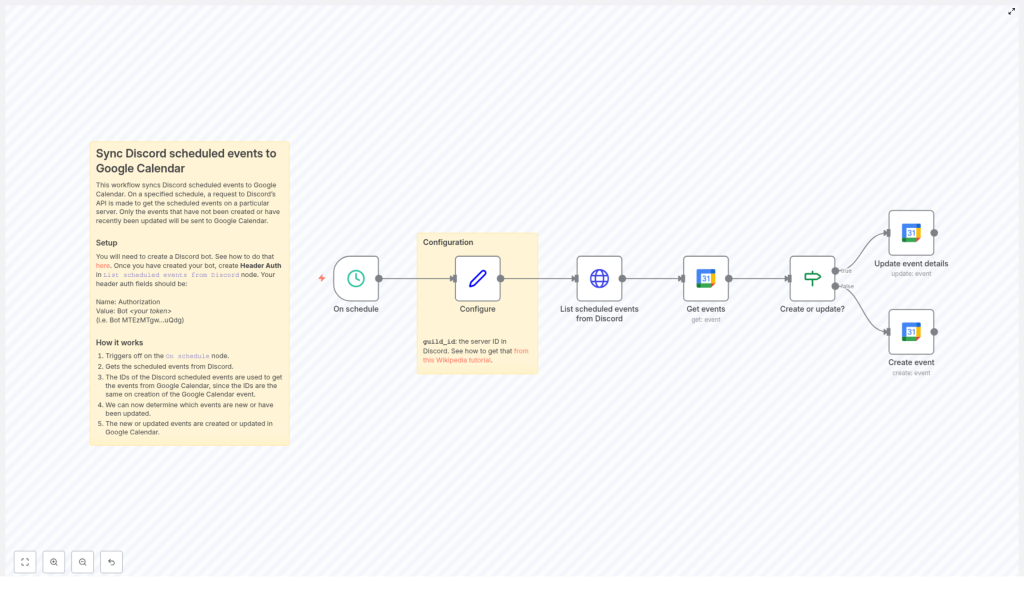
Sync Discord Scheduled Events to Google Calendar Easily
What You Will Learn
In this guide you will learn, step by step, how to use an n8n workflow template to:
- Connect Discord and Google Calendar using their APIs
- Automatically fetch scheduled events from a Discord server
- Create or update matching events in Google Calendar
- Configure your Discord bot, guild ID, and Google Calendar nodes correctly in n8n
By the end, you will have an automated sync that keeps your Discord events and Google Calendar aligned without manual copying.
Why Sync Discord Events With Google Calendar?
Communities, study groups, and event organizers often schedule activities inside Discord, while team members rely on Google Calendar for their daily planning. If these two worlds are not connected, it is easy to miss a session or forget a meetup.
This n8n workflow solves that problem by:
- Centralizing events so you can see all important dates in Google Calendar
- Keeping information consistent when event details change on Discord
- Saving time since you do not have to recreate every event by hand
What You Need Before You Start
Before importing or using the n8n template, make sure you have the following pieces ready.
1. A Discord Bot and Bot Token
The workflow communicates with the Discord API using a bot. You will need to:
- Create a Discord bot in the Discord Developer Portal
- Obtain the bot token, which is used to authorize API requests
If you have never created a bot before, follow this tutorial to set one up and get the token: Creating a Discord bot & getting a token .
2. Google Calendar API Credentials
To allow n8n to read and manage events in your Google Calendar, you need OAuth2 credentials for the Google Calendar API. In practice this means:
- Creating an OAuth2 client in the Google Cloud Console
- Using those credentials to set up your Google Calendar authentication in n8n
These credentials let the workflow list, create, and update events in your chosen calendar.
3. Access to Your Discord Guild (Server) ID
The workflow targets a specific Discord server using its guild_id. You will configure this ID inside n8n so the workflow knows which server to pull events from.
How the n8n Workflow Works Conceptually
Before we configure anything, it helps to understand the high-level logic. The workflow runs on a schedule and keeps Discord and Google Calendar in sync using the following sequence:
- Trigger on a schedule using an
On schedulenode in n8n. - Read configuration such as the Discord
guild_idfrom a dedicated configuration node. - Fetch scheduled events from Discord by calling the Discord API endpoint
/guilds/{guild_id}/scheduled-events. - Check Google Calendar for events that match the Discord event IDs.
- Compare data to decide whether each Discord event already exists in Google Calendar or needs to be created.
- Create or update Google Calendar events so that details like time, title, description, and location match the latest information from Discord.
The key idea is that the Discord event ID becomes the reference point for deciding whether to create a new calendar event or update an existing one.
Step-by-Step: Setting Up the Workflow in n8n
Step 1: Import the Template and Review the Nodes
Start by importing the n8n workflow template into your n8n instance:
Once imported, open the workflow and look for the following key nodes:
- On schedule – triggers the workflow at regular intervals
- Configure – stores configuration values like the Discord guild ID
- List scheduled events from Discord (HTTP Request node)
- Get events (Google Calendar node)
- Create event (Google Calendar node)
- Update event details (Google Calendar node)
Step 2: Configure the Schedule Trigger
The On schedule node controls how often the sync runs. For example, you might want to:
- Run every 15 minutes for very active communities
- Run hourly or daily for less frequent updates
Choose a schedule that balances up-to-date information with API usage limits.
Step 3: Set the Discord Guild ID in the Configure Node
The Configure node typically contains a field for your guild_id, which is the Discord server ID. To find this ID:
- In Discord, open User Settings and enable Developer Mode.
- Right-click on your server name in the sidebar.
- Click Copy ID to copy the guild ID to your clipboard.
If you need a visual walkthrough, see this tutorial: Getting Guild ID .
Paste that ID into the appropriate field in the Configure node so the workflow knows which server to query.
Step 4: Authorize the Discord HTTP Request Node
The List scheduled events from Discord node is an HTTP Request node that calls the Discord API to retrieve events. You must add your bot token in the request headers so Discord accepts the request.
In this node, set the header as follows:
- Header Name:
Authorization - Value:
Bot <your token>
Replace <your token> with the actual bot token from the Discord Developer Portal. The node will then call: /guilds/{guild_id}/scheduled-events for the guild ID you configured, and retrieve all scheduled events including the user count for each event.
Step 5: Connect and Configure Google Calendar Nodes
The workflow uses Google Calendar nodes to read and modify calendar events. You will typically see nodes named:
Get events– to check if an event already existsCreate event– to add a new event to Google CalendarUpdate event details– to modify an existing event
For each of these nodes, you need to:
- Select or create your Google Calendar credentials in n8n using your OAuth2 setup.
- Replace any placeholder calendar IDs with the actual ID of the Google Calendar where you want events to appear.
The calendar ID is often your email address for a primary calendar, or a specific ID for secondary calendars.
Step 6: How the Workflow Matches Discord Events to Calendar Events
Once the Discord events are fetched, the workflow processes each one and checks Google Calendar to see if there is already a corresponding event. The logic usually works like this:
- Take the Discord event ID from the API response.
- Use the
Get eventsnode to search the target Google Calendar for an event that corresponds to that ID (for example, via a stored ID or a mapped field). - If an event is found, pass it to the
Update event detailsnode. - If no event is found, send the Discord event data to the
Create eventnode.
Through this comparison, the workflow decides whether it should create a new calendar entry or update an existing one.
Step 7: Creating New Events in Google Calendar
When the workflow determines that a Discord event is new, it uses the Create event node to build a matching event in Google Calendar. Typical fields mapped from Discord include:
- Start time and end time
- Summary or event title
- Location (for example, a voice channel or physical location)
- Description, which can contain more details about the event
This ensures that the new calendar event reflects the original Discord scheduled event as closely as possible.
Step 8: Updating Existing Events With the Latest Discord Data
If the workflow finds that a Google Calendar event already corresponds to a Discord event, it uses the Update event details node instead. This node updates fields such as:
- Start and end times if the event was rescheduled
- Title or summary if the name changed
- Location or description if details were edited in Discord
As a result, your Google Calendar always reflects the most recent information from your Discord server.
Benefits of Automating Your Discord to Google Calendar Sync
- Time-saving – No more copying and pasting event details between platforms.
- Consistency – Changes made to Discord scheduled events are quickly mirrored in Google Calendar.
- Centralized scheduling – Everyone can rely on a single calendar view, even if events originate in Discord.
Frequently Asked Questions
Do I need to run the workflow manually?
No. The workflow is triggered by the On schedule node. Once you set the schedule, n8n will run it automatically at the configured intervals.
Can I use a different Google Calendar?
Yes. Just replace the placeholder calendar IDs in the Get events, Create event, and Update event details nodes with the ID of the calendar you want to use.
What happens if I change an event only in Google Calendar?
This template is designed primarily to push data from Discord to Google Calendar. If you change events only in Google Calendar, those changes will not automatically sync back to Discord unless you extend the workflow with additional logic.
Is my Discord bot token secure in n8n?
You should always treat your bot token as a secret. Store it in n8n credentials or environment variables where possible, and avoid hardcoding it in nodes that might be shared.
Next Steps: Put the Workflow Into Action
To start syncing your events:
- Create your Discord bot and copy the bot token.
- Set up Google Calendar API OAuth2 credentials in n8n.
- Import the template and configure the
guild_id, bot Authorization header, and Google Calendar IDs. - Adjust the schedule to match how often you want events synced.
- Activate the workflow and watch your Discord scheduled events appear in Google Calendar.
With this n8n automation in place, your community or team can stay organized and never miss a Discord event again.
