


Sync Discord Scheduled Events to Google Calendar with n8n
Ever told your friends, “Yeah, I’ll be there!” to a Discord event, then completely forgot because it never made it into your calendar? If your life is run by Google Calendar but your community lives on Discord, manually copying events back and forth gets old fast.
Good news: n8n can do that boring copy-paste work for you, quietly in the background, without complaining or getting distracted by memes.
What this n8n workflow actually does (in plain English)
This workflow connects your Discord server and Google Calendar so scheduled events in Discord automatically appear (and stay updated) in your calendar.
Here is the basic idea:
- On a schedule, n8n asks Discord, “Hey, got any scheduled events for this server?”
- For each event it finds, it checks Google Calendar to see if that event already exists.
- If the event is new, n8n creates it in Google Calendar.
- If the event already exists, n8n updates it so time, title, or description changes stay in sync.
- The Discord event ID is used as the Google Calendar event ID so matching them later is simple and reliable.
Result: no more double entry, no more “Wait, what time is that event again?” and a lot fewer calendar-related facepalms.
Why bother syncing Discord events to Google Calendar?
Discord’s Scheduled Events feature is great for visibility inside a server, but most people still live inside their calendar when it comes to planning their day.
Automating the sync:
- Prevents you from manually retyping event details like a spreadsheet goblin
- Makes sure people see Discord events alongside work, personal, and other commitments
- Keeps updates consistent so nobody shows up at the wrong time because only Discord got updated
- Eliminates duplicate data entry, which everybody hates but pretends is “fine for now”
What you will build with this template
You will create an n8n workflow that:
- Periodically fetches all scheduled events from a specific Discord server (guild).
- For each event, calls Google Calendar and tries to get an event with the same ID.
- Updates the event in Google Calendar if it already exists.
- Creates a new event in Google Calendar if it does not exist.
- Stores the Discord event ID as the Google Calendar event ID, so future updates are easy and consistent.
It is a lightweight, reliable sync that you can schedule to run as often as you like, as long as you respect Discord’s rate limits.
What you need before you start
Before diving into n8n, make sure you have:
- An n8n instance (cloud or self-hosted).
- A Discord bot token with permission to list scheduled events in the target server.
- A Google account with a calendar and Google Calendar OAuth2 credentials configured in n8n.
- The Discord server ID (
guild_id) for the server whose events you want to sync.
Once those are ready, the rest is mostly clicking, mapping, and feeling smug about your new automated life.
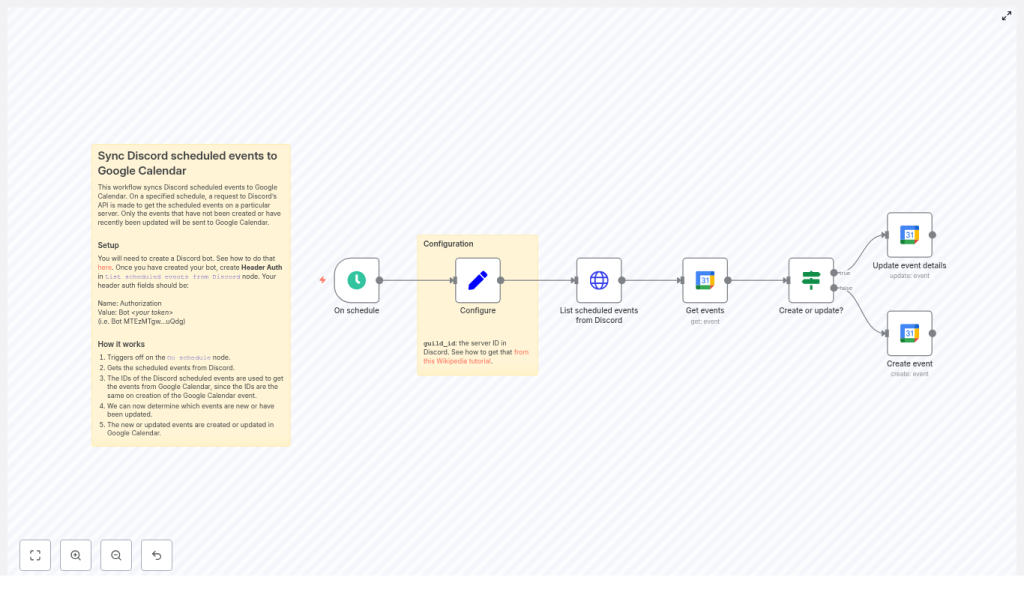
Workflow overview: the n8n nodes involved
The template workflow is built from a simple left-to-right chain of nodes:
- On schedule – triggers the workflow at a set interval.
- Set (Configure) – stores the target Discord
guild_id. - HTTP Request – lists scheduled events from Discord.
- Google Calendar (Get events) – checks if an event with that ID exists in your calendar.
- If – decides whether to create or update the event.
- Google Calendar (Create event) – creates a new event when needed.
- Google Calendar (Update event details) – updates existing events when they change on Discord.
Let us walk through how to configure each part without losing our sanity.
Step-by-step setup in n8n
1. Set up the schedule trigger
Start with the On schedule node.
- Choose how often you want n8n to poll Discord, for example every 15 minutes.
- Pick a frequency that balances freshness with Discord rate limits. For many servers, 10 to 30 minutes is a good starting point.
2. Store the Discord server ID
Add a Set node, usually named something like Configure.
- Create a field called
guild_id. - Set its value to the Discord server (guild) ID you want to sync.
This way you only have to change the server ID in one place instead of hunting through multiple nodes later.
3. Pull scheduled events from Discord
Next, add an HTTP Request node to fetch events from Discord’s API. This is where your bot actually does some work.
Use this URL expression:
=https://discord.com/api/guilds/{{ $('Configure').first().json.guild_id }}/scheduled-eventsIf you want attendee counts included, add this query parameter:
with_user_count=true
For authentication, create a generic Header Auth credential in n8n:
- Header name:
Authorization - Header value:
Bot <your token>
Example:Bot MTEzMTgw...uQdg
This tells Discord, “Hi, I am a bot, please let me see the scheduled events.”
4. Check for an existing Google Calendar event
Now add a Google Calendar node configured with the Get operation.
- Set the Calendar field to the calendar where you want events to appear.
- For eventId, use the Discord event ID:
eventId: ={{ $json.id }}
This step tries to find a Google Calendar event whose ID matches the Discord event ID. If it exists, great. If not, we will create one.
5. Decide whether to create or update
Add an If node to determine which path to follow.
You want to check whether the Google Calendar Get operation succeeded or not. A simple approach is to:
- Use Continue On Fail on the Google Calendar Get node if you expect 404s when events are missing.
- In the If node, test whether
{{ $json.id }}is present or not, and use that to route to either Create or Update branches.
This is the logic that prevents duplicate events and keeps everything neatly aligned.
6. Create a new Google Calendar event
On the “create” branch, add a Google Calendar node with the Create operation.
Map the Discord fields to Google Calendar fields using n8n expressions. For example:
- Start:
{{ $('List scheduled events from Discord').item.json.scheduled_start_time }} - End:
{{ $('List scheduled events from Discord').item.json.scheduled_end_time }} - Summary (event title):
{{ $('List scheduled events from Discord').item.json.name }} - Location:
{{ $('List scheduled events from Discord').item.json.entity_metadata.location }} - Description:
{{ $('List scheduled events from Discord').item.json.description }} - Id (under additionalFields → id):
{{ $('List scheduled events from Discord').item.json.id }}This sets the Google Calendar event ID to the Discord event ID.
That final mapping is the secret sauce that makes future updates easy, instead of forcing you to do fuzzy matching on titles or times.
7. Update existing Google Calendar events
On the “update” branch, add another Google Calendar node, this time using the Update operation.
- Use the same eventId logic so you are updating the correct event.
- Map the same fields as in the create node:
- Start
- End
- Summary
- Location
- Description
Now, whenever you change the time, title, or details of a Discord scheduled event, the Google Calendar event will follow along on the next run. No more “Wait, which version is the right one?” confusion.
Key implementation details to get right
Using Discord event IDs as Google event IDs
By setting the Google Calendar event ID to the Discord scheduled event ID during creation, you give the workflow a stable way to find the same event later.
Google Calendar accepts custom event IDs as long as they are globally unique within that calendar, which makes Discord IDs a perfect match. It also keeps your logic clean and avoids messy lookups.
Handling timezones like a pro
Discord stores scheduled times in ISO format. That is good news, but you still need to make sure Google Calendar gets properly formatted timestamps with timezone information.
- If Discord times are already in the correct timezone, you can map them directly.
- If you need to normalize to a specific timezone, use a Function node or a Date/Format node in n8n to convert the times before sending them to Google Calendar.
Getting this right avoids the classic “Why is this event at 3 a.m.?” problem.
Respecting rate limits and choosing a polling interval
Discord has rate limits, and it is not shy about enforcing them. To stay on its good side:
- Start with a conservative polling interval, such as every 10 to 30 minutes.
- Monitor your n8n execution logs for any rate limit responses.
- Only increase frequency if your server really needs it.
Your workflow will be happier, and so will Discord.
Error handling so you do not miss failures
- Set the Google Calendar Get events node to Continue On Fail if you expect 404s when events do not exist yet.
- Log or notify errors with an Email or Slack node if a particular request keeps failing.
- Consider adding a retry or backoff pattern for transient errors so your workflow can recover gracefully.
That way, you find out about real problems instead of quietly losing events.
Testing your Discord to Google Calendar sync
Before trusting automation with your entire event schedule, give it a quick test run:
- Deploy your Discord bot and confirm it:
- Is a member of the target server.
- Has permission to view scheduled events.
- In n8n, configure:
- The Header Auth credential with your Discord bot token.
- Your Google Calendar OAuth2 credentials with the right scopes.
- Create a test scheduled event in Discord, then run the workflow manually.
- Check that a new event appears in your chosen Google Calendar.
- Confirm that the event ID in Google Calendar matches the Discord event ID.
- Edit the Discord event (change time, title, or description) and run the workflow again.
- Confirm the Google Calendar event updates with the new details.
Once that works, you are ready to let the schedule trigger take over.
Advanced ideas for power users
When the basic sync is running smoothly, you can start getting fancy.
- Two-way sync: Want changes in Google Calendar to flow back into Discord events? You can build a second workflow that:
- Watches Google Calendar for changes.
- Uses the Discord API to update scheduled events.
You will need a bot with the correct permissions and the relevant Discord endpoints.
- Filtering events: Only want certain events, like “community” events or those with a specific keyword?
- Add filters before the Create/Update nodes.
- Filter by event type, name, or description so only relevant events sync.
- Richer event details: Pull extra data such as
entity_metadataor other fields from Discord.- Include images or metadata in the event description.
- Add more context so your calendar events look less bare and more informative.
Troubleshooting common issues
If your events are not showing up in Google Calendar, do a quick sanity check:
- Confirm your Header Auth is correctly set:
Authorization: Bot <token>
- Verify the
guild_idis correct and that the bot is actually in the server. - Check your Google Calendar OAuth credentials:
- Make sure the scopes allow creating and updating events.
- Confirm you selected the correct calendar in the node.
- Inspect n8n execution logs:
- Look at HTTP status codes from Discord and Google.
- Check response bodies for helpful error messages.
Most problems come down to permissions, credentials, or a tiny typo in an ID.
Wrapping it up
This n8n workflow gives you a dependable way to sync Discord scheduled events into Google Calendar without manual effort. It is a great fit for communities, event organizers, and anyone who lives in Discord but plans their life in Google Calendar.
Start with the setup above, then:
- Tune the polling interval based on your server size and activity.
- Adjust field mappings to match how you want events to appear.
- Add error handling and logging for production-grade reliability.
Ready to build? Import the template into your n8n instance, plug in your Discord bot header auth and Google Calendar OAuth credentials, and run a test. If you want to go further with filters, two-way sync, or timezone fine tuning, you can extend this workflow using the n8n docs and Discord API documentation.
Happy automating, and enjoy never having to copy event details by hand again.
